

Choosing an AI Model
The model is the engine that turns an Agent’s instructions and context into a response. Changing it can affect answer quality, instruction-following, response length, and the number of credits used for every response.
Purpose
Choose the lowest-cost model that reliably passes the questions your Agent needs to answer, then tune only the parameters that solve a specific, observed problem.
Prerequisites
- An active Agent with baseline instructions. See Customizing Instructions.
- A small test set of real questions, including straightforward, ambiguous, and difficult examples.
- Permission to configure models on your team’s plan.
These settings belong to the Agent’s default Responder, the AI configuration used to answer prompts. If your Agent has the Responders capability turned on, the Behavior page is hidden and you configure the model on each Responder instead.
How the Setting Reaches the Agent
Every prompt uses the model saved on the Agent’s Responder, and only the parameters that model supports are sent. The published Agent interface does not display the model name, so verify a change through representative questions rather than looking for a model badge in the chat window.
Model availability is live configuration. Names, recommendations, credit costs, and deprecation dates can change, so use the cards currently shown in Console rather than relying on a fixed list in documentation.
Steps
Open the Model Tab
Select Agents in the left-hand navigation, open your Agent, choose Behavior from the row of pages across the top, and then select the Model tab.
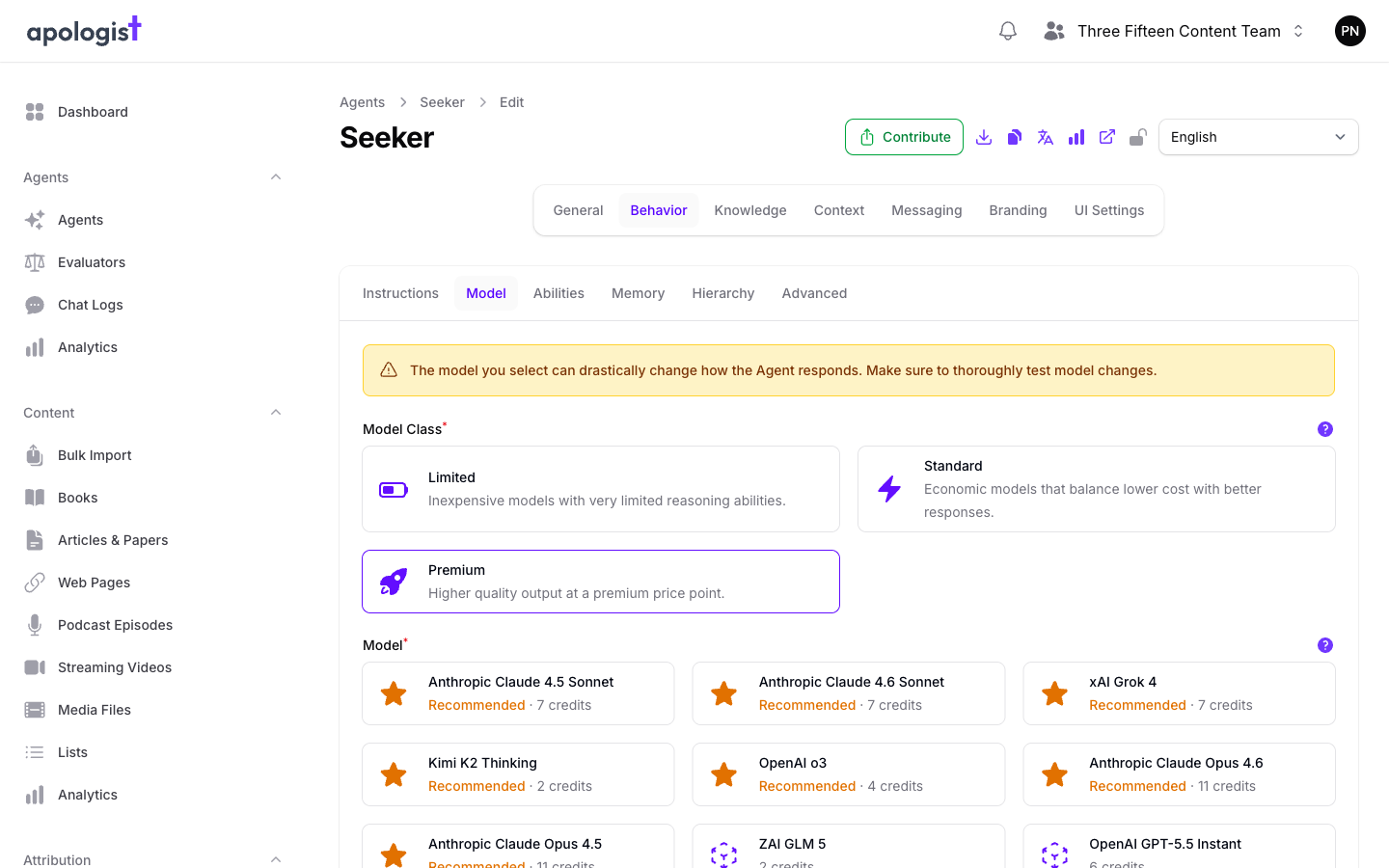
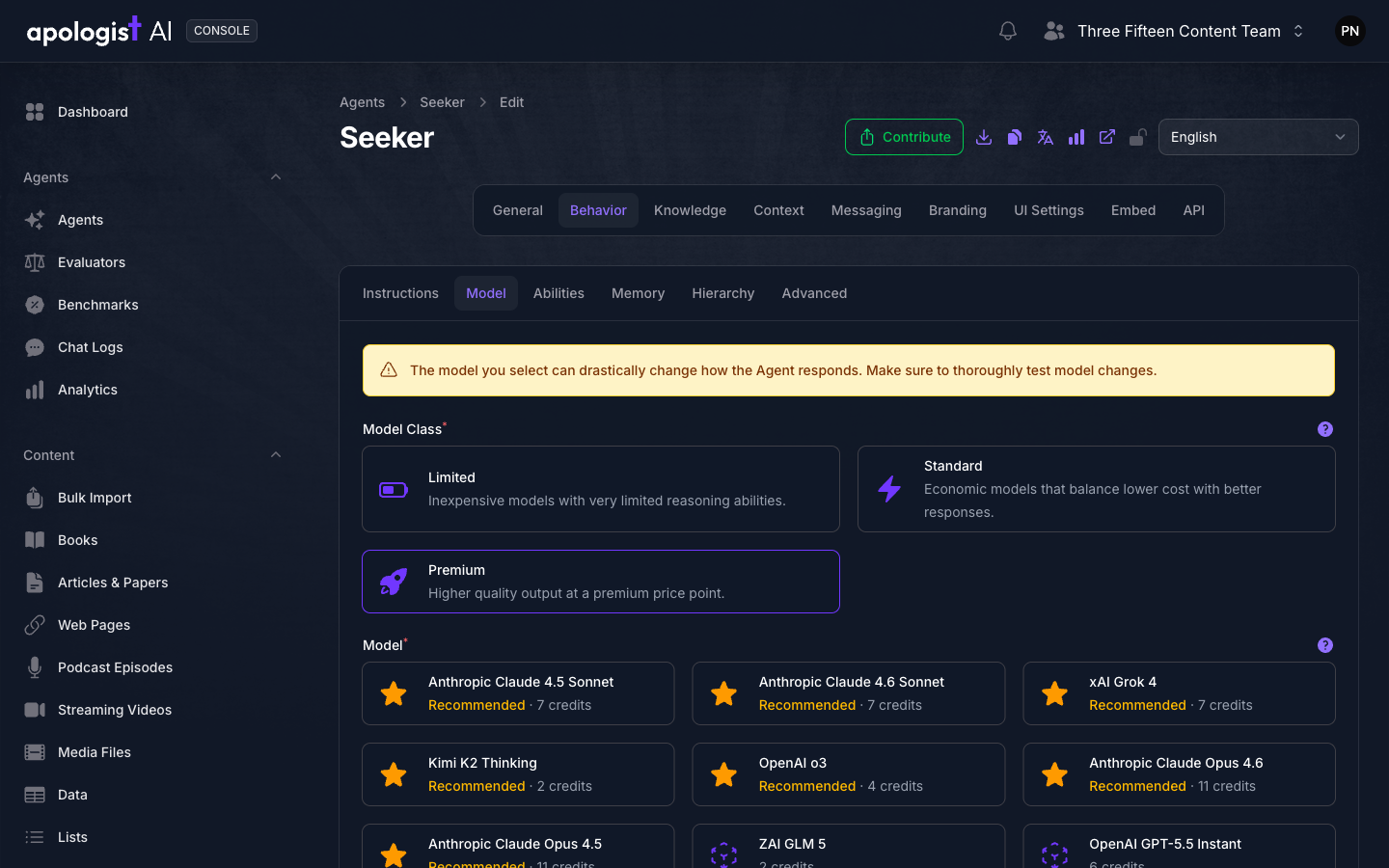
Console groups models into three classes:
Selecting a class filters the model cards beneath it.
Choose a Model By Evidence And Cost
Each model card shows its credit cost per response. Additional feature charges, such as Live Web Search, are separate and can stack on top of this amount.
Use the card signals as a shortlist:
- Recommended cards are starred and sorted toward the top.
- A Deprecation label identifies a model that should be replaced; when available, the label includes the planned date.
- An unlabelled card is still available, but Console is not specifically recommending it.
Start with the least expensive recommended model in the class that fits your use case. Do not assume a premium model is automatically the right choice: a cheaper model that consistently follows your instructions is the better production model.
Selecting a different model resets Max Output Tokens on the Advanced tab to that model’s maximum. Review the Advanced tab before saving, especially if your Agent should give short answers.
Review the Supported Advanced Parameters
Still on the Behavior page, select the Advanced tab.
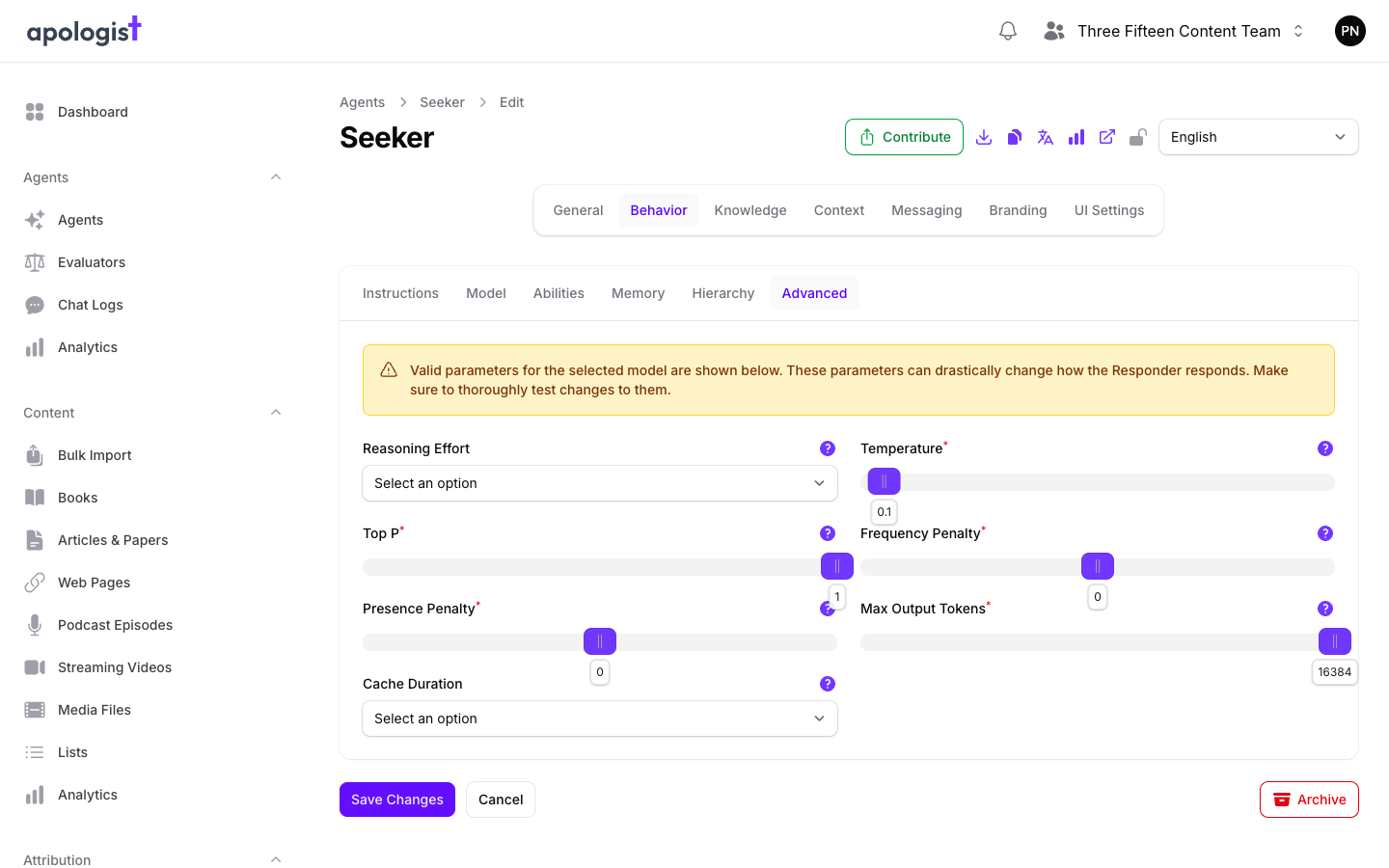
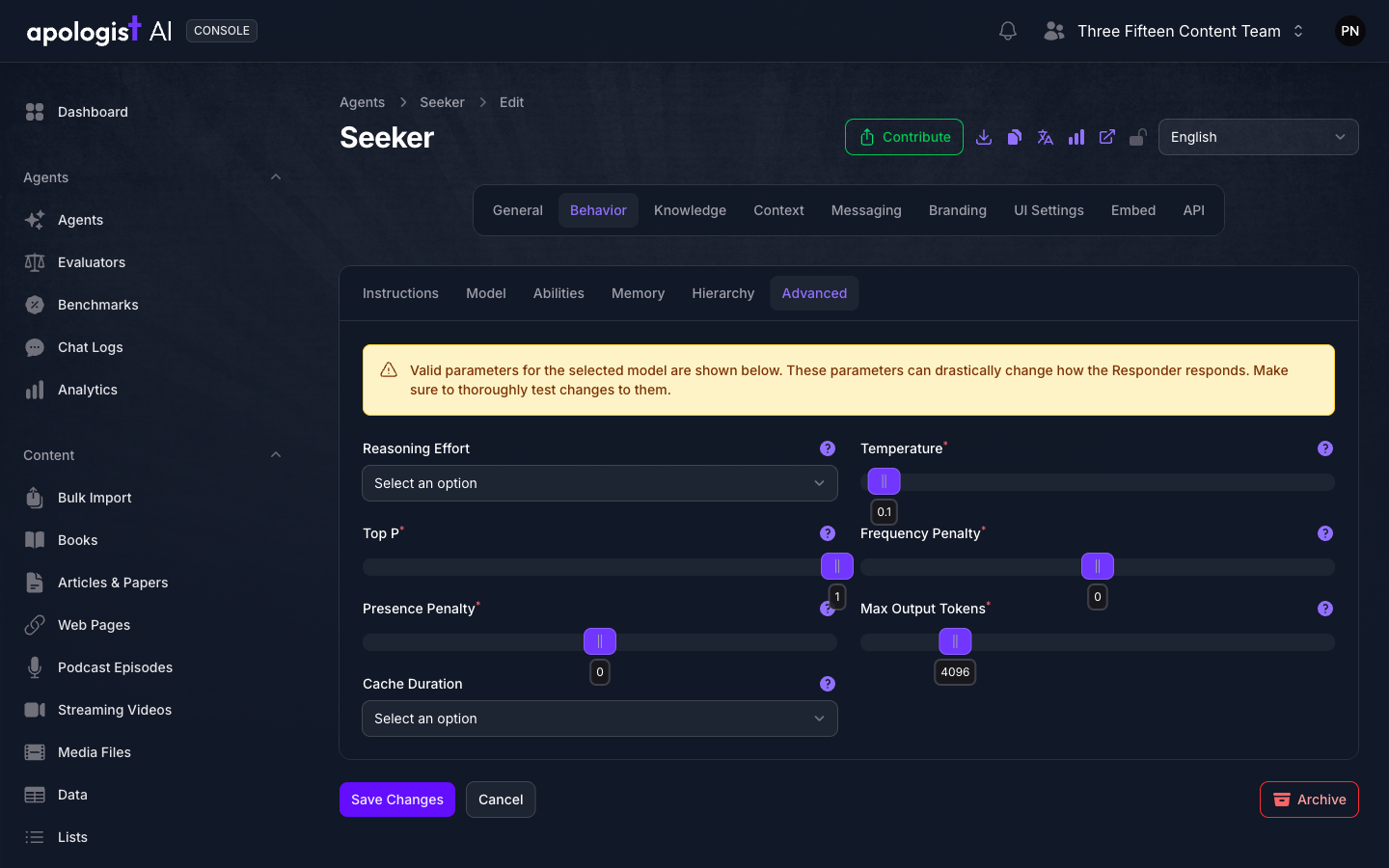
Console hides parameters the selected model does not support, so a missing control is expected rather than a sign the form failed to load.
If Reasoning Effort or Verbosity shows Select an option, the Agent runtime falls back to Medium for a model that supports that parameter. Select an explicit value when you want the saved configuration to be unambiguous.
Change one parameter at a time and retest. Otherwise, you cannot tell which setting improved or degraded the response.
Save And Test On the Published Agent
Select Save Changes. Model and Advanced are tabs in the same Behavior form, so one save persists changes made on either tab.
Open the Agent’s published URL and ask a question, starting a New Chat before each isolated test so conversation history does not affect the next result.
Run the same test set for every candidate model:
Record the model, parameter values, credits per response, and pass/fail result. Judge the complete set rather than the most impressive single answer; model output can vary between runs.
A configured Cache Duration can return the same stored response for repeated identical messages under the same model configuration. Leave it unselected while measuring response variation.
Test through the published Agent when validating Console settings. API clients can supply per-request model settings that override the saved values and are therefore a different test.
Expected Result
The Agent uses a non-deprecated model that passes its representative test set at an acceptable credit cost. Advanced parameters are explicit where needed, unsupported controls remain hidden, and the published Agent responds consistently with its instructions.
Troubleshooting
- The Behavior page is missing. The Agent has the Responders capability turned on, so choose and configure the model on each Responder.
- The Model or Advanced controls are disabled. Model configuration is not included in the team’s current plan, or editing is restricted for this Agent.
- A model is not listed. Console shows active models allowed by the team’s plan. Availability changes as models and plans change.
- An Advanced control disappeared after switching models. The new model does not support that parameter. Console intentionally hides it, and the Agent runtime does not send it.
- Max Output Tokens changed unexpectedly. Choosing a model resets the value to that model’s maximum. Set the intended limit after selecting the model.
- Reasoning Effort says Select an option. With no explicit value saved, the runtime uses Medium on supported reasoning models.
- Repeated tests return exactly the same answer. Clear Cache Duration and save, then start a New Chat before testing again.
- The response still seems to use the old behavior. Confirm Save Changes completed, start a New Chat, and test through the published Agent rather than an API request carrying overrides.