

Attribution
This guide covers giving credit for your content. Your content lives in Sources: single pieces of content, such as an article, a video, or a podcast episode. Two kinds of record carry the credit, and both have their own entries under Attribution in the left-hand navigation.
A Contributor is a person credited on a Source, such as its author, a speaker or a translator. Your Agent names a Source’s Contributors when it cites it. Your Organization is the ministry, publisher or other body your team works for, and your team has one.
Purpose
Credit the right people on your Sources, so your Agent names them when it cites your content, and describe the organization behind it.
Prerequisites
- A Source to credit. See Adding and Editing Content.
- Permission to edit content for your team.
Add a Contributor
You may already have Contributors: importing a book, or a web page that names its author, adds each author who is not already one. Add one yourself when the person you want to credit is not already in your team’s Contributors list.
Select Contributors under Attribution, then Add Contributor. First Name and Last Name are required. Title is an honorific such as Doctor or Reverend, and Suffix is anything after the name, such as Jr. Console puts them together into the name people see, such as Rev. Miriam Hale.
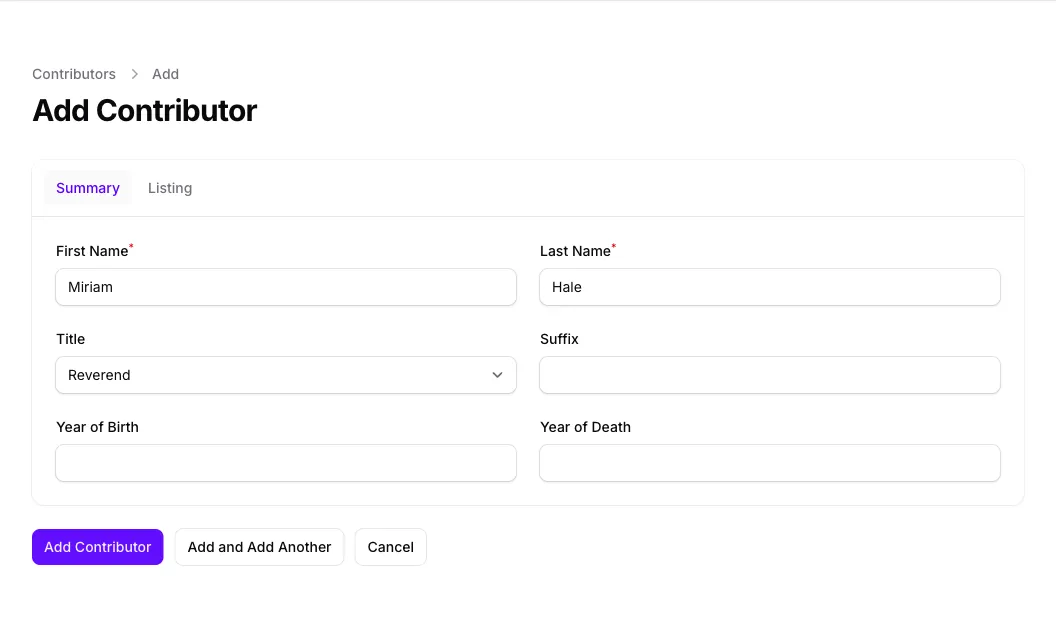
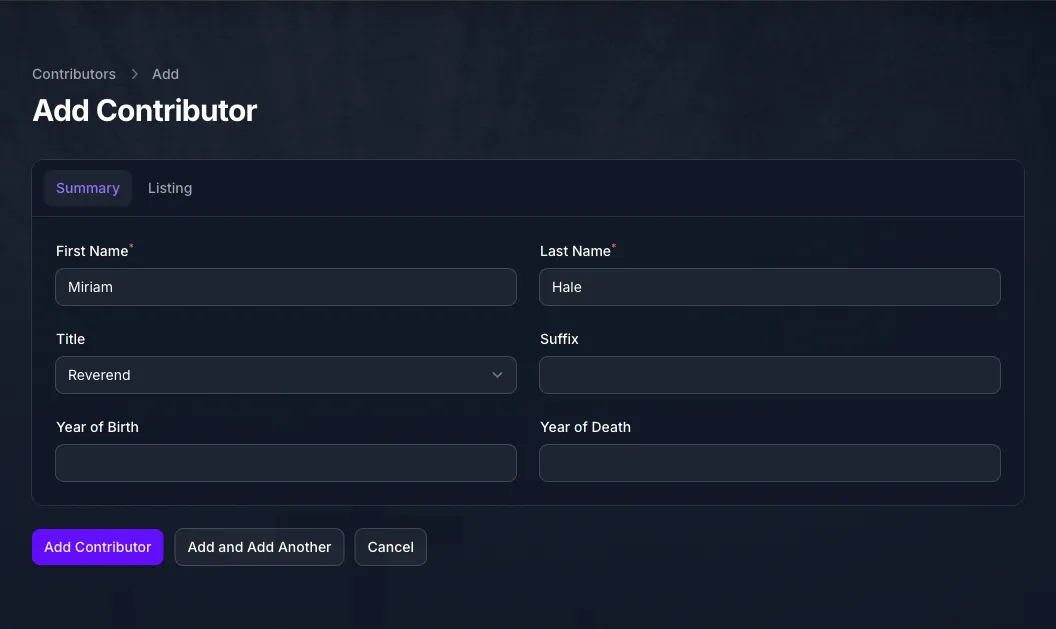
Year of Birth and Year of Death are optional. Select Add Contributor, and Console opens the Contributor for editing.
The Categories tab is filled in for you from the Sources the Contributor is credited on, so there is nothing to choose. It is brought up to date when one of those Sources has its categories changed, so a Contributor you have just credited can show none at first.
Give a Contributor a Page On the Directory
A Contributor can have a page of their own on the Directory, Apologist’s public catalogue of resources at apologist.com. Fill in their Listing tab: an Image and a Bio to show on the page, a Learn More URL for the page people are taken to when they select Learn More, and a Slug, the last part of the page’s address. Then turn on Show Listing on Directory and select Save Changes.
The page is published only once the Contributor is approved. Select Contribute at the top of the Contributor and confirm, and Apologist reviews it. While it is waiting for review, its fields cannot be changed. For more on listing and approval, see Where Your Content Appears.
Credit a Contributor On a Source
Open the Source from its list, such as Articles & Papers, and select the Contributors tab below its form. Select Add Contributor, choose the person and their Role, then select Add Contributor in the dialog, or Add and Add Another to keep going.
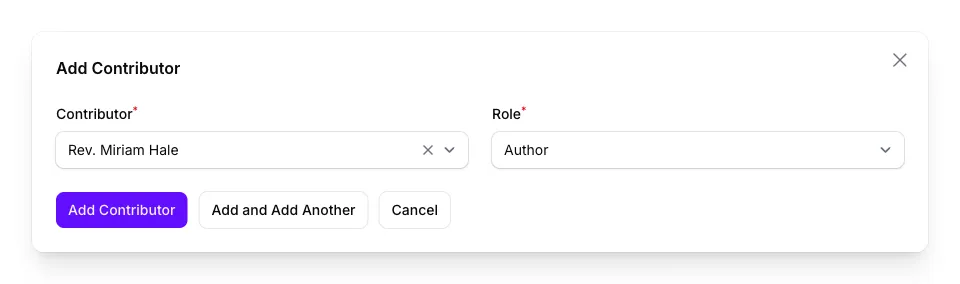

Role says what the person did:
Add each person separately. A Source can credit as many people as you need, and the same person can be credited on any number of Sources.
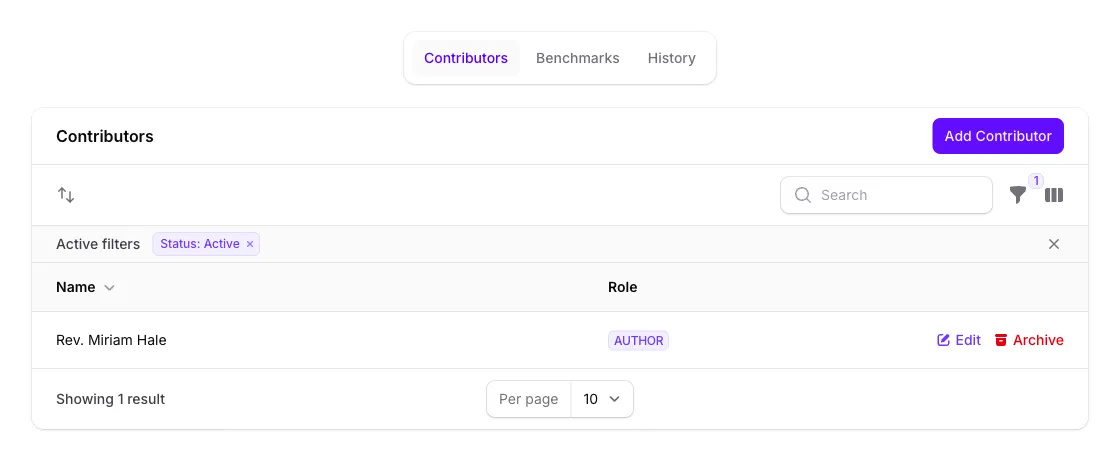
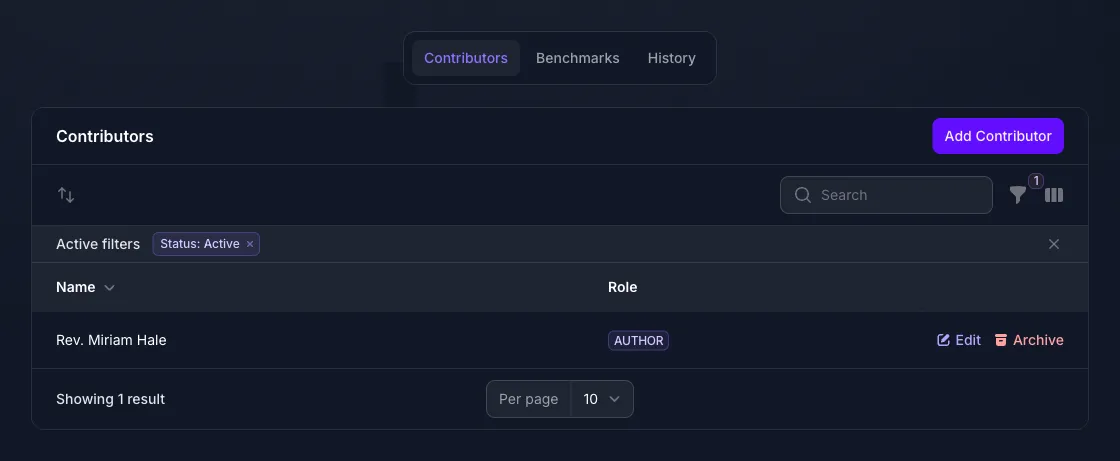
To credit one person on many Sources at once, open a Sources list such as Articles & Papers, tick the Sources, and choose Add Contribution from the Contributor menu above that list. Remove Contribution in the same menu takes a person off every ticked Source.
You can also work from the Contributor: the Contributor Roles table below their form lists every Source they are credited on, and Add Contributor Role credits them on another.
What People See In Your Agent
When your Agent cites the Source, the names appear under its title wherever the Agent lists its sources. Selecting View Sources under an answer opens that list as Sources Used in this Response. The Agent is also told who wrote each Source it draws on, so it can name them in its answer.


Reindex after crediting someone on content your Agent already uses. Adding a Contributor does not index the Source again, so your Agent goes on citing it without the name. Select Reindex on the Source’s Agent tab and confirm.
Merge Duplicate Contributors
The same person can end up as two Contributors, for example when their name is spelled differently in two imports, or when someone adds them by hand without noticing they already exist. Merging keeps one.
Open the Contributor you want to get rid of and select Merge at the top. Choose the Contributor to keep and select Confirm. Every credit moves to the one you kept, and the one you opened is archived, which you will see once you reload the page.
Describe Your Organization
Select Organization under Attribution. The first time, it opens a form to add your team’s Organization; after that, it opens the one you added.
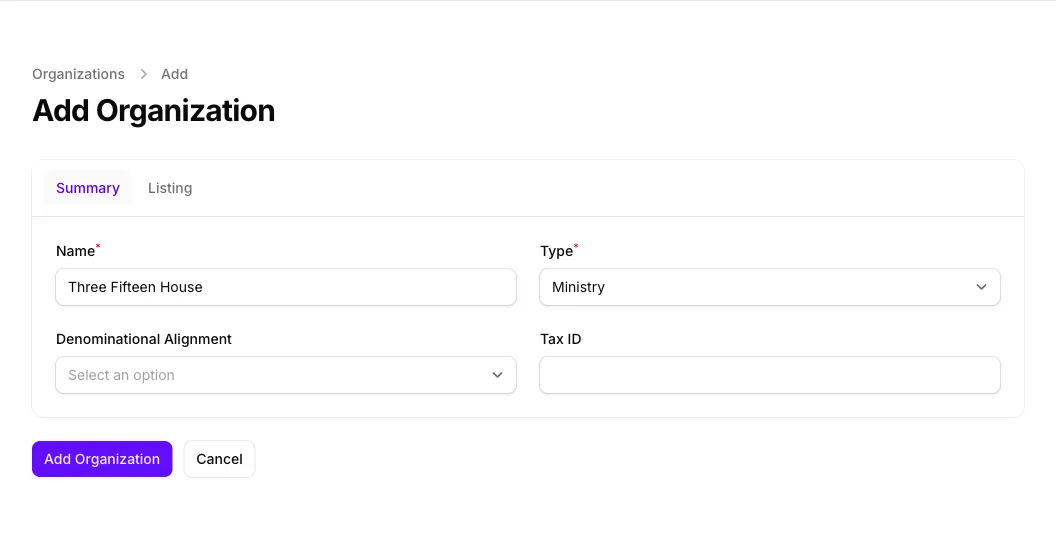
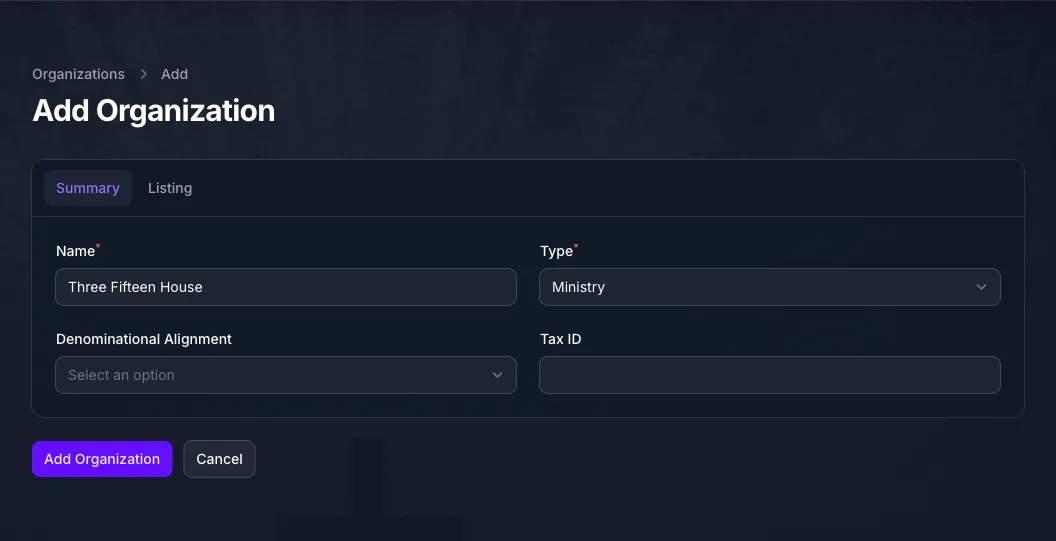
Give it a Name and a Type: Ministry, Publisher or Other. Denominational Alignment records the Christian tradition your organization’s content reflects, such as Roman Catholic or Reformed; the same field on a Source is described in Adding and Editing Content. Tax ID is optional. Select Add Organization.
Your Organization is for the Directory, where it has a page of its own; your Agent does not show it. Its Listing tab fills in that page the way a Contributor’s does, with a Description in place of a Bio, and it is listed the same way, through Show Listing on Directory and Contribute; see Give a Contributor a Page On the Directory. Its Categories are filled in from your team’s Sources as their categories change.
Troubleshooting
- Add Contributor does not offer the person you want. They are not a Contributor yet. Add them first, then credit them.
- Your Agent does not show a name you added. The Source has not been indexed since. Select Reindex on the Source’s Agent tab.
- The Categories tab is empty. Categories are copied from the Sources a Contributor is credited on when those Sources’ categories change, so a new credit does not fill them in on its own. See Organizing Content for a Source’s categories.
- The fields cannot be changed, with a note that the Contributor is pending approval. Someone on your team selected Contribute to list it on the Directory, and it stays read-only until Apologist reviews it. See Give a Contributor a Page On the Directory. The same applies to your Organization.
- A merged Contributor still shows its credits. The page does not refresh after a merge. Reload it.
- Organization opens an existing record rather than a new form. Your team already has an Organization, and a team has one. Edit that one.
Next Step
Your content is added, organized, published and credited. To choose which of it your Agent draws on, continue to Curating Sources.