

Configuring Bible Translations
Bible translation settings control which translations an Agent may quote and which one it reaches for first.
Purpose
Select the Bible translations an Agent can use, set a default translation for each language, and supply the provider credentials those translations require.
Prerequisites
- A configured Agent with its languages set. See Configuring Languages.
- Approved translation choices for your ministry, including any licensing your use requires.
- An API key for each paid provider whose translations you plan to use.
Steps
Open the Agent's Scripture Settings
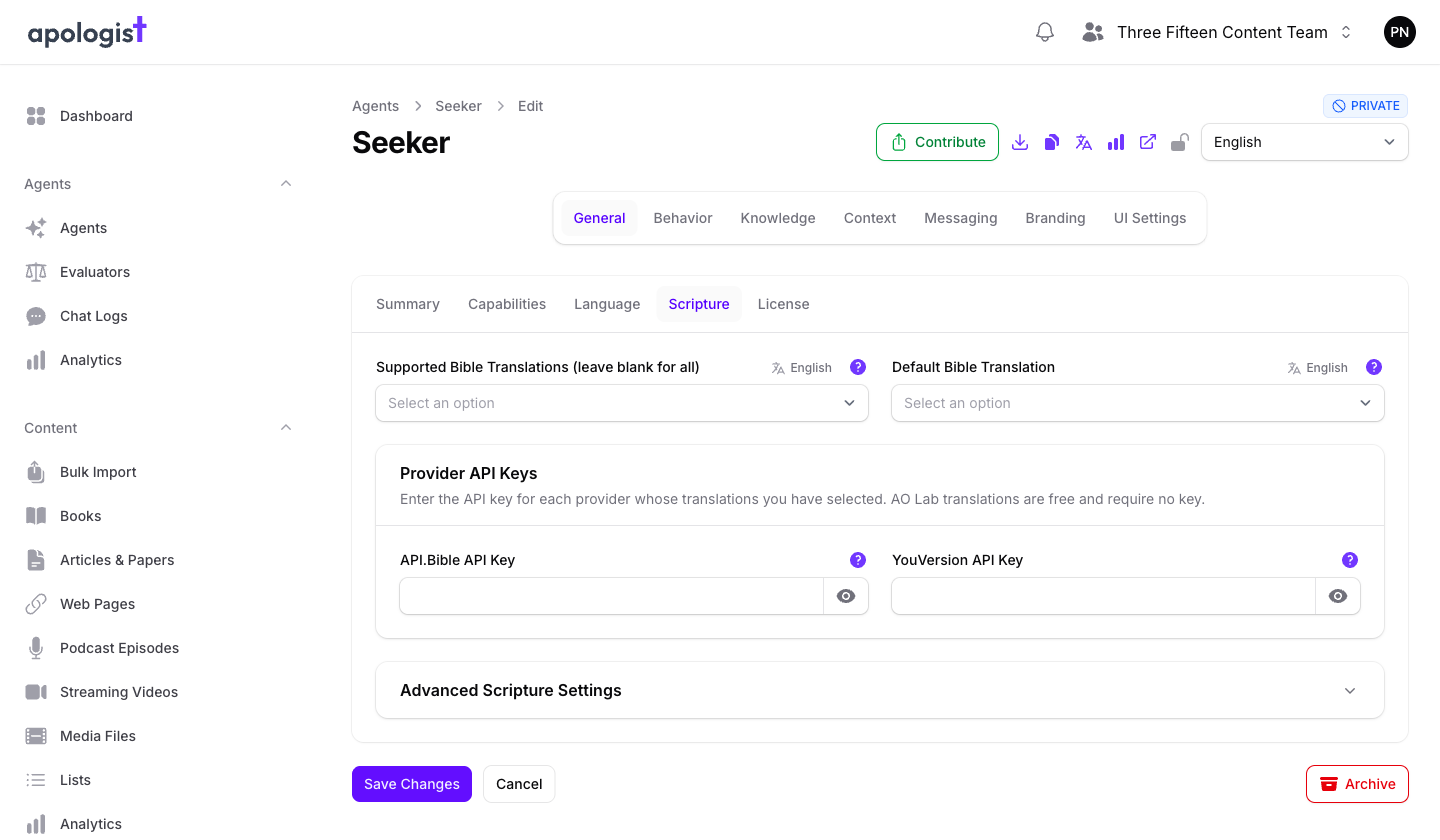
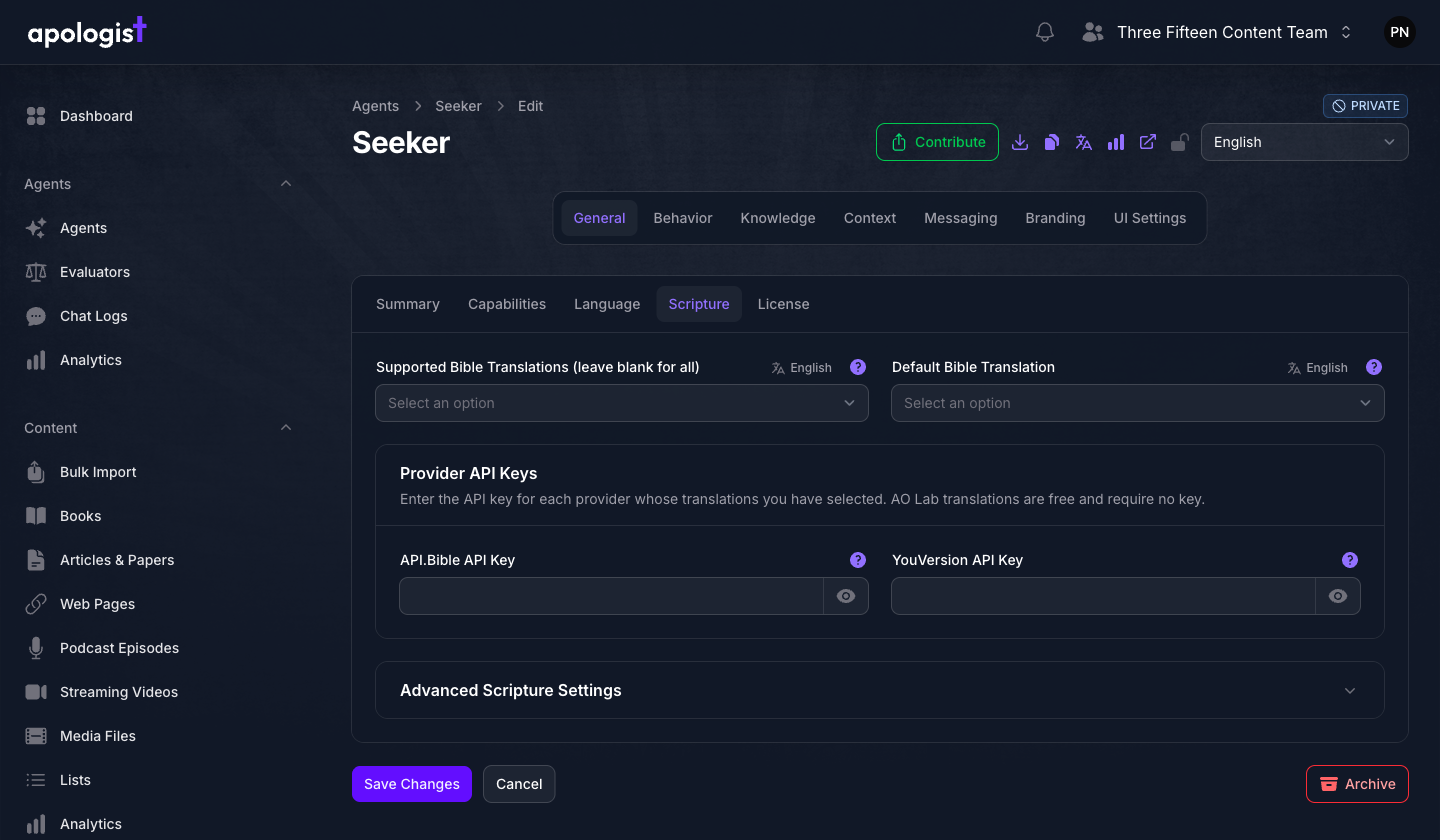
Select Agents in the left-hand navigation, open your Agent, then choose the General page and the Scripture tab.
Check the Page Language First
Both translation fields are filtered by the language selected in the page language switcher, in the top right. Each field shows the active language beside its label.
This matters because a Default Bible Translation is stored separately for every language. Set the switcher to the language you are configuring before you change either field, and repeat these steps for each language the Agent supports.
Select the Supported Translations
In Supported Bible Translations, search for and select the translations the Agent may quote in the active language.
Leaving the field blank allows every translation available for that language. Selecting translations restricts the Agent to your approved list.
Your selections in other languages are preserved while you work. The page language changes what you see, never what is saved.
Set the Default Translation
Default Bible Translation is the one the Agent quotes when nothing in the conversation calls for a different translation. Choose it from the translations available in the active language.
Add the Provider API Keys
Each translation comes from a provider, and the paid providers authenticate with a key. In Provider API Keys, fill in the key for each provider represented in your selection:
- API.Bible API Key
- YouVersion API Key
A key becomes required once your selection includes a translation from that provider. AO Lab translations are free and need no key, as the section notes.
Keys are stored as secrets and masked in the field. Use the reveal control beside a field if you need to confirm what you pasted.
Adjust the Scripture Instructions (Optional)
Expand Advanced Scripture Settings to edit Bible Tool Instructions, which tells the Agent how to use the scripture lookup tool. It supports the bible merge tag, which resolves to the current Bible translation.
Console keeps these instructions in step with your translation choices, so change them only when you need behavior the default does not give you. The field is unavailable when your selection draws only on the model’s own knowledge rather than a lookup provider.
Expected Result
The Agent quotes scripture from your approved translations, defaults to your chosen translation in each language, and authenticates to each paid provider successfully.
Cautions
Confirm licensing and attribution requirements with the rights holder before you make a translation publicly available through an Agent. Provider access does not by itself grant redistribution rights for every use.
Treat provider keys as secrets. Enter them only in the Provider API Keys fields, and keep them out of documentation, screenshots, shared prompts, and support tickets.
Troubleshooting
- A translation is missing from the list. The list is filtered to the language in the page language switcher. Change the switcher to the translation’s language.
- The form will not save and a key field is marked required. Your selection includes a translation from a provider with no key entered. Add the key or remove that translation.
- The default translation is right in one language and wrong in another. Defaults are stored per language. Switch the page language and set the default again there.
- Bible Tool Instructions cannot be edited. Either your selection uses no lookup provider, or instruction editing is not included in your team’s current plan.
Next Step
Continue to Configuring Scripture Plugins to attach hosted or external replacements beside those quotations.