

Organizing Content
This guide covers how to organize the content your team works with. At the center of that content is the Source: a single piece of content, such as an article, a video, or a podcast episode. Once your team has more than a handful of Sources, you’ll want to find them again, keep related ones together, and point an Agent at some of them rather than all of them.
Collections, Lists, Tags, and Categories also determine what an Agent draws on when generating responses. See Curating Sources for details.
Purpose
Group, label and describe your team’s Sources so you can find them and choose which ones an Agent uses.
Prerequisites
- Sources to organize. See Adding and Editing Content.
- Permission to edit content for your team.
Group Sources Into Collections
A Collection is a named group of Sources of one kind, such as a journal’s articles or a podcast’s episodes. Each type of Source has its own kinds of Collection, and you open them from that type’s list, using the buttons above the table.


On Web Pages, those buttons are RSS Feeds and Websites. Every type’s list has its own:
A Series can hold books and media files together, so it opens from both lists.
Create a Collection
Select the kind of Collection, then Add followed by its name, such as Add Periodical. Give it a Name; Language starts as English. Denominational Alignment records the Christian tradition the Collection’s content reflects, as it does on a Source; see Adding and Editing Content. Parent List places the Collection inside one of your Lists.
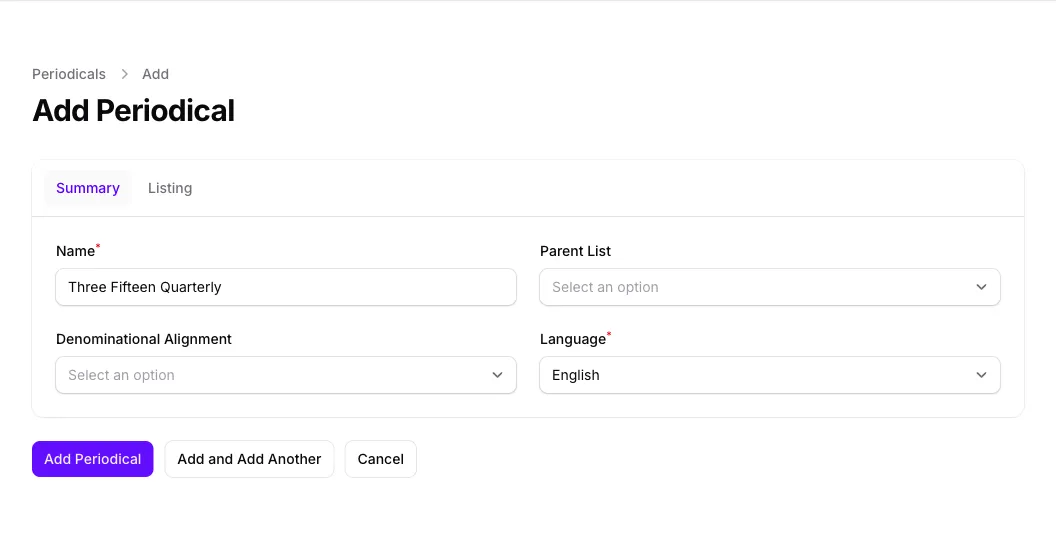
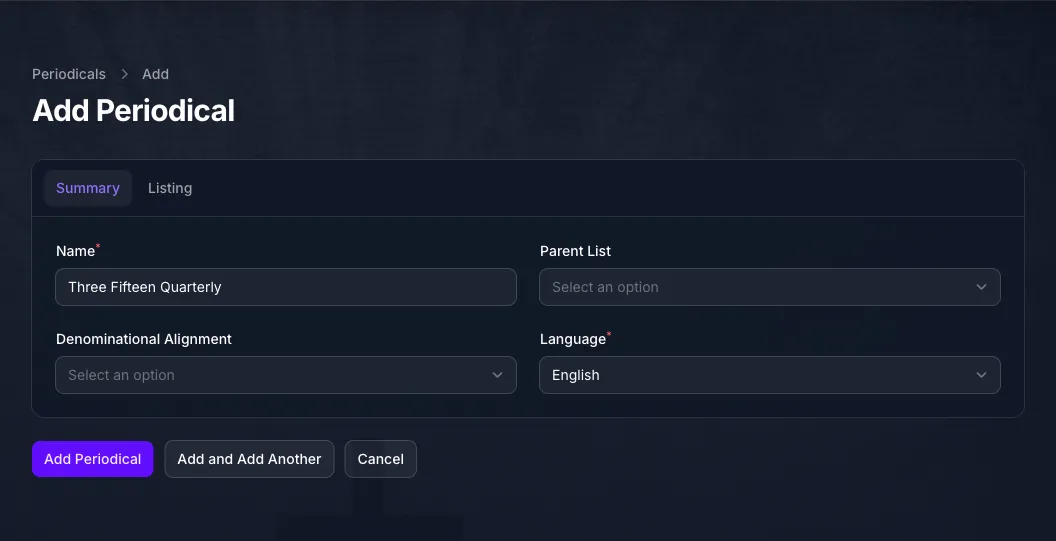
An RSS Feed, Website or Podcast Feed also needs the address it imports from, and a channel or playlist its YouTube ID; see Keep a Collection Up to Date Automatically.
Select Add Periodical, or the equivalent for your kind of Collection, and Console opens it for editing.
Add Sources to a Collection
The Sources table below the Collection’s form lists what it holds. Select Add Source, choose a Source and select Add, or Add & Add Another to keep going. Only your team’s Sources of a type the Collection accepts are offered.
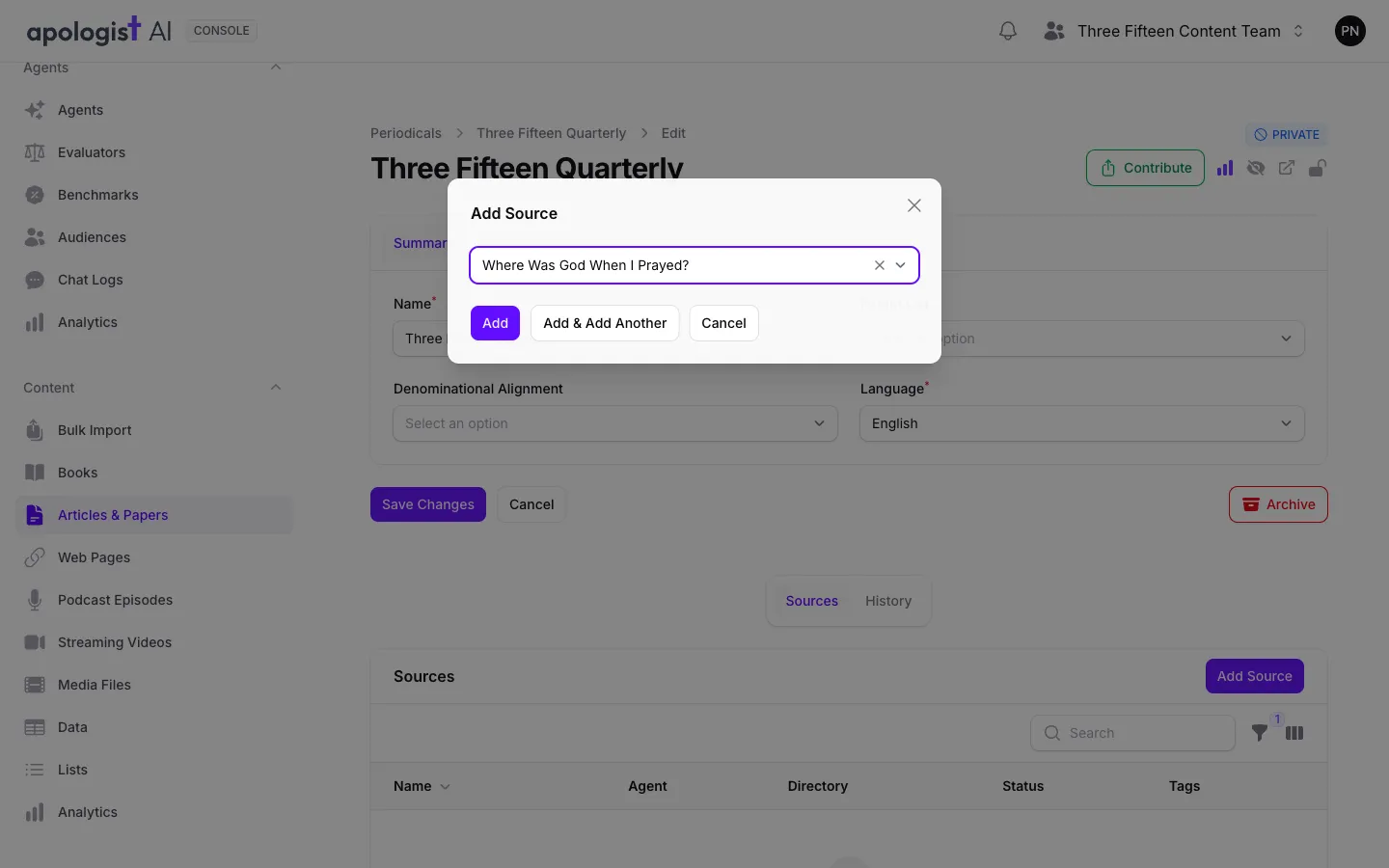
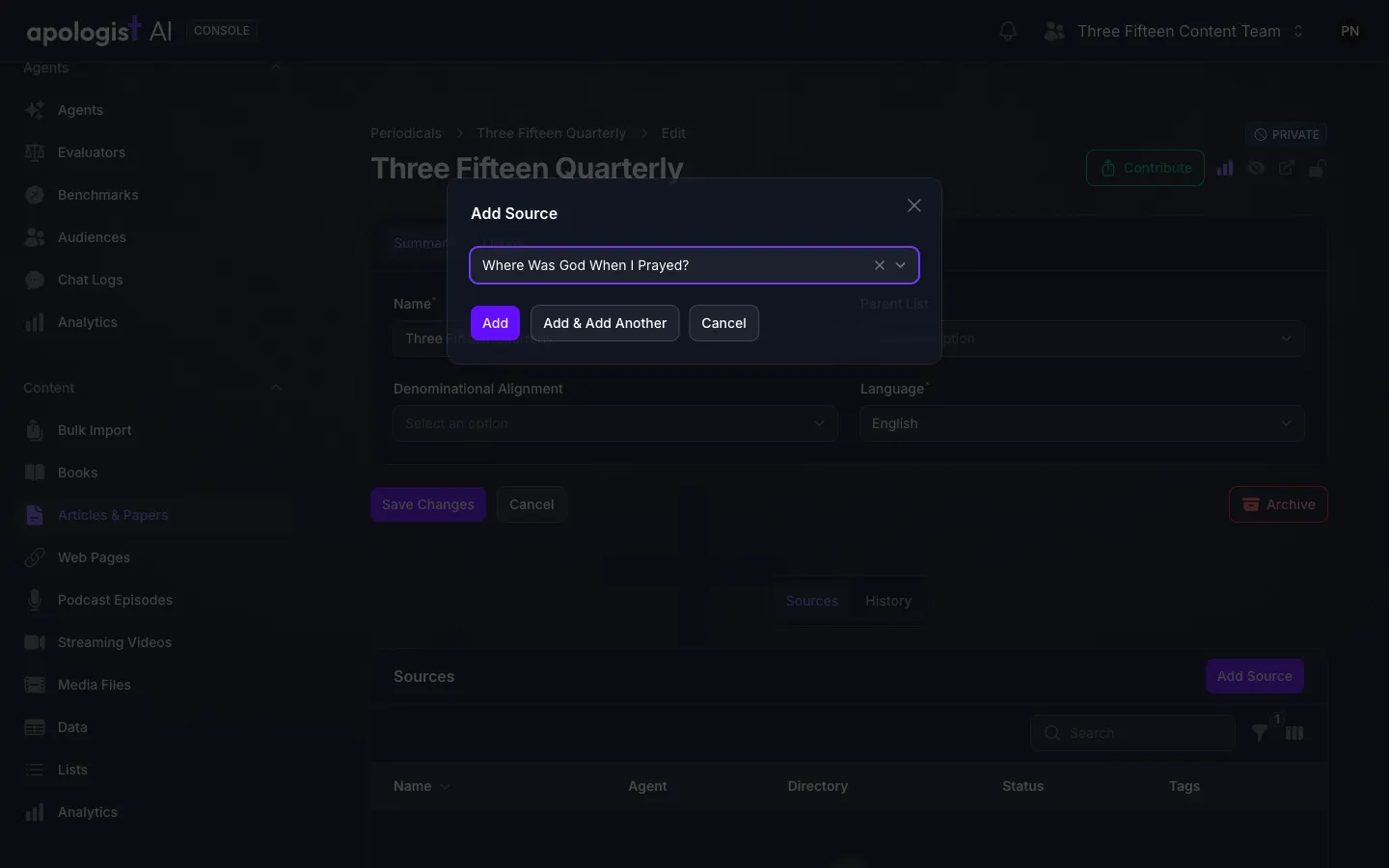
Remove on a row takes a Source out of the Collection without deleting the Source.
You can also work from the Source: its Collections field, on the Summary tab, offers only the Collections its type can join.
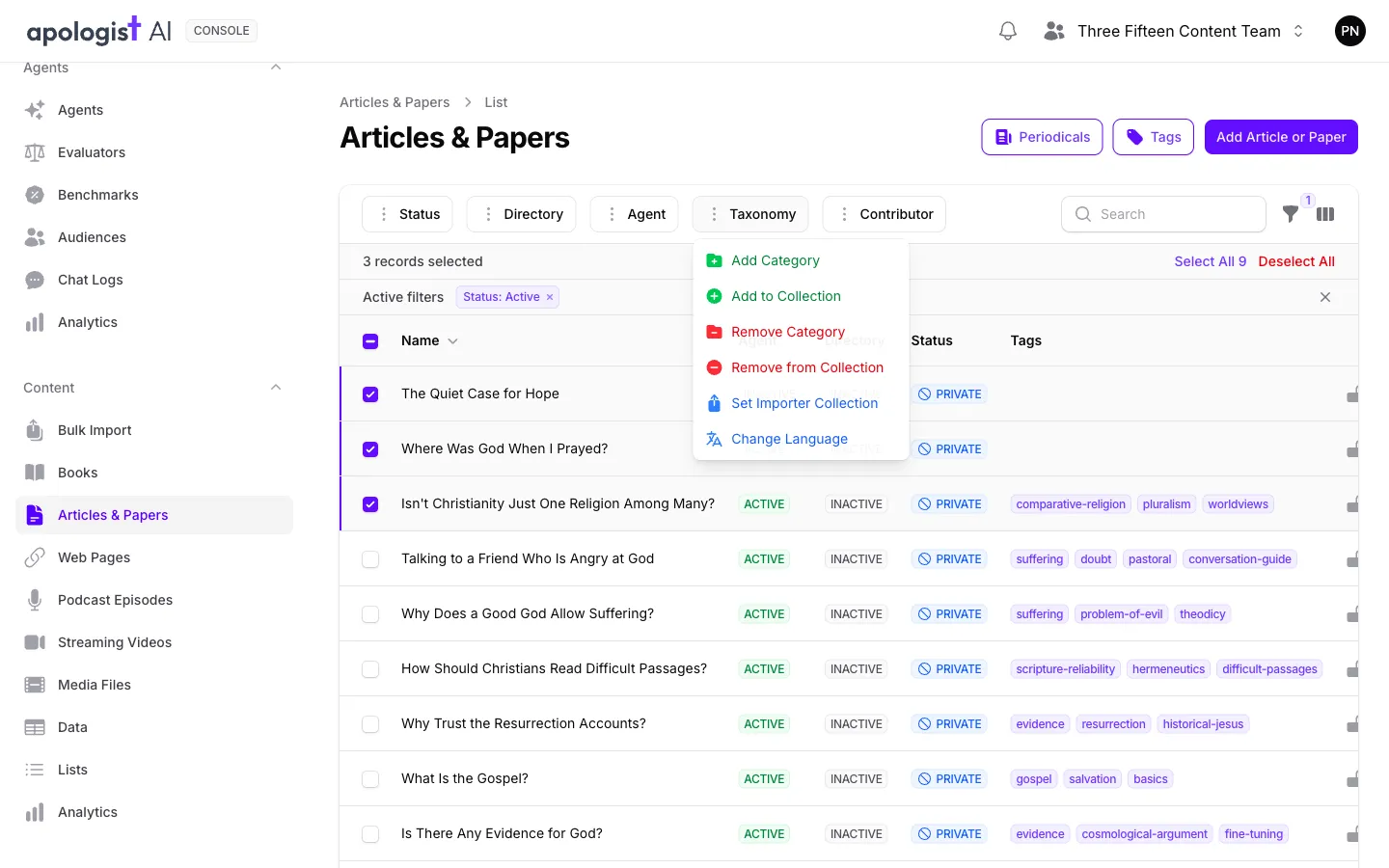
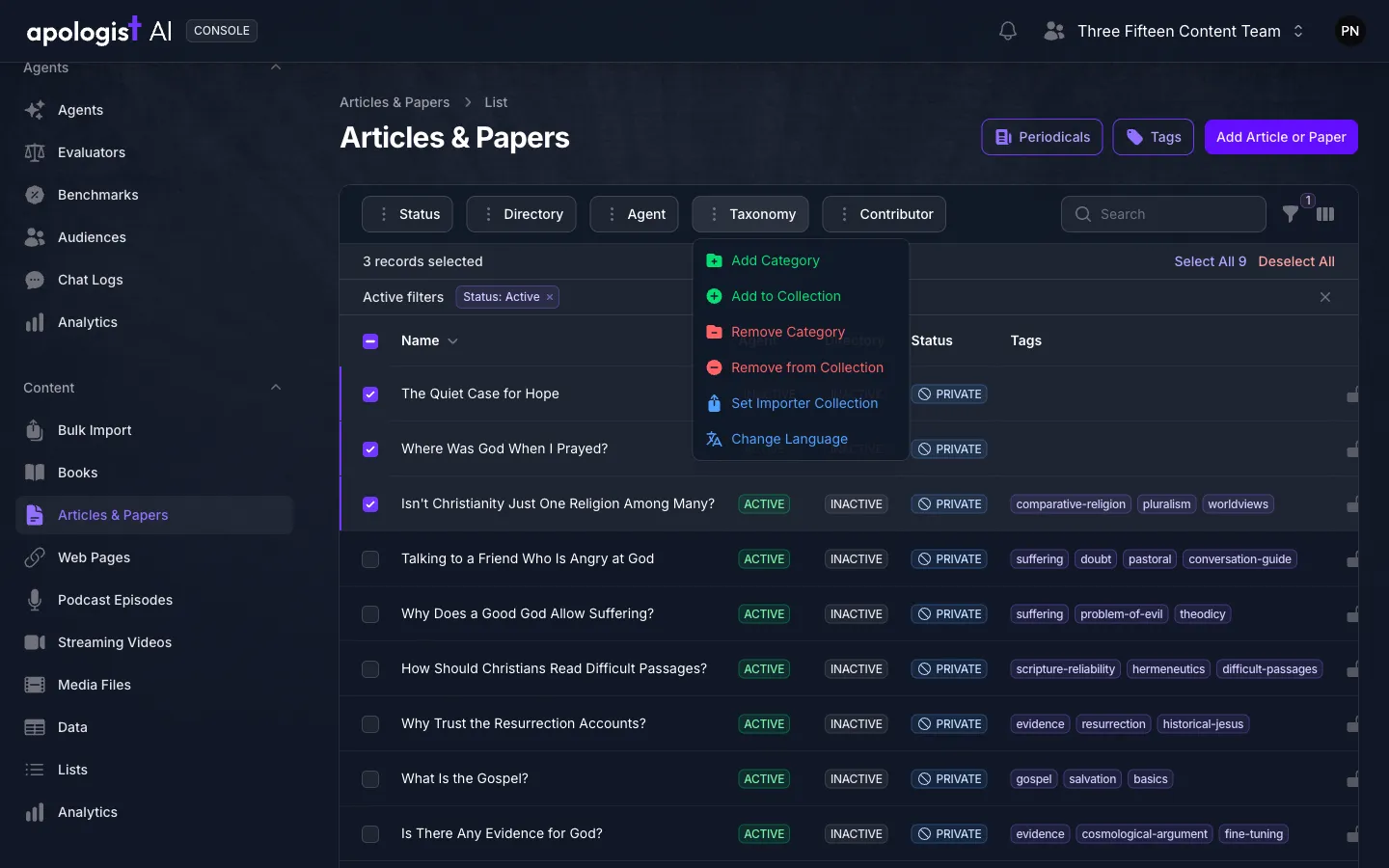
To add many Sources at once, tick them on their type’s list and choose Add to Collection from the Taxonomy menu above the table. That menu offers every Collection your team has, whatever it holds, so choose one from the table above for the type you ticked.
Make Your Own Groupings With Lists
Lists have their own entry in the left-hand navigation, and a List can hold Sources of any type. Use one for a grouping that exists only for your team, such as a reading plan or everything that answers one question.
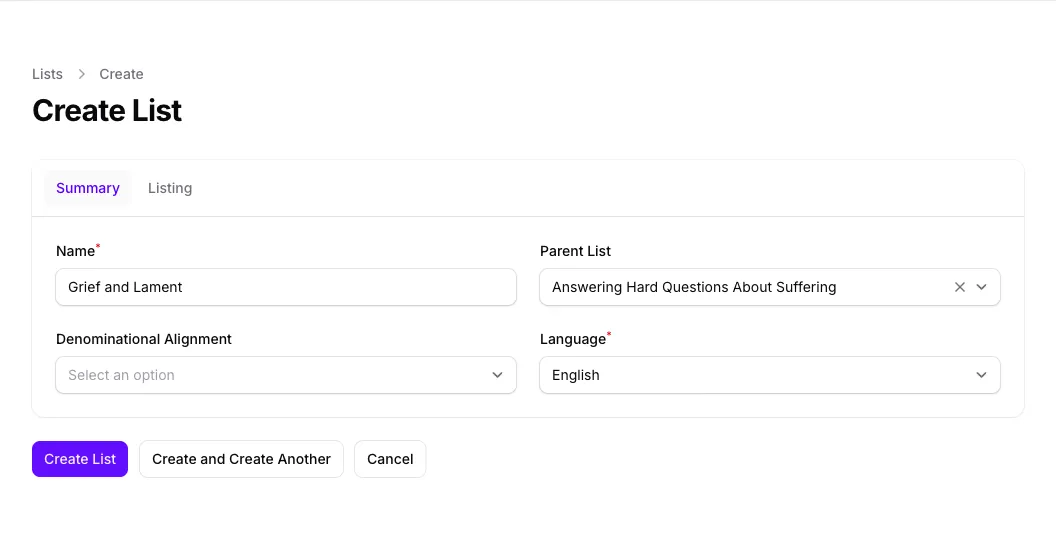
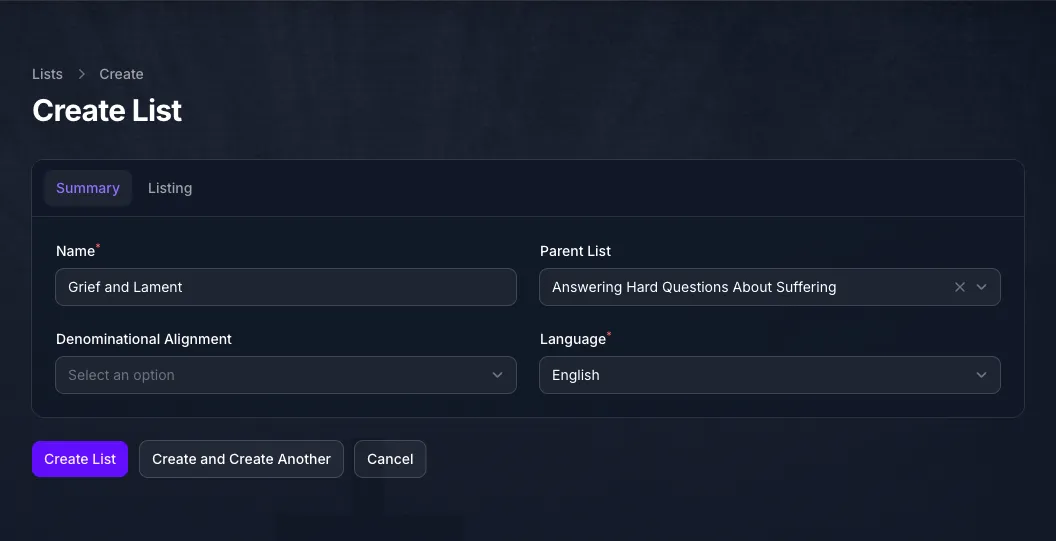
Select Lists, then Create List. Give it a Name, and choose a Parent List if it belongs inside another one. Select Create List, then add Sources exactly as you would to any Collection.
Nesting is for your own arrangement. An Agent pointed at a List draws on the Sources in that List only, not on Lists or Collections placed inside it, so choose each one you want the Agent to use.
Label Sources With Tags
A tag is a word or phrase of your team’s own. Open a Source, type into Tags on its Summary tab, and press Enter. Console suggests tags your team already uses, and anything new becomes a new tag when you save.
Tags do two jobs. To find every Source with a particular tag, open Filters on any Source list and pick the tag under Taxonomy. On an Agent, Include Tags and Exclude Tags choose Sources by them, and Exclude Tags is the simplest way to keep specific content out of every answer; see Curating Sources.
To rename or remove a tag, select Tags above any Source list. Tags are shared by every type, so the same screen opens from each list.
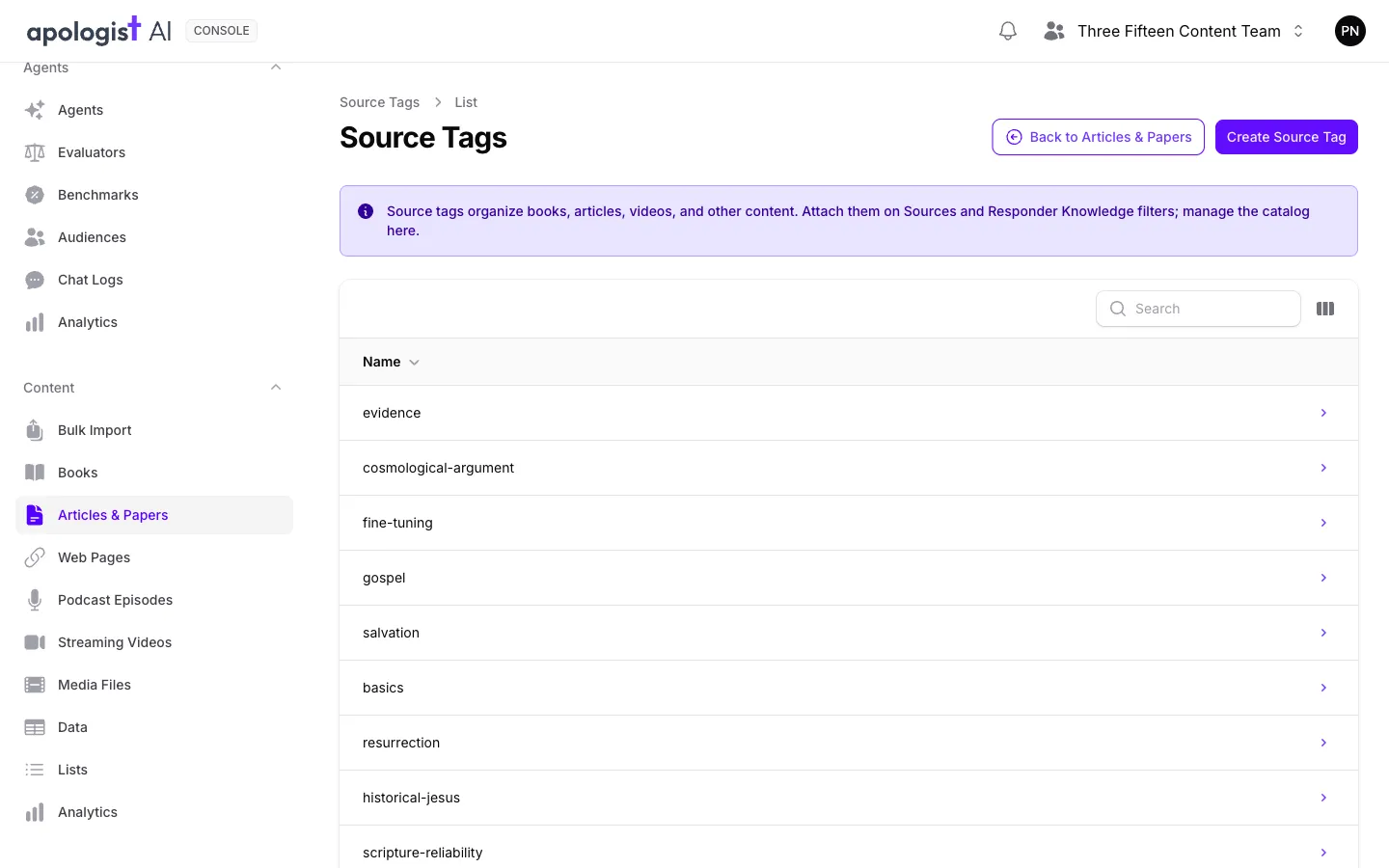
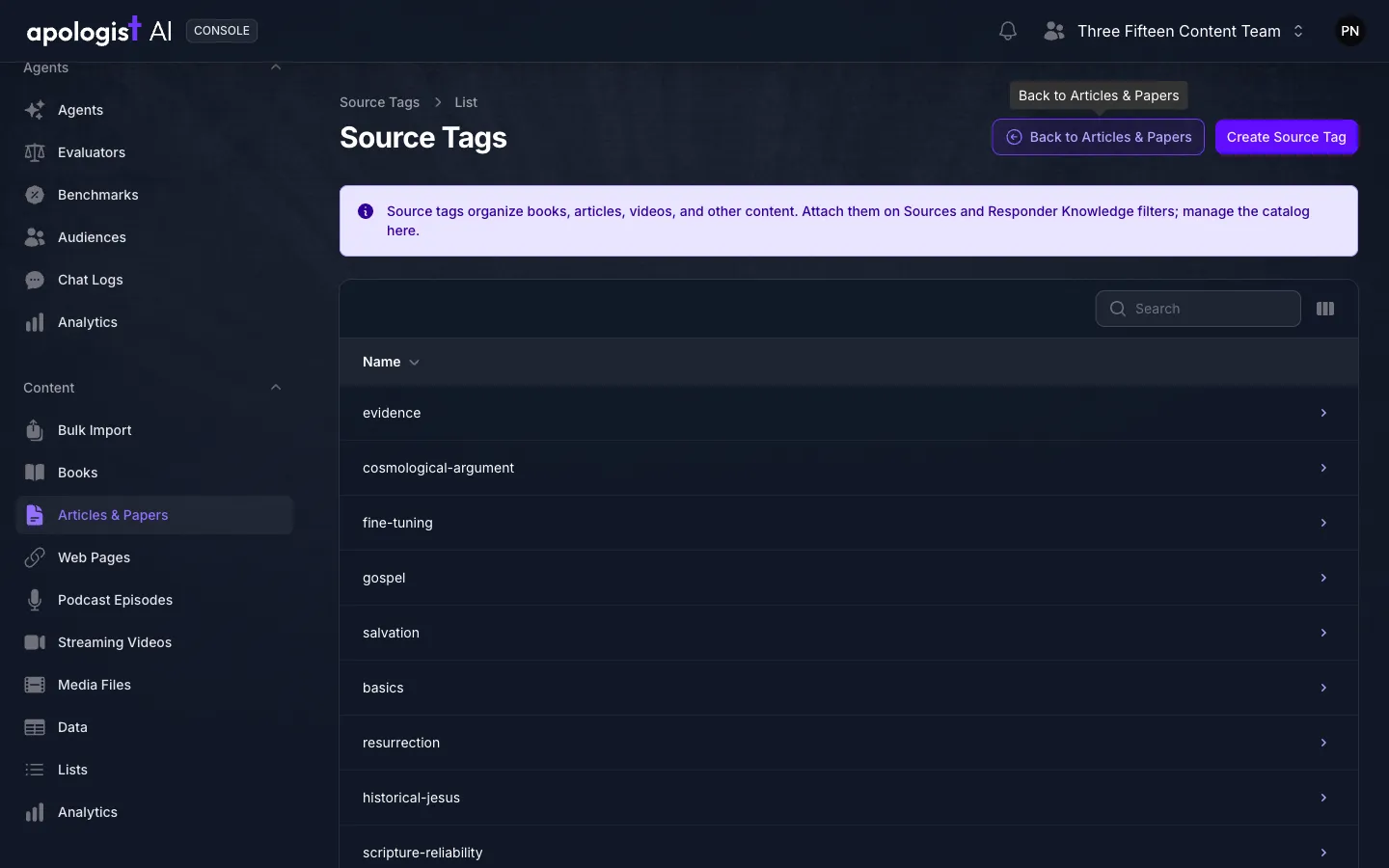
Select a tag to change its Name, or to Delete it. A renamed tag stays on every Source that carries it, and an Agent that includes or excludes it goes on doing so. Deleting a tag takes it off every Source. Create Source Tag adds one without applying it to anything yet.
File Sources Under Categories
Categories are subject headings maintained by Apologist and shared by every team, so you choose from them rather than make your own. Each one sits under a broader heading, which Console shows beside its name.
Open a Source and select Categories, then tick up to three. Suggest Categories chooses them with AI, from the Source’s name, author and description. Check what it ticks, then select Save Changes.
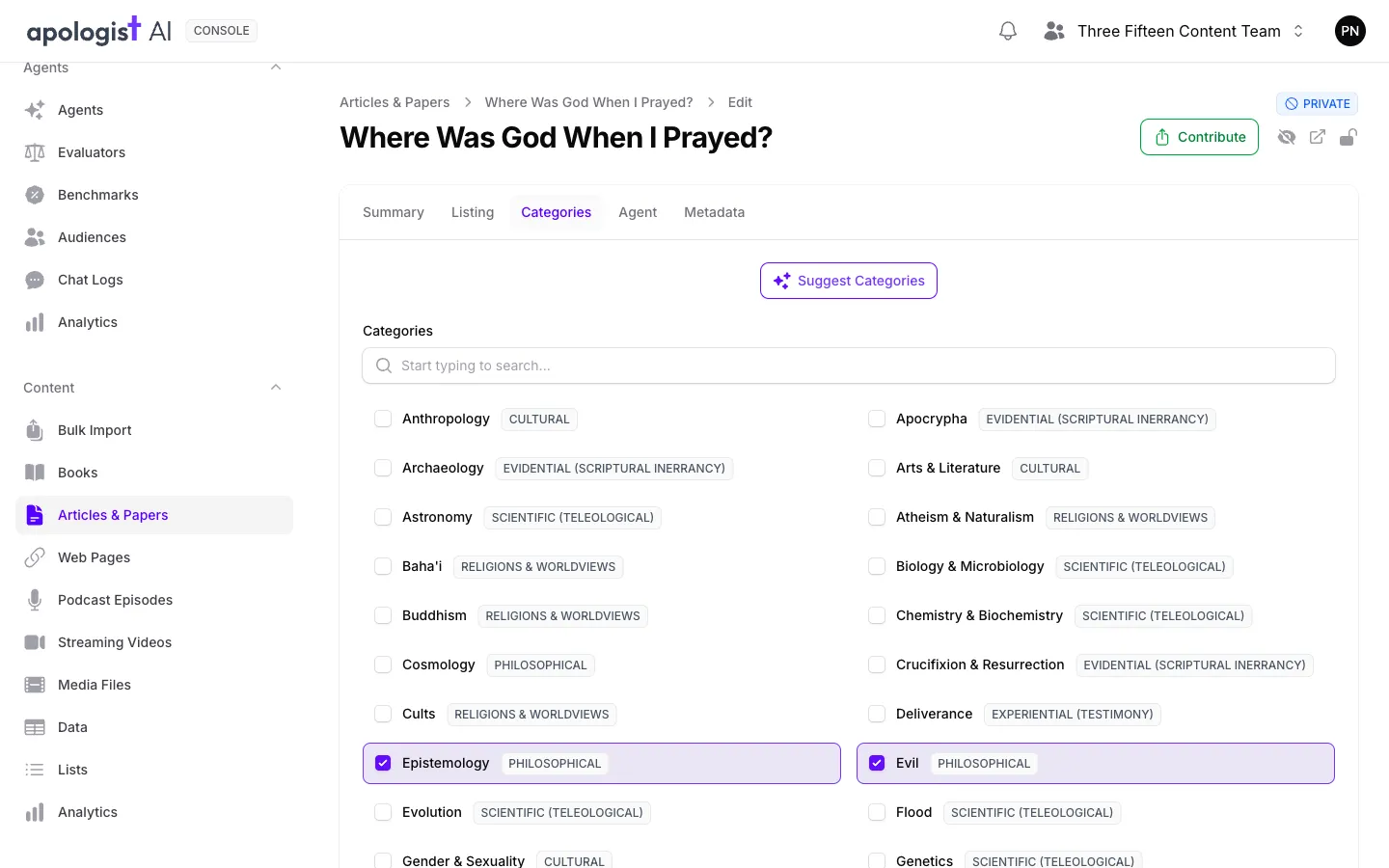
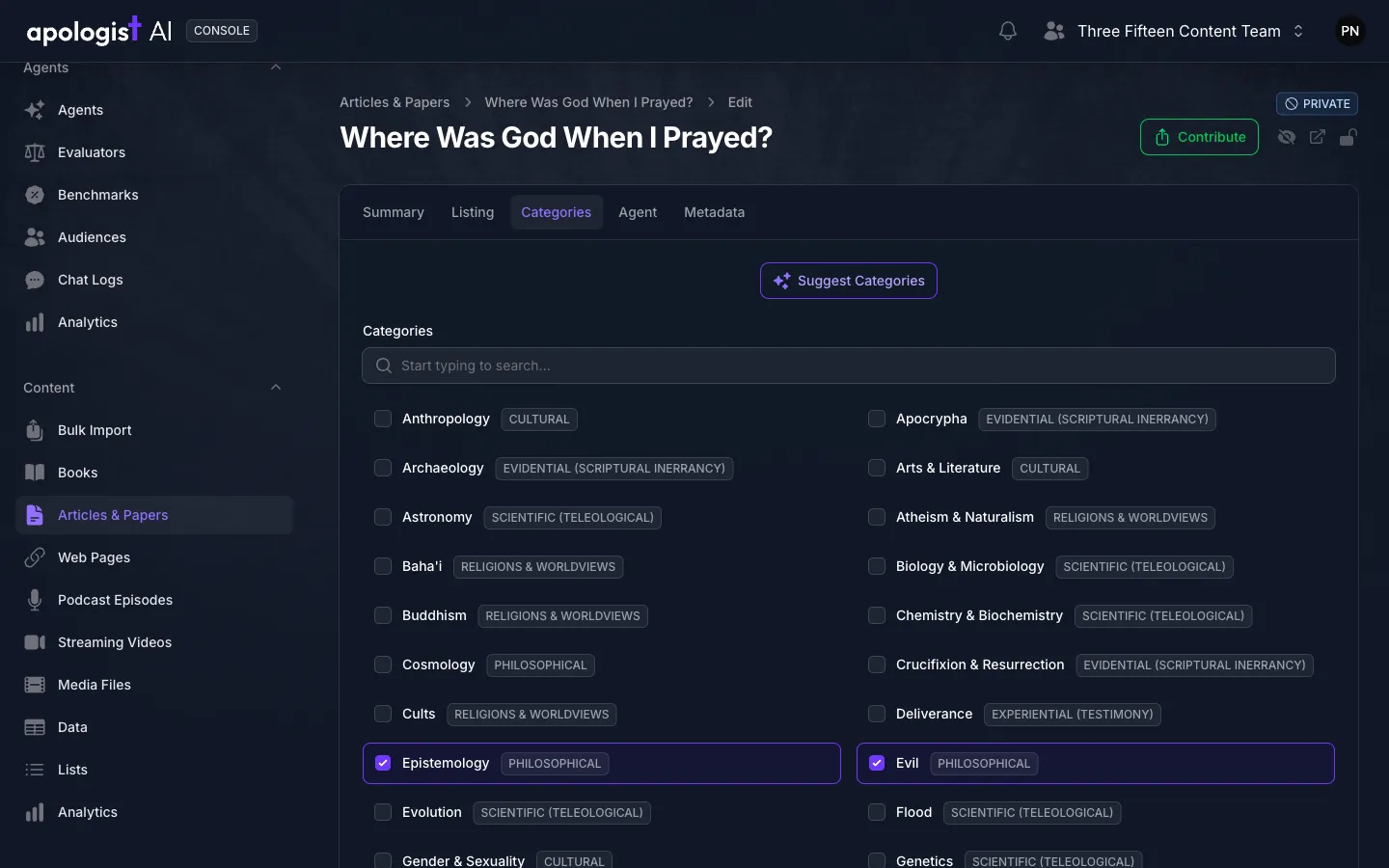
A Source is also filed under the broader heading of each category you tick, so an Agent that draws on the broader heading draws on it too.
To categorize many Sources at once, tick them on their list and choose Add Category or Remove Category from the Taxonomy menu. A Source that already has three categories is left as it is.
Record Your Own Metadata
Metadata is for ranking: facts of your own about a Source that an Agent can boost or bury it by. Open the Source’s Metadata tab and fill in one row per fact, each a Property and a Value, such as reading_level and introductory. Select Add Row for more, then Save Changes.
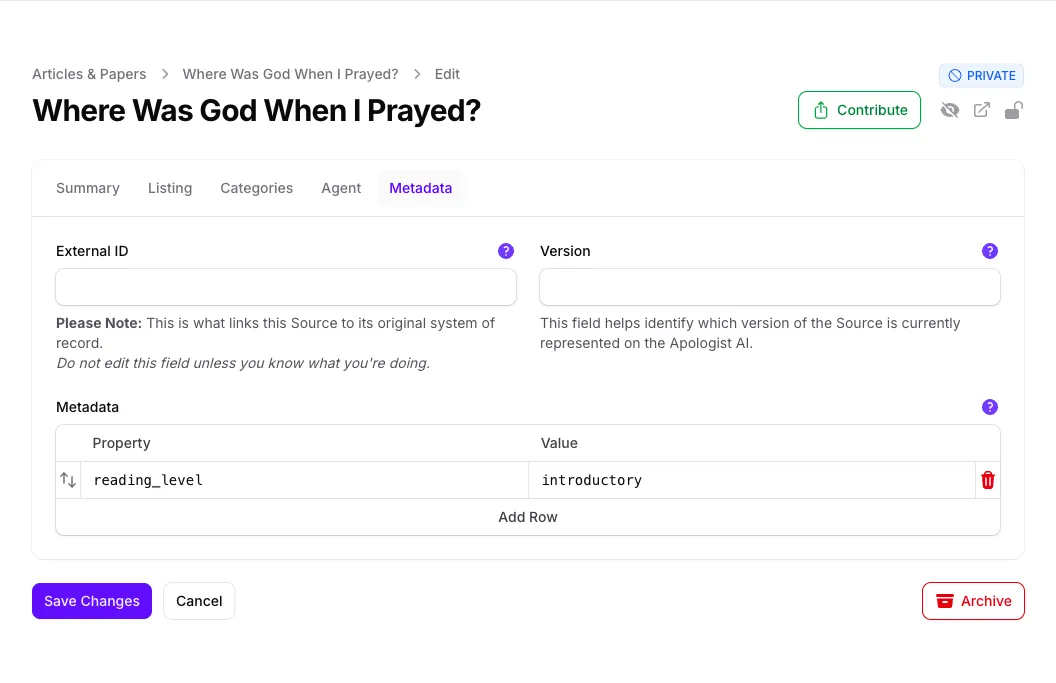
Once the Source has been indexed again after you save, each property is offered as a Field under Ranking Factors, named with your team’s number in front, such as team_2_reading_level. Ranking Factors are on the Agent’s Knowledge page, or on each Responder’s if the Agent routes questions to Responders. See Curating Sources for setting one up.
Known issue: A value entered as a JSON list or object can leave the Metadata table looking empty when you come back to it, and saving the Source again then deletes all of its metadata. Enter each value as plain text.
External ID on the same tab links the Source to the system it came from, such as a book’s Amazon product ID, so leave it as it is unless you know it is wrong. Version is a label of your own for which version of the content the Source holds.
Troubleshooting
- There is no button for the Collection you want. Collections open from the list of the type they hold. Periodicals are on Articles & Papers, not Books; see the table in Group Sources Into Collections.
- A Collection is missing from a Source’s Collections field. The Source’s type cannot join that kind of Collection. A web page cannot go in a Periodical, for example. Use a List instead, which holds any type.
- Add Source offers nothing. Your team has no Sources of a type the Collection accepts, or all of them are in it already.
- Saving reads “The categories field must not have more than 3 items.” A Source can have three categories. Untick one, then save again.
- Include Tags or Exclude Tags on an Agent offers no options. No Source on your team carries a tag yet. Tag a Source first.
- A metadata property is not offered as a Field. The Source has not been indexed since you added it. Check that Index for Apologist Agent is on, then select Reindex on the Source’s Agent tab.
- The Metadata table is empty, but you added properties. One of the values was entered as JSON. See the known issue in Record Your Own Metadata, and enter the properties again as plain text before saving anything else on the Source.
Next Step
Continue to Where Your Content Appears to publish Sources and Collections on the Directory and see how they perform.