

Audiences
A Call to Action, a guardrail or an automation runs for everyone by default. That is usually too broad. The handoff you want to offer a first-time visitor is not the one you want to keep offering someone who already took it, and a message written for readers in one country can be wrong somewhere else.
An Audience is how you narrow it. It is a saved definition of who a rule applies to, built once and reused wherever the question comes up:
- Only on some interfaces. Show a Call to Action on the website but not to API callers.
- Only in some languages or countries. Run a guardrail for visitors reading in one language, and leave the rest alone.
- Only for people you have marked. Stop offering a handoff to anyone who has already accepted it.
- Only for some Responders. Apply a rule to conversations handled by one persona and not another.
That third one needs somewhere to record the mark, which is what User Flags are. They are covered on this page too, because an Audience is the main thing that reads them.
Audiences belong to your team rather than to one Agent, so one Audience can narrow rules on every Agent you run.
Purpose
Create the User Flags you want to filter on, build an Audience from them and the other filters, and understand what an empty filter means.
Prerequisites
- Audiences on your team’s plan. They are included from Pro upward, and the navigation item is absent without them.
- Permission to manage Audiences for your team.
- Whatever you intend to filter on already set up: the Responders, Channels or languages an Agent uses. You can filter on things that do not exist yet, but the pickers will be empty.
The Rule That Governs Every Filter
An empty filter is not a filter. Every field on an Audience is a multi-select that constrains nothing while it is empty, so a brand new Audience with nothing selected matches everyone.
Read each field as “only when”, never as “including”. Selecting two languages does not add those languages to something, it restricts the Audience to only those two. An Audience is the intersection of every filter you set, and the fields you leave alone drop out of the question entirely.
Steps
Open the Audiences Library
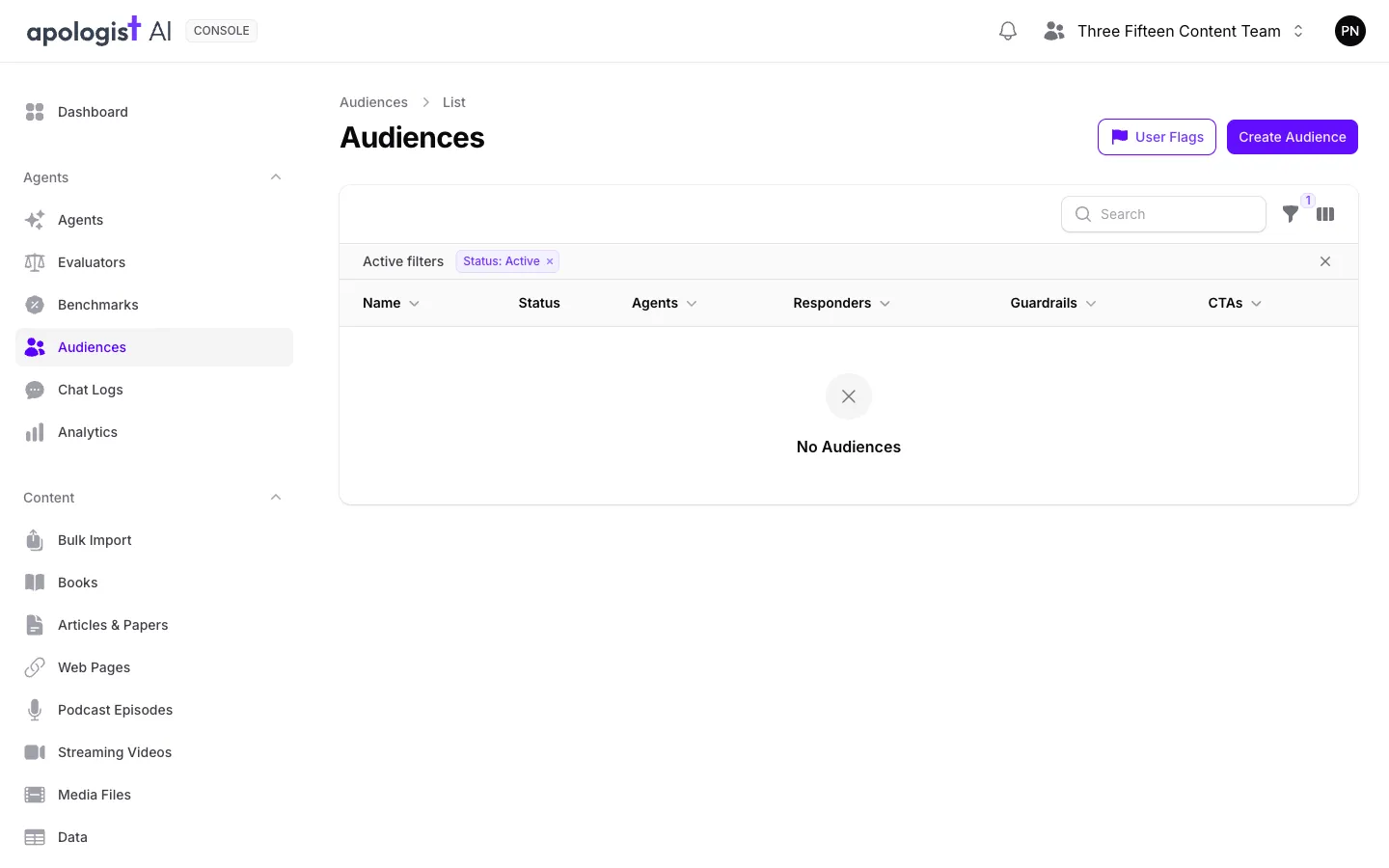
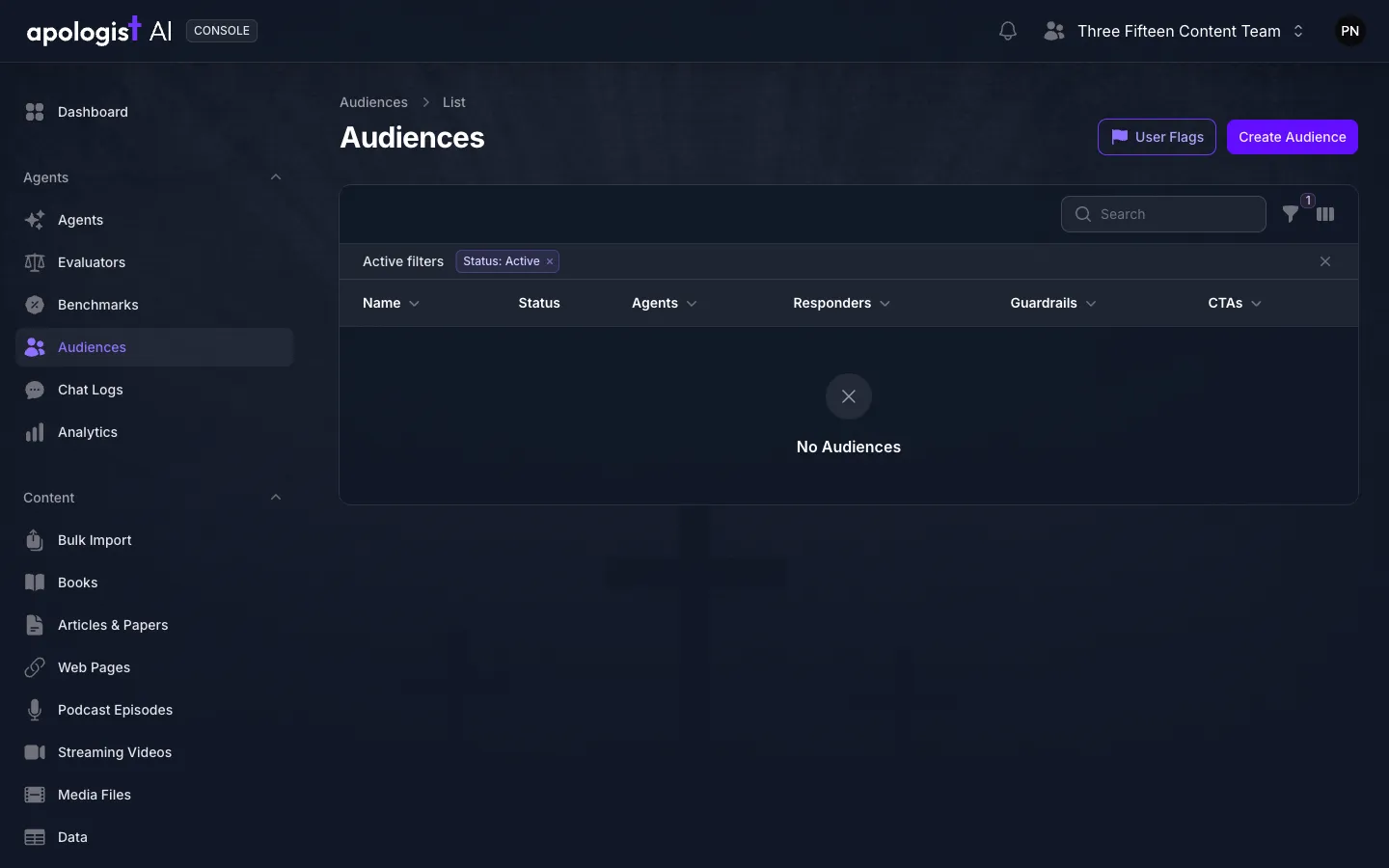
Select Audiences under Agents in the left-hand navigation. Like Evaluators and Benchmarks, this is a team-level library rather than something inside an Agent.
The list is also the way in to User Flags, through the button above it. Start there if you plan to filter on flags, since an Audience can only choose from flags that already exist.
Create the User Flags You Want to Filter On
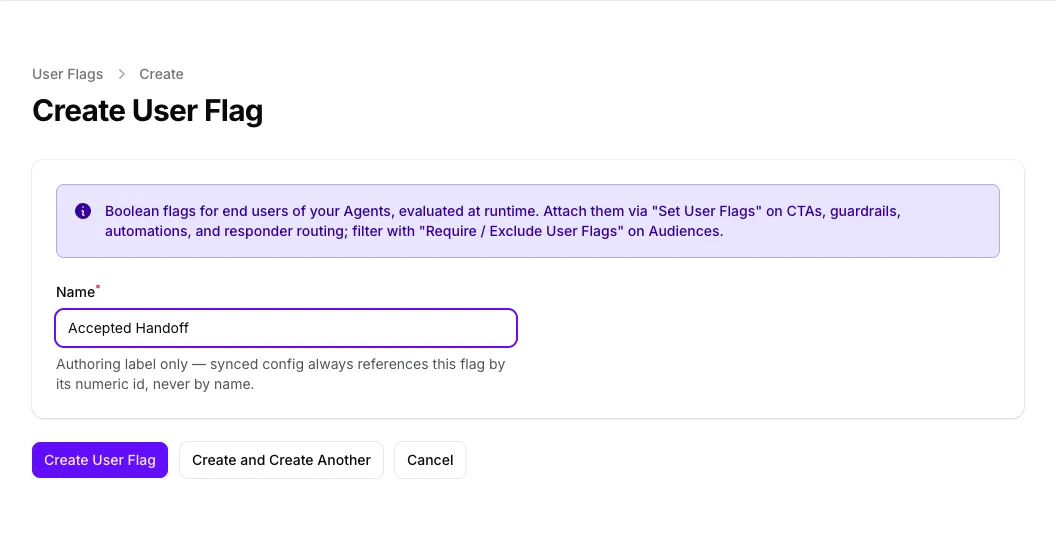
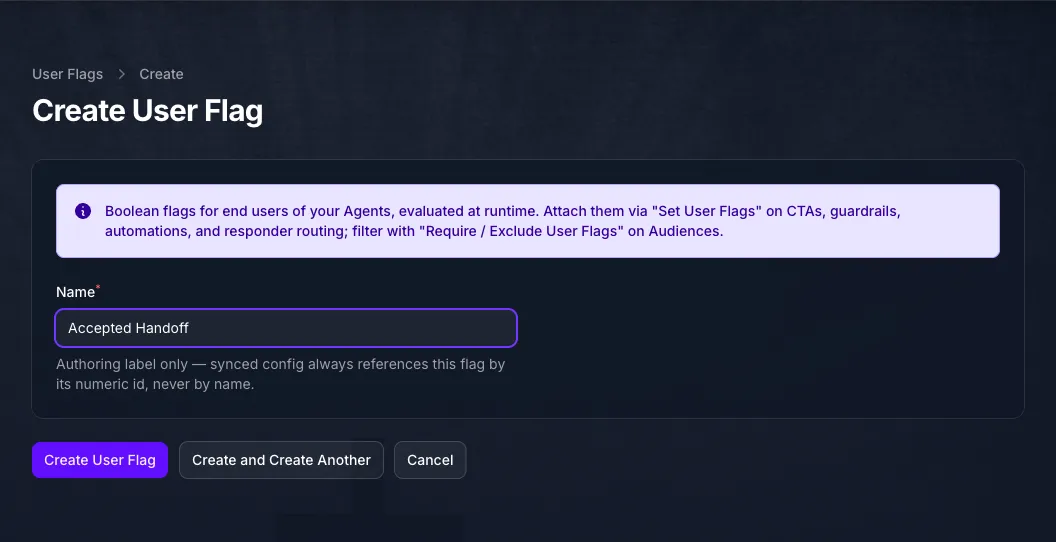
Select User Flags, then Create User Flag, and add one per thing you want to remember about a person. A flag is a name and nothing else: it is either true for someone or it is not. Create and Create Another keeps the form open, which is quicker when you know you need several.
Nothing sets a flag from here. Calls to Action, guardrails, automations and responder routing each have a Set User Flags field that turns one on when they run, and this page is where the flag has to exist first. Skip this step if you are not filtering on flags.
The name is a label for you. Everything that references a flag does so by its id, so renaming one later does not break the rules that use it.
Name the Audience and Choose Its Responders
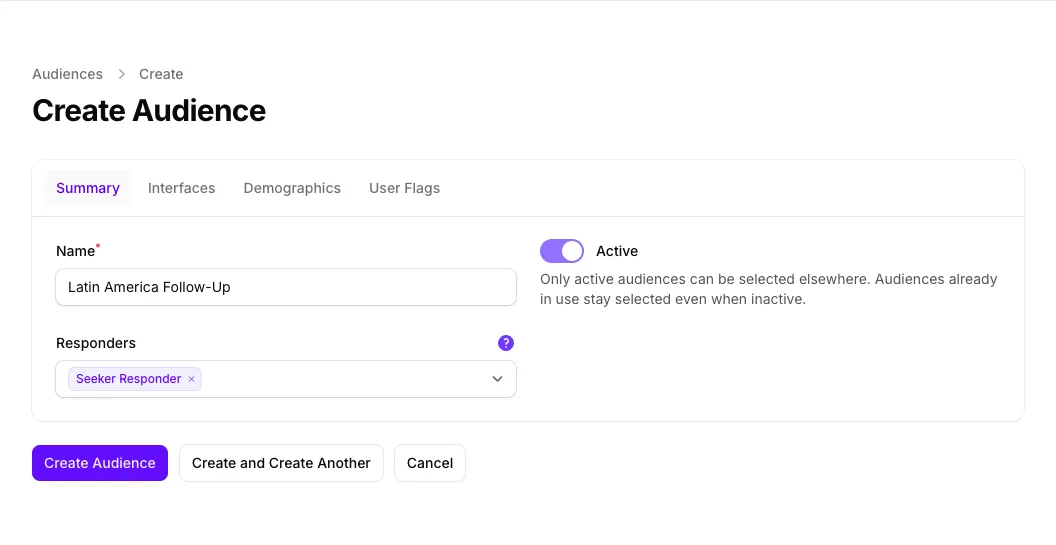
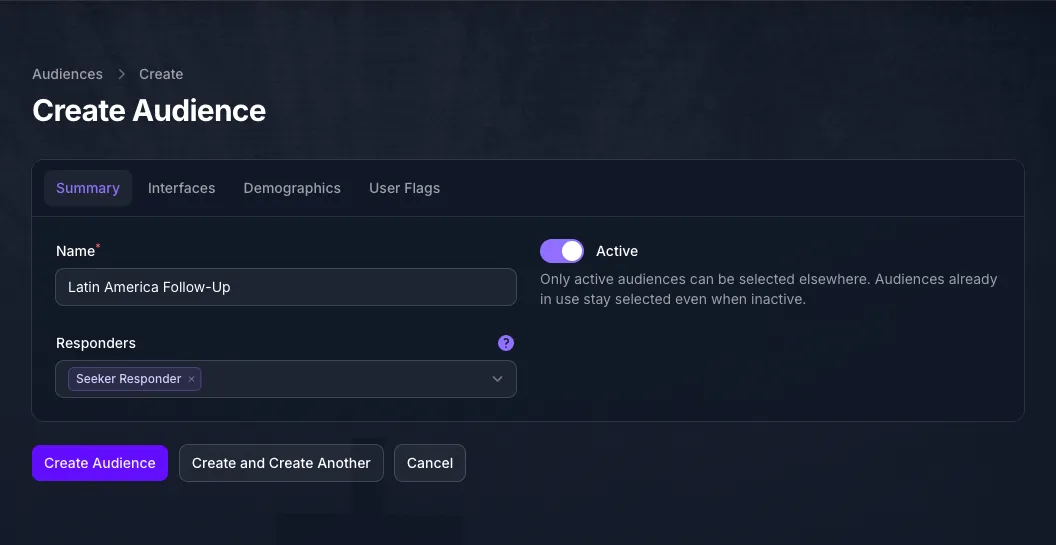
Go back to Audiences and select Create Audience. On the Summary tab, give it a Name that describes who it matches rather than what it is for, since the same Audience will be picked from a list on several unrelated rules. “Returning Spanish readers” survives reuse; “CTA filter” does not.
Active starts off. Turn it on, or the Audience is offered nowhere once you save it, and the list hides it behind its default Active filter. Responders narrows the Audience to conversations handled by particular personas, and leaving it empty means any Responder.
Narrow by Interface
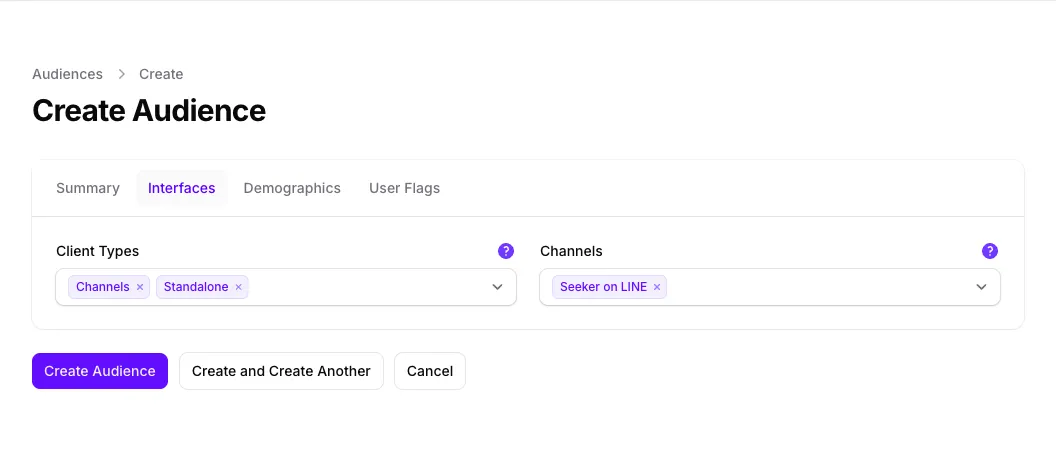
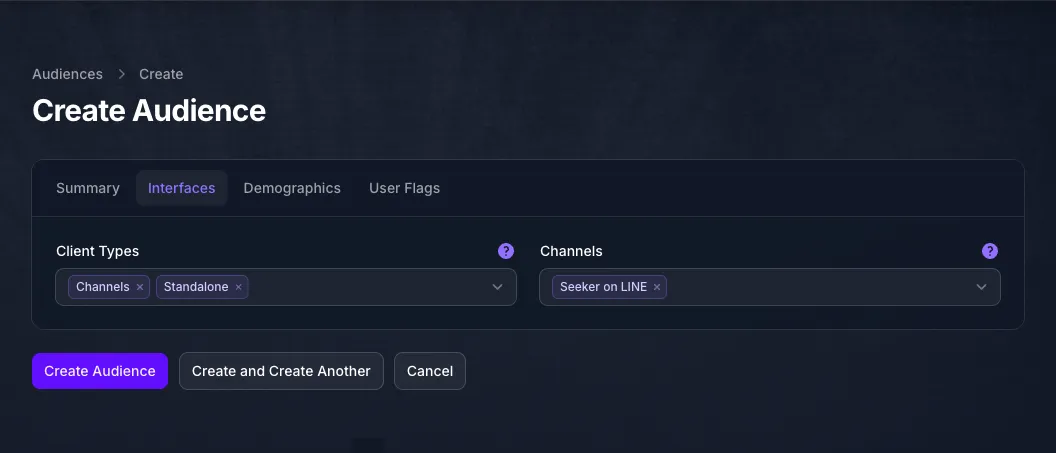
The Interfaces tab decides where a rule reaches people. Client Types lists the ways someone can talk to an Agent, including the API, MCP and Benchmarks, and an empty selection means all of them.
Channels then restricts messaging delivery to particular channels. It is only available when Client Types is empty or includes Channels, because it makes no sense otherwise, and an empty selection means every channel.
Narrow by Language and Country
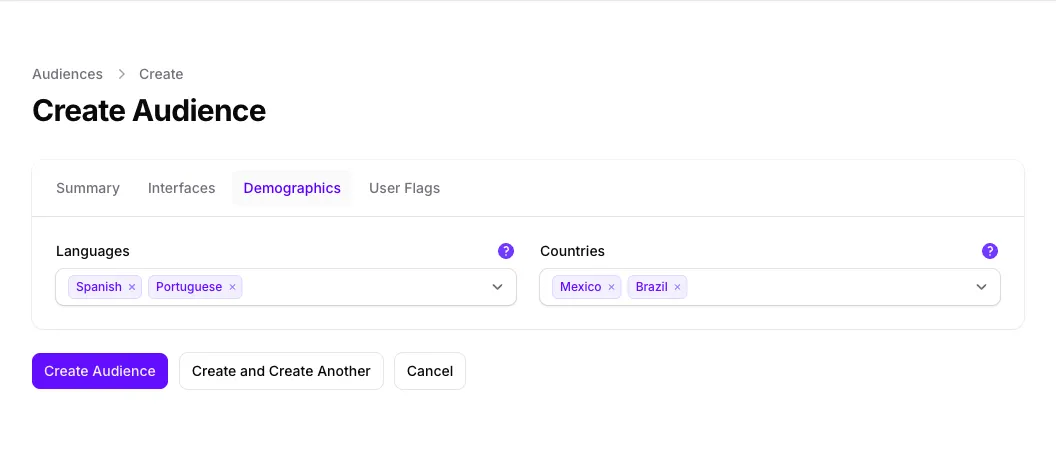
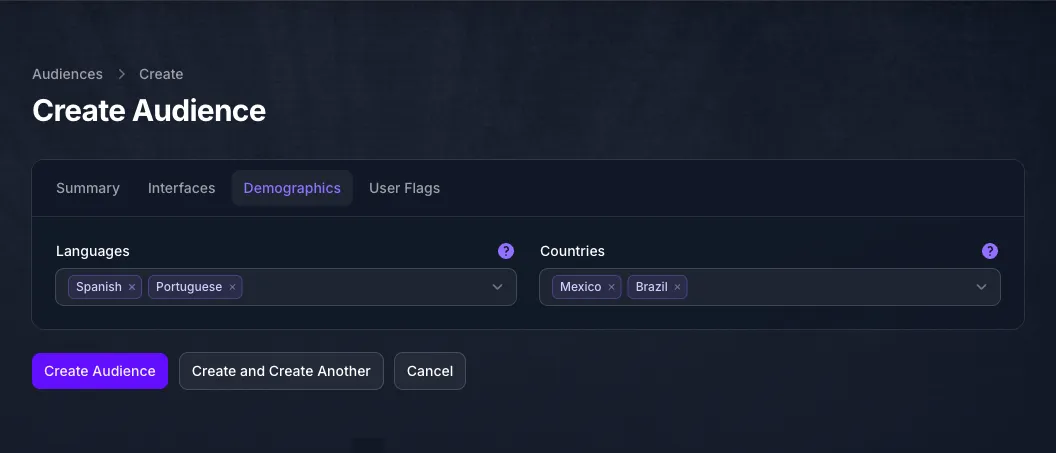
The Demographics tab matches on the prompt rather than on the person. Languages matches the language the prompt is in, and Countries matches where it came from.
Country is derived from the request and is not always known. A prompt with no country cannot match an Audience that lists any, so a country filter quietly excludes anyone the Agent cannot place.
Narrow by User Flag
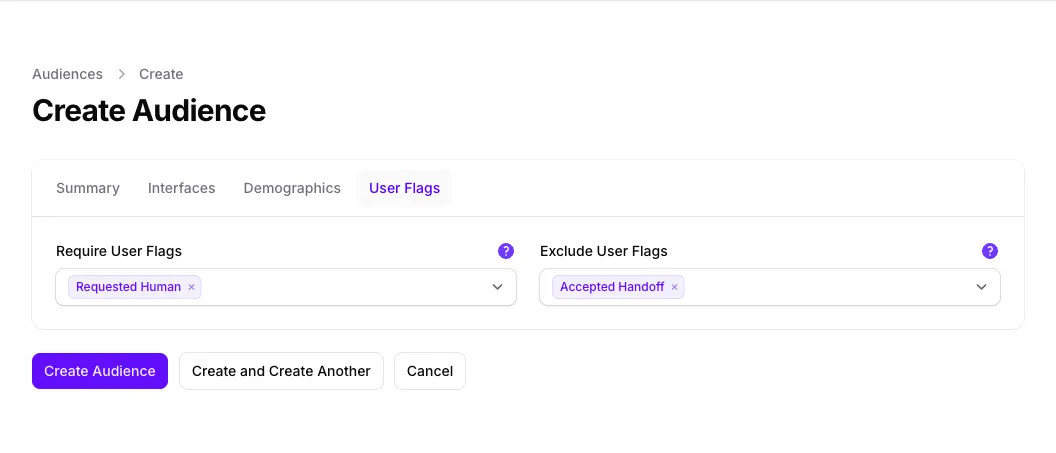
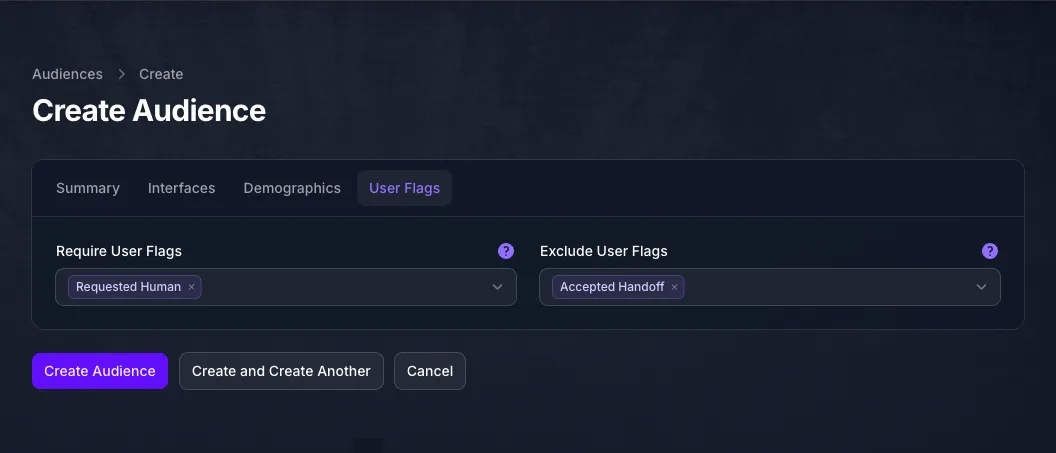
The User Flags tab is where the flags from step 2 become a filter, and the two fields are not opposites.
Require User Flags matches only people who have all of the listed flags true. Exclude User Flags rejects anyone who has any of them true, and a flag that was never set counts as not true, so it passes. Requiring a flag and excluding a different one at the same time is the usual way to describe “has done this, has not done that”.
Expected Result
The Audience appears in the library and can be picked on any rule that narrows by audience. It changes nothing on its own: an Audience is a description, and only the rule that selects it does anything.
What Each Filter Matches
Everything set has to be true at once. Filters combine with “and”, never with “or”, so an Audience with four filters set is narrower than any one of them.
Where Audiences Are Used
The Audiences list can be filtered by what uses each one, which is the quickest way to check whether an Audience is safe to change.
Troubleshooting
- There is no Audiences item in the navigation. Your plan does not include Audiences, or your role cannot manage them. Both are settled by your team owner.
- The Audience you just created is missing from the list. New Audiences are created inactive unless you turned Active on, and the list filters to Active by default. Clear that filter to see it, then open it and turn Active on.
- The Audience matches everyone. Every filter is empty, and an empty filter constrains nothing. Set at least one.
- The Audience matches nobody. The filters are combined with “and”, so check they can all be true at once. A language and a country that rarely occur together will produce almost no matches.
- The Channels picker is unavailable. Client Types is set to something that does not include Channels. Add it, or clear Client Types entirely.
- The User Flags tab has nothing to choose. No flags exist yet. Create them from the User Flags button on the Audiences list first.
- Someone who should match does not. Check the exclude list before the include list. A single excluded flag rejects a person no matter how much else matches.
- A country filter excludes more than expected. Country is derived from the request and is sometimes unknown. Unknown never matches a country filter.
- An Audience cannot be selected on a new rule. It is inactive. Rules already using it are unaffected, which is why the change can look like it did nothing.
Next Step
Continue to Responder Routing, which uses an Audience to decide which persona answers, or to Calls to Action to narrow who sees one.