

Chatwoot Integration
Chatwoot is a multiplexed channel. People message Facebook, a website widget, or another inbox that Chatwoot owns. This Agent is attached as a Chatwoot Agent Bot and answers first. Staff take over in Chatwoot, which pauses the Agent on that conversation, and assign the conversation back to the bot when they want the Agent to resume.
Do not also attach that same inbox as its own Agent channel. Chatwoot already owns the connection. A second channel on the Agent for the same destination would double-reply.
Purpose
Connect an Agent as a Chatwoot Agent Bot, so it can start conversations that staff later take over in Chatwoot.
Prerequisites
- An Agent, configured and answering the way you want. The channel exposes the same Agent, so its instructions, sources, and model all apply.
- A Chatwoot account with permission to create Agent Bots and attach them to an inbox.
- The Messaging / Social Channels capability on the Agent. See Messaging / Social Channels if that panel is not on the Agent yet.
- A plan that includes channels, and permission to update the Agent. A team Manager can create and edit channels.
How a Conversation Moves
Chatwoot keeps the inbox, the visitor, and the staff UI. The Agent never talks to Facebook or the website widget itself. The visitor’s message goes to that social or messaging channel, Chatwoot receives it and sends a webhook to this Agent as an Agent Bot, the Agent posts a reply back to Chatwoot, and Chatwoot delivers that reply on the same channel.
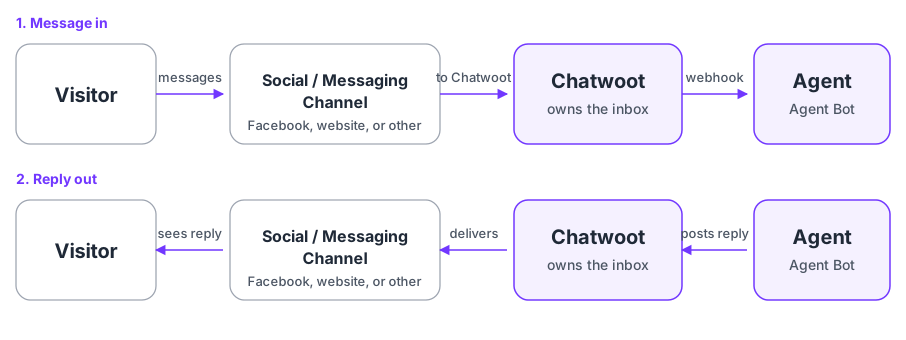
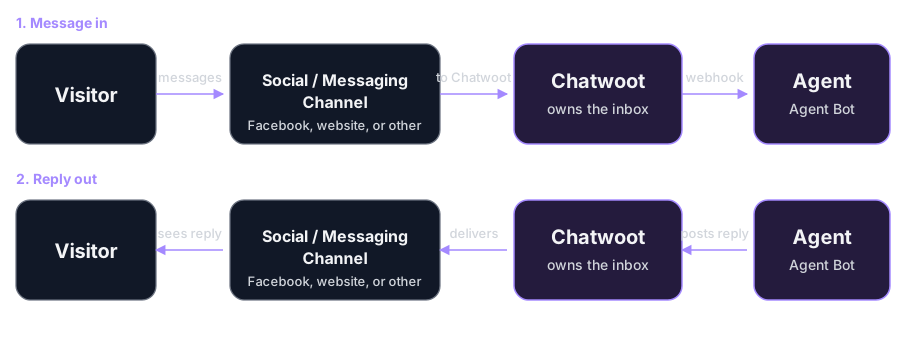
A new conversation starts pending and assigned to the bot. The Agent answers those inbound messages. When a staff member takes over, Chatwoot opens the conversation (or assigns it to that person) and the Agent pauses. Assigning the conversation back to the Agent Bot returns it to pending, and the Agent answers the next inbound message.
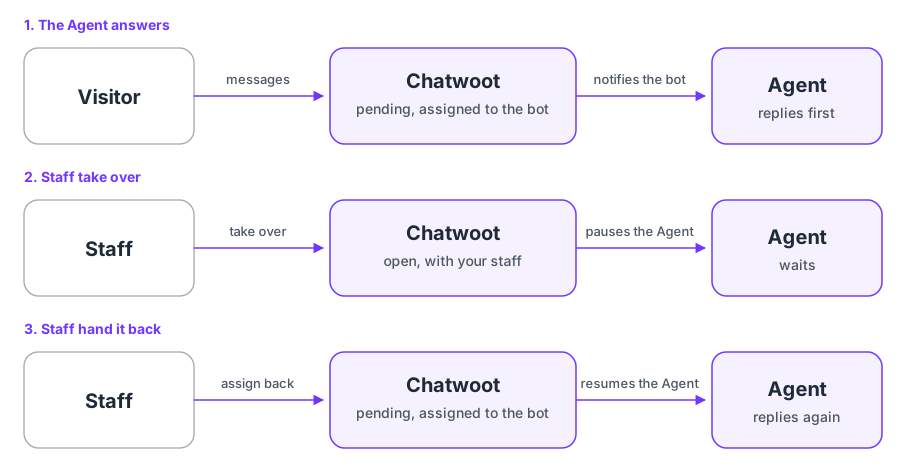
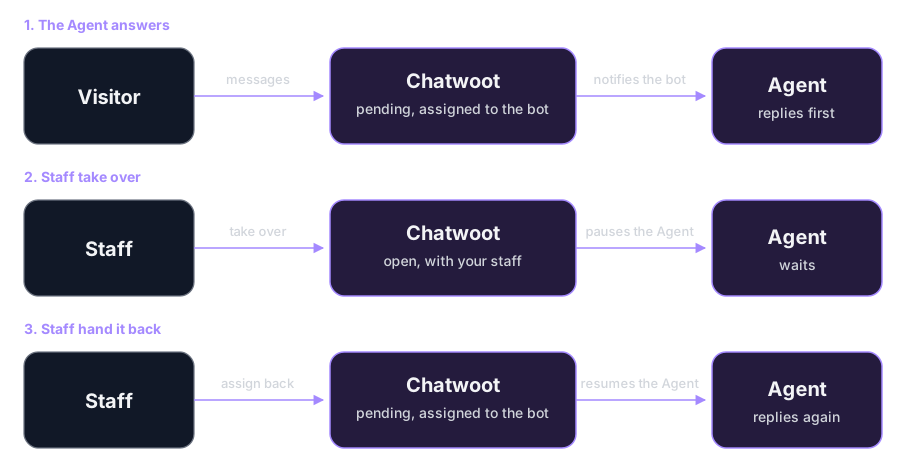
The Agent acknowledges each webhook immediately, then generates the reply in the background. Chatwoot times out in about five seconds if it has to wait, so a conversation that jumps to Open with no reply usually means the webhook never reached the Agent or failed authentication, not that the model was slow.
When the Agent Replies
The Agent answers only an incoming public message while the conversation is still pending and not assigned to a person. Private notes and the Agent Bot’s own outgoing messages are ignored, so the reply does not loop.
Replies are posted as Chatwoot outgoing messages. Chatwoot renders Markdown, so HTML from a Call to Action or a pause message is converted before it is sent. Model Markdown is left as-is.
Cue Phrase works the same way as on other channels that have it. Enter one and the Agent replies only when the visitor’s message includes it. Leave it empty and the Agent replies to every inbound message it is allowed to answer.
If a guardrail or automation pauses the Agent, the Agent also opens the Chatwoot conversation so it leaves the bot queue and waits for staff.
When Staff Take Over
Staff pause and resume the Agent from Chatwoot. They do not need Console for a single conversation.
Taking over can be assigning the conversation to yourself, opening it, or using Chatwoot’s reply-box handoff banner. Any of those notifies the Agent.
Staff replies stay in the Agent transcript so the next completion can see what a person already said. [Staff] marks those lines. Private notes never appear there.
Pausing the whole Agent from Console is separate. That control needs a Default API Key on the Agent’s API page. Conversation pause and resume from Chatwoot do not.
Conversation Labels
Prompt tags from an Automation stay on the prompt. They become Chatwoot conversation labels only when Automatically Synchronize Tags is on for that channel. The toggle is off by default and appears only for Chatwoot.
When it is on, Agent adds labels after the prompt tags are written. Additive strategies leave staff labels in place. Evaluator: Exclusive replaces Chatwoot labels that match other options from the same Evaluator, then adds the latest option.
Chatwoot labels should match the prompt tag slug (for example urgent-follow-up), or the tag name if the slug is empty.
Administrator Access Token (for Conversation Labels) is a Chatwoot administrator Profile access token. When it is set, Agent creates the Settings catalog entry if it is missing, then tags the conversation. Without it, Agent can still tag the conversation, but the chip stays hidden until that catalog entry exists.
Set Up Chatwoot
Create the Chatwoot Channel In Console
On the Agent, create a channel on the Chatwoot platform. The fields sit on the Connection tab:
Save, then copy the Endpoint from the Agent’s Channels panel. Replace {api_key} with a real Agent API key, or drop ?api_key={api_key} once Webhook Secret is filled. Chatwoot’s signature is checked even when the key is present.
To create a key, turn on the API capability and use the API Keys panel. You need API only to create the key. The channel itself keeps working off Messaging / Social Channels.
Create a Chatwoot Agent Bot
In Chatwoot, open Settings, then Agent Bots, and create a webhook bot.
Paste the channel Endpoint as the bot’s outgoing webhook URL. Set the same webhook secret you entered in Console, save, and copy the bot access token back into Agent Bot Token if you left that field empty.
Attach the Bot To the Inbox
Open the inbox the Agent should answer (a Website inbox is the simplest first test) and attach the Agent Bot. New conversations start pending and assigned to the bot, so the Agent replies first.
Activate And Hand Off
A new channel is saved inactive. Open it with Edit, turn Active on, and save. The toggle beside the channel in the Agent’s Channels panel also has to be on.
Send a message from a real Chatwoot contact and confirm the Agent replies. Then take the conversation over in Chatwoot and confirm the Agent stops, assign it back to the bot, and confirm it answers again.
Troubleshooting
- Visitors get two replies. The same inbox is connected both as a Chatwoot inbox and as its own Agent channel. Remove the native channel and let Chatwoot own the inbox.
- Chatwoot conversations jump to Open with no Agent reply. The Agent Bot webhook failed or timed out. Confirm the outgoing URL is reachable from Chatwoot and that the Agent returned 200. The Agent acknowledges immediately, so a jump to Open usually means auth failed or Chatwoot could not reach the endpoint.
- The Agent does not reply, and you have just set the channel up. Check the channel’s own Active toggle. A new channel is saved inactive, while the toggle in the Agent’s channel list is already on.
- The platform reports that your webhook returned 403. The request failed authentication, or the payload’s Chatwoot account id does not match Account ID on the channel. Confirm Webhook Secret matches the Agent Bot, or that the endpoint carries a valid
api_key. - The Agent replies to everything in a busy inbox. Set a Cue Phrase so it answers only when addressed.
- The Agent ignores every message. A Cue Phrase is set and the messages do not contain it.
- Chatwoot shows no label, or the chip is hidden. Prompt tags must be written first, and Automatically Synchronize Tags must be on for that channel. Without an Administrator Access Token (for Conversation Labels), Agent can still tag the conversation, but the chip stays hidden until the Settings catalog entry exists.
- Staff took over and the Agent kept answering. The conversation is still pending and assigned to the bot. Open it, assign it to yourself, or use the handoff banner so Chatwoot notifies the Agent.
Next Step
Continue to API And MCP to reach the Agent from your own code, or to Automations to apply prompt tags that Chatwoot can show as labels.