

Chat Logs
Chat Logs is the record of every conversation an Agent has had: the question a visitor asked, the answer the Agent gave, and the context around both.
Purpose
Find a specific conversation, read it in full, and use what you learn to improve the Agent’s instructions, sources, or starter prompts.
Prerequisites
- An Agent that has answered at least one question.
- Permission to view chat logs for your team.
Steps
Open Chat Logs
Select Chat Logs in the left-hand navigation. The list shows one row per exchange, newest first, with the prompt and the date it was asked.
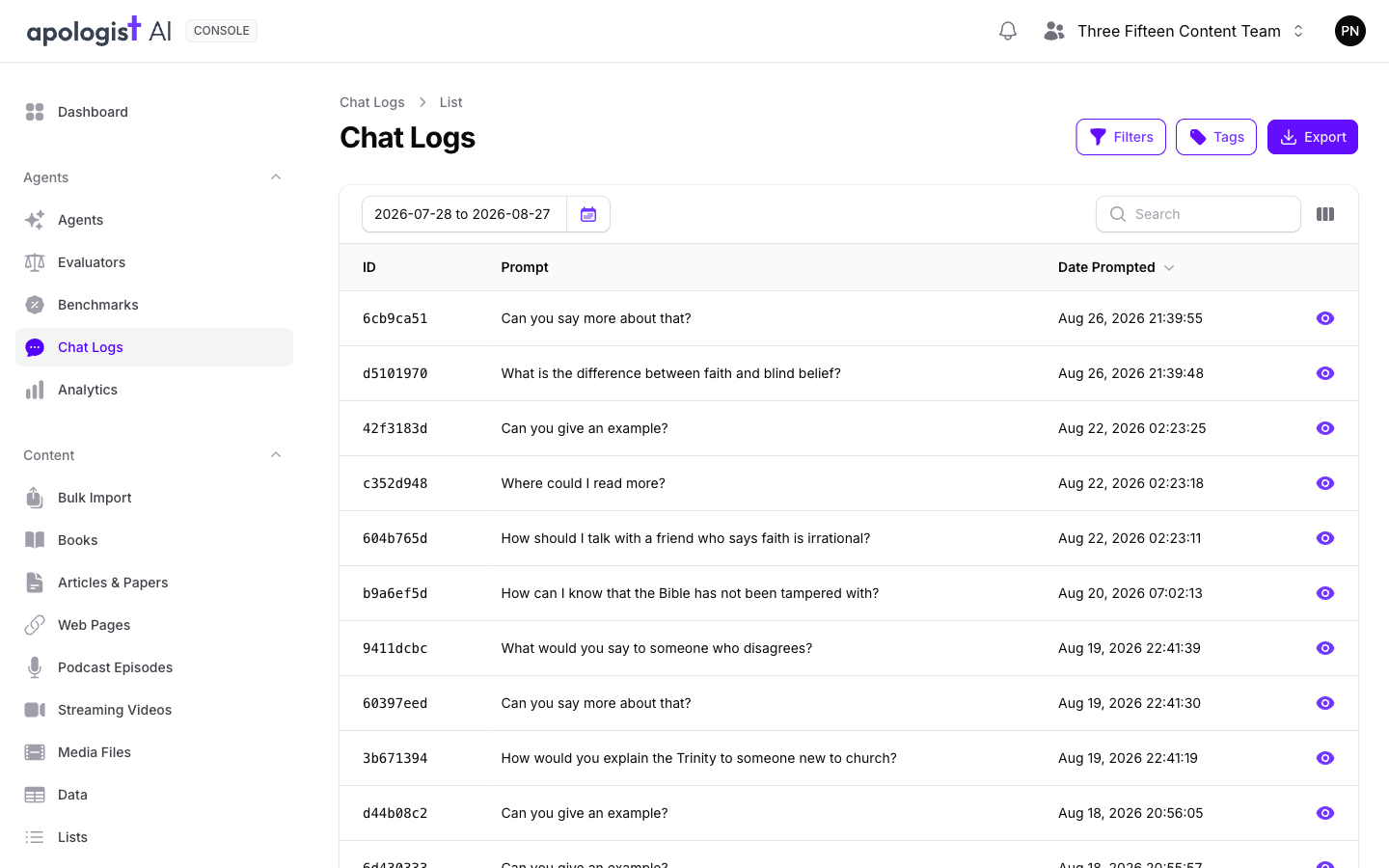
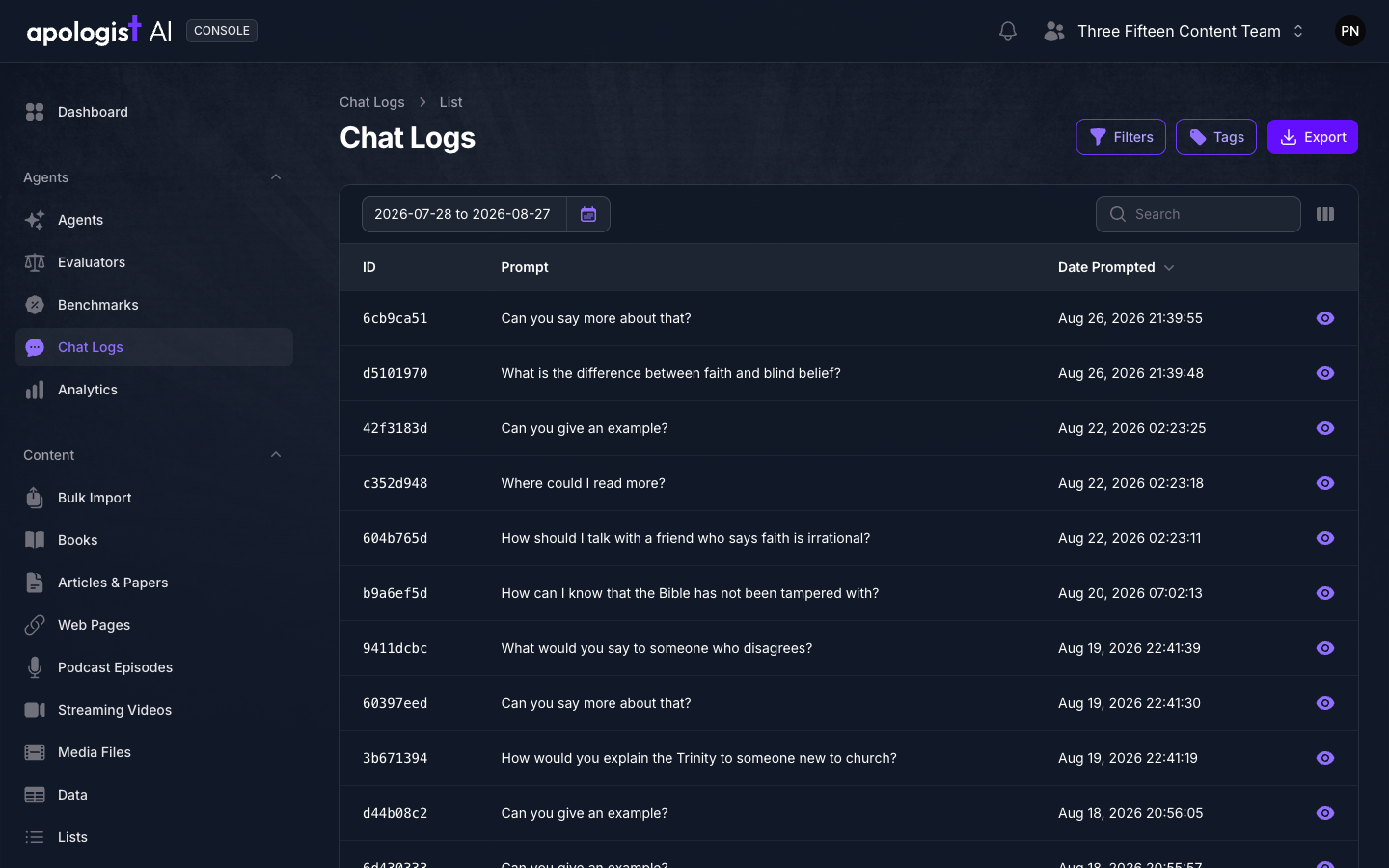
The date range starts at Today, so an Agent with no traffic since midnight opens to an empty list. That is the filter, not a missing record. Widen the range before concluding anything is wrong.
Set the Date Range
The date-range control sits at the top left of the list. Choose one of the presets, from Today through Last Year, or pick two dates on the calendar.
Selecting a preset does not apply it on its own. Select Apply to commit the change and requery the list.
Narrow the List
Three controls narrow what you are looking at, and they combine.
Searching for an ID ignores the date range, so a link to a specific exchange resolves however the range is set.
Show More Columns
Most columns are hidden to keep the list readable. Open the column selector to the right of the search box and turn on what you need.
Response is the one to add first, since it lets you scan questions and answers together without opening each exchange. Conversation ID, Session ID, Device ID, and User ID are the ones to add when you are trying to establish who did what across several exchanges. Tags is hidden by default. Turn it on when you need to scan which prompt tags an exchange received.
Open One Exchange
Select the view action at the end of a row. The detail page opens on Summary, which shows the Agent, client, language, channel, date, whether the exchange was cached, liked, flagged, or led to a call-to-action click, and any prompt tags applied to it.
Choose Conversation to read the exchange itself. Each turn is a panel, the current one expanded and the rest collapsed, so you can follow the thread that led to the answer you are inspecting.
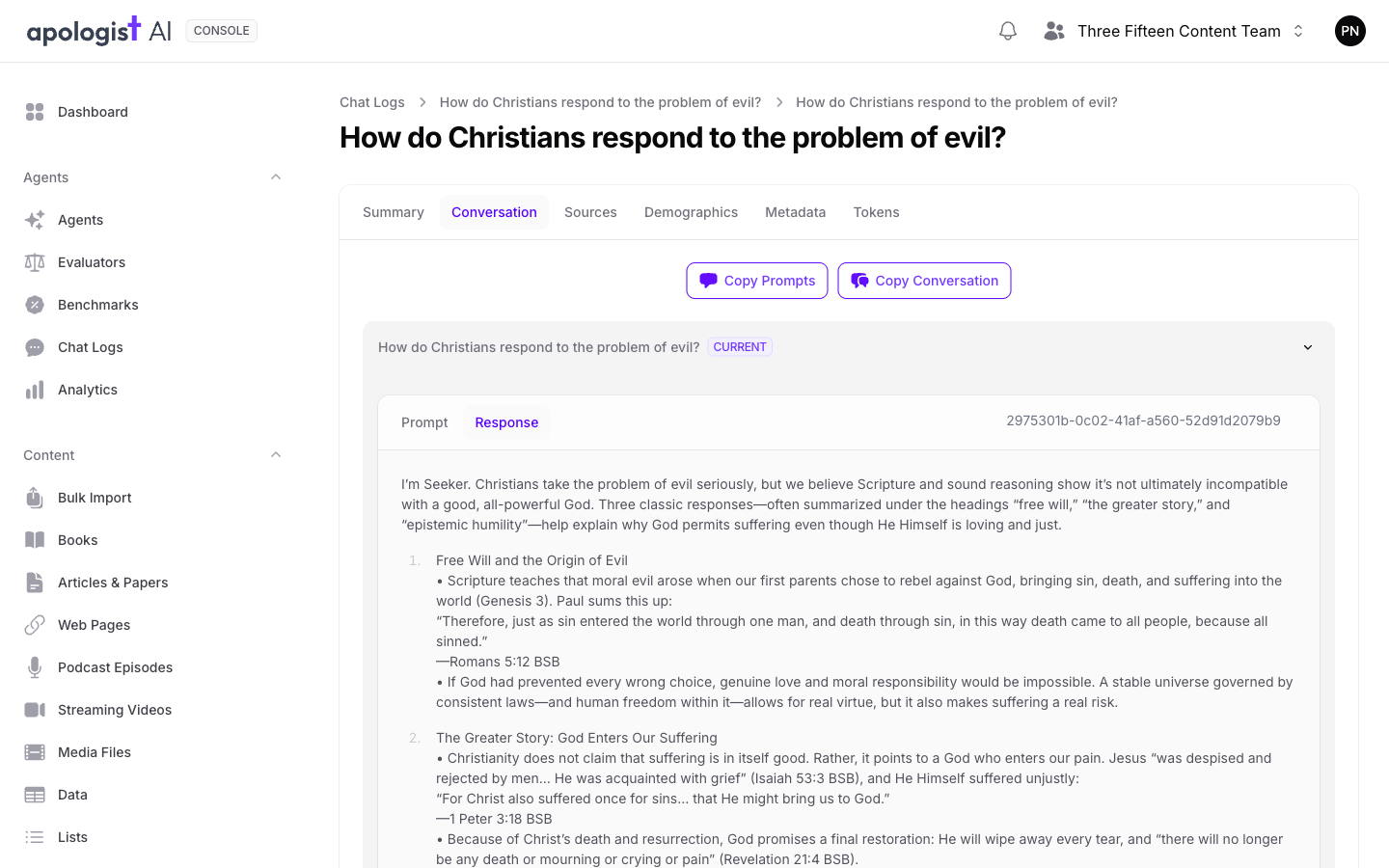
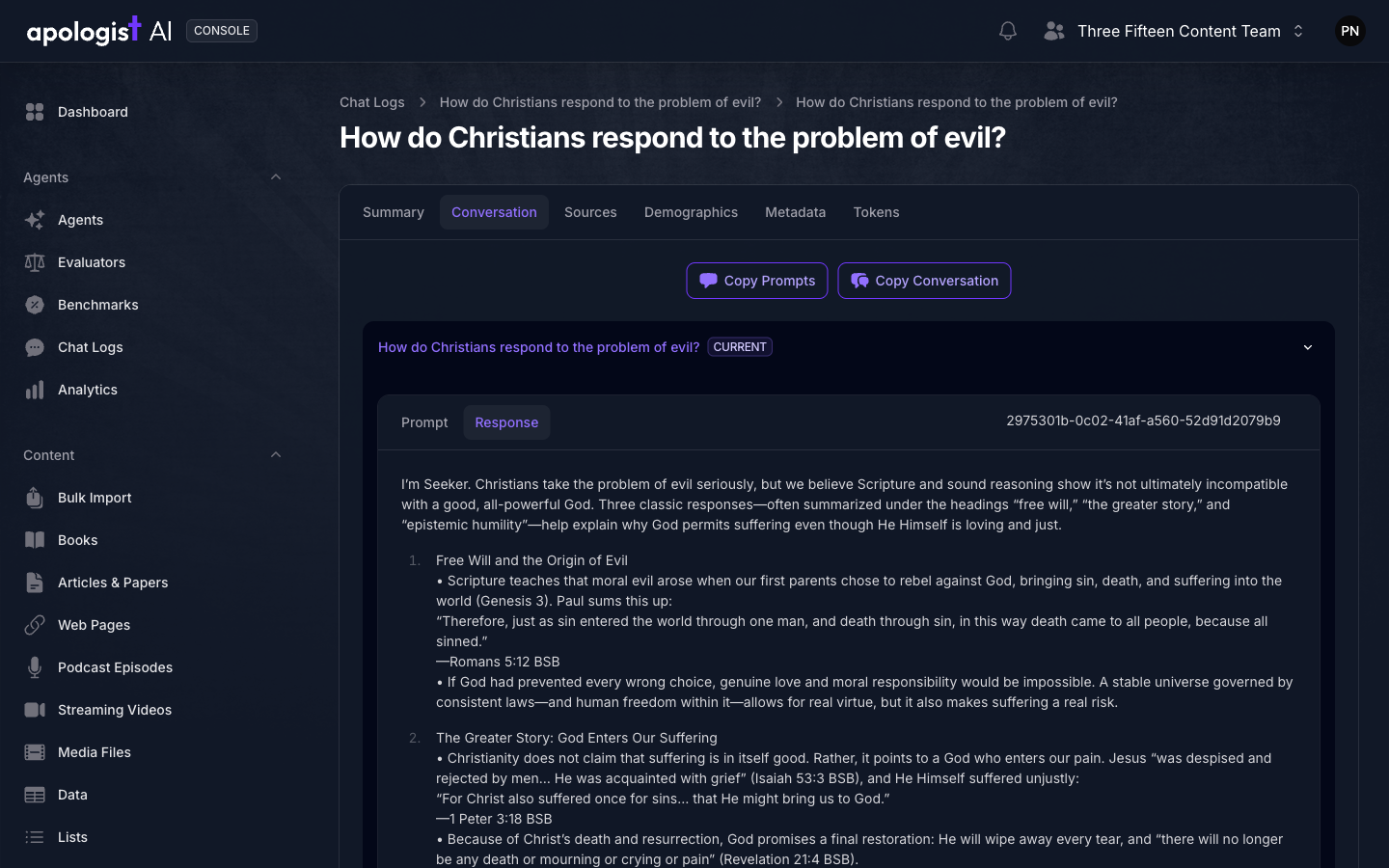
Within a turn, Prompt and Response are separate tabs and Prompt is selected first. Select Response to read what the Agent said. Where the Agent translated the exchange or recorded its reasoning, those appear as further tabs beside them.
Expected Result
You can find any exchange an Agent has had, read the question and answer in full, and see the sources and settings behind the response.
Exporting
Export downloads the filtered list as a spreadsheet. The export honours the filters and date range on screen, so narrow the list first rather than exporting everything and filtering afterwards.
Managing Your Prompt Tags
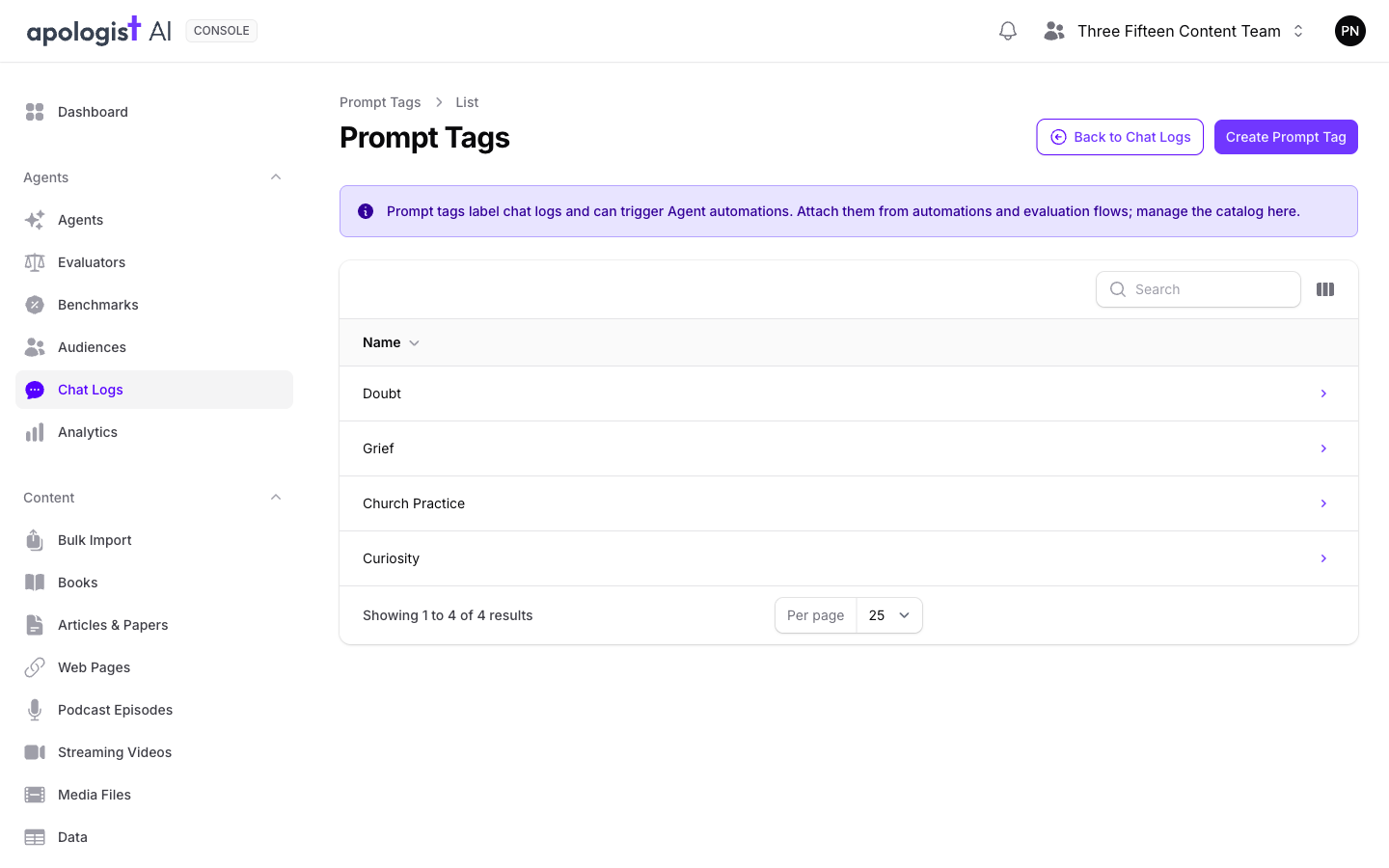
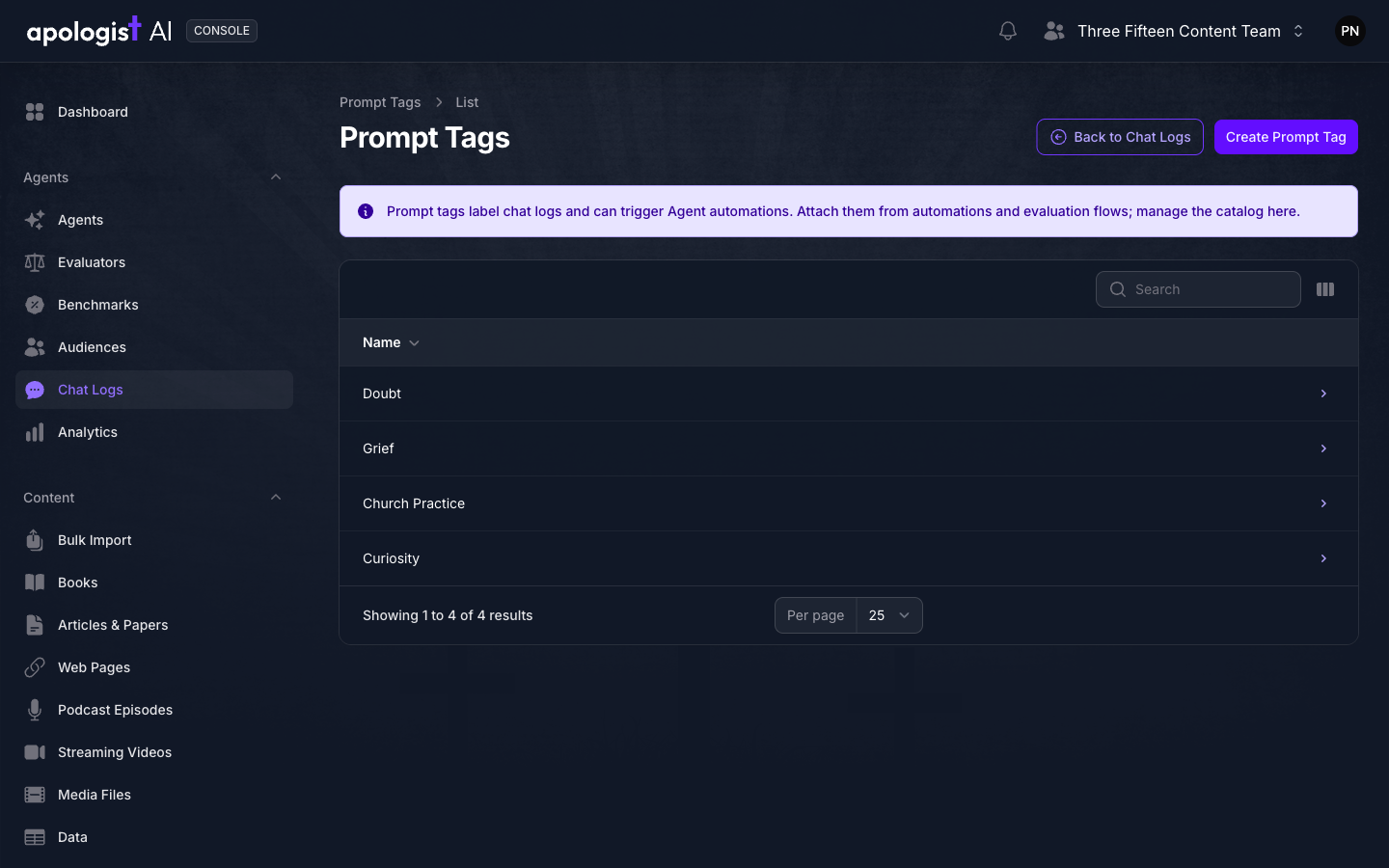
An Automation can sort every prompt into one of your own words, such as Doubt or Grief. Select Tags above the list to see every prompt tag your team has made, rename one, or delete one you no longer want offered.
You can add one here with Create Prompt Tag, but you will more often make them while building the Automation that applies them, where typing a new word creates it. Deleting a tag leaves prompts already tagged with it unchanged.
What Is Not Here
Some traffic never reaches this list, by design.
- Benchmark runs. A benchmark generates real prompts and answers, but they are machine traffic rather than conversation, so they are kept out of Chat Logs. They appear on the Benchmarks panel, both on the Agent and on the chat log a run was made against.
- Archived exchanges. Archiving hides an exchange from the list without deleting it.
Chat Logs is read-only in the sense that matters: you can archive, favorite, add notes, and request a translation, but you cannot edit what the Agent said.
Troubleshooting
- The list is empty. Check the date range first. It starts at Today, which shows nothing for an Agent whose traffic is older than midnight.
- Choosing a preset date range changed nothing. Select Apply. The picker does not commit until you do.
- An exchange you expect is missing. Confirm the date range covers it, then check whether it has been archived. Benchmark traffic never appears here.
- The response column is not shown. It is hidden by default. Turn it on in the column selector.
- You can see the question but not the answer. On the detail page, each turn opens on its Prompt tab. Select Response.
- The Tags button is missing. It appears only if you have permission to manage prompt tags.
Next Step
Continue to Analytics to see this traffic as counts and trends rather than individual conversations, alongside the searches and evaluations that do not appear here.