

Message Merge Tags
A Call to Action, a guardrail message and an automated message are all written once and shown to everyone. A merge tag is how you write something in them that changes per visitor: the conversation they are in, the prompt they just sent, or a link that acts on their account.
A tag is a name in single braces, such as {conversation}. The Agent replaces it with a real value at the moment the content is shown. You do not have to type them from memory, and you should not: every field that accepts tags offers the exact list it accepts.
This page covers the tags available in message content. Console uses the same brace syntax in two other, unrelated places, and the tags are not interchangeable. If the tag you want is not on this page, see Other Merge Tags.
Purpose
Understand the tags available in message content, what each resolves to, and how the two action links turn a tag into a working link.
Prerequisites
- Permission to edit Agent settings for your team.
- A place to use one. Tags in message content are written on Calls to Action, Custom Guardrails and Automations, so this page is a reference for those rather than a task of its own.
- For action links, the thing being linked to has to exist first. A Responder must be active on the Agent, and a User Flag must be created, before either is offered. See Responder Routing and Audiences.
Conversation and Message Tags
These describe the exchange the visitor is in, and every message field accepts all of them.
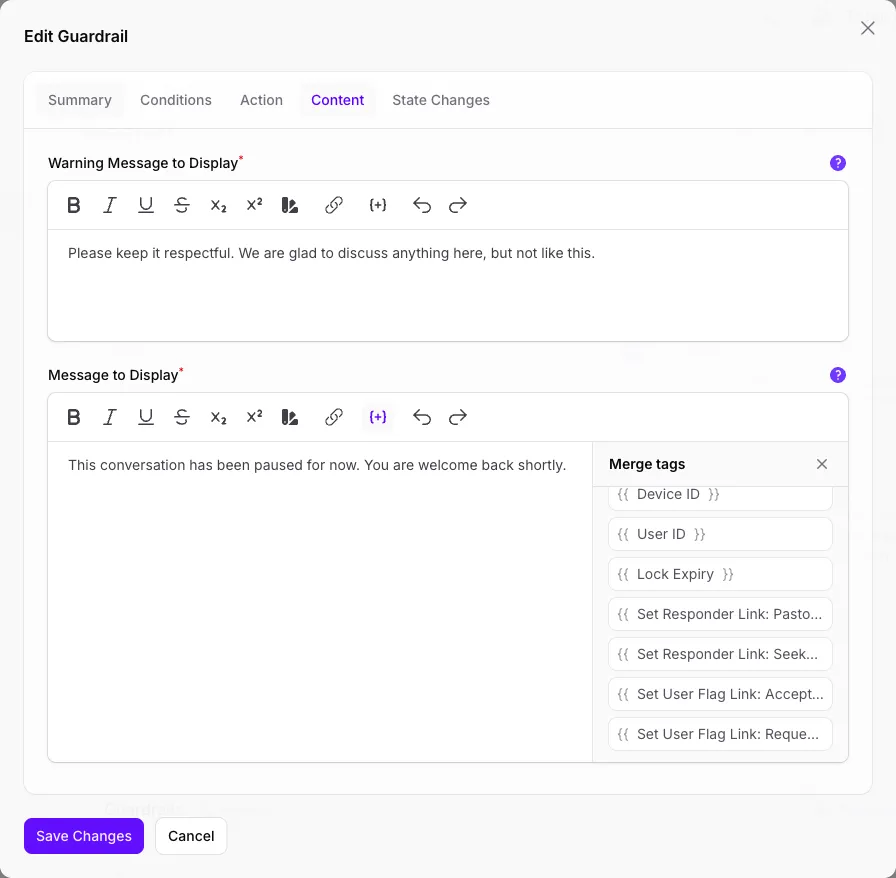
One more is available on a guardrail’s Message to Display only:
Every tag resolves to an empty string when its value is not available, rather than staying on screen as {user}. That is usually what you want, and it means a sentence built around a tag can collapse into something odd. “Quote reference {prompt} when you contact us” becomes “Quote reference when you contact us” for a visitor with no prompt id, so write around the tag rather than depending on it.
Action Links
Two tags are different in kind. They do not describe the conversation, they act on it: each expands into a signed link that changes something for the visitor who selects it, then returns them to where they were.
Both take an id, and you never have to look one up. The list in each field carries an entry per record, reading Set User Flag Link: Accepted Handoff (#1), so you choose by name and the id is filled in for you. Neither is a URL on its own, so put one in an anchor: <a href="{set_flag_link:1}">Talk to a person</a>.
Action links are not percent-encoded, unlike {share_url}. Use one as a whole href value rather than embedding it inside a longer URL as a parameter.
The list is generated from your own records, which is why it can be empty:
- A Responder is offered only while it is active on this Agent. Deactivate its routing rule and the tag stops being offered here, and a link already published stops working.
- User Flag links need User Flags on your plan, the same entitlement as Audiences. Without it, no flag tags appear at all.
An action link is meaningless for a visitor the Agent cannot identify, so it resolves to nothing for them. The link text stays on screen and becomes unselectable rather than disappearing, which looks like a broken link. Use action links in content aimed at identified visitors, and write the surrounding sentence so it still reads if the link does nothing.
Each link is signed, expires, and is bound to one Agent, one visitor and one target, so it is safe to send through a messaging channel where the URL may be visible to others. It cannot be edited into a link that acts on someone else.
Where Each Tag Works
Four fields accept these tags, and they do not all offer the same list.
Each of those fields sits behind its own capability, so if you cannot find one, the capability is off on that Agent rather than the field being missing.
Inserting a Tag
Two ways, in any of the four fields.
Type {. A list opens as you type and narrows on what you type next, matching both the tag and its label, so typing flag finds the User Flag links. Select one and it is inserted with its braces and, for an action link, its id.
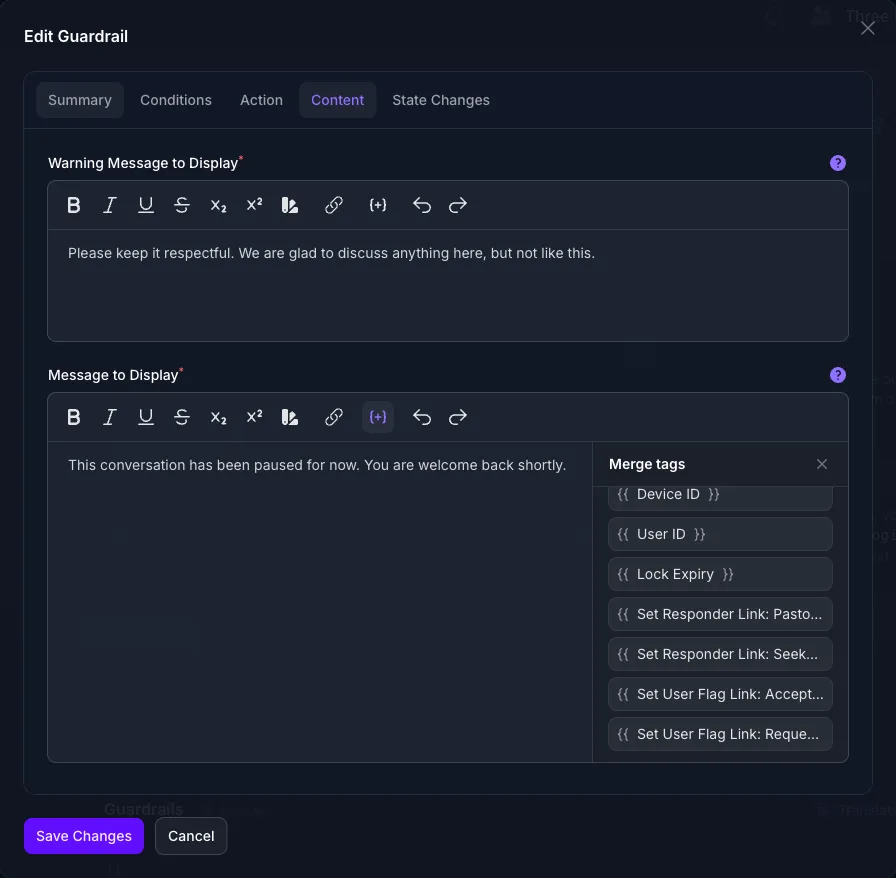
Or use the merge tags button in the field’s toolbar, which opens a panel listing every tag that field accepts. Select one to insert it at the cursor, or drag it into place.
Either way the tag is saved as plain text, so what you see in the editor is what the Agent reads.
Other Merge Tags
Console uses the same brace syntax in two other places, and those tags have nothing in common with the ones above beyond the braces.
Tags do not carry across. {language} belongs to an instruction field and stays as literal text in a Call to Action, and {conversation} does the same in a system prompt. The list beneath each field is the authority for that field.
Troubleshooting
- A tag stayed on screen as
{user}instead of being replaced. It is not offered on that field. Tags are per field, and one borrowed from another field or another part of Console is left alone as ordinary text. - A sentence came out with a gap in it. The tag resolved to an empty string because the value was not available for that visitor. Rewrite so the sentence survives an empty value.
- The Responder or User Flag you want is not in the list. A Responder appears only while it is active on this Agent, and flags appear only if User Flags are on your plan. Create or activate the record first, then reopen the field.
- An action link renders as text that cannot be selected. The Agent could not identify that visitor, so the link resolved to nothing. This is expected for anonymous traffic.
- A published action link stopped working. Its Responder is no longer active on the Agent. Reactivating the routing rule restores it.
{lock_expiry}is not offered. It exists only on a guardrail’s Message to Display, not on the warning message and not on Calls to Action or Automations.- The tag list is missing entirely. That field does not take merge tags, or you are looking at an instruction field, which takes prompt-context tags instead.
Next Step
Continue to Calls to Action, which is where most merge-tag content is written, or to Audiences to create the User Flags an action link can set.