

Voice To Voice
Voice to Voice lets a visitor hold a spoken conversation with an Agent: they talk, the Agent answers out loud, and the exchange is recorded in the conversation exactly as a typed one would be. Typing stays available throughout, so voice is an additional way in rather than a replacement for the prompt box.
Purpose
Turn on voice for an Agent, choose the voice it speaks in, and set how a spoken conversation behaves.
Prerequisites
- An Agent visitors can reach. See Standalone Web UI.
- Voice to Voice on your team’s plan. It is not included on the free plan, where the capability shows Upgrade to Unlock.
- Permission to edit Agent settings for your team.
- The languages the Agent answers in already set, if it serves more than one. A voice is chosen per language, so it is quicker to add languages first. See Configuring Languages.
Steps
Turn On the Voice to Voice Capability
Select Agents in the left-hand navigation, open your Agent, then choose General and select the Capabilities tab.
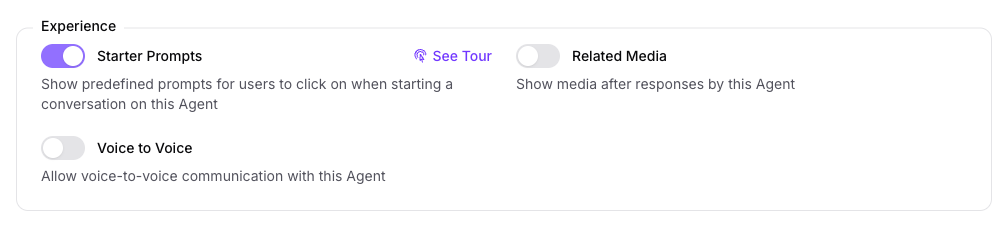
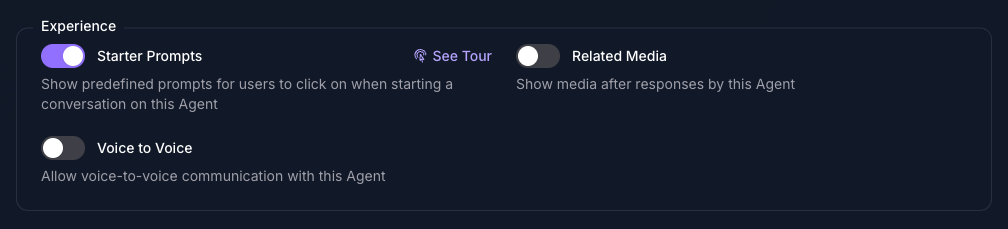
Under Experience, turn on Voice to Voice and select Save Changes. The page reloads, and a Voice page appears in the row across the top of the Agent.
Turn On Voice Mode
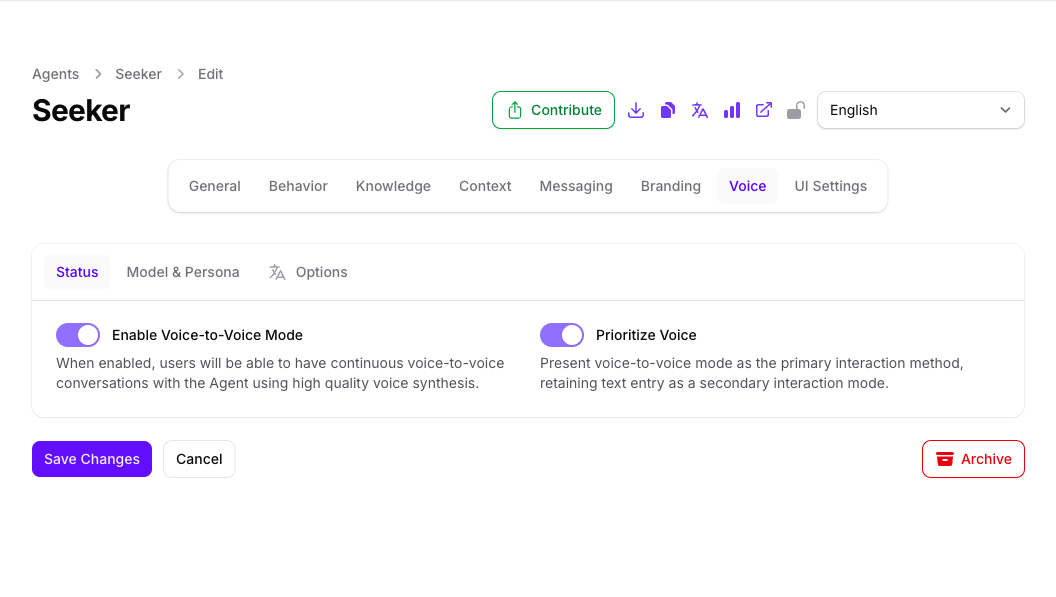
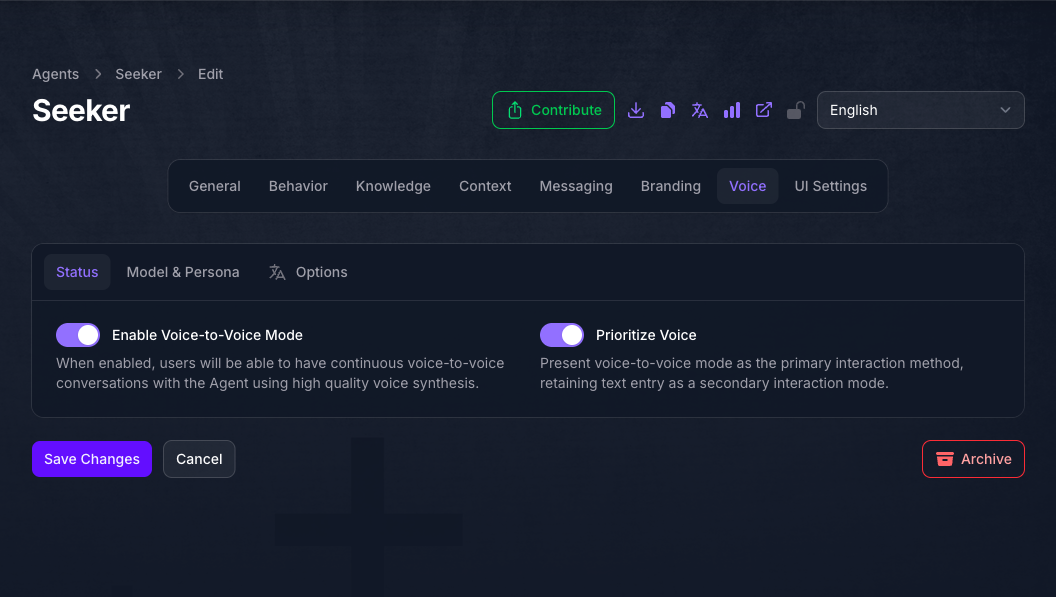
Choose Voice from the row of pages across the top. On the Status tab, turn on Enable Voice-to-Voice Mode. Every other setting on this page, including the two remaining tabs, stays unavailable until it is on.
Prioritize Voice presents speaking as the main way to use the Agent: the microphone becomes the primary button and sending typed text is demoted beside it. Leave it off and the microphone sits next to the send button as a secondary action instead.
Choose a Model and a Voice
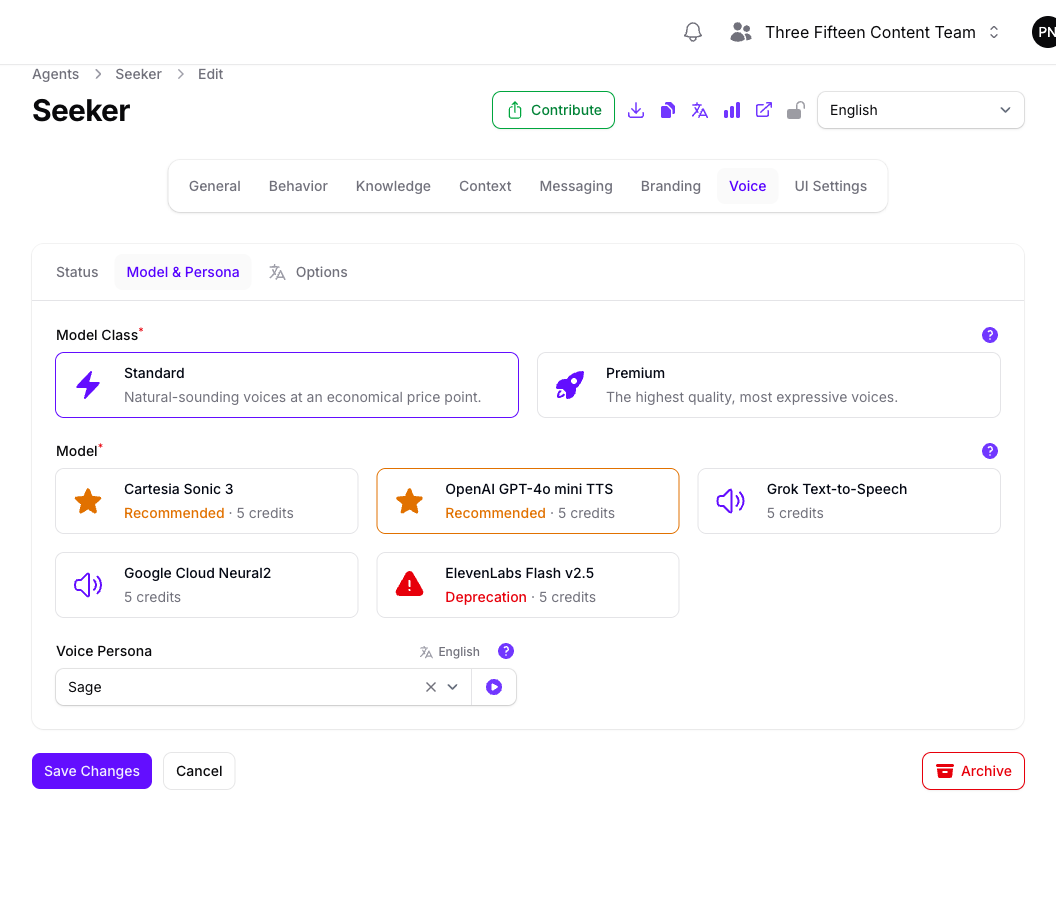
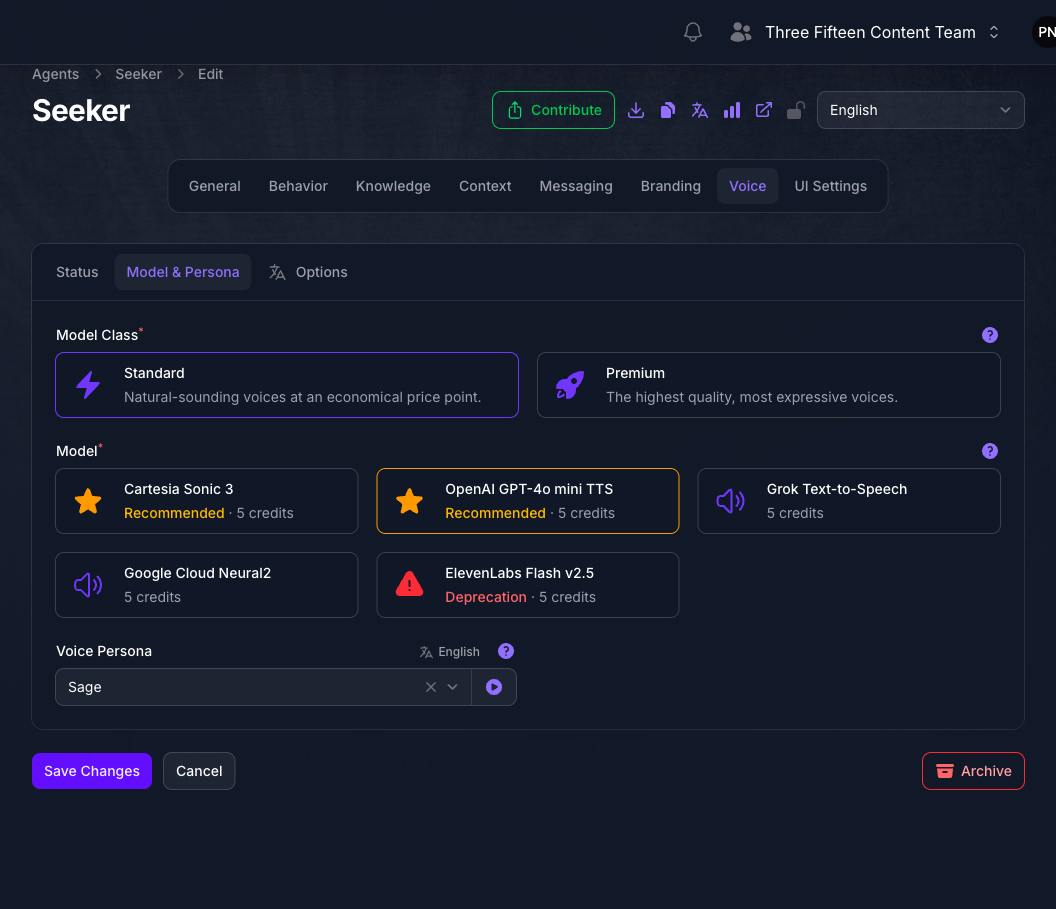
On the Model & Persona tab, pick a Model Class, then a Model within it. Standard is the economical choice and Premium is the more expressive one; each model card shows what it costs per response, starred cards are the recommended models in that class, and a card flagged Deprecation is on its way out and is worth avoiding for a new Agent. A model is required once voice is on, so the page cannot be saved without one.
Voice Persona then lists the voices that model offers. A distinct voice is saved for each language, against the language shown in the page’s language switcher at the top right, so switch the language there and choose again for every language the Agent answers in. Use the play control beside the field to hear a voice before you keep it.
Choose the model before the voices. Voices are specific to the provider behind a model, so changing the model afterwards clears every voice already chosen.
Set How the Conversation Sounds
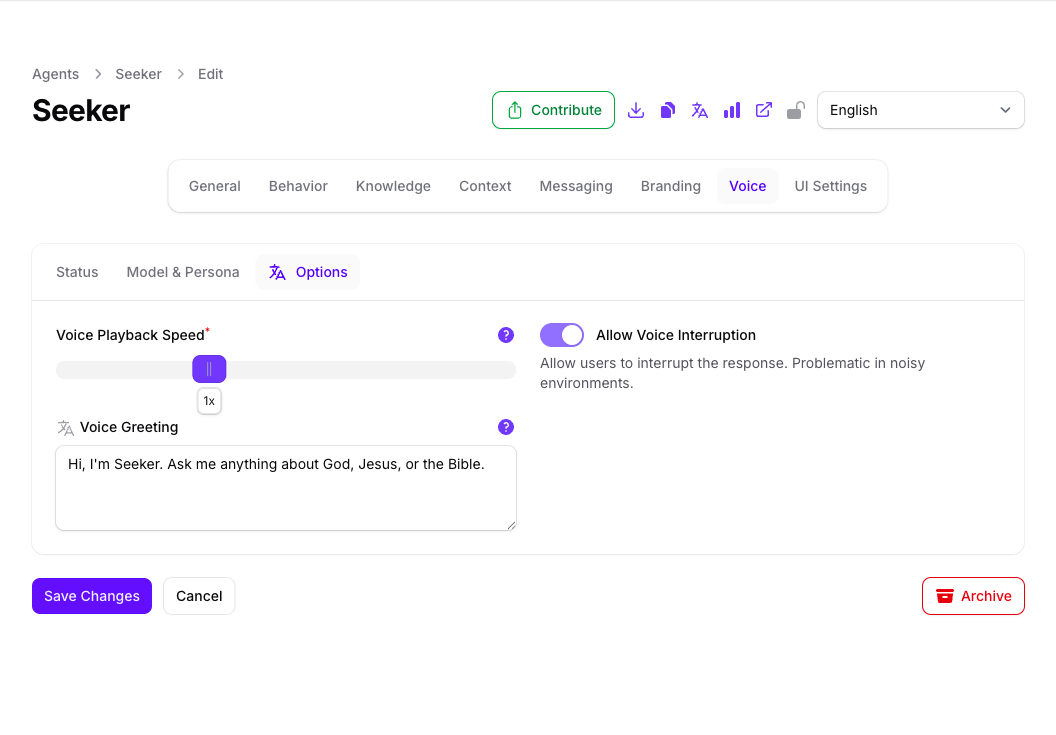
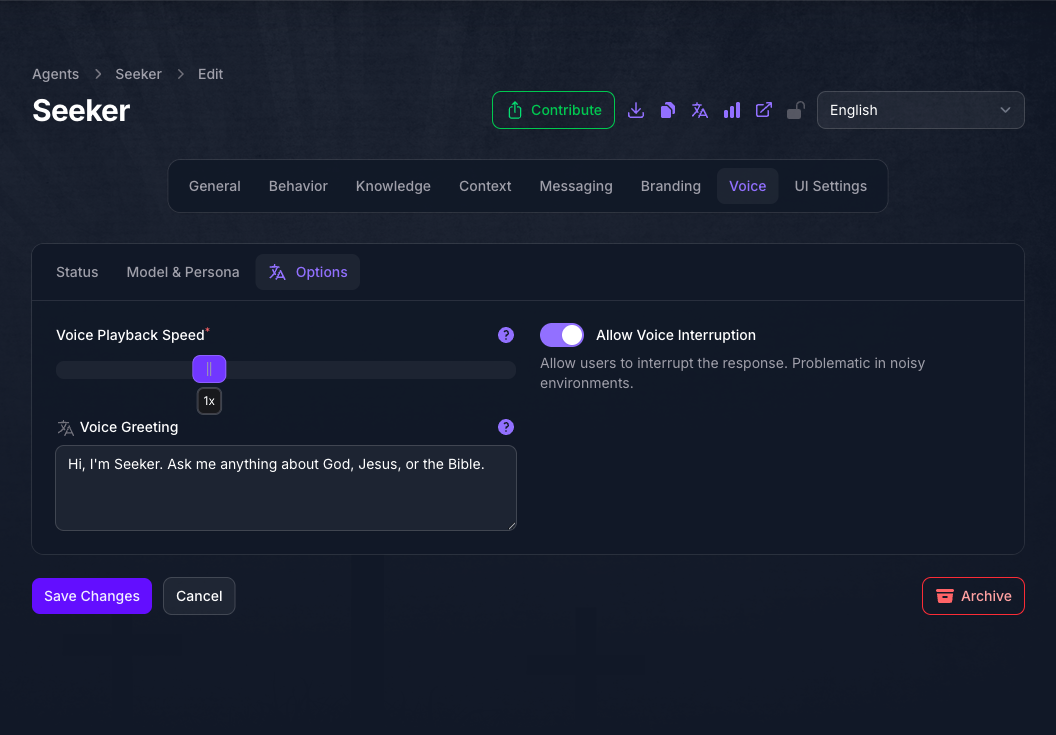
On the Options tab, Voice Playback Speed sets how fast the Agent speaks, from 0.75x to 1.50x, where 1.00x is the model’s natural rate.
Allow Voice Interruption lets a visitor cut in while the Agent is still speaking. It makes the exchange feel conversational, and it misfires in a noisy room, where background sound is taken for someone speaking.
Voice Greeting is spoken once at the start of a conversation, before the Agent takes anything from the visitor. It is set per language, like the voice itself.
Save And Check the Agent
Select Save Changes, then open the Agent’s address in a new tab and select the microphone. The browser asks for permission to use the microphone the first time, and the session does not start until the visitor grants it.
To stop an Agent offering voice later, turn off Enable Voice-to-Voice Mode on the Status tab first, and turn off the capability after that. Turning the capability off on its own removes the Voice page from Console while visitors are still offered voice, and the setting is then out of reach until the capability is turned back on.
Expected Result
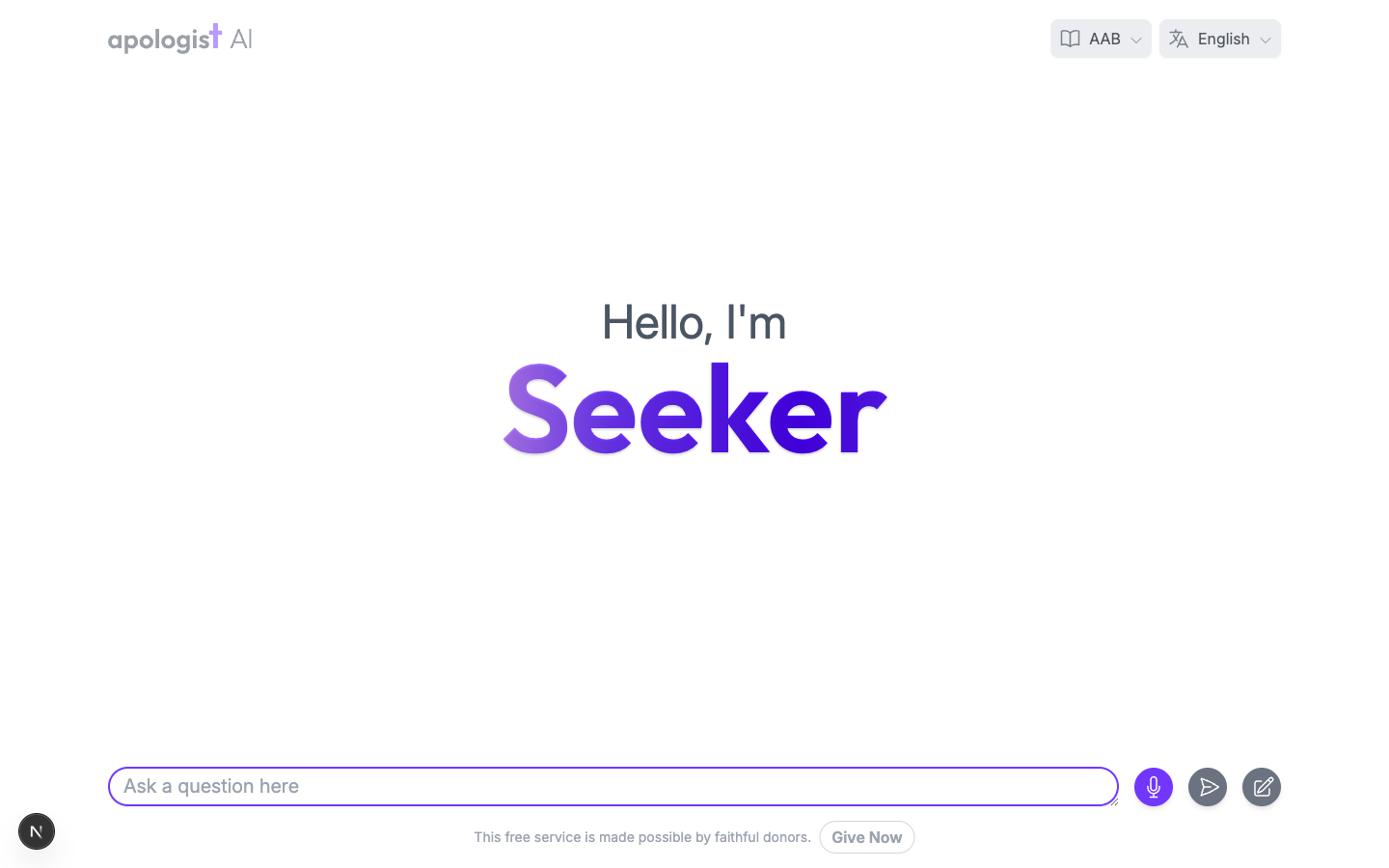
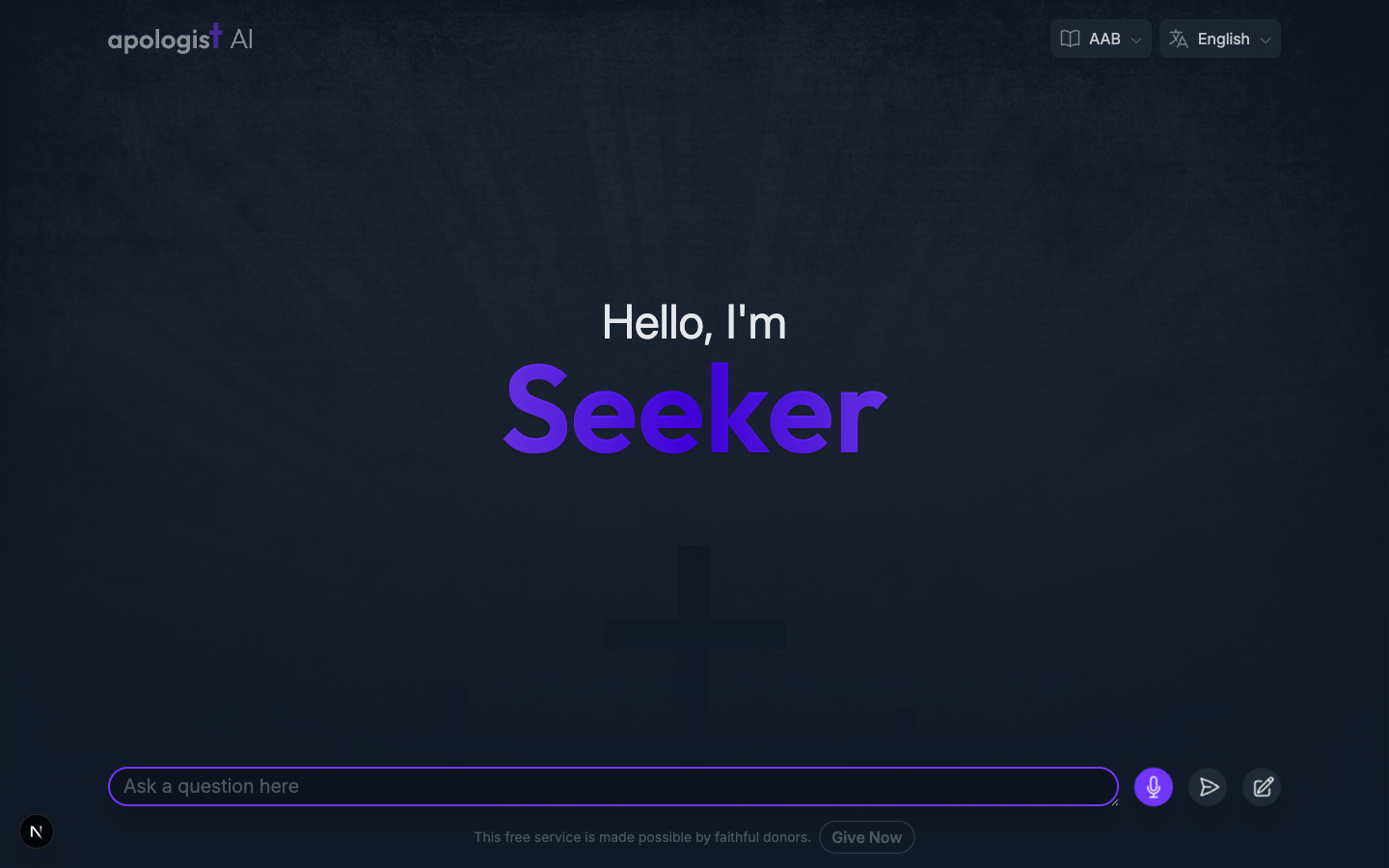
A microphone control sits beside the prompt box. Selecting it opens a live session: the visitor speaks, the Agent answers out loud, and each exchange is written into the conversation as it happens. Selecting it again ends the session.
The Agent below has Prioritize Voice turned on, which is why the microphone leads and sending typed text sits beside it. With that setting off, the two are the other way around.
How Voice Follows the Agent’s Languages
Voice is chosen per language rather than once, and the two per-language settings behave differently when a visitor arrives in a language you have not covered:
An Agent with no voice saved for the visitor’s language and none for English cannot open a session at all, so cover English even on an Agent that mostly answers in something else.
Which voices a model offers also depends on the language. Some providers report a reliable language for each voice, and those models offer only the voices that suit the selected language, which is why a model can show a full list in one language and none in another.
Troubleshooting
- There is no Voice page on the Agent. The capability is off. Turn it on under General, Capabilities, and save. If the toggle there is disabled with Upgrade to Unlock, your plan does not include Voice to Voice.
- Everything on the Voice page is unavailable. Enable Voice-to-Voice Mode on the Status tab is off. It governs the whole page.
- The page will not save. A Model is required once voice is on. Choose one on the Model & Persona tab.
- Voice Persona offers nothing to choose. The model cannot speak the language currently selected in the page’s language switcher. Switch the language, or choose a model that covers it.
- There is no play control beside the voice. Not every model can produce a preview on its own. Choose the voice and hear it on the Agent instead.
- The voices emptied after changing the model. That is expected. Voices belong to the provider behind the model, so changing it clears the ones already chosen and they have to be picked again per language.
- The Agent speaks a different voice than you chose. No voice is saved for the language the visitor is reading, so it fell back to the English one.
- Nothing is spoken when a session opens. The greeting has no text in the visitor’s language. Unlike the voice, it does not fall back to English.
- The greeting is spoken only once. That is expected. It opens a conversation, not each session, so reconnecting within the same conversation does not repeat it.
- The playback speed appears to do nothing. A speed at or very near 1.00x is the model’s own rate and is left alone.
- The Agent talks over the visitor, or stops when the room is noisy. Turn Allow Voice Interruption off. With it on, background sound can be taken for someone speaking.
- Nothing happens when a visitor selects the microphone. The browser is waiting on microphone permission, or it was refused for the site. Both are settled in the browser, not in Console.
- The Agent still offers voice after the capability was turned off. The capability controls the Voice page in Console, not what visitors are offered. Turn the capability back on, turn off Enable Voice-to-Voice Mode on the Status tab, save, and turn the capability off again.
Next Step
Continue to Analytics to see how the Agent is actually being used once visitors are talking to it.