

Configuring Advanced Context
Context is everything the Agent is told at the moment it answers, beyond the question itself and its baseline instructions.
Purpose
Control how much source material, conversation history, and situational awareness reaches the model on every prompt, and write the instructions that tell the Agent what to do with each.
Prerequisites
- A configured Agent with instructions written. See Customizing Instructions.
- Sources curated for the Agent. See Curating Sources.
- An understanding of your credit budget, since three settings on this page add per-prompt cost.
How Context Is Assembled
Every setting in this guide contributes to one thing: the system prompt the Agent receives with each request. The Agent starts from its baseline instructions, then appends each block of context in a fixed order:
- Language handling
- Scripture handling
- Bible tool usage
- Inline citations
- Web search tool usage
- Source handling
- Miscellaneous context
Two consequences follow, and both explain behavior that otherwise looks like a bug.
Each block is conditional. Language instructions are appended only when a language resolves for the request, source instructions only when the search actually returned passages, and web search instructions only when Live Web Search is on. A block whose field is empty is skipped entirely, which is not the same as a field containing default text.
Later blocks are read last. Where two blocks give competing guidance, the Agent tends to weight what it read most recently. Keep each block to its own concern rather than restating a rule across several.
These pages edit the Agent’s default Responder, the AI configuration attached to the Agent. If your Agent has the Responders capability turned on, the Behavior, Knowledge, and Context pages are hidden and you configure each Responder directly instead.
Steps
Set How Much Source Material Reaches the Model
Select Agents in the left-hand navigation, open your Agent, then choose Knowledge from the row of pages across the top and select the Advanced tab.
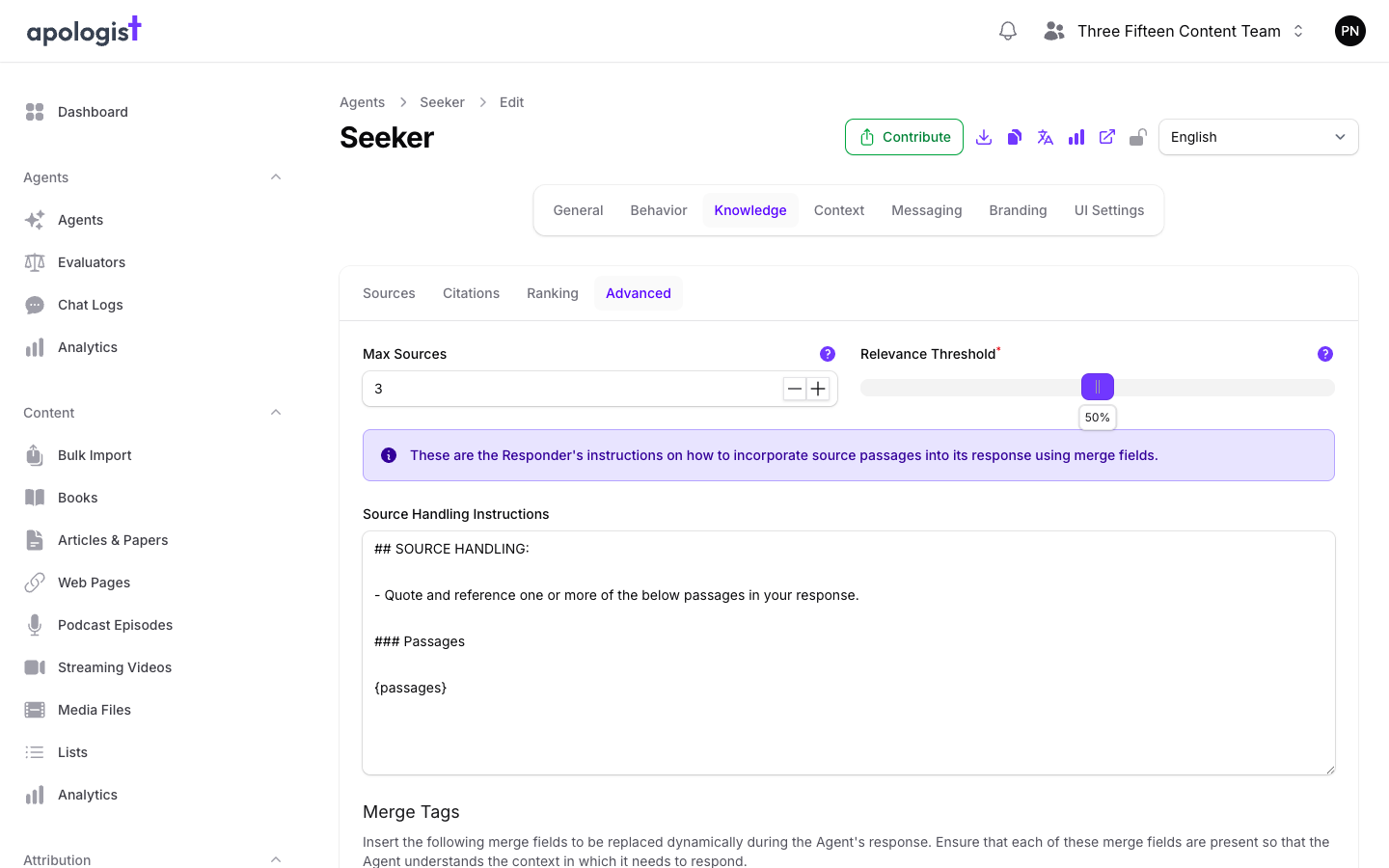
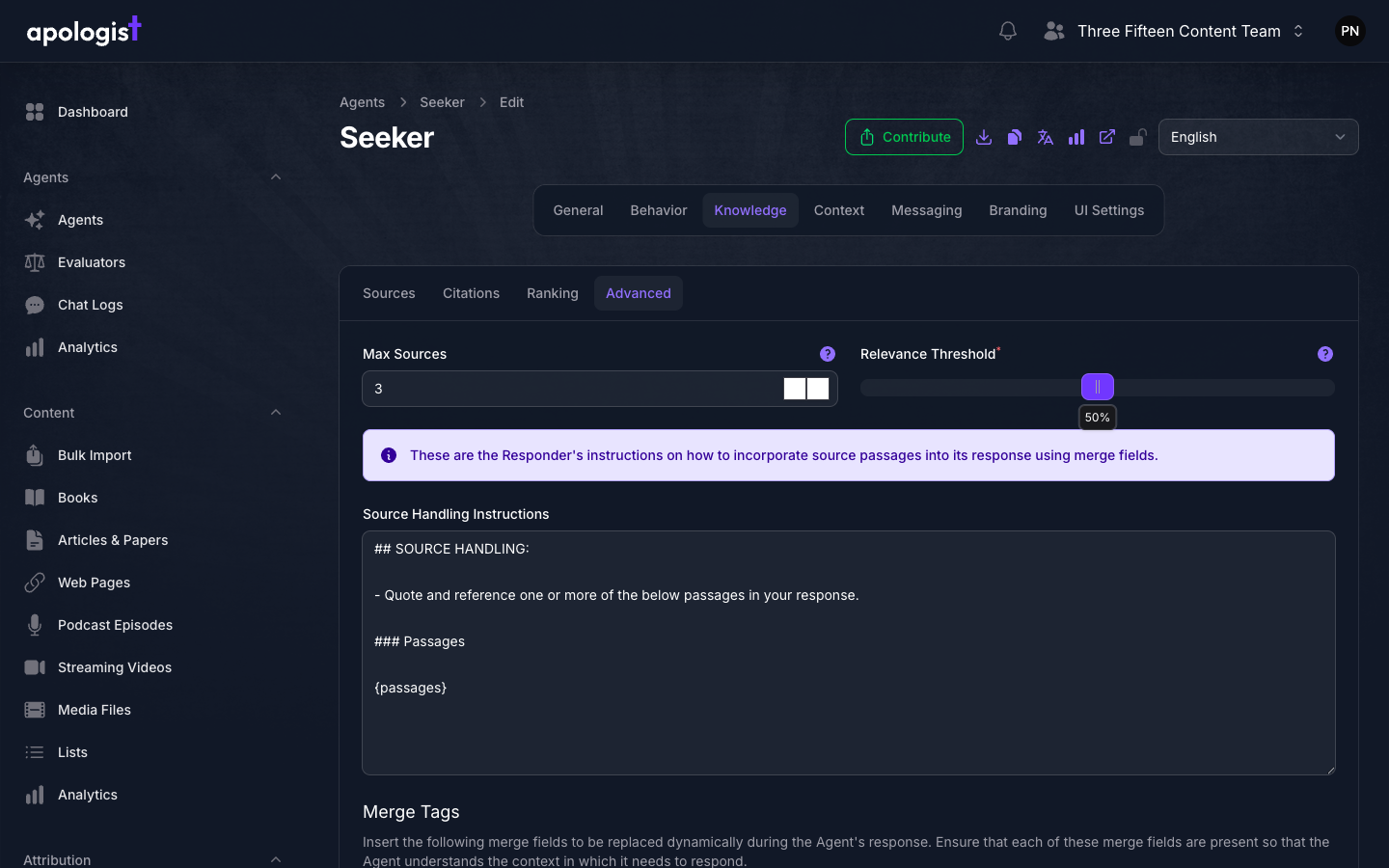
Three controls decide what the Agent has to work with:
- Max Sources caps how many source passages are included, from 0 to 25. More passages give the Agent more to draw on and make each prompt more expensive. Setting it to 0 stops source material reaching the Agent at all.
- Relevance Threshold is the minimum relevance score a passage must reach to be included, from 0 to 1 and displayed as a percentage. Raise it when the Agent cites material that is only loosely related. Lower it when the Agent says it cannot find anything on topics you know are covered.
- Source Handling Instructions tells the Agent what to do with those passages. The
{passages}merge tag is where they are inserted, so the tag must be present for the Agent to see them at all.
The two numbers work against each other: a high Max Sources with a high Relevance Threshold often yields fewer passages than the cap suggests, because the threshold filters them out first.
Decide Whether the Agent May Search the Web
Choose the Behavior page and select the Abilities tab.
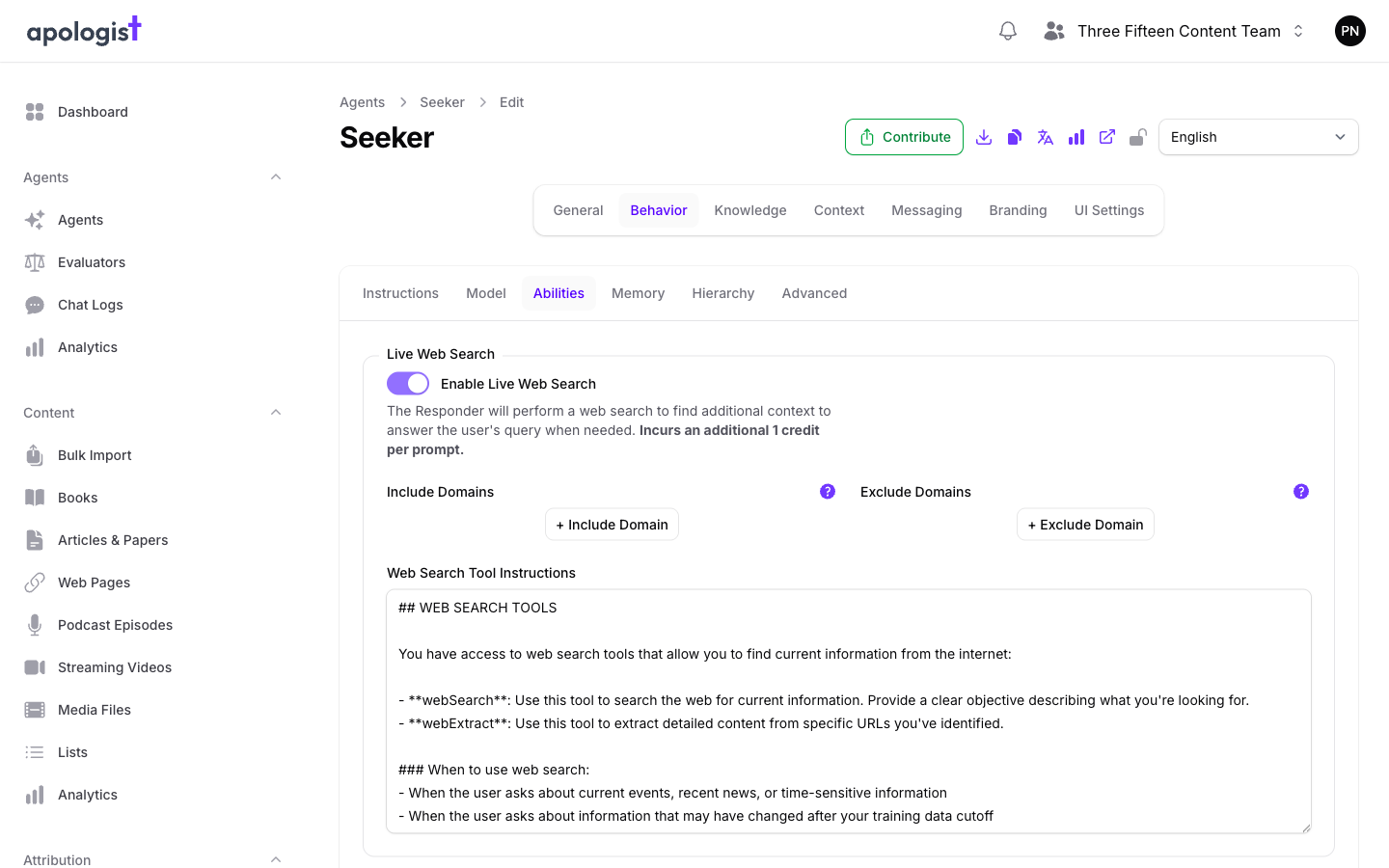
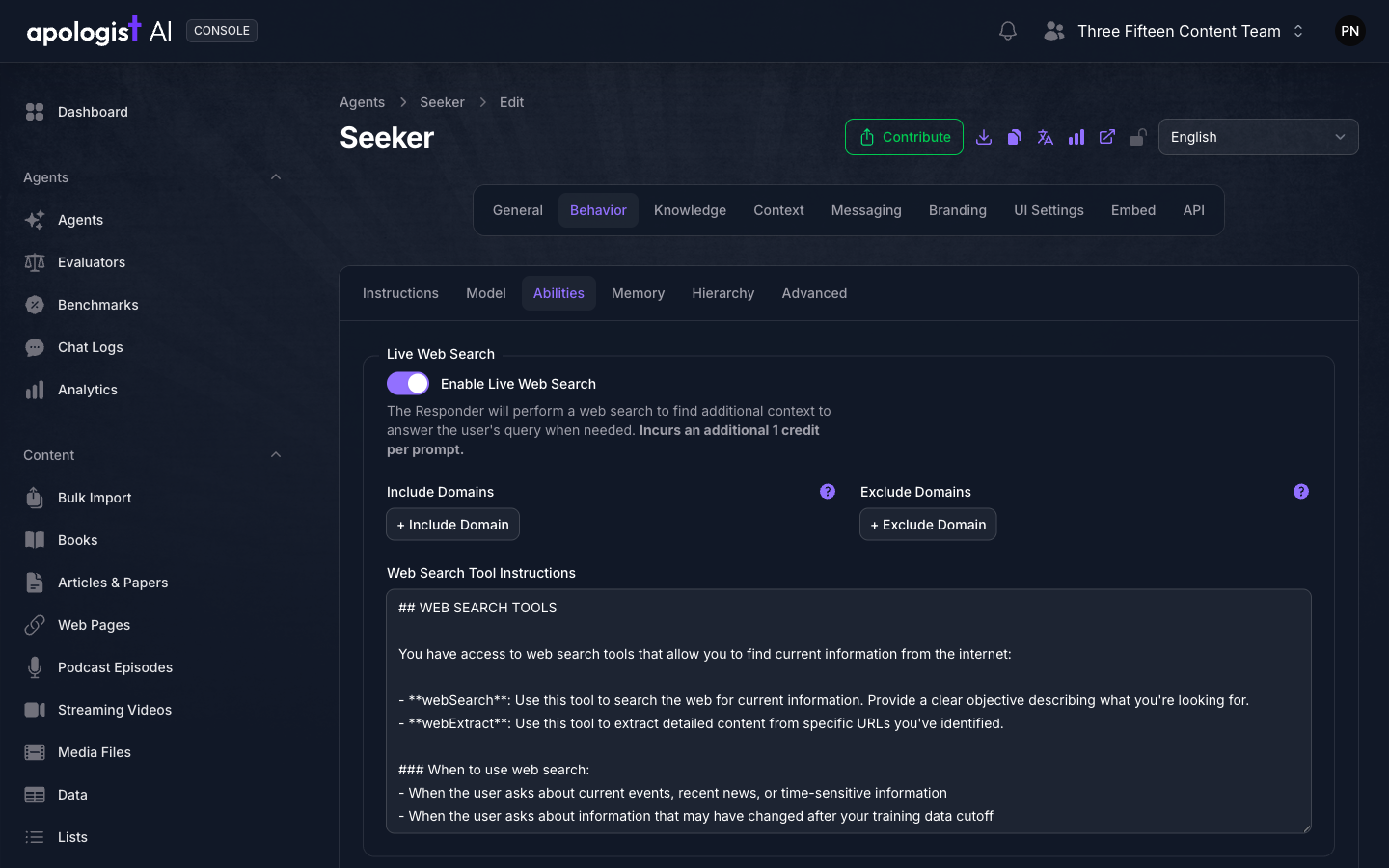
Enable Live Web Search lets the Agent look up current information when its own sources do not cover a question. Turning it on unlocks three further controls:
- Include Domains restricts searching to the domains you list. Leave it empty to allow all domains.
- Exclude Domains blocks specific domains. Use it to keep the Agent away from sites that conflict with your positions.
- Web Search Tool Instructions tells the Agent when to reach for search rather than answering from what it already has.
Turning the toggle on fills the instructions field with a working default, so you get sensible behavior before you change anything. Turning it back off clears that text again, but only if you have not edited it.
Live Web Search incurs an additional credit per prompt, charged on every prompt while the toggle is on, not only on prompts that actually trigger a search. Restricting domains does not reduce the cost.
Set How Much Conversation the Agent Remembers
Still on the Behavior page, select the Memory tab.
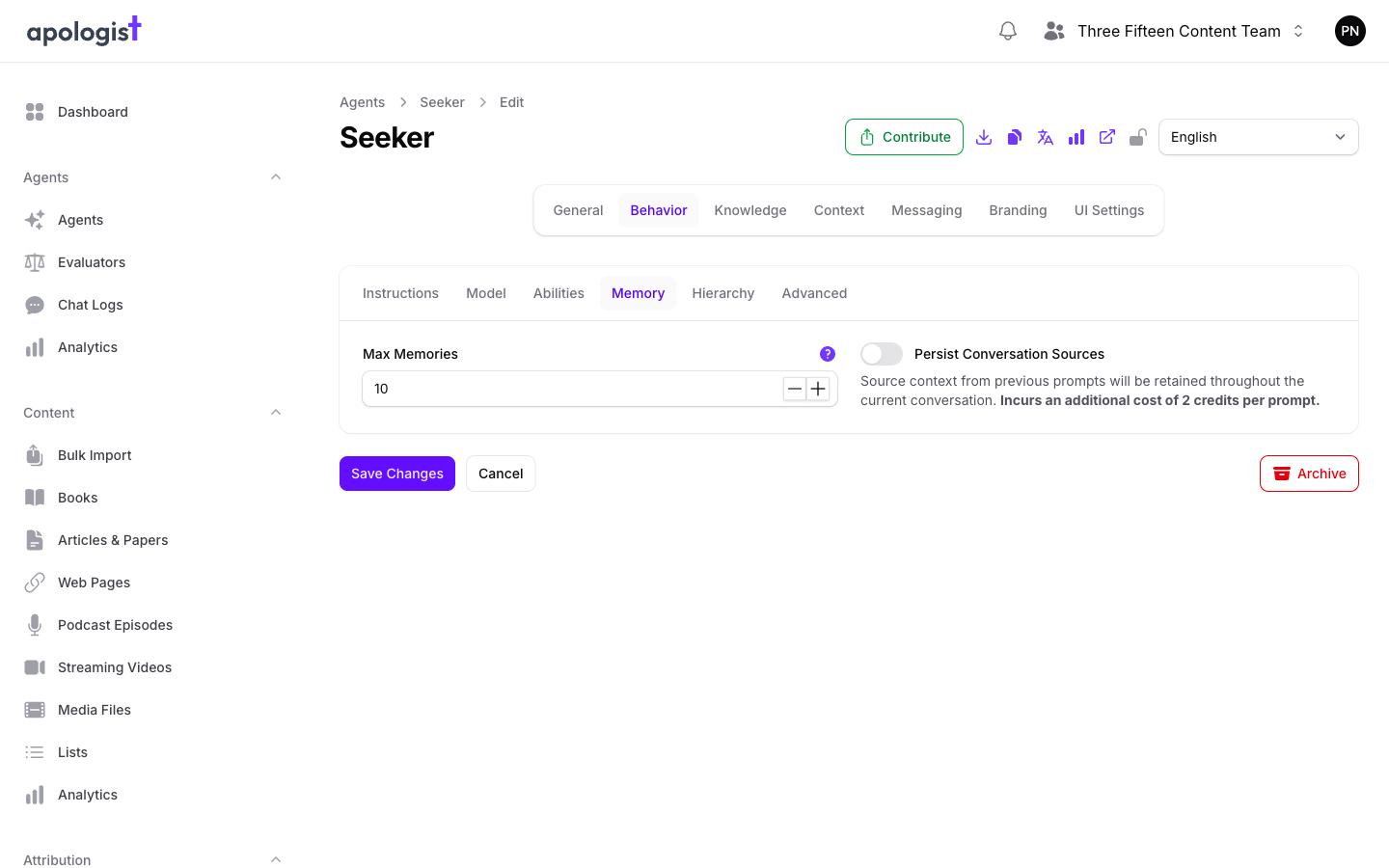
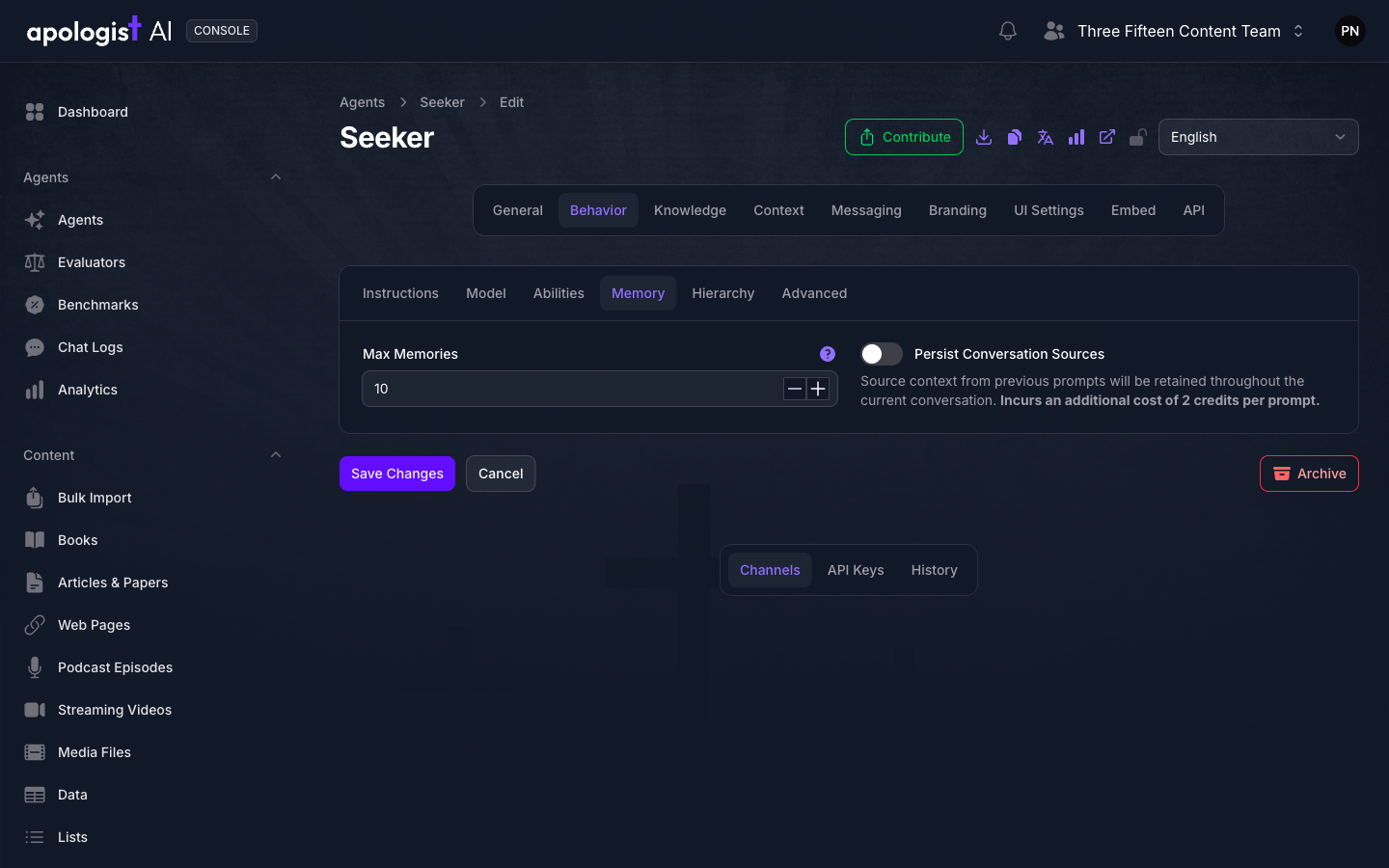
- Max Memories is how many previous prompt and response exchanges are passed back to the model, from 0 to 25. This is what lets someone ask a follow-up question without repeating themselves. Setting it to 0 makes every prompt independent, which suits a single-question kiosk and frustrates anyone holding a conversation.
- Persist Conversation Sources keeps the source passages found earlier in a conversation available for later turns. Without it, each turn searches afresh, and a follow-up question phrased vaguely may retrieve nothing useful.
Persist Conversation Sources incurs an additional cost of 2 credits per prompt, and raising Max Memories increases the size of every request. Both are worth paying for on a conversational Agent and wasted on one that answers standalone questions.
Adjust the Language Handling Instructions
Choose the Context page and select the Language tab.
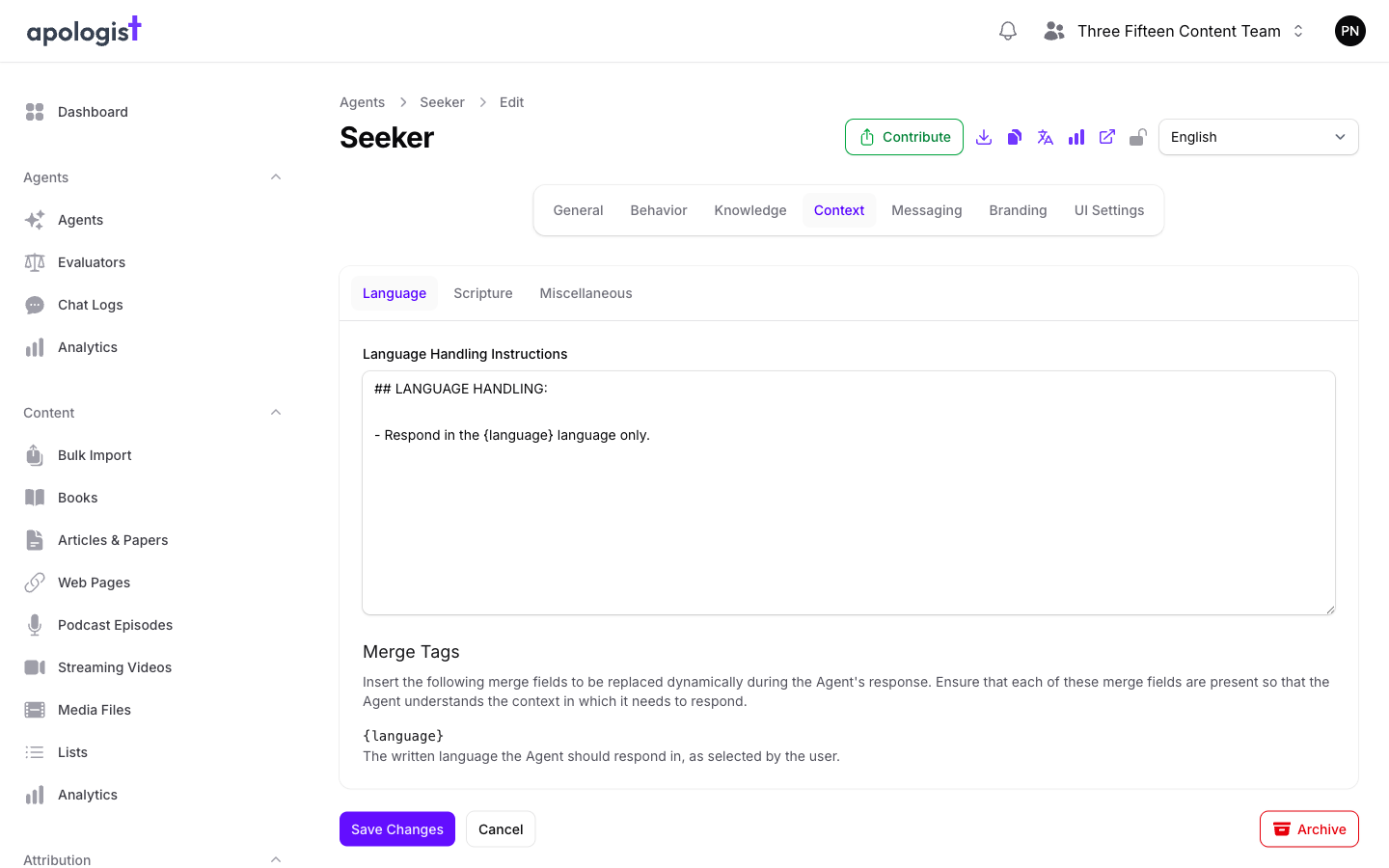
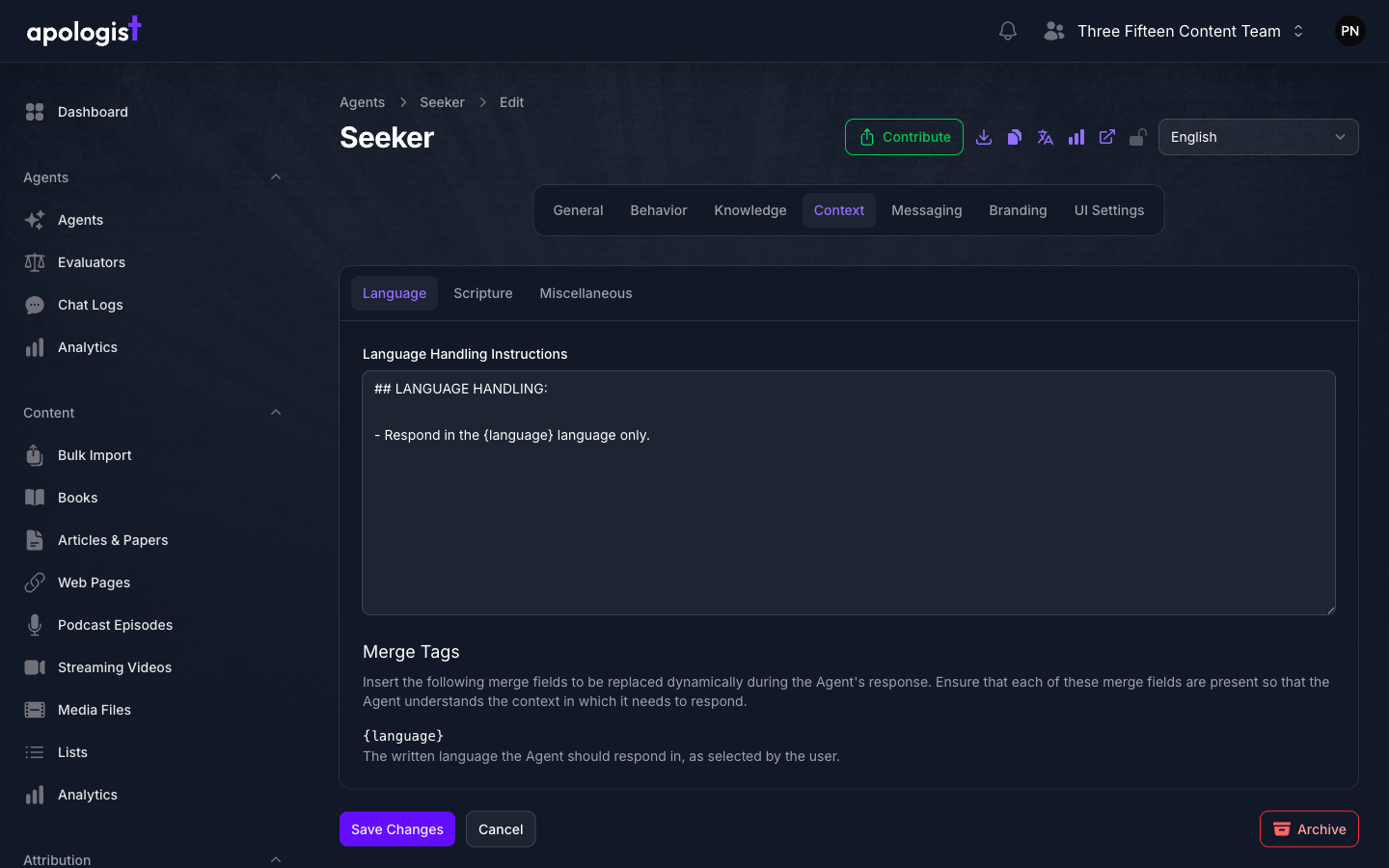
Language Handling Instructions tells the Agent how to behave with respect to language, and it supports the {language} merge tag, which resolves to the language the user is working in.
This field is prefilled with a working default. Edit it only when you need behavior the default does not give you, such as instructing the Agent to keep certain proper nouns untranslated.
This is a different setting from the supported and default languages covered in Configuring Languages, which decide the languages the Agent offers rather than what it is told once one is chosen.
Adjust the Scripture Handling Instructions
Still on the Context page, select the Scripture tab.
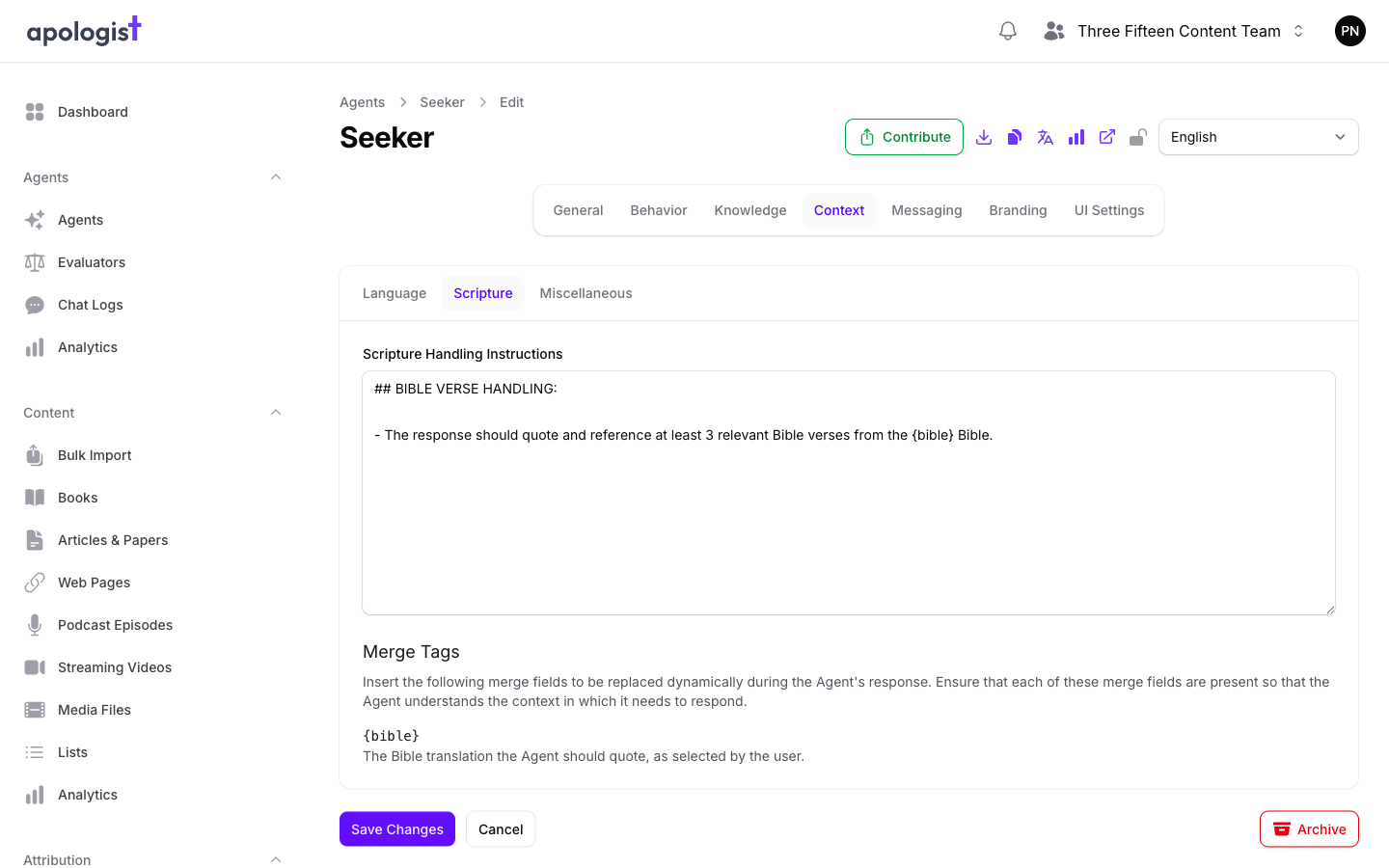
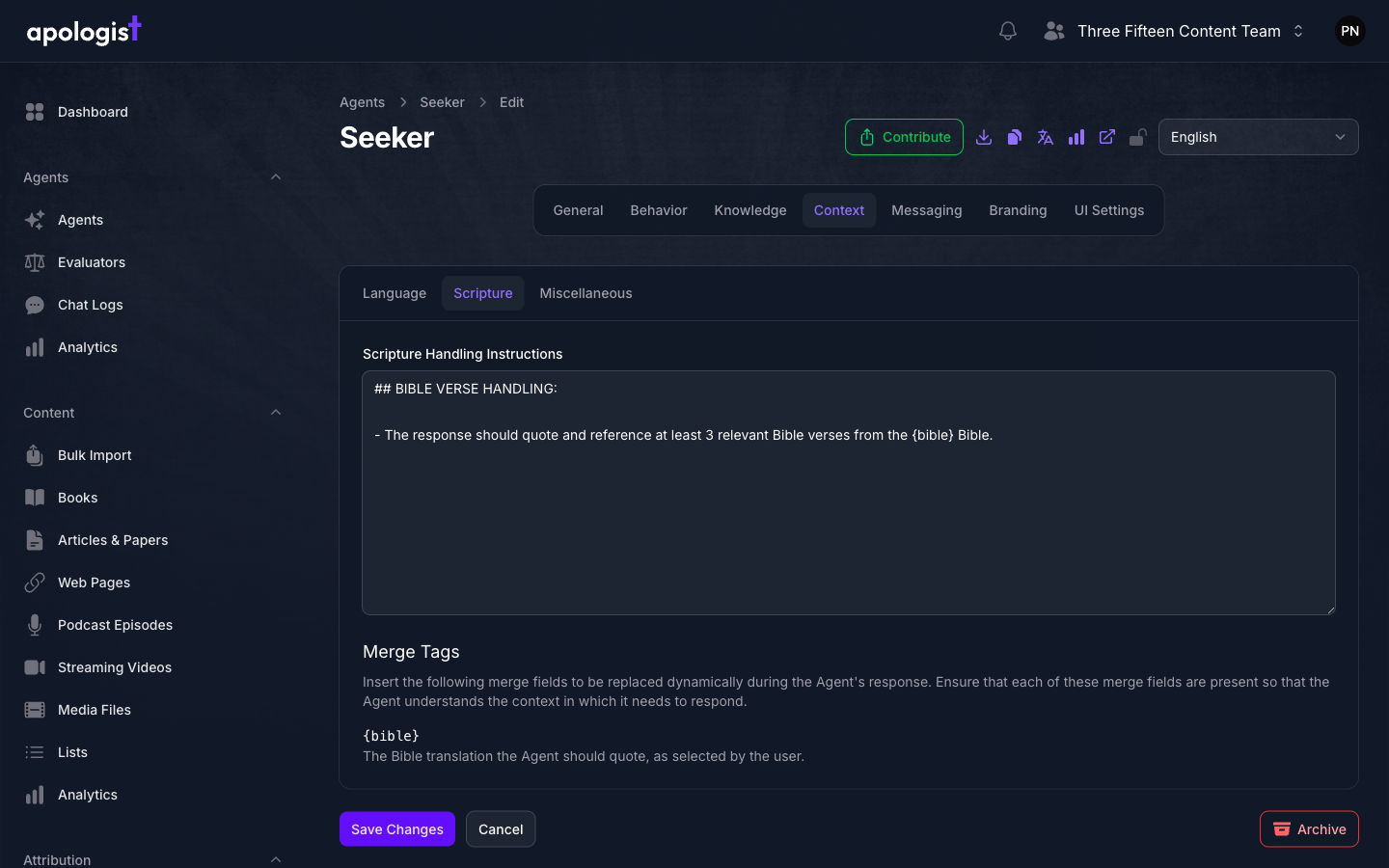
Scripture Handling Instructions governs how the Agent quotes and references scripture, and it supports the {bible} merge tag, which resolves to the translation in use for the request.
This is where you state house rules on scripture, such as how many verses a response should cite or whether the Agent should give the reference before the quotation. Which translations are available is set separately, in Configuring Bible Translations.
Give the Agent Situational Awareness
Still on the Context page, select the Miscellaneous tab.
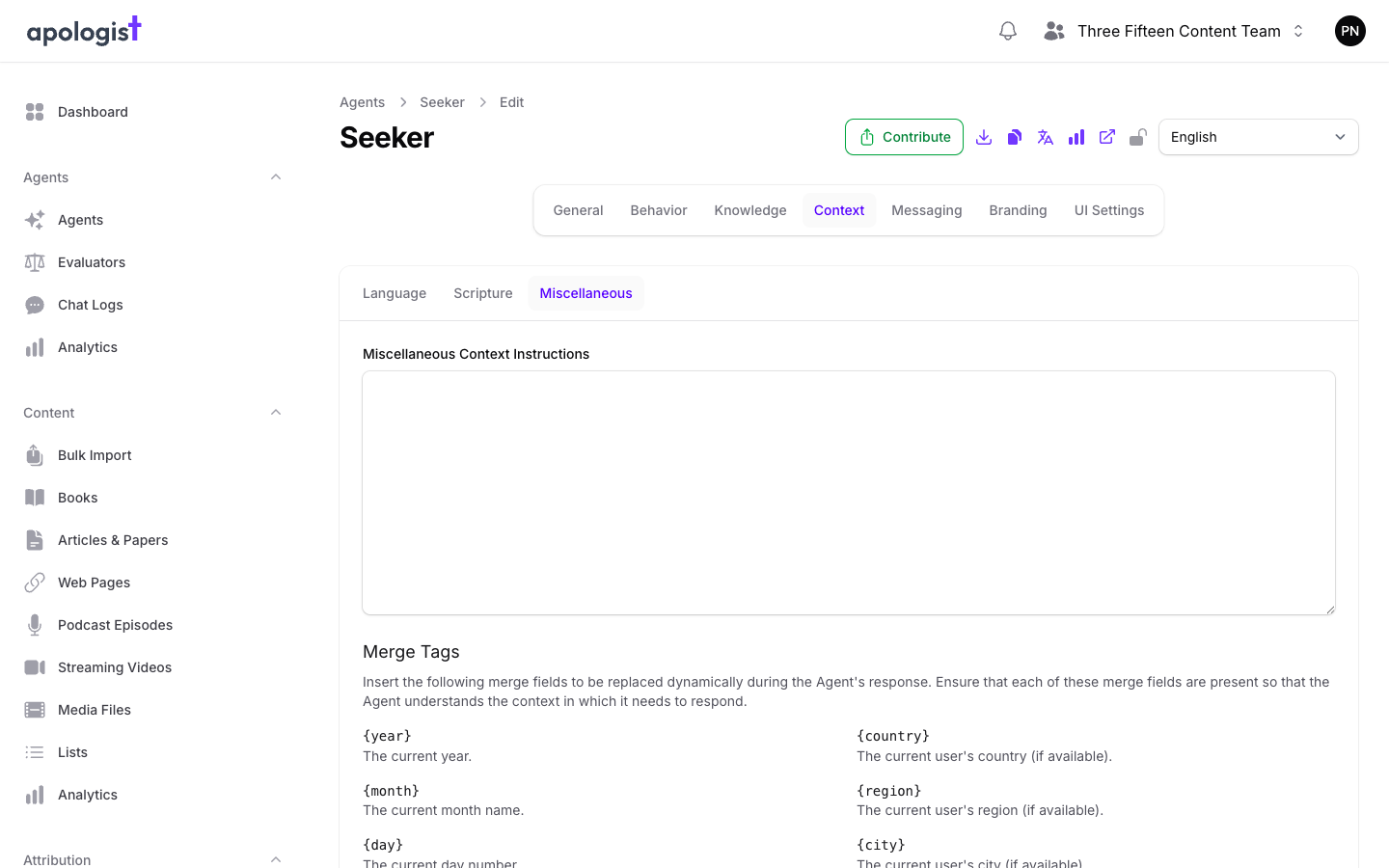
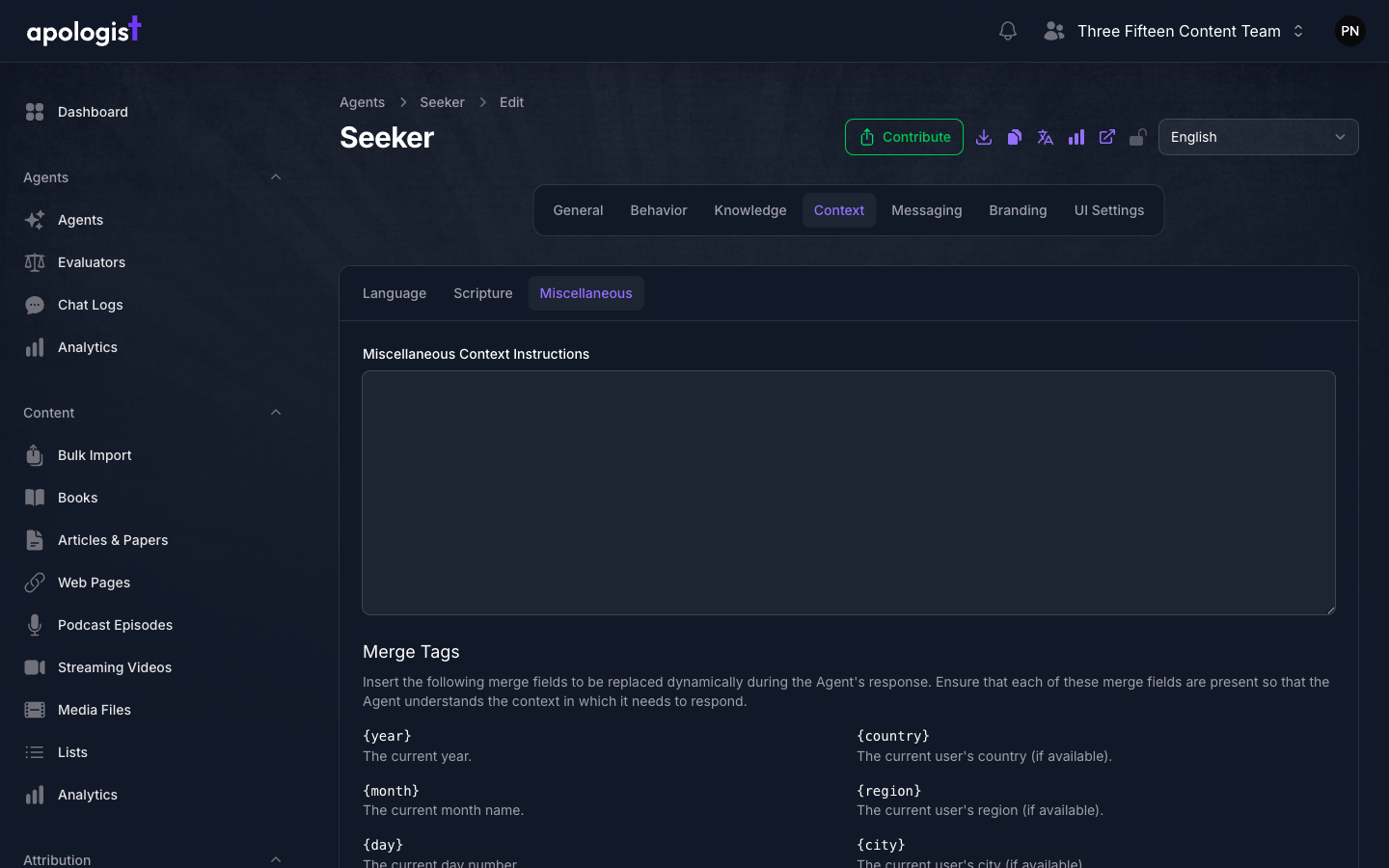
Miscellaneous Context Instructions is where date and location awareness comes from, and it carries the widest set of merge tags of any field on these pages.
Unlike the Language and Scripture fields, this one starts empty, and an empty field means the Agent receives none of this context at all. That is why an Agent with nothing here will confidently state the wrong date if asked: with no {date} tag reaching it, the only date it has is the one implied by its training data.
Write plain instructions and place the tags inside them, for example:
The last line matters: supplying a tag makes the information available, but does not tell the Agent when it is relevant.
Location tags resolve to an empty string when the user’s location cannot be determined, which leaves a sentence such as “The user is in , , .” in the prompt. Phrase location instructions so they still read sensibly when the values are missing, or keep location on its own line rather than mixed into a sentence you rely on.
Save And Verify Against Real Questions
Select Save Changes on each page you changed. Each of the three pages saves independently, so a change on Knowledge is not saved by pressing Save on Context.
Then open the Agent’s live URL and test the settings you touched:
- Ask a question whose answer depends on today’s date, to confirm the
{date}tag is reaching the Agent. - Ask a question, then a vague follow-up such as “why?”, to confirm Max Memories is carrying the conversation.
- Ask a question you know your sources cover, and use View Sources on the response to confirm passages are being retrieved under your current threshold.
Expected Result
The Agent receives the right amount of source material and conversation history for its purpose, knows the date and location when a question depends on them, and handles language and scripture the way your instructions describe.
Merge Tag Reference
Merge tags are written in single braces and are replaced with real values at the moment the Agent answers. Each field accepts only the tags listed for it, and the tab shows its own list beneath the text area.
Date and time tags are resolved in the user’s own timezone when it is known, and in the server’s timezone otherwise. The four location tags resolve to an empty string when the value is unavailable.
Cost
Three settings on these pages add per-prompt cost, and they stack:
Turn the two toggles on where the Agent’s purpose calls for them, and leave them off elsewhere. Neither charges only when used.
Troubleshooting
- The Agent states the wrong date. Miscellaneous Context Instructions is empty or has no
{date}tag. An empty field sends no date context, and the Agent falls back to what its training data implies. - The Agent does not cite sources it should have found. Lower the Relevance Threshold, then confirm Max Sources is above 0 and that
{passages}is still present in Source Handling Instructions. - The Agent cites material that is barely related. Raise the Relevance Threshold before reducing Max Sources. The threshold removes weak matches; the cap only removes the ones ranked lowest.
- Follow-up questions are answered as if they were the first. Max Memories is 0 or very low. Raise it, and turn on Persist Conversation Sources if follow-ups also lose the source material.
- The domain and instruction fields under Live Web Search are greyed out. Turn on Enable Live Web Search first.
- A location sentence renders with gaps. The location tags resolved to empty strings because the user’s location was not available. Rephrase so the sentence survives missing values.
- A tab shows an upgrade notice and the fields are read-only. Instruction editing is not included in your team’s current plan. The Knowledge tabs additionally require custom sources on the plan.
- The Behavior, Knowledge, and Context pages are missing. The Agent has the Responders capability turned on, so this configuration lives on each Responder instead.
Next Step
Continue to Choosing an AI Model.