

Starter Prompts
Starter Prompts are the suggested questions an Agent offers before anyone has typed anything, so a visitor who does not know what to ask has somewhere to begin.
Purpose
Turn on Starter Prompts for an Agent, write the questions it suggests, and control which of them visitors see.
Prerequisites
- An Agent visitors can reach. See Standalone Web UI.
- Permission to edit Agent settings for your team.
- A short list of questions the Agent answers well.
Steps
Turn On the Starter Prompts Capability
Select Agents in the left-hand navigation, open your Agent, then choose General and select the Capabilities tab.
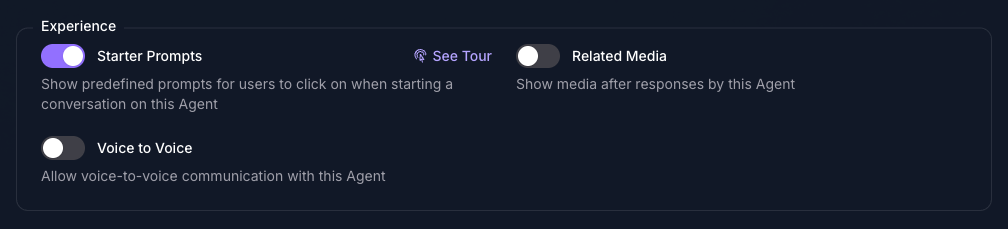
Under Experience, turn on Starter Prompts and select Save Changes. The page reloads, and a Starter Prompts tab appears below the form alongside History.
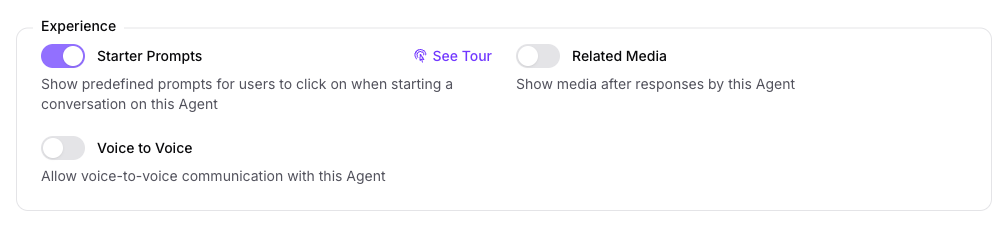
Add a Prompt
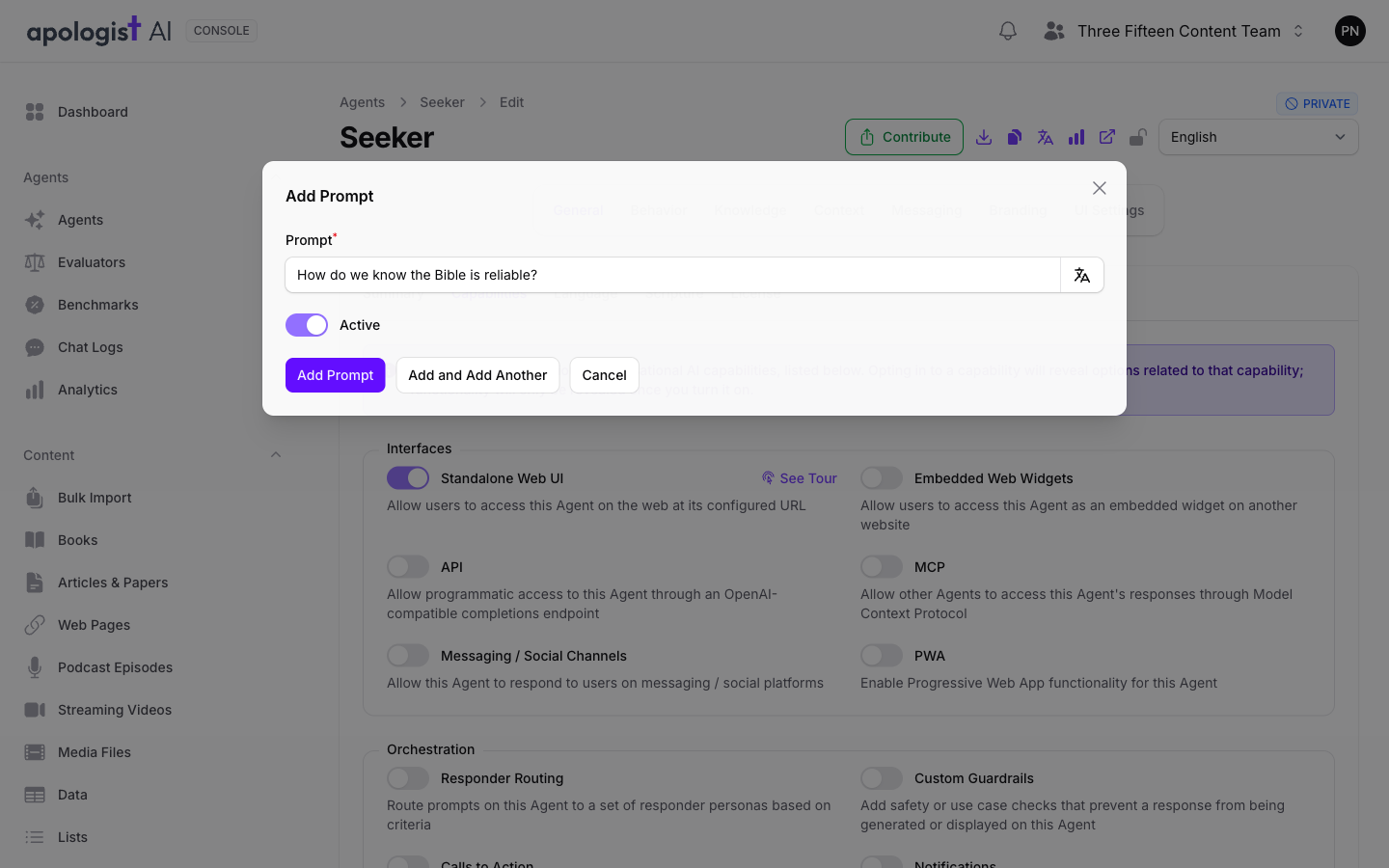
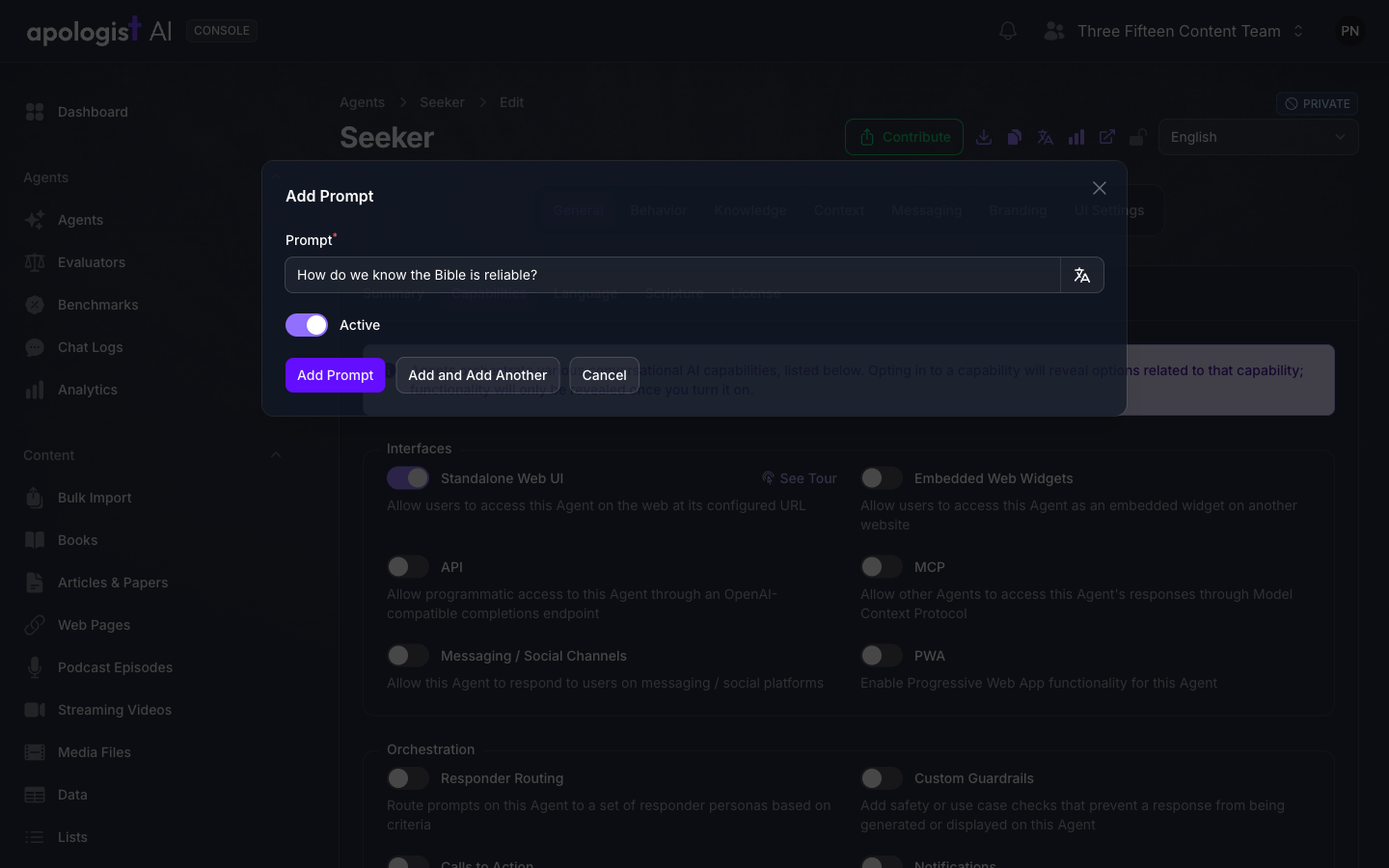
In the Starter Prompts tab, select Add Prompt and write the question the way a visitor would ask it. Short prompts work best, because they are shown on a single line and the visitor sends them as written.
Active is off for every new prompt, so turn it on before saving or the prompt is stored and never offered. To write several in one pass, use Add and Add Another, which reopens the empty dialog with Active off again.
Review the List
Each prompt shows its Status as active or inactive, so the list tells you at a glance what visitors are being offered. Edit any prompt from its row, and archive the ones you no longer want without losing them.
Archiving keeps a prompt rather than deleting it, and the list hides archived prompts by default. Set the Archived filter to Yes to find one, then restore it from its row.
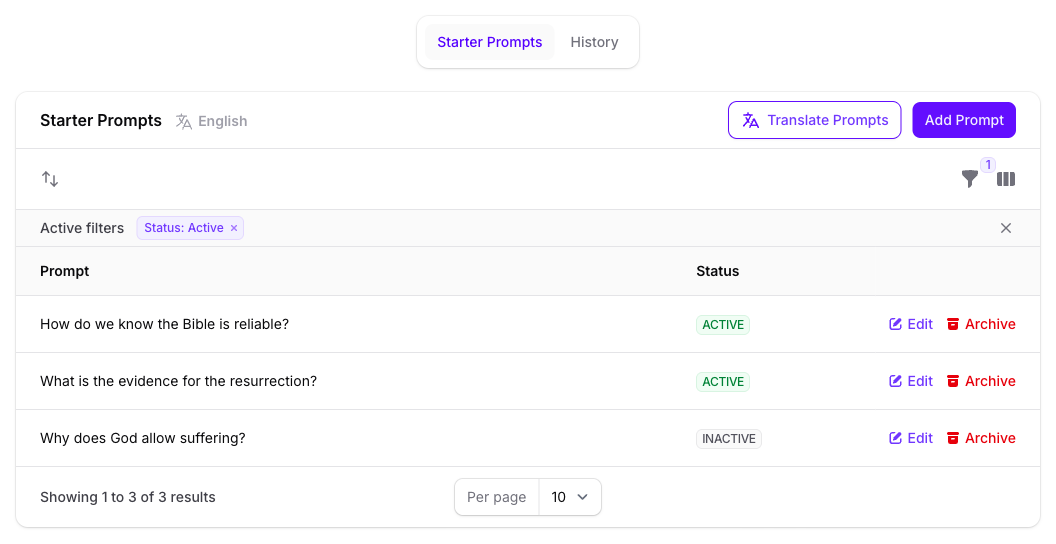
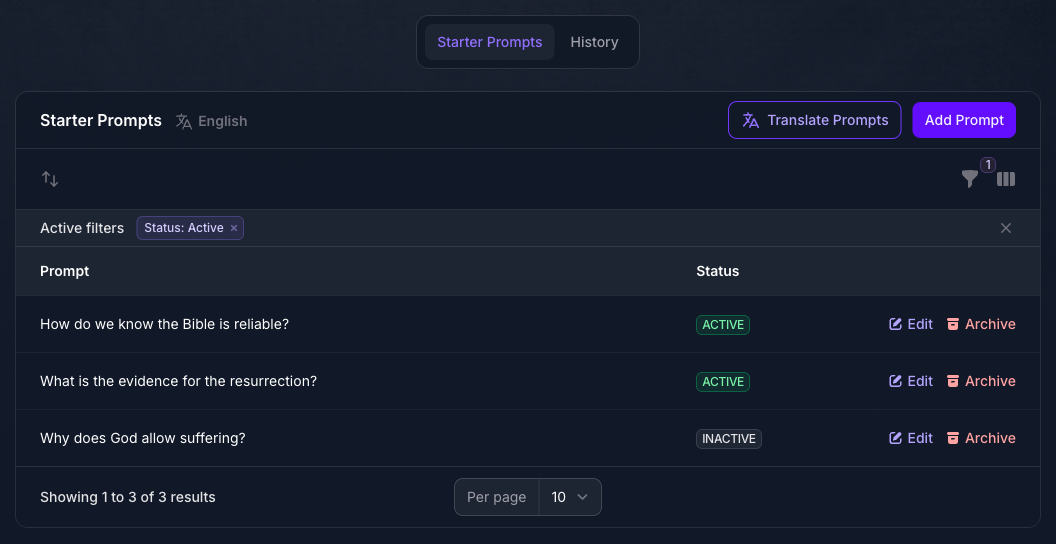
The Status: Active chip above the list is the archive filter, not the Status column. An inactive prompt still appears under it, because it has not been archived.
Write Each Prompt in the Languages You Support
Prompts are stored per language, and the page language switcher in the top right decides which language you are editing. A prompt with no text in a visitor’s language is still offered to them, with nothing written on it, so fill in every language the Agent supports.
Translate Prompts fills in the language you are currently editing for every prompt in the list at once, and the translate icon beside the Prompt field does the same for one prompt. Both translate from the text you already have, so write the prompt in your default language first.
Set the Heading Above the Prompts (Optional)
Choose Messaging from the row of pages across the top, then the Intro tab, and set Starter Prompts Title. Leave it empty and the Agent supplies its own wording in the visitor’s language, which in English reads “Here are some example questions to try:”.
This heading is the only part of the Starter Prompts area that is not edited in the Starter Prompts tab. See Branding for the rest of the intro screen.
Save and Check the Agent
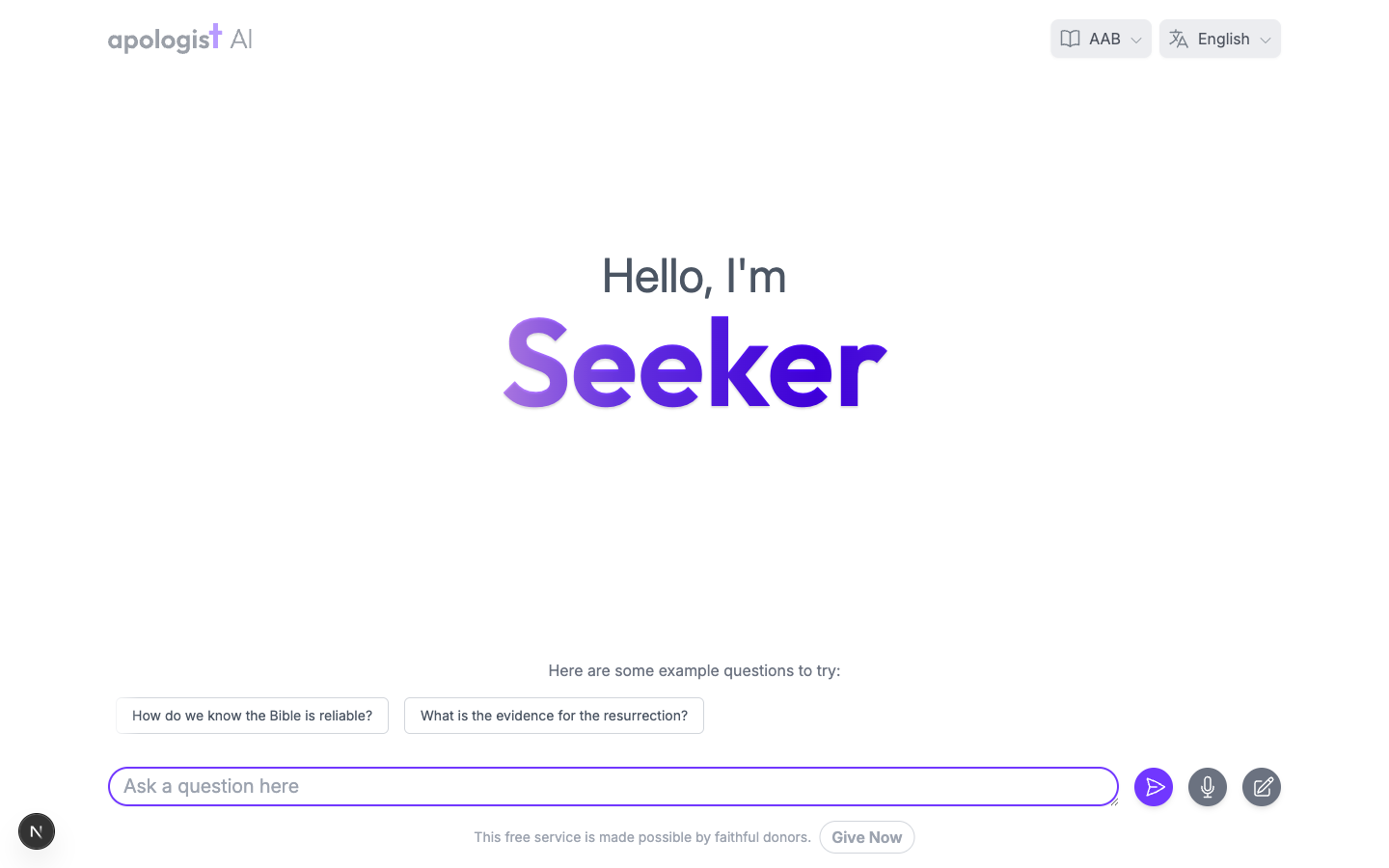
Select Save Changes, then open the Agent’s address in a new tab. The prompts appear above the question box, and selecting one sends it as the first message.
Use the Agent’s own language selector to check each language you support, so you can confirm no prompt is showing as an empty button.
Expected Result
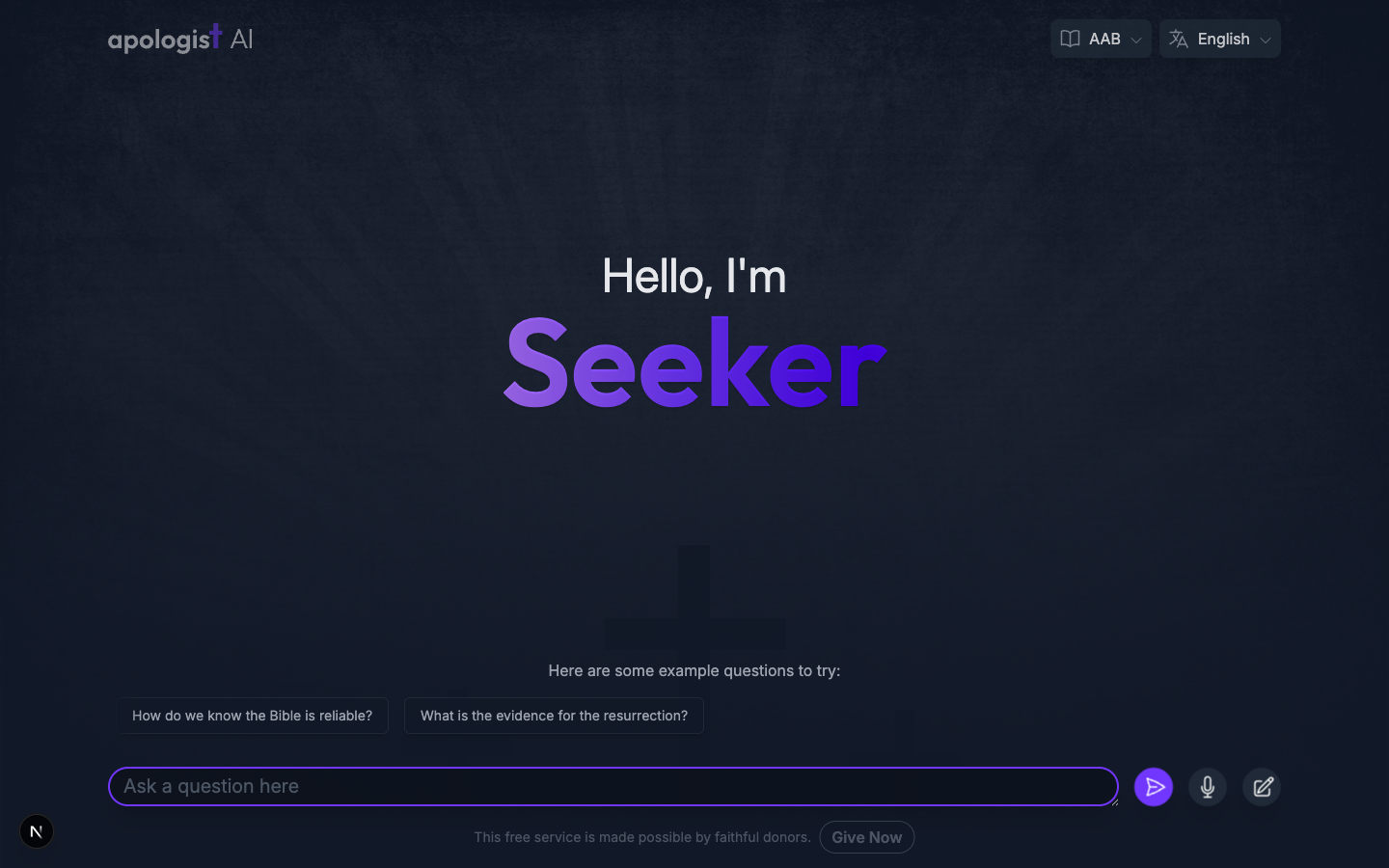
A visitor arriving at the Agent sees your questions offered above the question box, and selecting one starts the conversation with that question.
Which Prompts a Visitor Sees
The Agent draws from the active prompts only, and it chooses a fresh selection each time the intro screen loads, up to 25 prompts. Two visitors are not offered the same questions in the same order, and neither is the same visitor on a second visit.
This has two consequences worth planning around:
- The order in the list is for your own reference. It does not set the order the Agent shows.
- Every active prompt should stand on its own. A set that reads as a numbered sequence will not arrive in that sequence.
The prompts belong to the intro screen, so they are gone once the conversation has a first message and do not return in that conversation.
Troubleshooting
- The Starter Prompts tab is not on the General page. The capability is off. Turn it on under General, Capabilities, and save.
- A prompt does not appear on the Agent. Check its Status in the list. Only active prompts are offered, and Active is off unless you turned it on.
- A prompt appears as an empty button. It has no text in the language the visitor is reading. Switch the page language switcher to that language and write or translate the prompt.
- The prompts are in a different order than the list. That is expected. The Agent chooses which active prompts to show, and in what order, on each visit.
- The prompts are not on the screen any more. They are shown on the intro screen only, before the first message.
- The heading above the prompts is not the one you wrote. The heading comes from Starter Prompts Title on the Messaging page’s Intro tab, per language, not from the Starter Prompts tab.
Next Step
Continue to Related Media to show related content alongside the Agent’s answers.