

Where Your Content Appears
This guide covers what happens once your content is in front of people. Your content lives in Sources: single pieces of content, such as an article, a video, or a podcast episode. A Source reaches people in two places outside Console: cited in the answers your Agent gives, and listed on the Directory, Apologist’s public catalogue of resources at apologist.com.
Once your content is out there, you’ll want to make sure it looks right in both places, decide whether it belongs on the Directory at all, and know whether people are finding and following it.
Each of these works on its own, so start with whichever you need.
Purpose
Decide how your content is presented to the people who meet it, publish it on the Directory if you want to, and measure how it performs.
Prerequisites
- A Source or Collection to work with. See Adding and Editing Content.
- Permission to edit content for your team.
- Only if you want to use Content Analytics, a plan that includes Analytics. Pro and above include it.
Choose How a Source Is Presented
Sources are listed by content type in the left-hand navigation, such as Articles & Papers or Podcast Episodes. Open the Source from its list and select its Listing tab. Collections have the same tab.
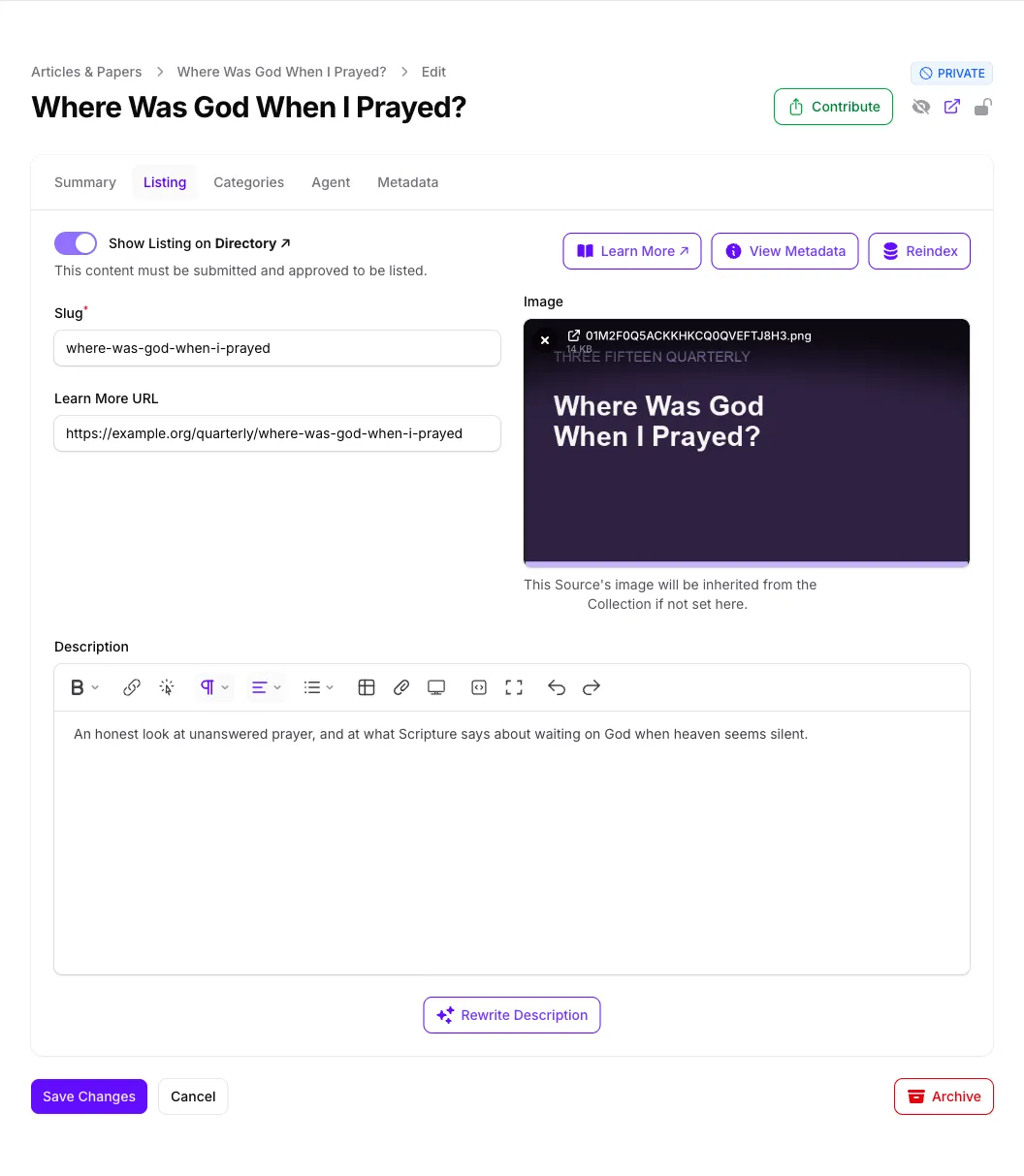
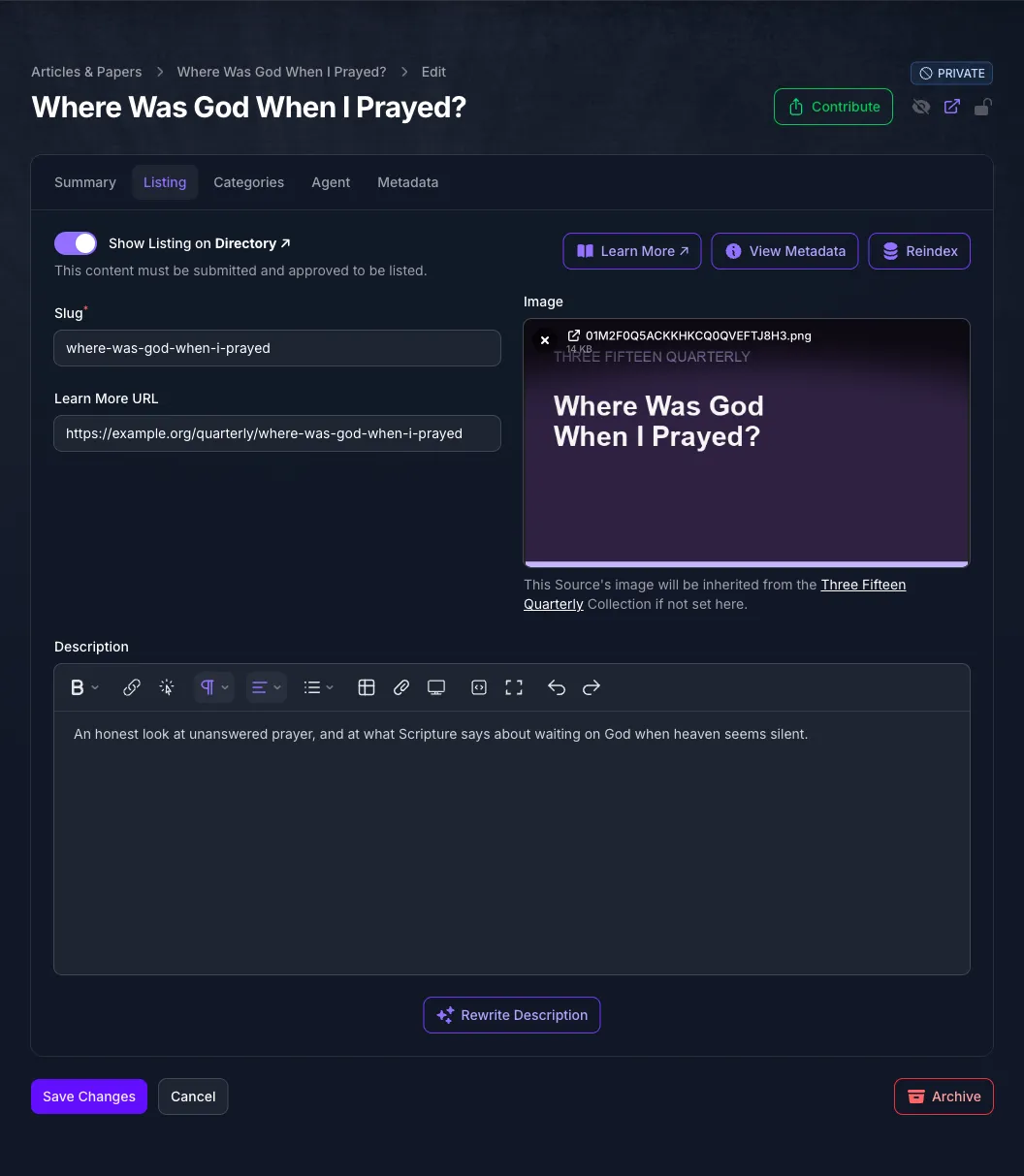
Fill in what you want people to see, then select Save Changes. Your Agent picks up the change as soon as the Source is indexed again; saving starts that automatically.
A Source in a Collection can show the Collection’s image instead of its own. That is set by Source Image Handling on the Collection; see Keep a Collection Up to Date Automatically.
What People See In Your Agent
After an answer, View Sources lists every Source the Agent used, each with a Learn More button that opens its Learn More URL.
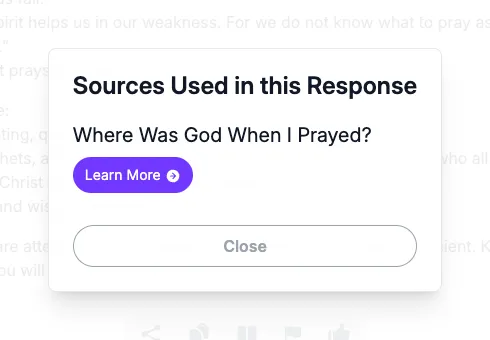
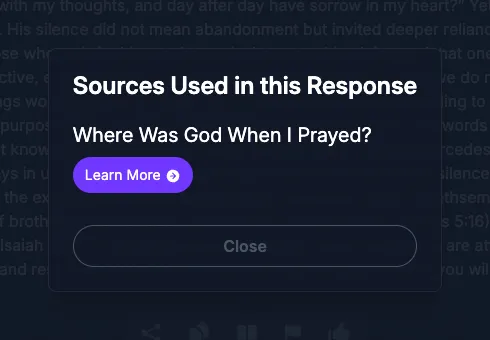
The name shown under each title comes from the Source’s Contributors, the people credited with writing, speaking or presenting it. See Attribution.
List Content On the Directory
The Directory is independent of your Agent. Listing a Source there does not make your Agent use it, and indexing it for your Agent does not list it. Two things have to be true before a Source or Collection appears:
- Show Listing on Directory is turned on, on its Listing tab, and saved.
- It has been contributed and approved. Select Contribute at the top of the Source and confirm. Apologist reviews it, and the same approval lets other teams’ Agents draw on it; see Who Else Can Use Your Content.
Either can come first. The Directory column on a Sources list, such as Articles & Papers, reads ACTIVE as soon as the toggle is on, but nothing is published until both are done. Once the listing is live, the eye icon at the top of the Source becomes View Directory Listing and opens it.
To turn listing on or off for many Sources at once, tick them on that Sources list and choose Enable Directory Listings or Disable Directory Listings from the Directory menu above it.
If a listed Source looks out of date on the Directory, select Reindex on its Listing tab.
See How Your Content Is Used
Select Analytics under Content in the left-hand navigation. The Analytics under Agents is a different page, about conversations; see Analytics.
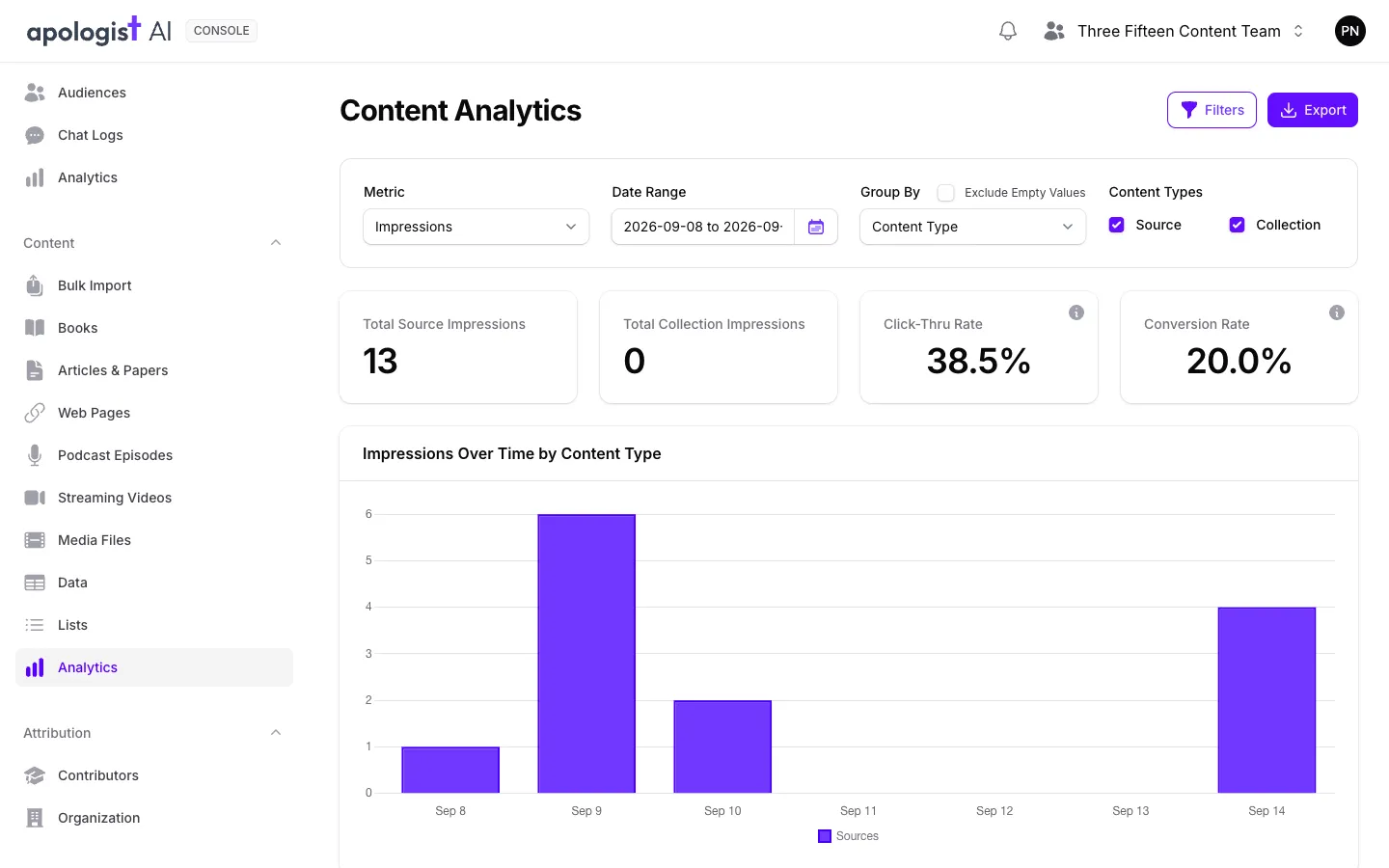
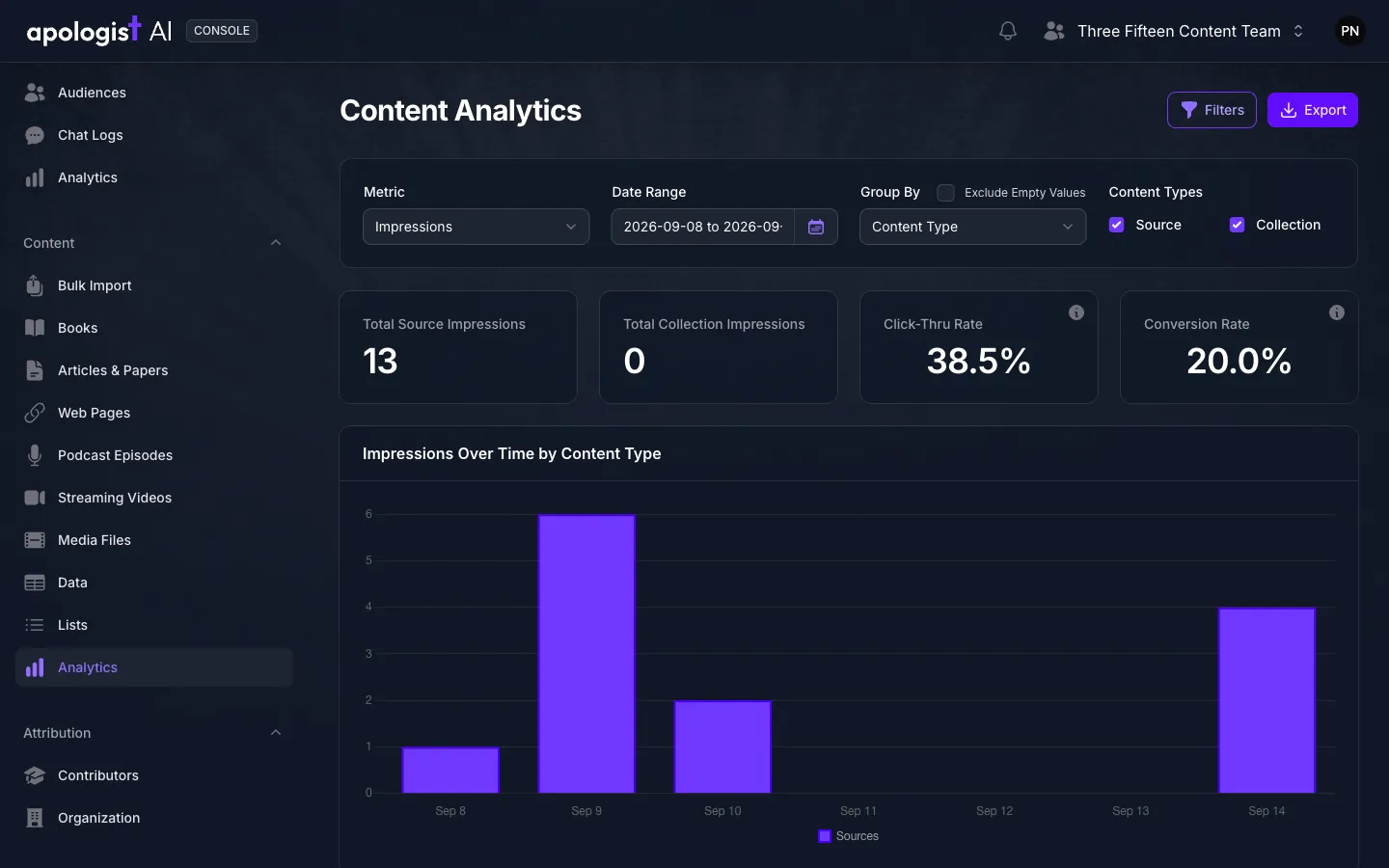
Metric chooses what is counted. Impressions, Views and Referrals follow your content from being shown to being followed, in your Agents and on the Directory together:
Click-Thru Rate is views divided by impressions, and Conversion Rate is referrals divided by views.
The other metrics count your library rather than its use. Choose one to see, for example, how much content was added or made available to your Agent over the Date Range. Each counts a Source or Collection once, by the most recent date it happened:
The figures are a day behind. Activity is collected once a day, and Date Range presets such as Last 7 Days end yesterday, so something that happened today appears tomorrow.
Group By splits the charts, for example by Collection, Tag, Category, Contributor or Directory Listing, to compare them. Filters narrows every figure to the Sources and Collections that match, and Export downloads those Sources and Collections as spreadsheet files.
To see a single Collection, open it and select the chart icon, Analyze, at the top. Content Analytics opens filtered to that Collection.
Troubleshooting
- Saving reads “The learn More URL field must be a valid URL.” Console checks that the address exists. Check it for typing mistakes, and use the full address, starting
https://. - The Directory column reads ACTIVE, but the Source is not on the Directory. It also needs approval. Select Contribute at the top of the Source, if you have not already, and wait for the review.
- Content Analytics shows nothing for today, or for something you just did. Figures are collected once a day. Check again tomorrow.
- Every figure is zero. Nothing has been shown yet in the chosen Date Range. Choose a longer range, and check that your Sources are indexed for an Agent or listed on the Directory.
- Analytics is not under Content in the navigation. Content Analytics needs a Pro plan or above.
Next Step
Continue to Attribution to credit the people and organizations behind your content.