

Automations
A Call to Action adds something to an answer. A Guardrail stops one. An Automation does neither: it runs after the answer has already gone out, and the visitor sees nothing at all unless you ask it to send them a message.
That leaves it free to do two things the other triggers cannot. It can tag each prompt with one of your own words, which is what turns a month of conversations into something you can count. And it can wait, from fifteen seconds to thirty days, before it acts, which is how an Agent follows up rather than only replies.
Prompt tags are written only after the Automation matches, including the Evaluator threshold when one is set. On a Chatwoot channel they can also become conversation labels, but only when Automatically Synchronize Tags is on for that channel (it is off by default). See Chatwoot Integration for the Chatwoot fields, including the optional Administrator Access Token (for Conversation Labels) that creates a Settings catalog entry so the label is visible.
Purpose
Turn on Automations and add one that tags every prompt the Agent receives, then decide what else it should do and how long it should wait first.
Prerequisites
- An Agent visitors can reach. See Standalone Web UI.
- Automations on your team’s plan. It is included from Basic upward, and the capability is otherwise disabled with an Upgrade to Unlock link beside it.
- Permission to edit Agents for your team.
Nothing else is needed to build one. Two of the sections below need an Evaluator or an Audience, and each says so where it starts.
Set Up a Basic Automation
Select Agents in the left-hand navigation, open your Agent, then choose General and select the Capabilities tab.
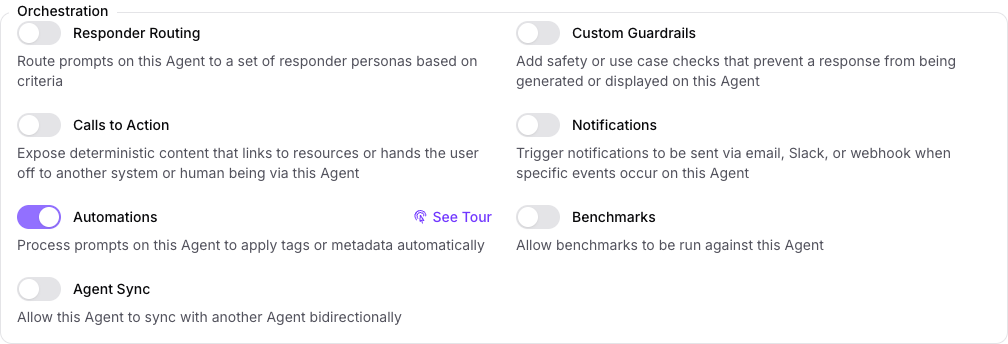
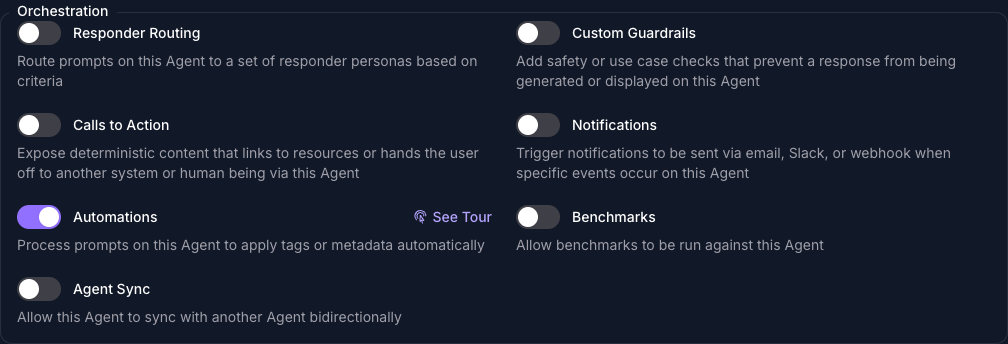
Under Orchestration, turn on Automations and select Save Changes. The page reloads, and an Automations panel joins the row of panels at the foot of General.
Scroll to the foot of General, select the Automations panel, then select Add Automation.
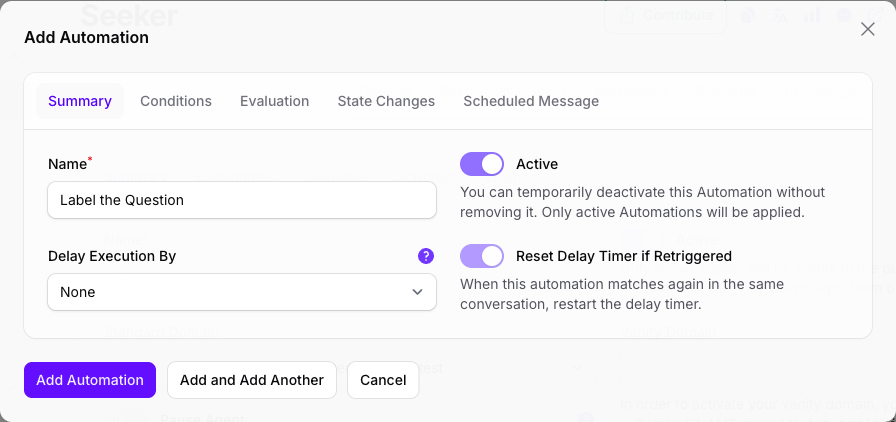
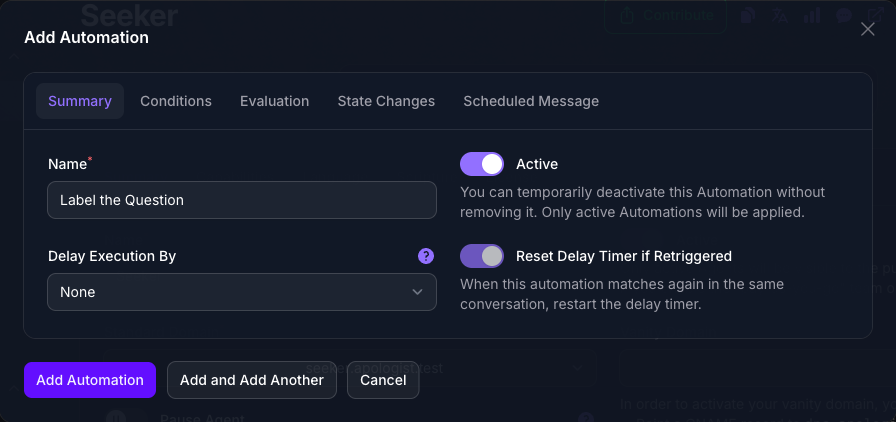
On Summary, give it a Name. The name is for you and never reaches a visitor. Active arrives off, and an inactive Automation is never considered, so turn it on. Leave Delay Execution By on None, which is why Reset Delay Timer if Retriggered beside it is dimmed and cannot be changed.
Select Evaluation and leave Evaluator on None. That is what reveals Tags beneath it. Type your tags in one at a time; a tag that does not exist yet is created as you type it, and one you have used before is offered as you start.
Those tags are categories, not filters. For every prompt, the Agent picks whichever one of them fits best and writes it onto that prompt. That is Prompt Tagging Strategy set to Best. Tag Score Threshold (shown as Score Threshold here) is how sure it has to be, and it defaults to 75%. Below it nothing happens at all: the prompt is left untagged rather than pushed into the nearest box, and the Automation’s other actions are skipped with it.
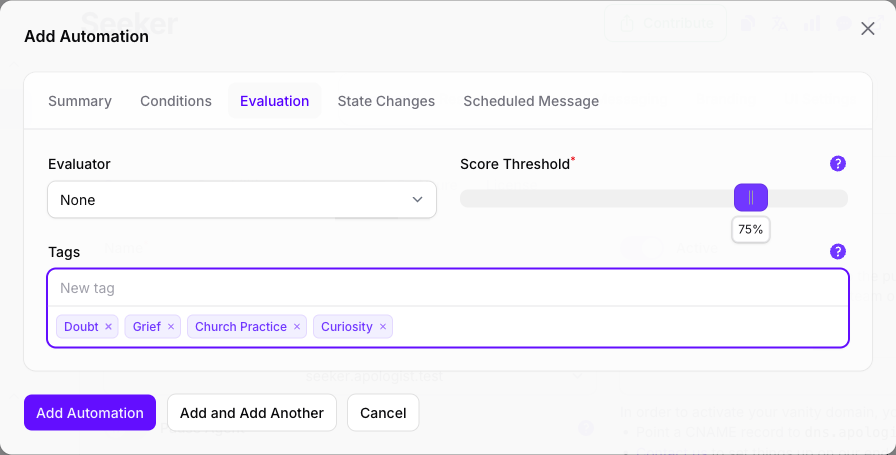
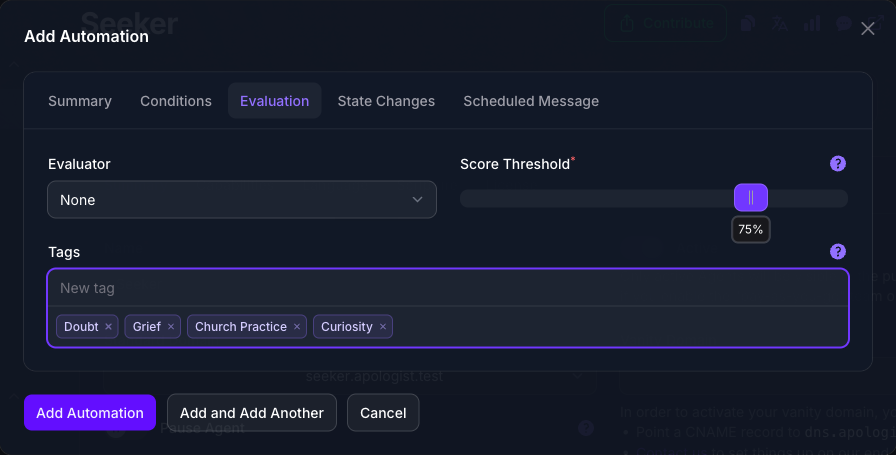
Select Add Automation. Every prompt the Agent answers now carries one of your tags.
The panel lists an Automation by name and leaves the Match Option(s) column empty for any Automation with no Evaluator, so its tags are visible only by opening it. Name it for what it sorts.
Customize the Automation
The basic Automation shown above tags prompts and does nothing else. The following sections showcase additional features: waiting, messaging, targeting, and matching on a verdict instead of on your tags. Each feature can be configured independently, so check out the one you want to use.
A second example, named Check In Later walks through the customizations. The example waits after a visitor writes something bleak, then sends them a message asking how they are getting on.
Choose How Prompts Are Tagged
Prompt Tagging Strategy chooses how prompt tags are applied after the Automation matches. The basic walkthrough above uses Best. The other options are:
Evaluator: Additive and Evaluator: Exclusive appear only when an Evaluator is set on Evaluation. Saving the Automation creates a prompt tag for each active option on that Evaluator if the tag does not already exist.
Tag Score Threshold appears only for Best, and defaults to 75%.
Match on an Evaluator Instead
Needs an Evaluator. Use this when the Automation should act on the kind of thing someone wrote rather than sorting every prompt into a tag.
On the Evaluation tab, choose an Evaluator. The Tags field used by Best, All, and Random gives way to it. The Automation then matches on that Evaluator’s verdict. To write a tag from the matched option, set Prompt Tagging Strategy to Evaluator: Additive or Evaluator: Exclusive.
Choosing a classifier, the kind that picks the option that fits best, adds two controls. Matching Options are the options that count as a match, and Numeric Value Threshold matches on an option’s numeric value rather than on the option itself.
Check In Later uses Sentiment, the classifier built in Evaluators, whose options are Negative, Neutral and Positive. Matching only Negative is what makes it act on the conversations where a follow-up is worth sending.
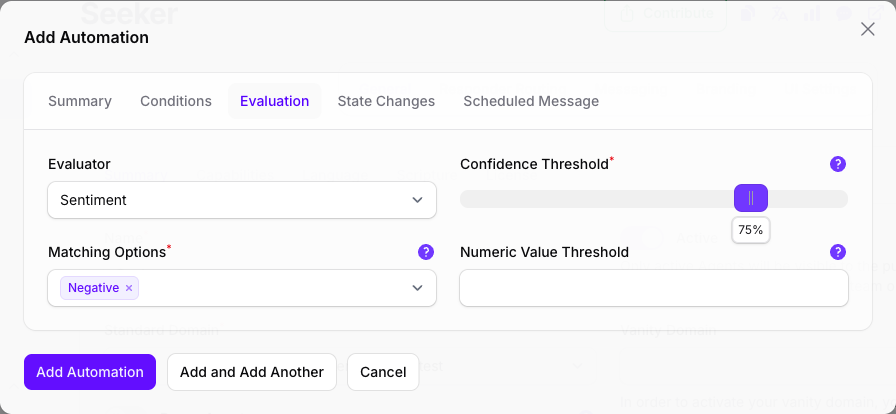
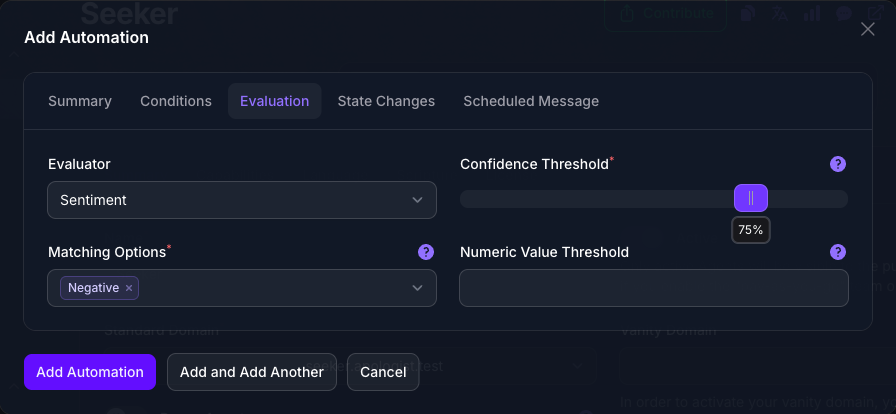
Confidence Threshold has no effect on an Automation. A classifier requires Matching Options, and the Automation then runs whenever the classifier picks one of them, at any confidence. Narrow the options instead of raising the threshold.
An Automation’s Evaluator reads the visitor’s message and the conversation so far, but not the answer to that message. To act on an answer, use a Response Custom Guardrail.
Wait Before It Acts
On the Summary tab, Delay Execution By is how long the Automation waits after it matches. Nothing it does happens until then: the tag, the flags, the pause and the message all wait together. Delays run from 15 seconds to 30 days, and None acts immediately.
Choosing a delay enables Reset Delay Timer if Retriggered, which is on by default. Leave it on and each new match starts the wait over, so a visitor who keeps talking is not followed up until they stop. Turn it off and the original wait stands, however much they go on to say.
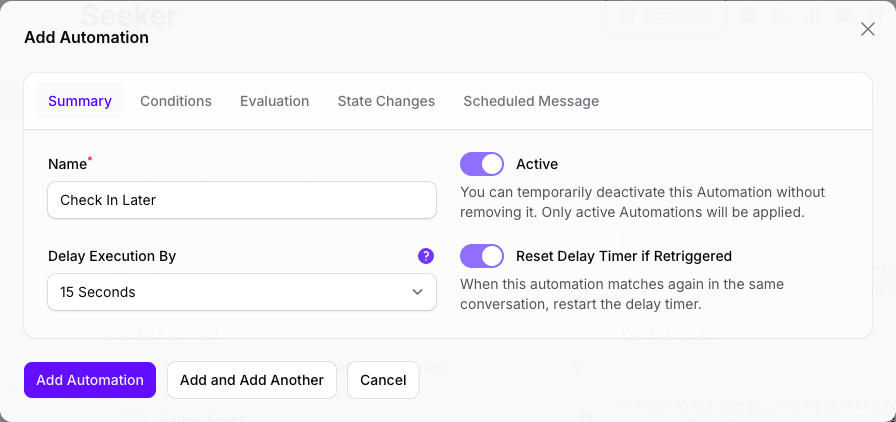
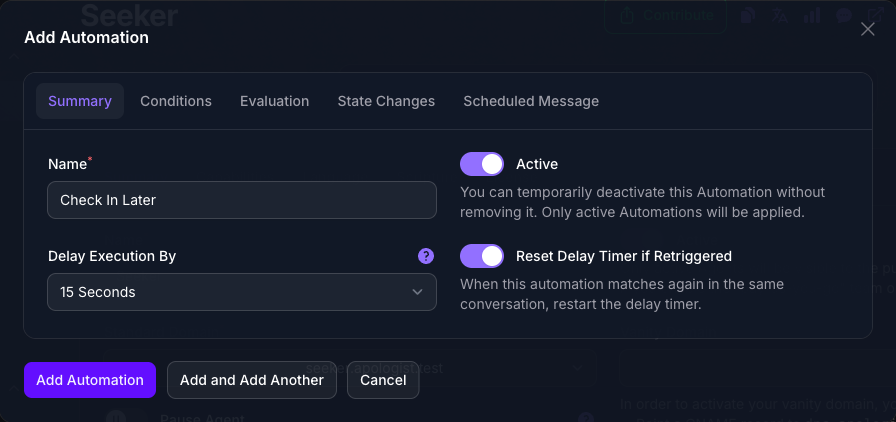
Delays longer than 24 hours are unavailable while the chosen Audience could include a WhatsApp channel, and the longer options are disabled as soon as you pick one. WhatsApp only accepts a reply within 24 hours of the visitor’s last message, so a longer delay would produce a message that could never be delivered.
A delayed run is checked again when it comes due, so an Automation that no longer applies by then does nothing.
Send a Follow-Up Message
This is the one thing an Automation does that the visitor sees.
On the Scheduled Message tab, write Message Content. When the Automation runs, that message is added to the conversation as though the Agent had sent it. Leave the field empty and nothing is sent, which is the default and what the tagging Automation above relies on.
Select Merge tags in the toolbar to drop in a value the Agent fills at the time, including a link that sets a User Flag when the visitor selects it. See Message Merge Tags for what each one resolves to.
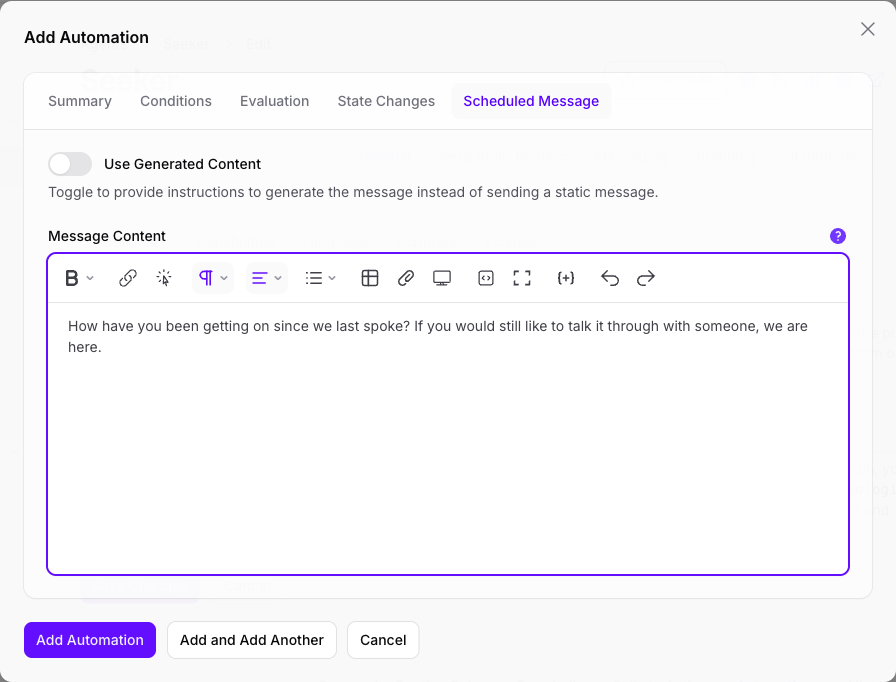
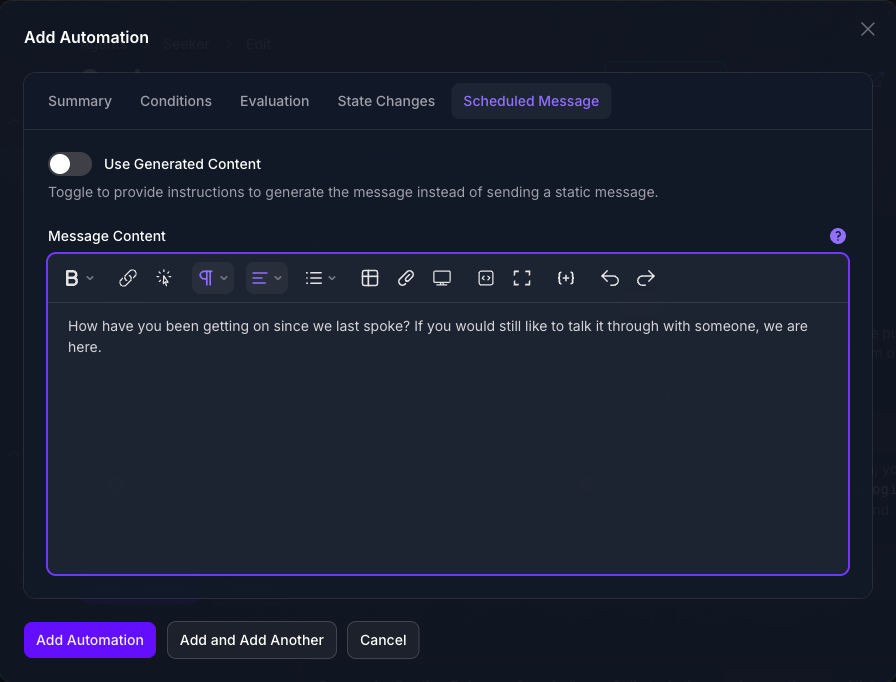
Where it arrives depends on where the visitor last was. A conversation that came in over a messaging channel gets the message on that channel, which is where a follow-up days later is worth writing: the visitor gets a notification, and the message is waiting whenever they next look.
A follow-up does not reach a visitor on the web. It is recorded against the conversation, and an Agent with Realtime Messaging on pushes it to a page the visitor still has open, but nobody sees it after that: not on reload, and not at all if they had closed the page. This is a known issue.
Let the Agent Write It
Turn Use Generated Content on and Message Content is replaced by Generated Content Instructions. Instead of the words to send, you describe the message you want, and the Agent writes it when the time comes.
It writes with the recent history of that conversation in front of it, in whatever language the conversation is being held in, using the model of whichever responder answered last. So a single instruction covers every visitor and every language, where authored content is one fixed wording for everyone.
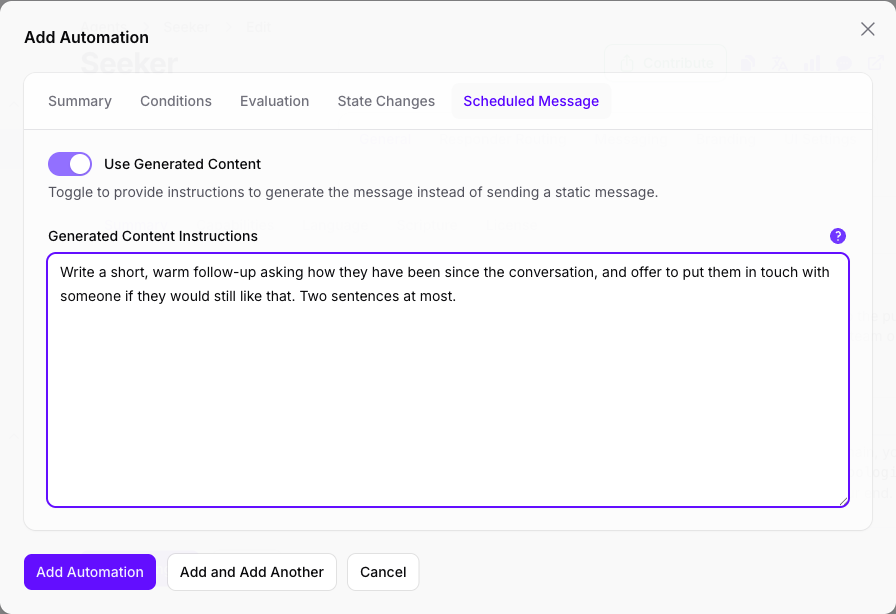
Empty instructions mean nothing is sent, exactly as empty Message Content does. Everything else the Automation was going to do still happens on schedule.
Narrow Who It Applies To
On the Conditions tab, pick an Audience to limit the Automation to a group of visitors, on the interface the prompt arrived on, the channel, the language, the country, the responder answering, and any flags set on the visitor. Leave it empty and the Automation applies to everyone. It works exactly as it does on a Call to Action, so see Calls to Action for what each filter matches and Audiences for building one.
Run While Agent Paused arrives on here, unlike on the other triggers. A paused Agent has stopped replying so that a person can take over, and an Automation is the one trigger that still has work to do in that state: labelling what is being said, and following up on the handoff.
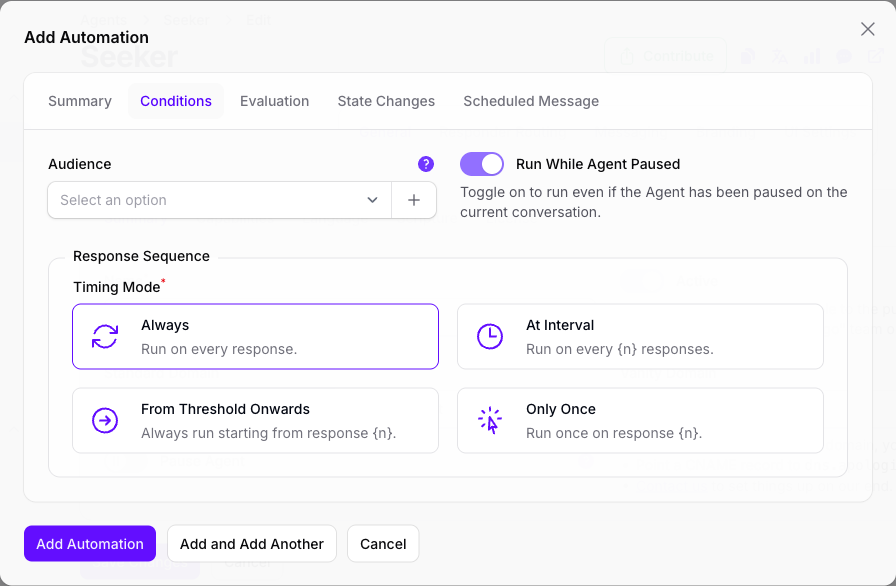
Response Sequence has no effect on an Automation. The fieldset is on this tab and the settings save, but the Agent does not read them, so an Automation set to run on every third response runs on every response. Narrow it with an Audience or an Evaluator instead. The control does work as described on Calls to Action and Custom Guardrails.
Record Something, or Pause the Agent
State Changes works as it does on a Call to Action. Set User Flags writes flags onto the visitor when the Automation runs, and Pause Agent on Conversation stops the Agent replying so a person can take over. Resume Agent on Conversation is the other half, and it is more useful here than anywhere else: an Automation is the only trigger that can wait, so it is the only one that can hand a conversation to a person and give it back if nobody picks it up.
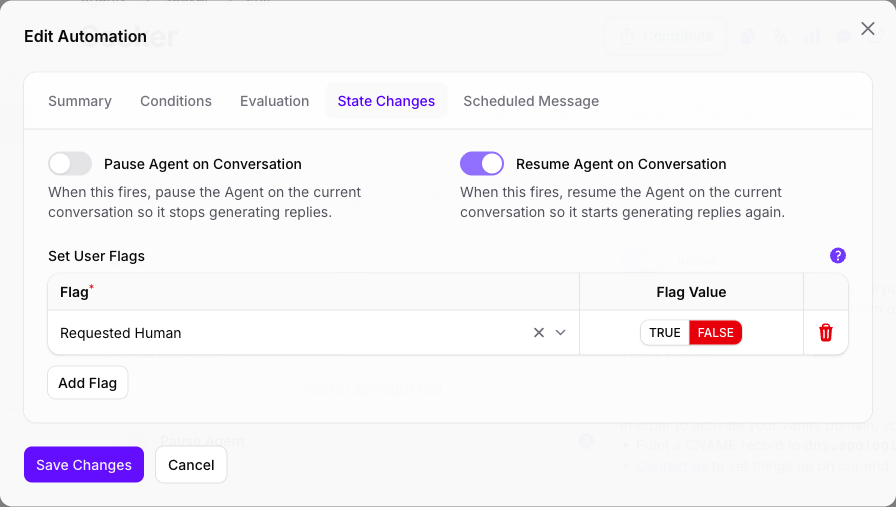
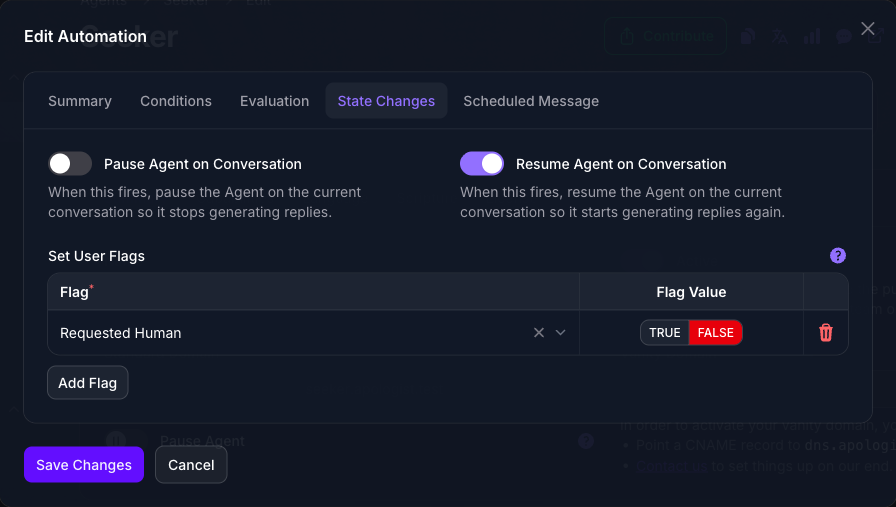
Each flag is set to TRUE or FALSE, so an Automation can clear a flag as well as raise one. The example above clears Requested Human and resumes the Agent, which is how a conversation handed to a person comes back if nobody picks it up.
A flag is written when the Automation runs, not when it matches. On a delayed Automation those are different moments: give it a seven day delay and the flag appears a week after the conversation that earned it. Anything reading that flag in the meantime, an Audience on another trigger for instance, sees the visitor as unflagged.
Prompt tags stay on the prompt. On Chatwoot, Automatically Synchronize Tags on the channel adds matching conversation labels only after those prompt tags are written. Additive strategies leave existing labels in place. Evaluator: Exclusive replaces Chatwoot labels that match other options from the same Evaluator, then adds the latest option. An Administrator Access Token (for Conversation Labels) on that channel creates the Settings catalog entry when it is missing.
Run Several Automations
Every Automation that matches runs. This is the opposite of a Call to Action or a Guardrail, where the first match wins and the rest are never considered, and it means a prompt can be tagged by one Automation, flagged by a second and followed up by a third.
Priority still decides the order they run in, which matters when two of them touch the same thing: the last one to set a flag decides its value, and an Automation that resumes the Agent undoes a pause set by one above it. Select the reorder icon above the panel, drag them into the order you want, then select it again to finish. Do this even if the order already looks right: new Automations are all created with the same priority, so until you have reordered once, the order is not something you have set.
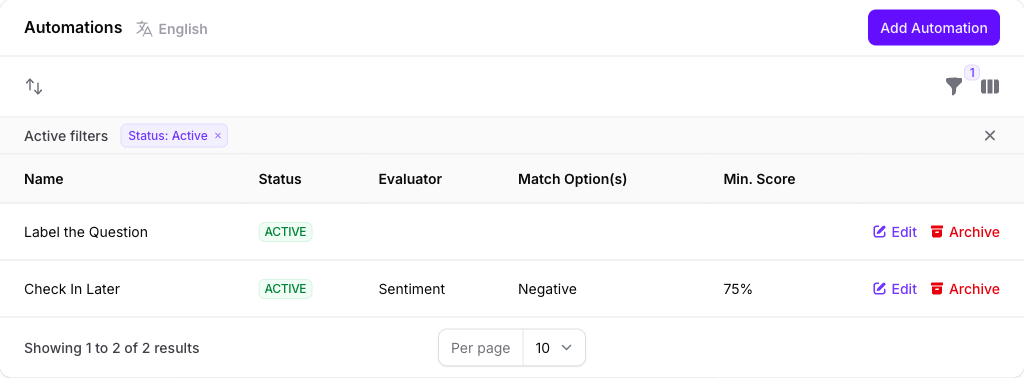
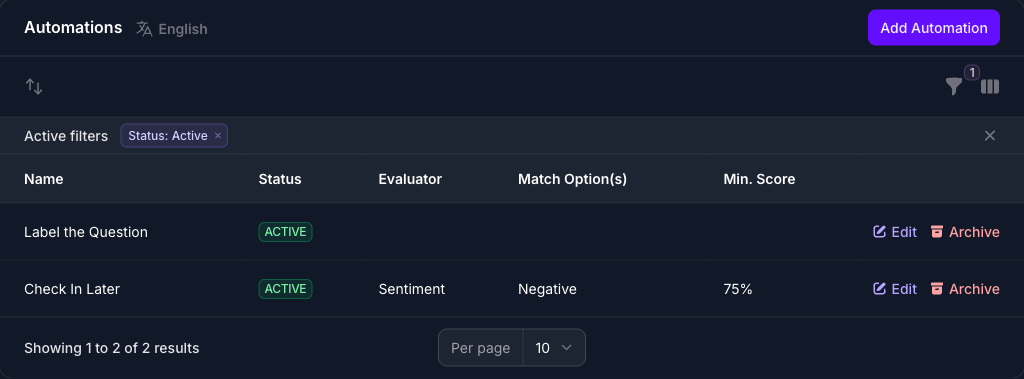
The panel filters to Status: Active by default, so an Automation you left inactive is not missing, it is filtered out. Clear the filter chip to see it.
Expected Result
Count how often each Automation ran in Analytics, by setting Group By to Automation.
To read the tag a given prompt was given, export instead. No Group By option lists them: Evaluation Result sorts into Passed and Failed, not into your tags. Select Export on Analytics and open the evaluations file, where Result Tag holds the tag.
Both of those are read after the fact. To be told at the moment an Automation matches, add a notification on the Automation Trigger event. It fires once for each Automation that matches, names the one that acted, and can be narrowed to particular Automations.
How the Agent Runs an Automation
Automations run after the answer has been sent, not before, and they never hold it up. Everything below happens in the background once the visitor already has their reply.
- It collects the Agent’s active Automations, in priority order. If the Agent is paused on the conversation, only Automations with Run While Agent Paused on are collected.
- It drops the Automations whose Audience does not match, on interface, channel, language, country, responder and user flags. One with no Audience is never dropped here.
- It decides each remaining Automation on its own. One with an Evaluator runs it and compares the verdict to the Matching Options. One without uses Prompt Tagging Strategy: Best builds a classifier out of its tags on the spot, All applies every listed tag, Random applies one, and None applies none. No Evaluator is created, and none is needed. Either way a tagging run is stored as an evaluation, with the confidence behind it and the chosen tag on it, which is what Analytics counts.
- Every Automation that matches acts, in order, rather than the first one alone. Prompt tags are written first. On Chatwoot, conversation labels follow only when Automatically Synchronize Tags is on for that channel.
- An Automation with a delay is queued instead, and its conditions are checked again when it comes due.
They also run on a prompt a Guardrail blocked. The visitor got your guardrail message rather than an answer, and the Automations still read what they wrote, so a blocked prompt is labelled and a follow-up still goes out.
What Each Setting Does
Every setting below belongs to one form: the dialog that opens from Add Automation, or from Edit on an Automation already in the list, on the Automations panel at the foot of the Agent’s General page. It is a single form, so nothing is written until you submit it, and submitting saves every tab at once.
Response Sequence is on the Conditions tab and is deliberately absent from this table. See the warning under Narrow Who It Applies To.
Troubleshooting
- There is no Automations toggle. Your plan does not include it. It is included from Basic upward.
- The Automation you just added is not in the list. The panel filters to Status: Active and a new Automation arrives inactive unless you turned Active on.
- The panel shows nothing beside an Automation’s name. That is what a tagging Automation looks like: the columns beside the name describe an Evaluator, and one built on Tags has none. Open it to see its tags.
- Prompts are not being tagged. Check Active first, then Prompt Tagging Strategy: None never tags. For Best, check Tag Score Threshold, because a prompt the model is unsure about is left alone deliberately. For Evaluator: Additive or Evaluator: Exclusive, an Evaluator must be chosen and the evaluation must pass.
- An Automation runs on every prompt and tags nothing. Prompt Tagging Strategy is None, or it has no Evaluator and no tags, so there is nothing for it to write. The other actions still run whenever Conditions match. Add tags, choose Best, All, or Random, or set an Evaluator strategy.
- Everything is tagged, including prompts none of the tags fit. Best picks the best of your tags rather than deciding they all fail, so Tag Score Threshold is the only thing keeping a poor fit out. Raise it, or add a tag for the traffic you did not want to categorise. All writes every listed tag on every match.
- A tag is misspelled, or one you no longer use is still offered. Typing creates a tag, so a typo becomes a real one that the field will suggest again. Rename or remove it on the Prompt Tags screen. Removing a tag there does not change prompts already tagged with it.
- Chatwoot shows no label, or the chip is hidden. Prompt tags must be written first, and Automatically Synchronize Tags must be on for that channel. Without an Administrator Access Token (for Conversation Labels), Agent can still tag the conversation, but the chip stays hidden until the Settings catalog entry exists. See Chatwoot Integration.
- The follow-up message never arrived. A queued run is dropped if the conversation ended, if the whole Agent was paused, if the Automation was deactivated while it waited, or if the conversation was paused and Run While Agent Paused is off.
- The follow-up message arrived late, or all at once. With Reset Delay Timer if Retriggered on, each new match pushes the wait out again, so a visitor who keeps talking is not followed up until they stop.
- The follow-up appeared twice. Two Automations matched, and unlike Calls to Action every match runs. Check the panel for a second one with an overlapping Audience or Evaluator.
- Delays over 24 hours are unavailable. The Audience you chose could include a WhatsApp conversation, where a message that late cannot be delivered.
- An Automation runs on every response despite its Response Sequence. That setting has no effect here. Narrow it with an Audience or an Evaluator.
Next Step
Continue to Benchmarks to test an Agent’s answers against a question bank, to Notifications to hear about each Automation as it matches, or to Analytics to count how often each Automation has run.