

Notifications
A Call to Action, a guardrail and an Automation all act inside the conversation, on the visitor. A notification works outside it, reaching you instead. Something happens on the Agent, and you find out about it in Slack, your inbox, or a URL of your own.
You might want to be notified when:
- A visitor flagged an answer. You want to read it today rather than find it in the chat logs next week. Response Flag puts the prompt and the reply the Agent gave straight in front of you.
- A guardrail is firing more often than you expected. You want to judge whether the rule is too tight or the traffic has changed. Guardrail Trigger tells you which guardrail caught what.
- Someone accepted a handoff. That usually means a person is now waiting on a person. Send Call to Action Click to the Slack channel your team actually watches rather than to an inbox nobody checks on the weekend.
- Another system needs to know. A webhook posts the whole event as JSON, so your own tooling can file it, count it or page someone without anybody reading a message first.
Nothing a notification does is visible to the visitor. It cannot change an answer, pause a conversation or set a flag. It only reports.
When you set up a notification you choose three things: the event that starts it, where it goes and what it says when it gets there, and who it fires for.
Purpose
Turn on Notifications, pick an event to watch, choose how it reaches you, and narrow it to the visitors and triggers you care about.
Prerequisites
- An Agent visitors can reach. See Standalone Web UI.
- Notifications on your team’s plan. The capability is otherwise disabled with an Upgrade to Unlock link beside it.
- Somewhere for it to go. A URL that accepts a POST for a webhook, a Slack incoming webhook URL, or one or more email addresses.
- Permission to edit Agents for your team.
- To narrow a notification to particular triggers, those triggers have to exist first. See Calls to Action, Custom Guardrails and Automations.
Turn On Notifications
Select Agents in the left-hand navigation, open your Agent, then choose General and select the Capabilities tab.
Under Orchestration, turn on Notifications and select Save Changes. The page reloads, and a Notifications panel joins the row of panels at the foot of General.
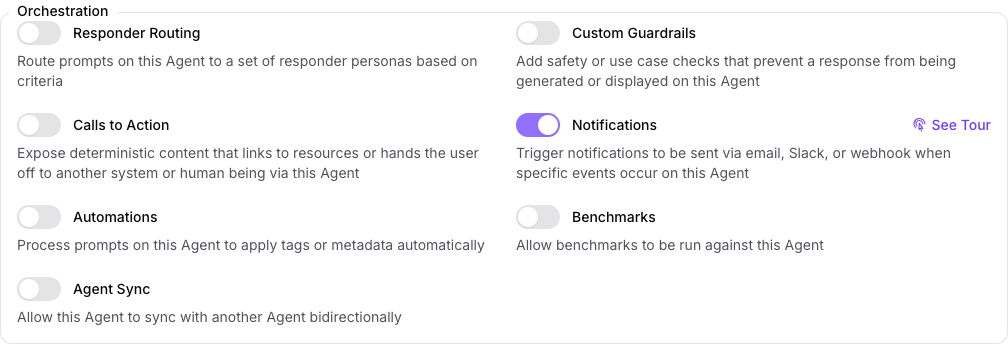
Turning the capability back off stops delivery immediately, and leaves every notification you have written in place. It is the fastest way to silence an Agent without unpicking anything.
Create a Notification
On the Notifications panel, select Add Notification. The form opens in a dialog with its settings split across tabs, and you can move between them before saving.
On Summary, give it a Name and choose the Event that starts it. The name is yours alone, so name it for what you want to hear about rather than for the event it uses. The name also becomes the subject line of the Slack message or email you receive, so make sure it reads well on its own.
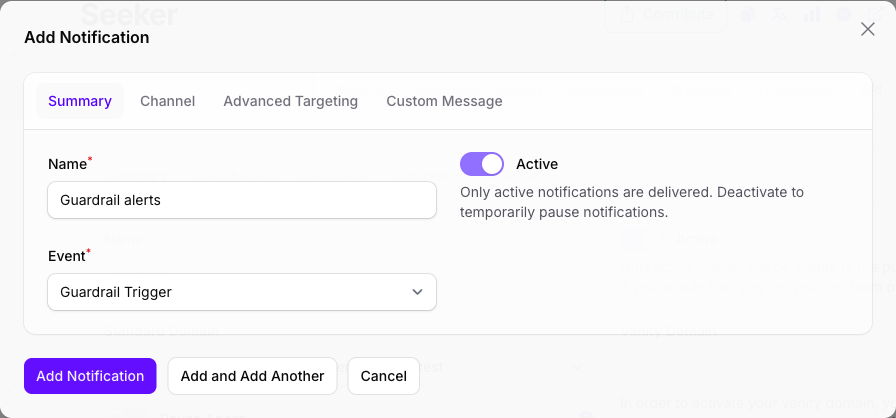
Save with Add Notification at the foot of the dialog, or with Add and Add Another when you have several to write in one sitting.
Active is off when the form opens. A notification saved without turning it on is stored, listed, and never delivered, so turn it on before you save.
Choose the Event
The Event list is grouped by what part of the Agent the event comes from. One notification watches one event, so watching two things means two notifications.
What each one means:
The two automation events answer different questions. Automation Trigger fires once for each Automation that matches, and names it, so two matches on one prompt send two notifications and a prompt nothing matched sends none. Automations End fires exactly once per prompt, after every Automation has had its turn, whether any of them matched or not, and names none of them. Watch the first to hear which Automation acted, the second to hear that the pass is over.
Choose How It Reaches You
On Channel, pick one of three destinations. What you fill in afterwards depends on which you pick.
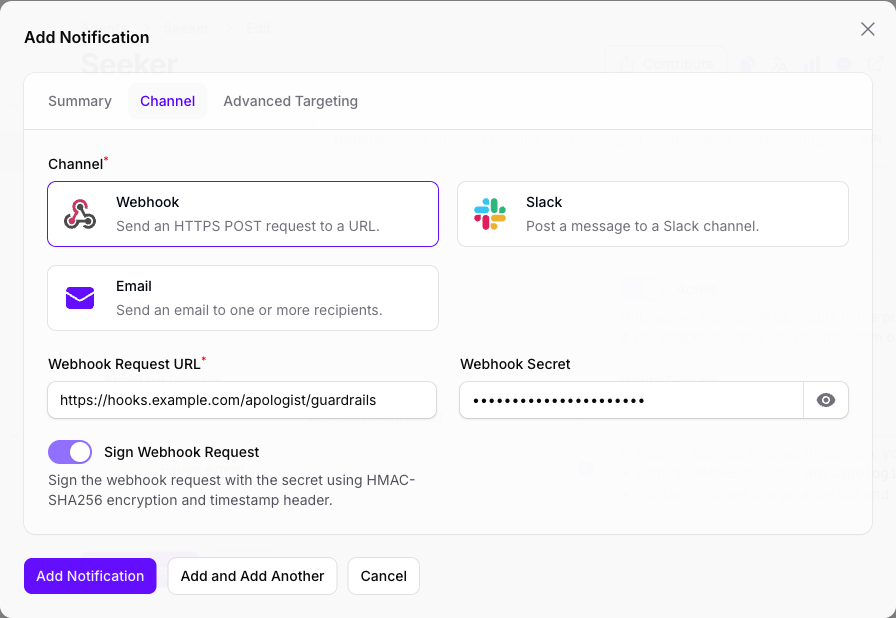
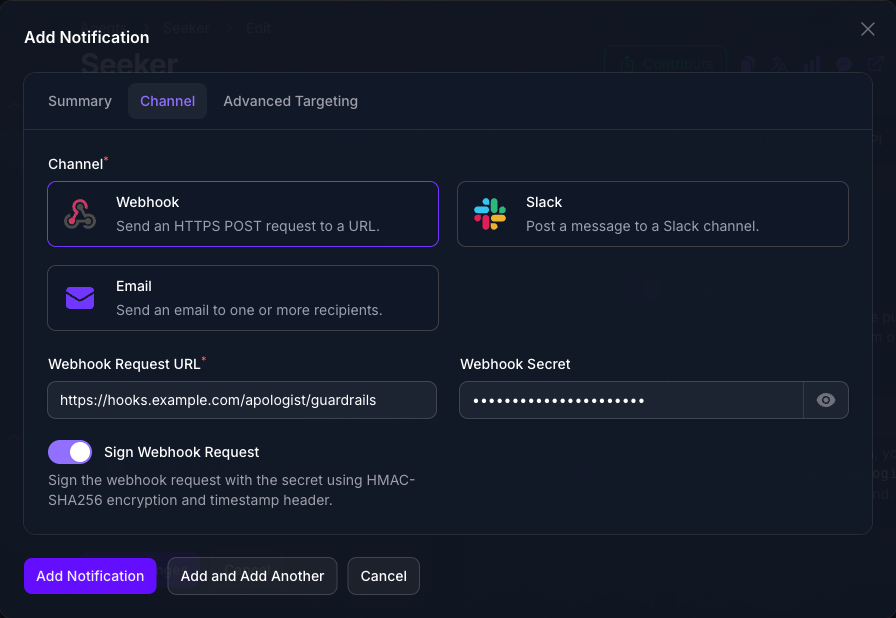
Webhook and Slack both post to a URL and both must be https. The difference is the shape of what arrives: a webhook receives the raw event, while Slack receives a readable message with the raw event attached beneath it.
Choosing Email replaces those fields with a list of recipients. You can add one or more email addresses and each recipient gets their own copy.
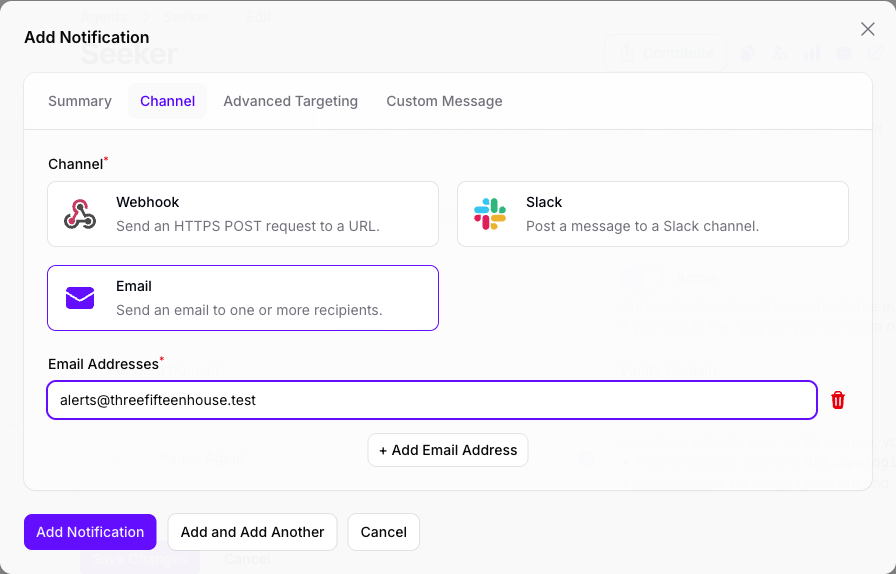
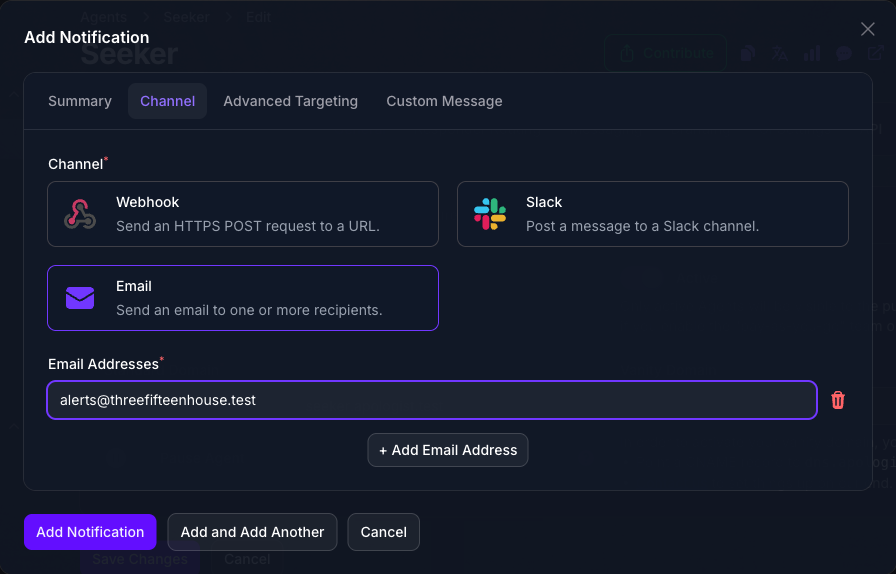
The channel determines which tabs appear, not just which fields show. Email and Slack include a Custom Message tab since you can write text, while Webhook skips it because it always sends the raw event data.
Sign the Webhook
A webhook URL is a public address, so anything that finds it can post to it. Webhook Secret is how your endpoint tells your Agent’s calls apart from everyone else’s.
Enter a secret and it is sent with every request, in an X-Webhook-Secret header, for your endpoint to compare against its own copy.
Sign Webhook Request is the stronger version and stays unavailable until a secret is entered. Turn it on and the secret is never sent. Each request is instead signed with it, and two headers arrive in its place:
Your endpoint recomputes that signature with its copy of the secret and rejects anything that does not match. Because the timestamp is part of what was signed, you can also reject a request that is too old to be genuine.
Sign the exact bytes you received, rather than the result of parsing the body and serializing it again. Reformatting the JSON changes the signature.
Narrow Who It Fires For
By default a notification fires every time its event happens, for everyone. Advanced Targeting narrows it. Every filter left empty means “all”, and filters combine, so a notification with two filled in fires only when both match.
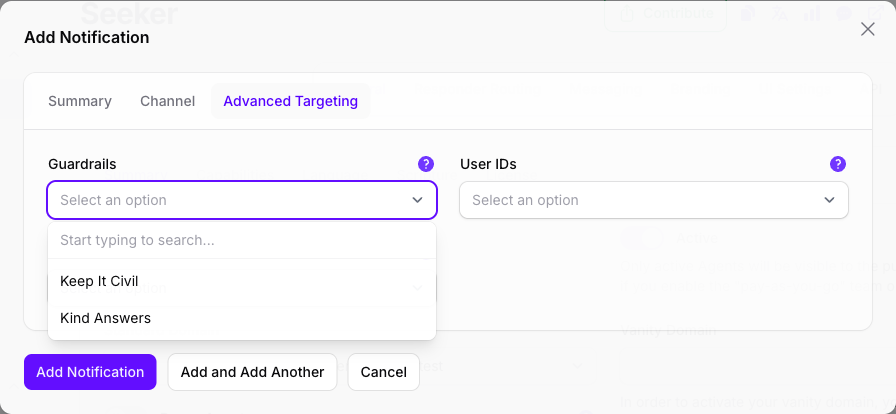
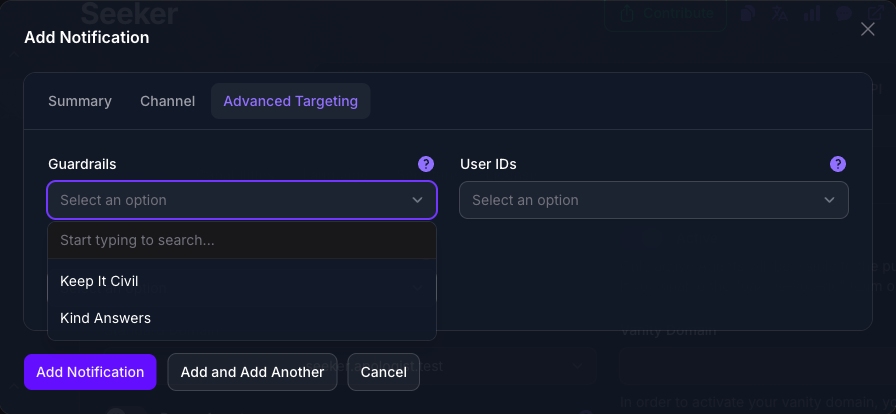
Calls to Action, Guardrails and Automations appear only on the events they apply to, and never more than one at a time, so a notification on Prompt Submit shows none of the three. Each lists what this Agent already has. The two guardrails in the picture, Keep It Civil and Kind Answers, are the ones built in Custom Guardrails, and yours will be your own. Choose Automation Trigger as the event and the same place lists your Automations instead.
User IDs and Device IDs are offered on every event, and they search what your Agent has actually seen, so an identifier that has never reached the Agent is not in the list.
Automations End cannot be narrowed to particular Automations. It reports the whole pass rather than any one rule, so there is nothing to name. Narrow Automation Trigger instead when you only want to hear about certain Automations.
Write a Custom Message
Custom Message decides what a Slack message or an email says, so the tab is there only when one of those two is your channel.
Leave it empty and you get a readable summary of everything in the event, laid out as a list with a heading per section. That is a sound default and worth trying before writing anything.
Fill it in and you get exactly what you wrote, with merge tags replaced by their values.
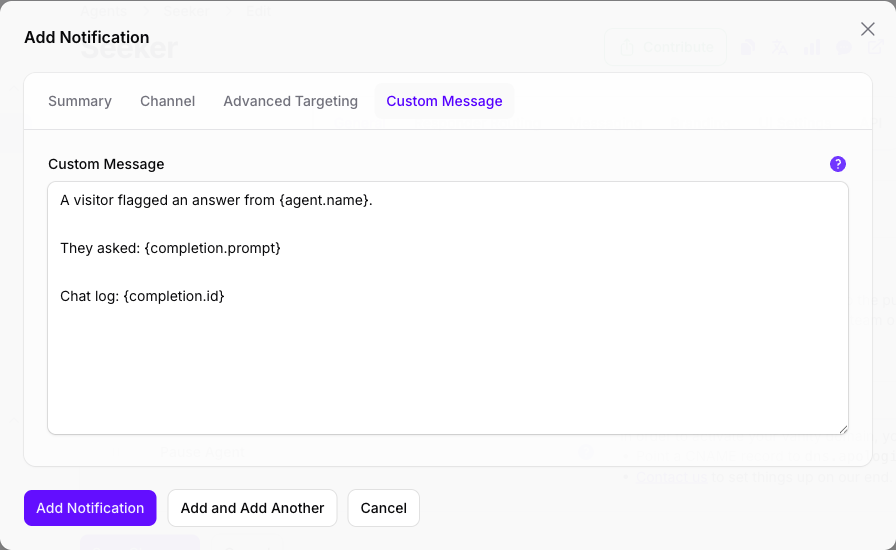
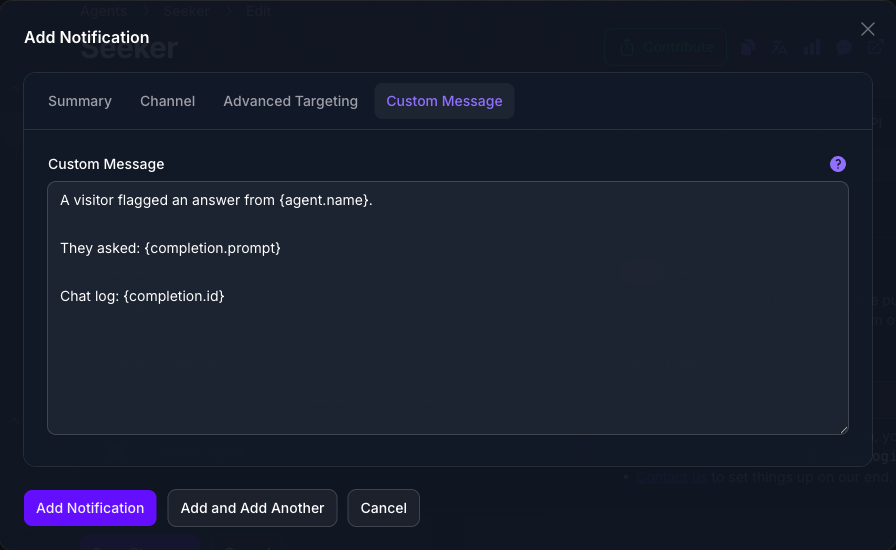
This field has no merge-tag picker. Type tags by hand, braces included, exactly as they appear in Merge Tags below. Console prints its own long reference beneath the field, listing every tag the chosen event accepts, so you can write without leaving the dialog.
Merge Tags
A merge tag is a name in single braces that is replaced with a real value when the message is sent. A tag whose value is not available resolves to an empty string rather than staying on screen, so write around a tag rather than depending on it.
These tags belong to notification messages only. The tags used in Agent replies are different and are not interchangeable with these. See Message Merge Tags.
Always Available
The Conversation
Available whenever the event belongs to a prompt, which is every event except Attribution Click and Footer Click.
{channel.id}, {channel.name}, {platform.id} and {platform.name} are also available, but only when the conversation arrived through a channel. They resolve to nothing for traffic that came in any other way, including the web. The reference panel in Console lists them among the always-available tags, which is misleading.
Calls to Action
Added for Call to Action Trigger and Call to Action Click.
Guardrails
Added for Guardrail Trigger.
Automations
Added for Automation Trigger, and not for Automations End, which names no Automation.
Evaluators
Added for Call to Action Trigger, Call to Action Click, Guardrail Trigger and Automation Trigger. Each of those events is a decision about what the visitor wrote, and an Evaluator is what usually made it.
On Automation Trigger these depend on how the Automation was built. One with an Evaluator resolves both sets. One built on Tags instead judges the prompt without an Evaluator, so the {evaluation.*} tags resolve and {evaluator.id} and {evaluator.name} come out empty. See Automations.
The Webhook Payload
A webhook receives the whole event as JSON. Slack and email are built from the same object, which is why the merge tags above read like paths into it.
Which blocks are present depends on the event.
A block that is absent is left out rather than sent as null, so read defensively and do not assume a key exists.
The completion block can also carry automations and tags, listing what ran against that prompt and which tags were applied. They are not offered as merge tags, so treat them as available to a webhook receiver only. The trace block is the same: use trace.trace_id to join the event to the Agent API call. See Tracing.
Nothing is retried. A delivery that returns anything other than success is logged and dropped, and one failing notification never affects the others on the same event. If your endpoint has to be reliable, make it accept the request quickly and do its real work afterwards.
Manage Your Notifications
Everything you have written for this Agent is listed on the Notifications panel, which is where you will spend most of your time once the first one is working.
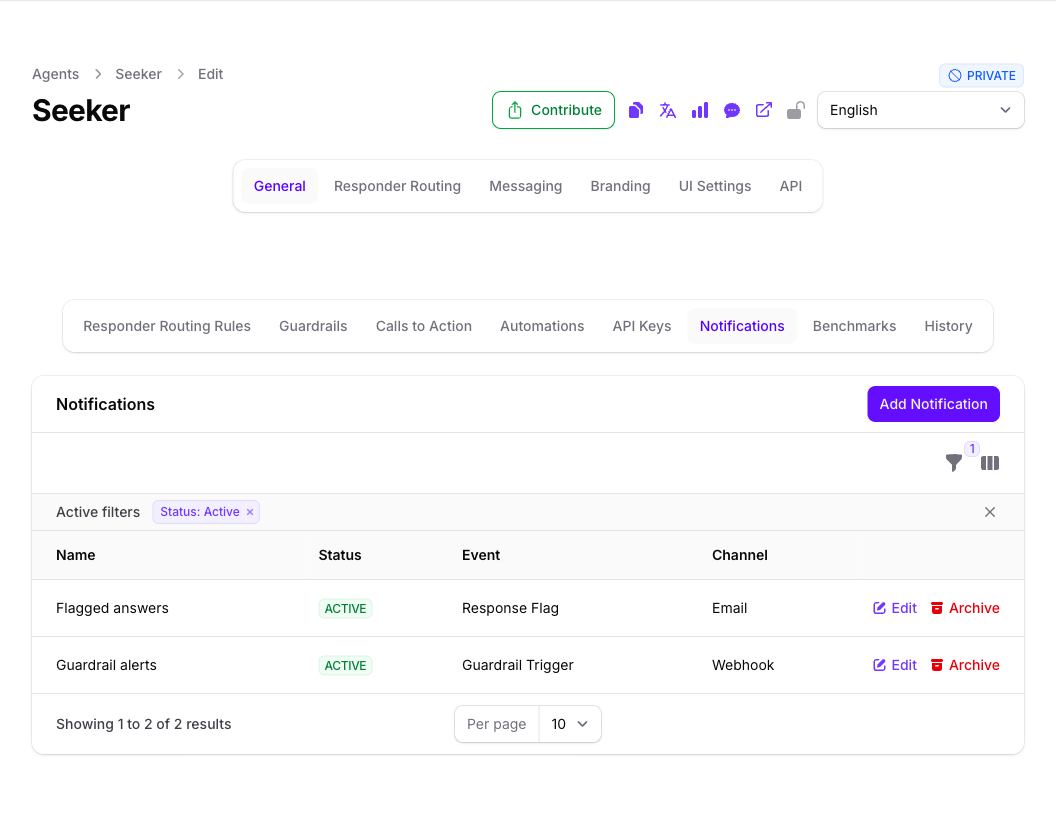
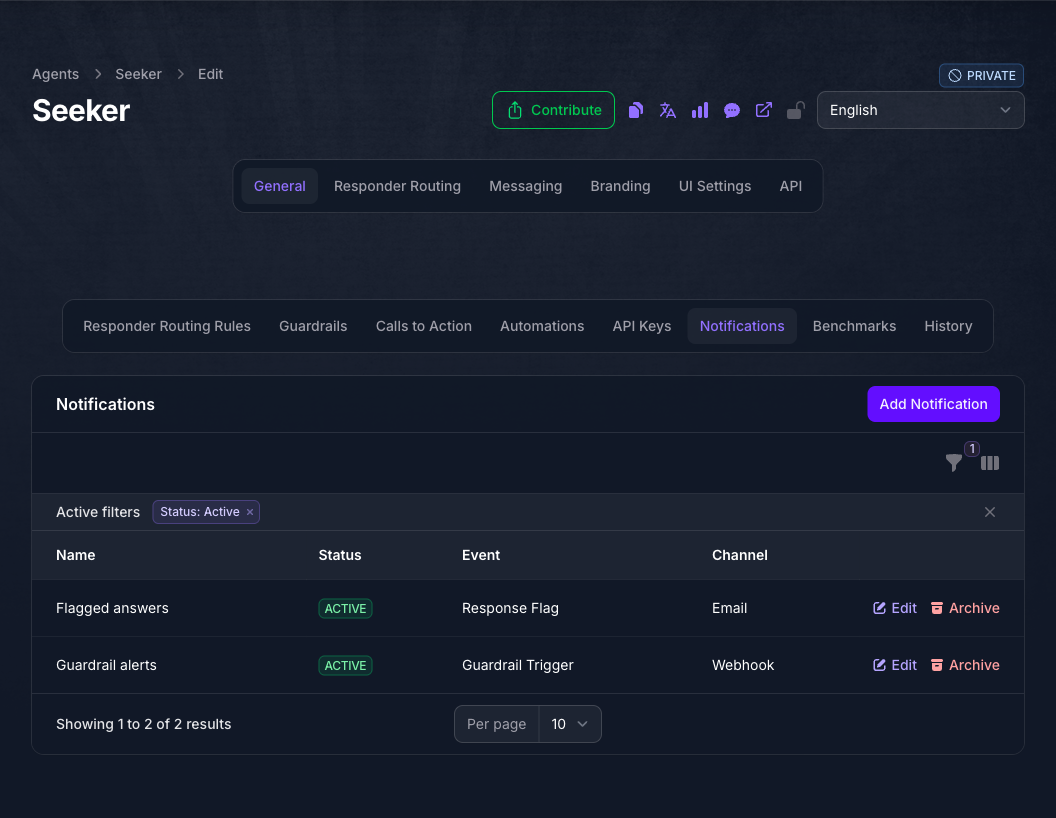
Four columns, showing the name, whether it is active, the event it watches and how it is delivered. The list opens filtered to active notifications, which is why a Status: Active chip sits above it; clear that chip to see everything.
To stop one notification without losing it, Edit it and turn Active off. To stop all of them at once, turn the Notifications capability off on the Agent. Archive puts one away and keeps the record, and the Archived filter is how you find it again.
What Each Setting Does
Troubleshooting
- There is no Notifications panel on the Agent. The capability is off, or your plan does not include it. A plan without it shows the toggle disabled with Upgrade to Unlock beside it.
- Nothing is being delivered. Check Active first. It is off when the form opens and is the most common cause.
- Still nothing, and Active is on. Confirm the Notifications capability is still on for that Agent. It is checked again at the moment of delivery, so turning it off silences everything.
- Still nothing, and both are on. Check Advanced Targeting. A filter naming a Call to Action, guardrail, Automation, user or device that was not involved stops the notification.
- The webhook never arrives and nothing is reported. Failures are not retried and not surfaced in Console. Check your endpoint’s own logs for the request.
- The webhook arrives but your signature check fails. Sign the exact bytes received, not a reserialized copy, and remember the signed value is the timestamp, a full stop, then the body.
- Sign Webhook Request cannot be turned on. It stays unavailable until a Webhook Secret is entered.
- A merge tag came out empty. Its value was not available for that event. Tags for the Call to Action, guardrail, Automation and Evaluator blocks only resolve on the events that carry them.
{evaluator.name}is empty on an Automation Trigger. That Automation sorts prompts with its own Tags rather than an Evaluator, so there is no Evaluator to name. The{evaluation.*}tags still resolve.{guardrail.content}or{guardrail.warning}came out empty. Those two names were retired. The guardrail’s text is on{guardrail.action_message}and{guardrail.warning_message}, which is what Console now lists beside the field.{channel.name}is always empty. That conversation did not arrive through a channel. These tags are listed as always available in Console, but they are not.- The event label in a message reads differently from the picker. Automations End is titled Automations Complete in the delivered message. The event is the same one.
- Emails are not arriving but webhooks are. Email is sent through a mail service configured on the Agent deployment rather than anywhere in Console, so there is nothing here for you to switch on and no error is raised when it is missing. Check the addresses on the Channel tab for a typo first, then ask whoever runs your deployment to confirm the mail service is configured. Webhooks and Slack do not depend on it.
- No Custom Message tab. The channel is set to Webhook, which always receives the raw event. Switch to Slack or Email to write a message.
- The dialog opened on the wrong tab. It reopens on whichever tab you used last, so a new notification can start on Channel rather than Summary. Select Summary and carry on.
- An archived notification still reads ACTIVE. The status column only reports the Active toggle, which archiving does not change. Archived notifications are not delivered whatever the badge says.
- A notification you archived is no longer in the list. The list opens filtered to active records. Clear the Status: Active chip, then use Restore on the row.
Next Step
Continue to Chat Logs to look up the conversations a notification reports, or to Agent Sync to copy a configured Agent elsewhere.