

Embedding On a Website
Beacon is Console’s embed widget: a script tag that puts an Agent on a website you already run, as a corner launcher, a fullscreen overlay, or a block in the page itself.
Purpose
Configure how the embedded Agent looks and behaves on your site, then copy the snippet that puts it there.
Prerequisites
- An Agent, published and working at its own address. See Standalone Web UI.
- The ability to add a
<script>tag to your website, either directly or through your CMS or tag manager. - A plan that includes embedding. The Embed page is gated twice, so see the note below.
How Beacon Works
Beacon is a single <script> tag. It loads a small script from the Agent’s own domain, which then draws the launcher and opens the Agent in an iframe when the visitor clicks it.
Everything you configure on the Embed page is written into that snippet as data- attributes. The page is a snippet builder: the settings are stored in Console so you do not lose them, but what actually governs the widget on your site is the snippet you copy out. Change a setting and you have to copy the snippet again and replace the old one.
Two separate gates control this page. The Embedded Web Widgets capability makes the Embed page appear at all. A plan that includes white labeling makes its fields editable. If the page is visible but every control is read-only with an upgrade notice above it, the capability is on and the plan is the missing half. See Subscriptions.
Steps
Turn On Embedded Web Widgets
Select Agents in the left-hand navigation, open your Agent, then choose General and select the Capabilities tab.
Under Interfaces, turn on Embedded Web Widgets and save. An Embed entry appears in the row of pages across the top once the page reloads; open it.
Choose the Display Mode
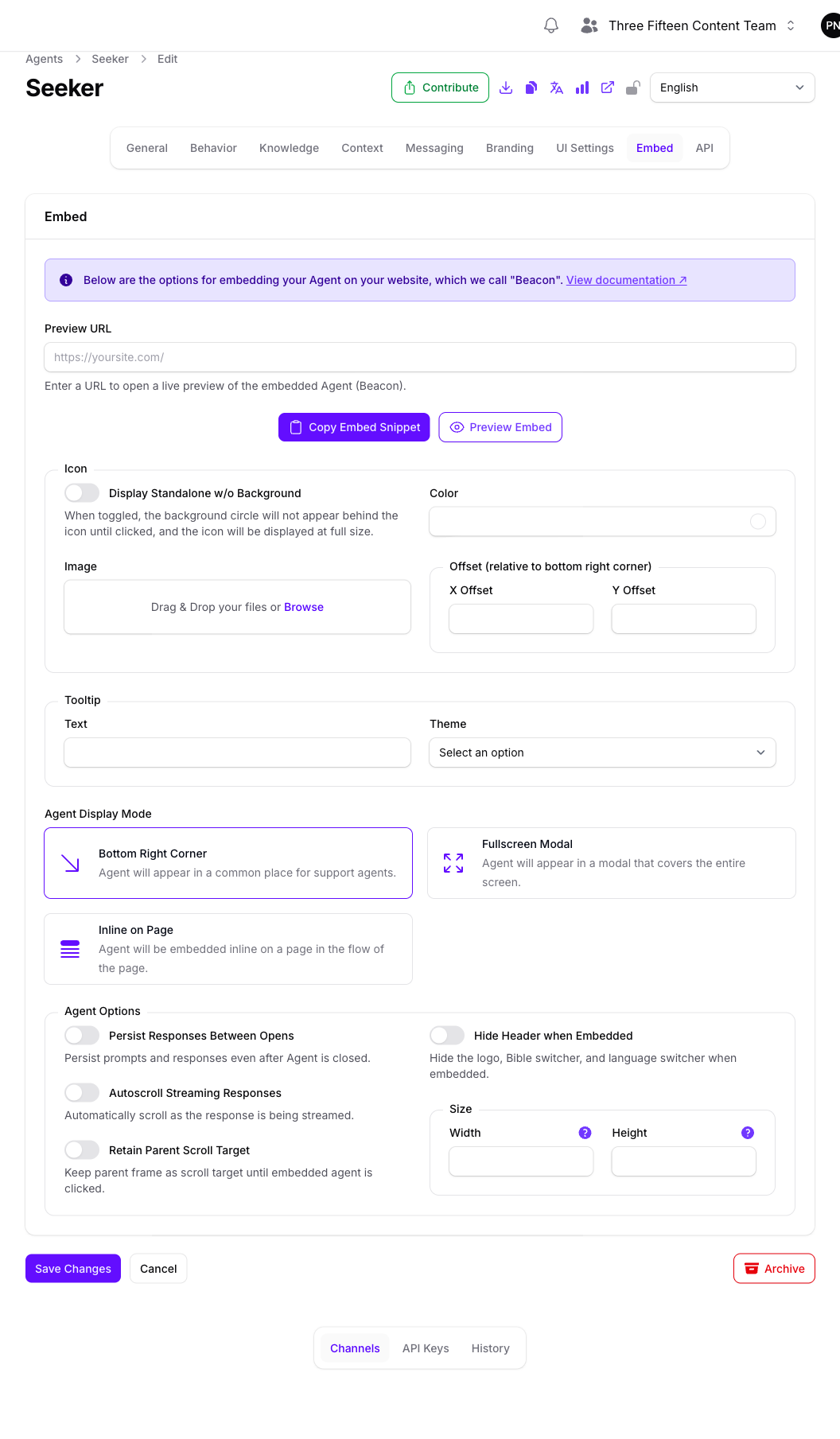
Agent Display Mode decides what the embed actually is. It is the setting most likely to be wrong, because it changes which other fields matter.
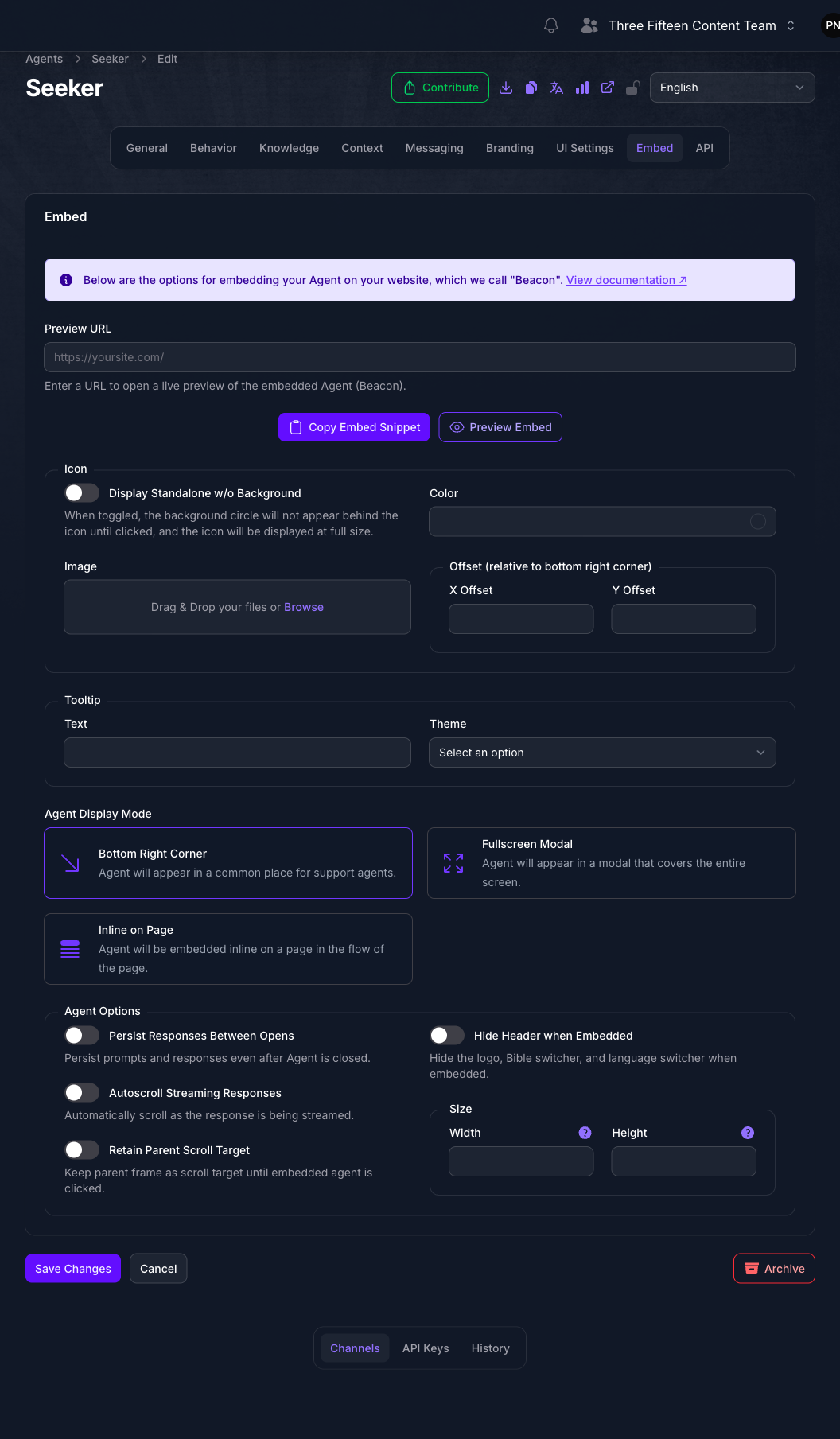
There is no default. On an Agent that has never had a mode saved, all three cards render unselected, so this is a choice you have to make rather than one you can leave alone. The screenshot above shows an Agent with Bottom Right Corner already saved.
Choosing Inline on Page reveals Target HTML Element ID. Beacon injects the Agent into the element with that id, so the element has to already exist on the page. Choosing Fullscreen Modal reveals Modal Overlay Theme instead.
The X Offset and Y Offset fields are read only in corner mode. They position the launcher relative to the bottom right corner and are ignored by the other two modes, even though the fields stay visible.
Style the Launcher
The Icon section controls the launcher, so it applies to the corner and modal modes and does nothing inline.
- Image replaces the default launcher icon.
- Color sets the circle behind the icon.
- Display Standalone w/o Background removes that circle until the visitor clicks, and shows the icon at full size. Use it when your icon is a shape that should read on its own rather than sitting in a colored button.
- X Offset and Y Offset move the launcher in from the bottom right corner, and cannot be negative. Both arrive empty, and the widget falls back to its own spacing until you set them.
Under Tooltip, Text is the label that appears beside the launcher, up to 100 characters, and Theme sets whether it renders light or dark. Leave the text empty for no tooltip.
Set the Agent Options
These govern the Agent panel once it opens.
Every option on this page starts off, and Width and Height start empty. Set each one you care about explicitly rather than assuming a sensible starting point, including Autoscroll Streaming Responses, which most embeds want on.
Retain Parent Scroll Target matters more than it sounds. Without it, a visitor scrolling the page with the pointer over the widget scrolls the widget instead, which reads as the page being stuck.
Hide Header when Embedded is worth turning on when the host page already carries your branding, and worth leaving off when readers need the language or translation switchers.
Hiding the header removes the language and Bible translation switchers from the widget. If you support multiple languages or translations, hiding it takes that choice away from the reader. See Configuring Languages and Configuring Bible Translations.
Preview It Against a Real Page
Enter a page on your own site under Preview URL, then select Preview Embed. Console saves the form and opens that page in a new tab with the current settings applied, so you can see the widget against your real layout before touching your site.
Selecting Preview Embed with the field empty warns you to enter a URL first and does nothing else.
Preview is the fastest way to catch a mode mismatch, particularly an inline embed whose target element does not exist on the page you tried.
Copy the Snippet And Install It
Select Copy Embed Snippet. Console saves the form, builds the tag from the current settings, and copies it to your clipboard, confirming with a “Copied to clipboard!” notification.
The snippet looks like this, with one data- attribute per setting you configured:
Paste it into your site before the closing </body> tag, on every page the Agent should appear on. For an inline embed, also confirm the target element exists on those pages.
The script is served from the Agent’s own domain, so the src follows the Agent’s address. If you later move the Agent to a vanity domain, copy the snippet again, because the old one still points at the previous address.
Expected Result
The Agent appears on your site in the mode you chose, styled to match the page, and answers there exactly as it does at its own address.
Keeping the Snippet In Sync
The settings live in Console, but the deployed widget is driven by the snippet on your site. They drift apart silently: changing a setting in Console and saving it does not change any page you have already installed the old snippet on.
After changing anything on the Embed page, copy the snippet again and replace it wherever it is installed. A tag manager or a shared template makes this one edit instead of many.
Password Protection And Embedding
If the Agent uses password protection, visitors to the embedded widget are prompted for the same credentials, which is usually not what you want on a public page. Disable Password Protection when Embedded, on the UI Settings page’s Password Protection tab, exempts the embedded copy while the standalone address stays protected.
Understand what that does before turning it on. It makes the Agent reachable without credentials by anyone who can load the page it is embedded on. See Standalone Web UI.
Troubleshooting
- The Embed page is not in the row of pages. The Embedded Web Widgets capability is off, or your plan does not include embedding.
- The Embed page is visible but nothing can be edited. Your plan does not include white labeling. An upgrade notice appears above the form.
- Preview Embed does nothing. Preview URL is empty. Console warns you and stops.
- Nothing appears on the page after installing the snippet. Confirm the tag is actually on the rendered page and not stripped by a CMS that filters script tags, and that the Agent is Active.
- Nothing appears, and the mode is Inline on Page. The element named in Target HTML Element ID does not exist on that page. Beacon has nowhere to inject the Agent.
- The launcher is in the wrong place or overlaps something. Adjust X Offset and Y Offset. These apply in corner mode only.
- The page will not scroll when the pointer is over the widget. Turn on Retain Parent Scroll Target.
- The widget still shows old settings. The snippet on your site predates the change. Copy it again and replace it.
- The language or translation switcher is missing in the widget. Hide Header when Embedded is on.
Next Step
Continue to Progressive Web Apps (PWA) to let visitors install the Agent to their device.