

Progressive Web Apps (PWA)
Progressive Web Apps (PWA)
A Progressive Web App lets someone add the Agent to their phone’s home screen and open it like any other app, with no app store involved.
Purpose
Turn on the install prompt for an Agent, and set the name and icon it uses once installed.
Prerequisites
- An Agent published at its own address. See Standalone Web UI.
- A square icon image for the installed app.
- A plan that includes the PWA capability.
What Installing Actually Does
The Agent already serves a web app manifest, which is the file a browser reads to decide whether a site can be installed and what it should look like once it is. The PWA capability adds the visible half: a banner inviting the visitor to install.
Console fills the manifest from settings you have already made elsewhere:
The short name is cut to 12 characters with no ellipsis, and that is the name shown under the icon on most home screens. A long App Name is fine for the install prompt and wrong on the home screen. Check the first 12 characters read as a word.
Steps
Turn On the PWA Capability
Select Agents in the left-hand navigation, open your Agent, then choose General and select the Capabilities tab.
Under Interfaces, turn on PWA and save. An App tab appears on the UI Settings page once the page reloads.
Turn On the Install Banner
Choose UI Settings from the row of pages across the top, then select the App tab.
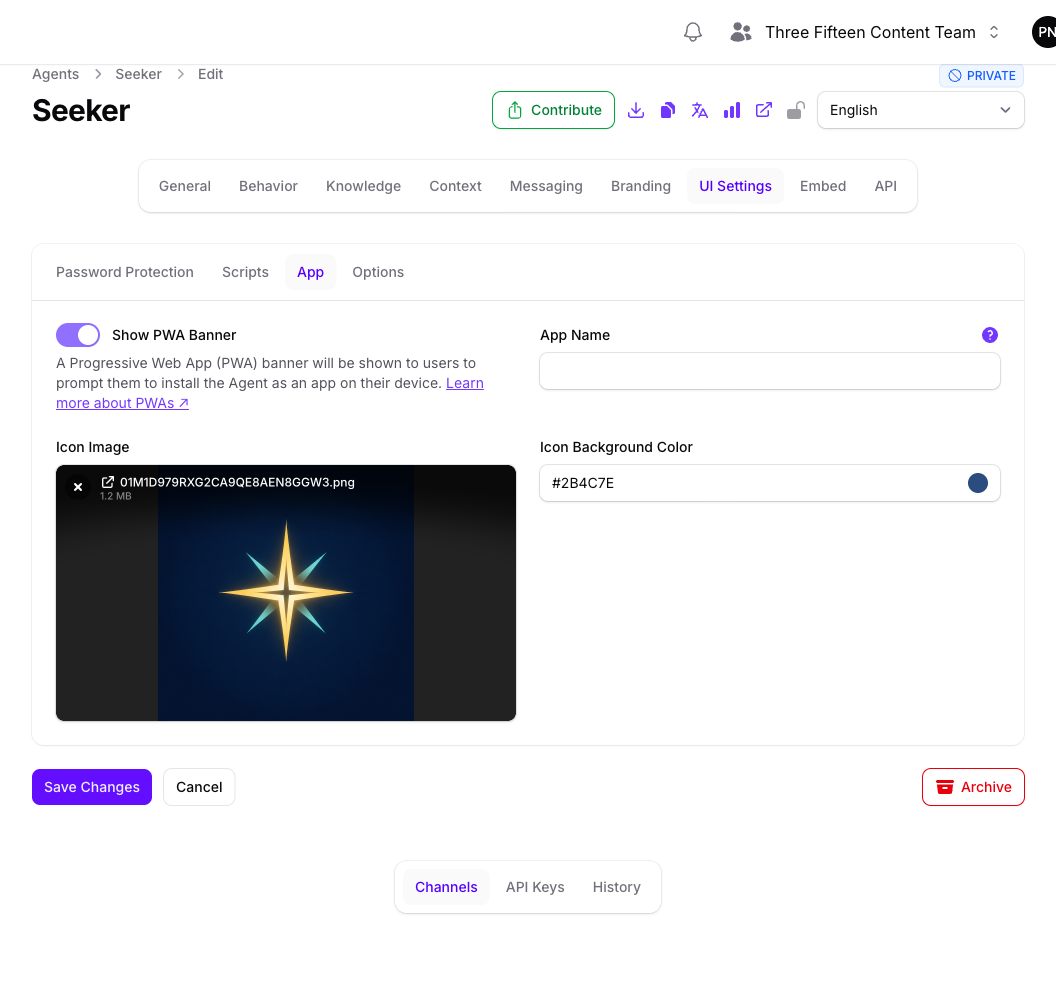
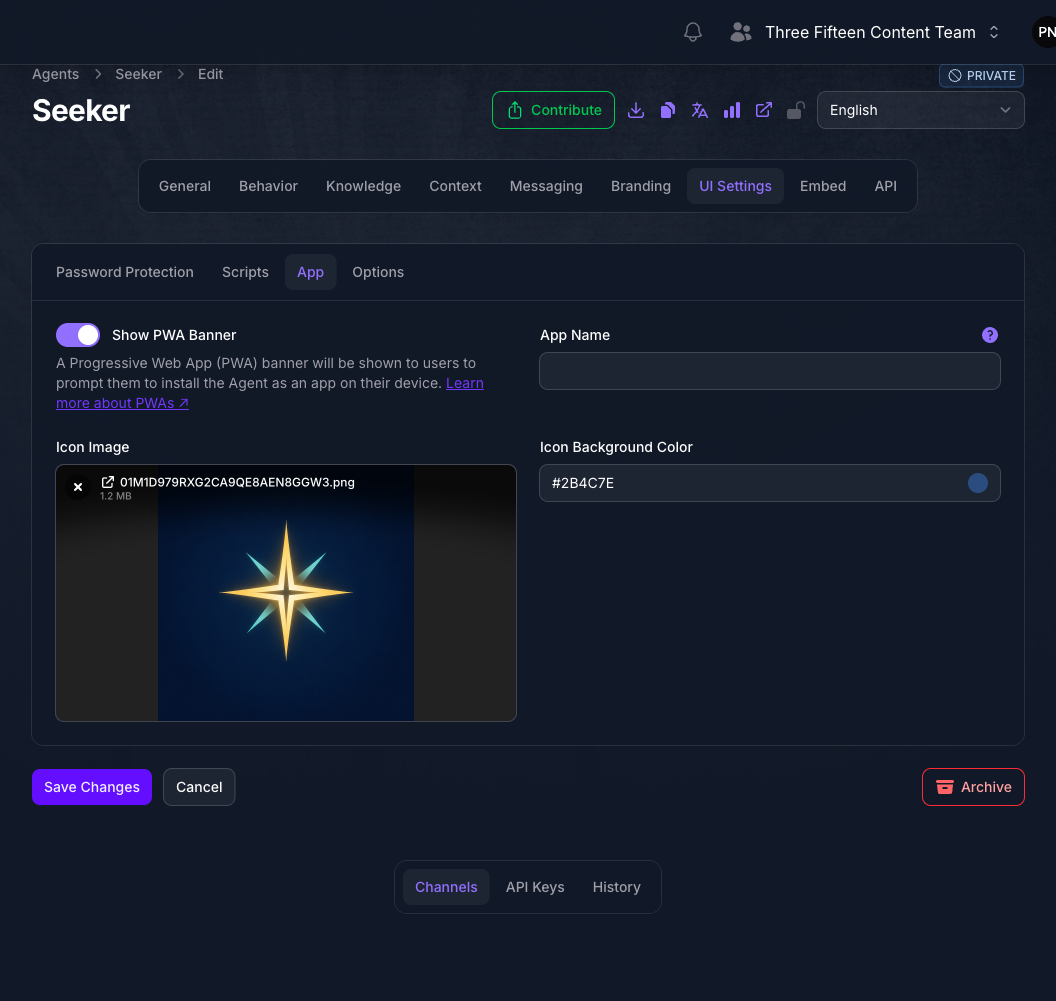
Turn on Show PWA Banner. This is what puts the install invitation in front of visitors. The Icon Image and Icon Background Color fields stay disabled until it is on.
Name the Installed App
App Name is what the installed app is called, up to 50 characters. Leave it empty and the Agent’s own name is used.
Set it when the Agent’s name is longer than a home screen will show, or reads as a product name rather than something someone wants on their phone. Remember the 12-character truncation described above.
Set the Icon
Icon Image is the icon for the installed app. Use a square image, at least 512 by 512 pixels, since the manifest offers the same file at both 192 and 512 pixels.
The icon is also offered as a maskable icon, which means some devices crop it to their own shape. Keep the important part well inside the edges so a circular or rounded-square crop does not cut it.
Icon Background Color is a narrower setting than its name suggests. It does not set the background of the home screen icon. It sets the color of the Safari pinned-tab icon and the tile color on Windows. The installed app’s background comes from the Agent’s background color and theme instead.
Setting this to your brand color and expecting the installed app to match is the common mistake. The installed app’s background follows the Agent’s background color and theme, so change those under Advanced Branding if that is what you want.
Save And Test On a Phone
Select Save Changes, then open the Agent’s address on a real phone. A desktop browser will not show the banner, so this step cannot be done from the same computer you configured it on.
Test on an iPhone and an Android phone if you can reach both, because the banner is genuinely different on each and only one of them has an Install button. See When the Banner Appears.
Install it once yourself and look at the result on your home screen. That is the fastest way to catch the two things most likely to be wrong: a name too long to fit under the icon, and artwork that gets cropped.
Open the Agent in a private or incognito tab for this. Dismissing the banner hides it for 30 days on that phone, and it is easy to dismiss it by reflex the first time.
Expected Result
A visitor opening the Agent on a phone sees a banner inviting them to install it. Accepting adds it to their home screen under the name and icon you set, and opening it from there launches the Agent full screen with no browser chrome.
When the Banner Appears
The banner is deliberately conservative. It shows only when every one of these is true:
- Show PWA Banner is on for the Agent.
- The Agent is not running as an embedded widget. The banner never appears inside a Beacon embed.
- The visitor is on a mobile device, judged by the browser’s user agent or a screen 768 pixels wide or narrower.
- The app is not already installed.
- The visitor has not dismissed the banner in the last 30 days.
- The browser has offered an install prompt, or the visitor is on iOS.
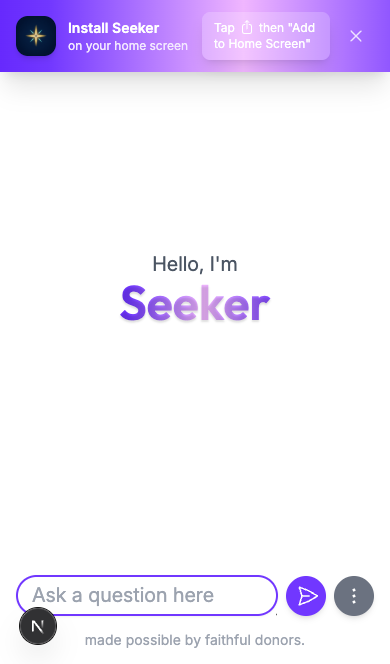
That last condition is the one that surprises people. On Android and Chrome the banner shows an Install button that opens the browser’s own install prompt. iOS does not support that prompt at all, so on iPhone and iPad the banner instead shows instructions to tap Share and then Add to Home Screen. Both are correct behavior.
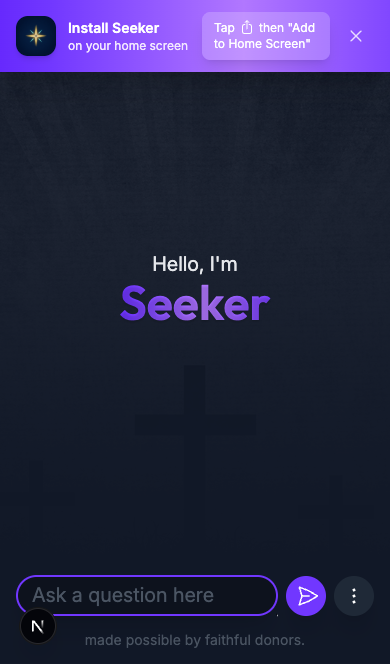
This is the iPhone version, with your icon and app name on the left and the Share instructions on the right:
The Android version replaces those instructions with an Install button in the same position.
Dismissing the banner suppresses it for 30 days, stored in that browser. If you dismiss it while testing, you will not see it again on that device until you clear the site’s local storage. Test in a private window, or expect to clear storage between attempts.
Troubleshooting
- The App tab is not on the UI Settings page. The PWA capability is off, or your plan does not include it.
- Icon Image and Icon Background Color cannot be edited. Turn on Show PWA Banner first.
- The banner never appears on a desktop browser. That is expected. The banner is mobile only, by user agent or a viewport 768 pixels wide or narrower.
- The banner does not appear on a phone either. Check that you have not dismissed it in the last 30 days on that device, that the app is not already installed, and that you are on the Agent’s own address rather than an embedded copy.
- On iPhone there is no Install button. iOS does not support the browser install prompt. The banner shows Share and Add to Home Screen instructions instead, which is the only route available on that platform.
- The name under the home screen icon is cut off. The short name is truncated to 12 characters. Shorten App Name.
- The icon looks cropped on the home screen. It is being used as a maskable icon and the device applied its own shape. Add padding around the artwork.
- Setting Icon Background Color changed nothing visible. It affects the Safari pinned-tab icon and the Windows tile color, not the installed app’s background. Change the Agent’s background color under Advanced Branding instead.
Next Step
Continue to Messaging / Social Channels to reach people on platforms they already use.