

Adding And Editing Content
Content shows up in a lot of different shapes: a file on your computer, a web page, a recording, a book listing on Amazon. Console has a dedicated way to bring in each one.
Each of those makes a Source: one piece of content your Agent, the AI assistant you configure in Console, can draw on when it answers. A Source is not available to your Agents until it has text and has been indexed. See How Content Works if either of those is new.
Purpose
Add content to Console as Sources, get the text of each one ready for your Agent, and change them later.
Prerequisites
- Permission to add content for your team.
- Credits, for documents that need converting and recordings that need transcribing. Console shows the cost before it spends any. See Credits.
- Only if you want to add many files or web addresses at once, a plan that includes Bulk Import. Basic and above include it.
- Only if you want a Collection, such as a podcast feed or a website, to import new Sources by itself, a plan that includes automated ingestion. Basic and above include it.
Choose a Type
Every Source has a type, and the type cannot be changed once the Source is added, so choose it first. Each type has its own entry in the left-hand navigation.
The Can join column defines which Collections a Source of that type can belong to.
Add a Source
Select the type in the left-hand navigation, then select Add followed by the type’s name, such as Add Article or Paper.
On Summary, Name and Language are the only fields every type requires, and Language starts as English. Web Pages, Podcast Episodes and Streaming Videos also need the URL they come from, and a Streaming Video’s URL must be a YouTube address. A name can be used only once within a type.
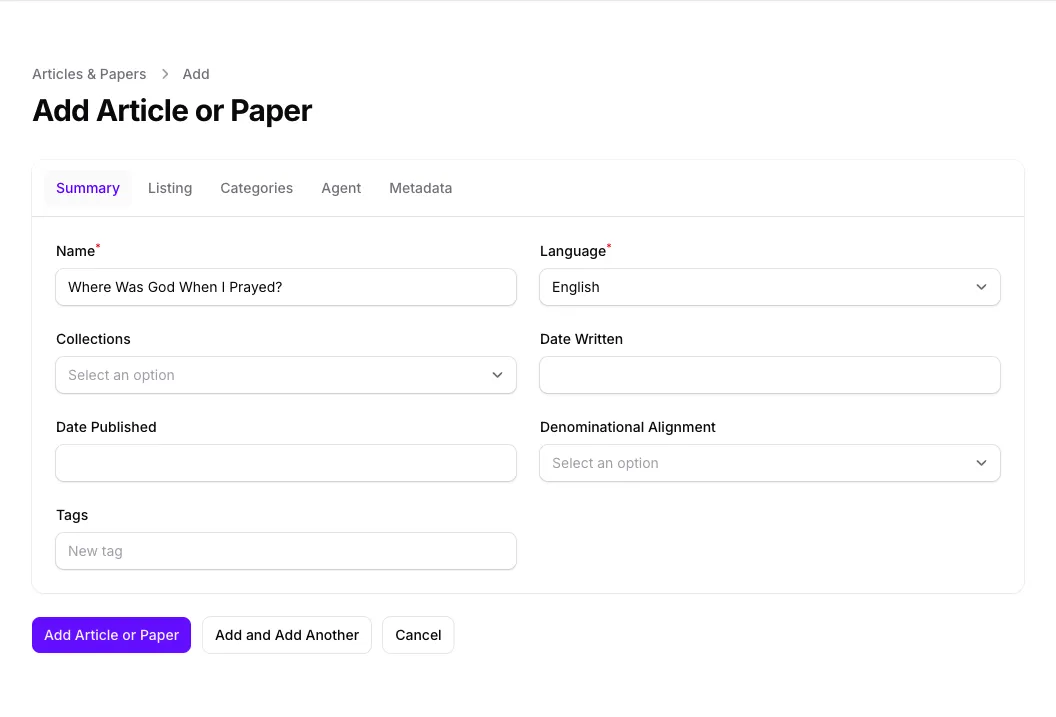
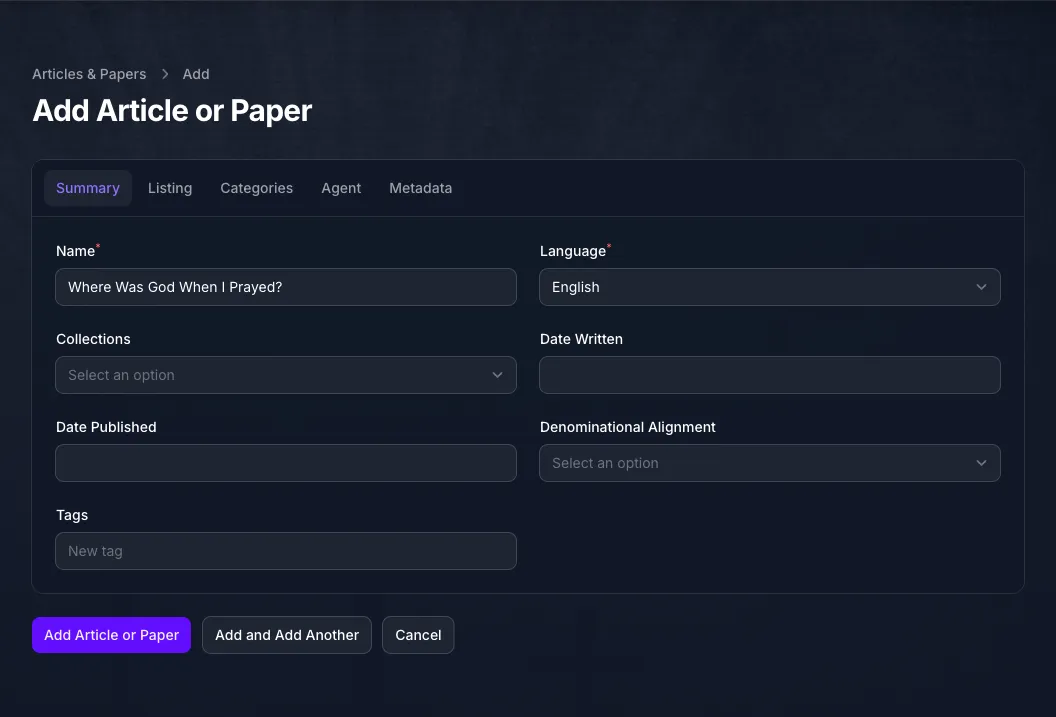
The rest of Summary describes the Source: when it was written and published, and the Collections and Tags it belongs to, which Organizing Content covers. Denominational Alignment records the Christian tradition the content reflects. It matters when an Agent is set to draw only on one alignment, which is chosen on the Agent; see Curating Sources.
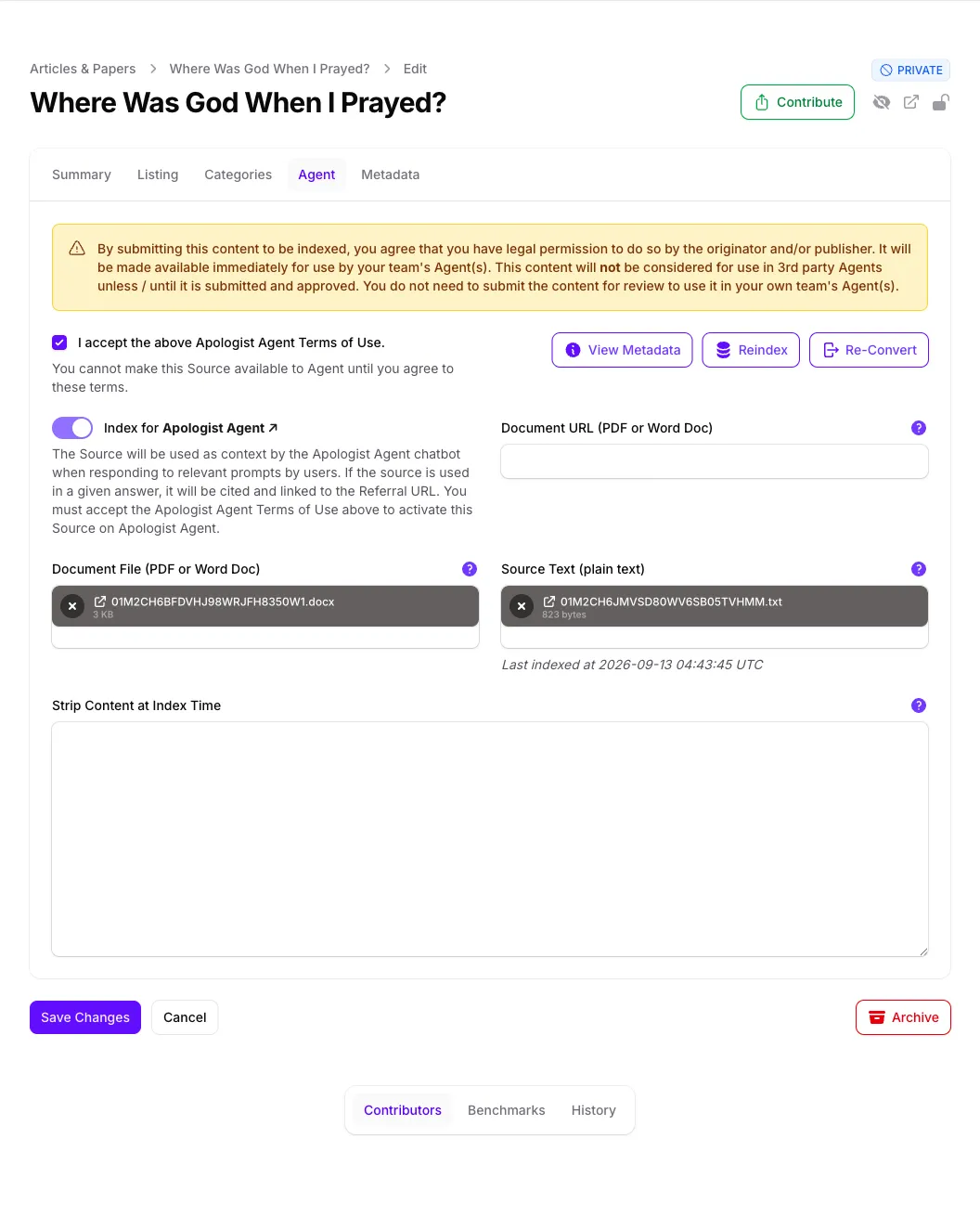
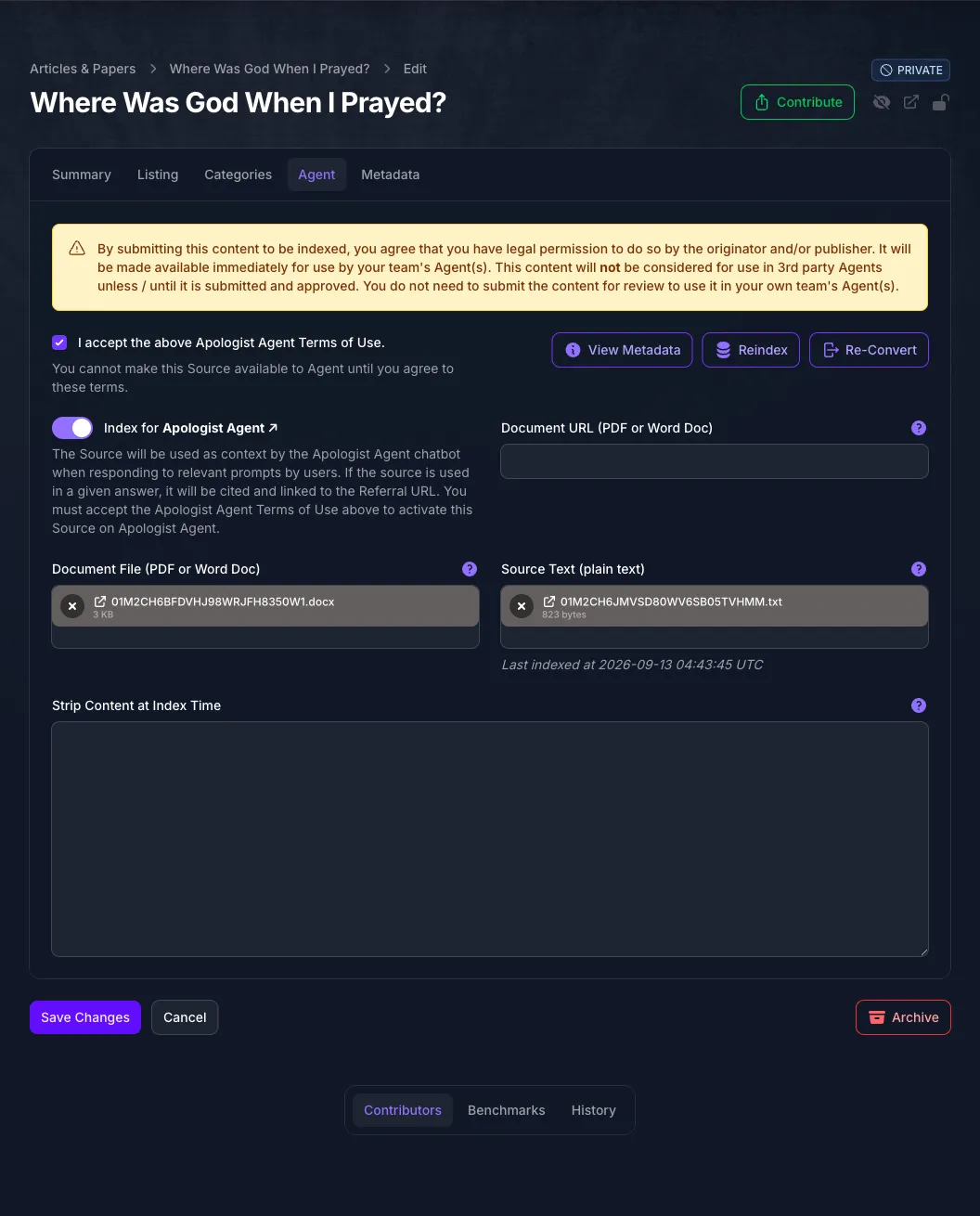
Select the Agent tab and give Console the content itself, as a link or as an upload. The field names follow the type: Document URL and Document File for a book or article, Audio URL and Audio File for a podcast episode, Media URL and Media File for a recording, Data URL and Data File for data. A Web Page or Streaming Video needs nothing here, because its URL on Summary is enough.
If you already have the text, upload it instead. Any type accepts a .txt file as Source Text on this tab, and then nothing needs converting or transcribing, so no credits are spent.
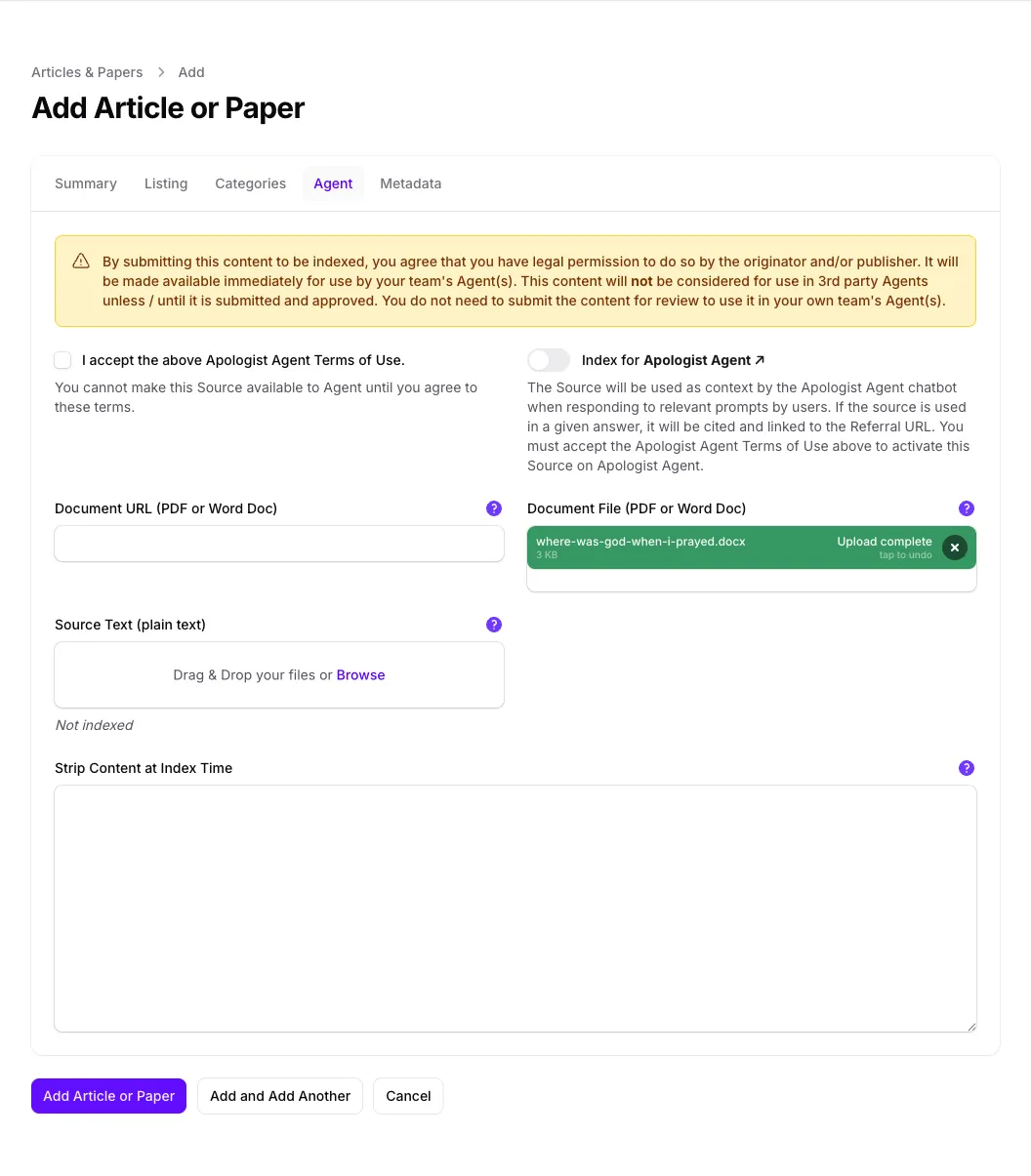
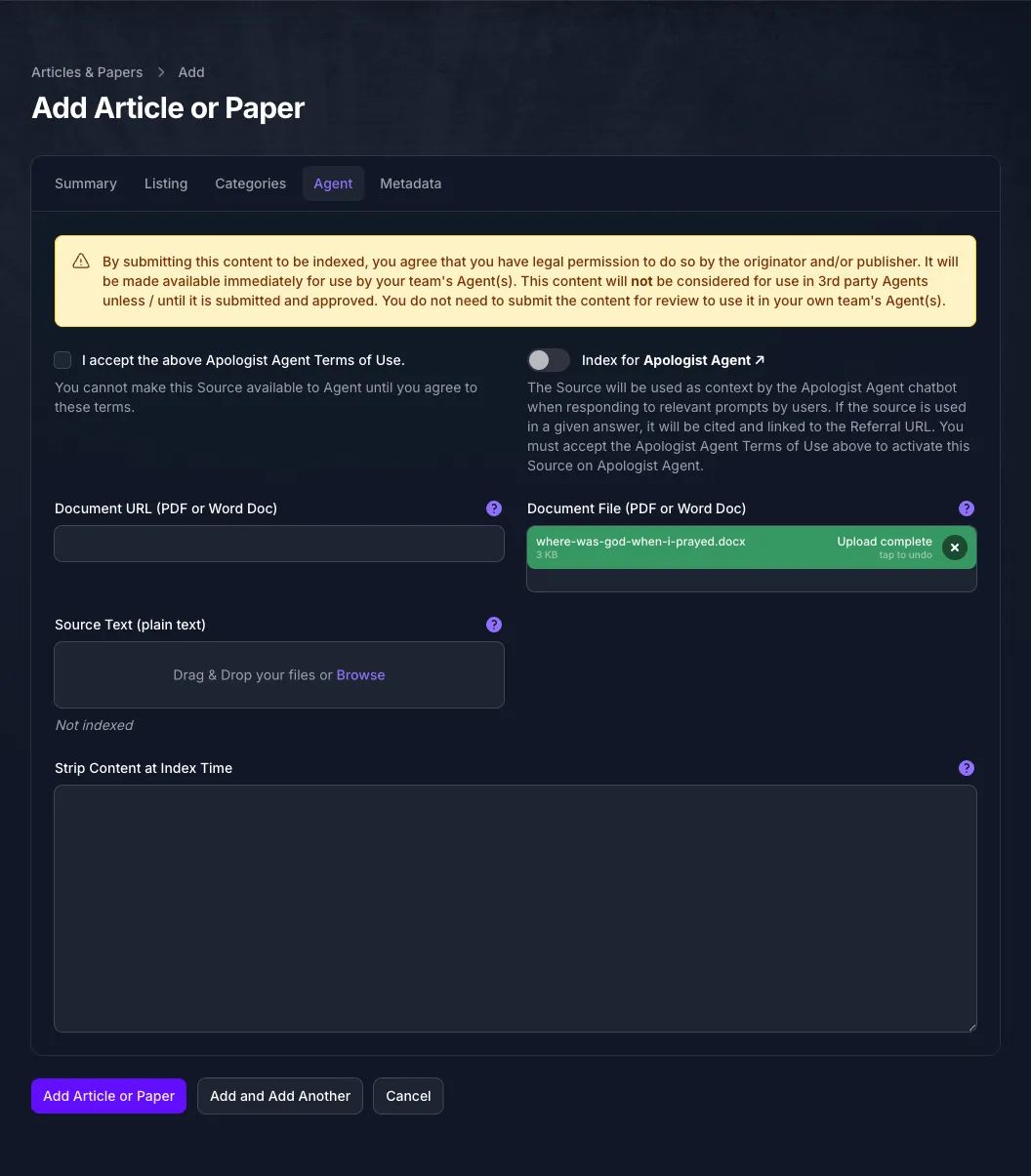
Leave Index for Apologist Agent alone for now, because it cannot be turned on until the Source exists. Select Add Article or Paper, or the equivalent for your type, and Console opens the new Source for editing.
Get the Text Ready
What happens after you add a Source depends on its type.
Transcribing charges credits, and Console states how many before you confirm. It can take up to 30 minutes. Transcribe appears only once the Source has a recording to work from, and it is unavailable while your team lacks the credits.
When the text has arrived, Source Text holds a file. Tick I accept the above Apologist Agent Terms of Use, turn on Index for Apologist Agent, and select Save Changes. Indexing then runs in the background. See Getting a Source in Front of Your Agent.
Import a Web Page or Video From a URL
On Web Pages or Streaming Videos, select Import, paste the address and confirm. Console fetches the rest: the title, text, date and author of a web page, or the title, description and thumbnail of a video.
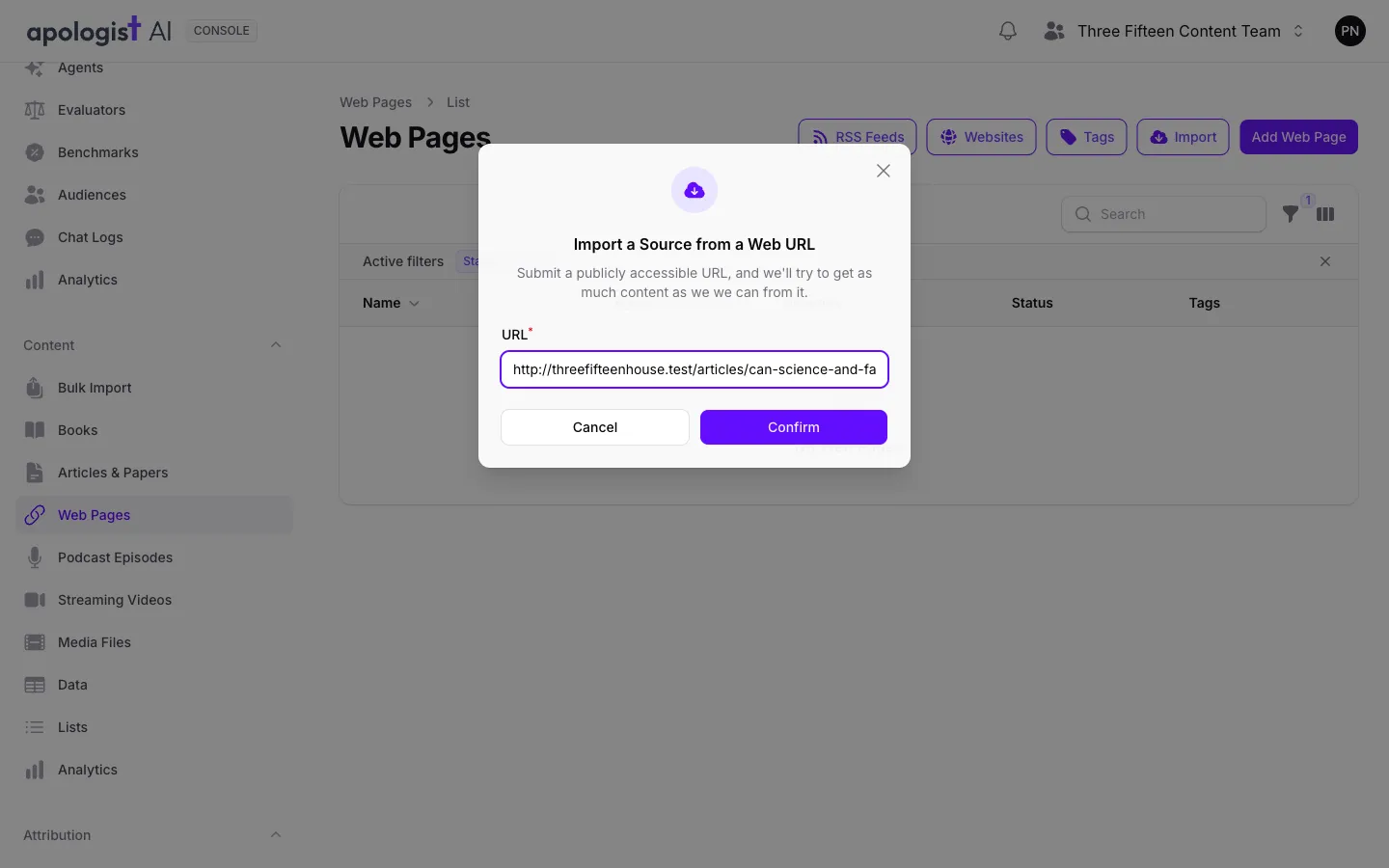
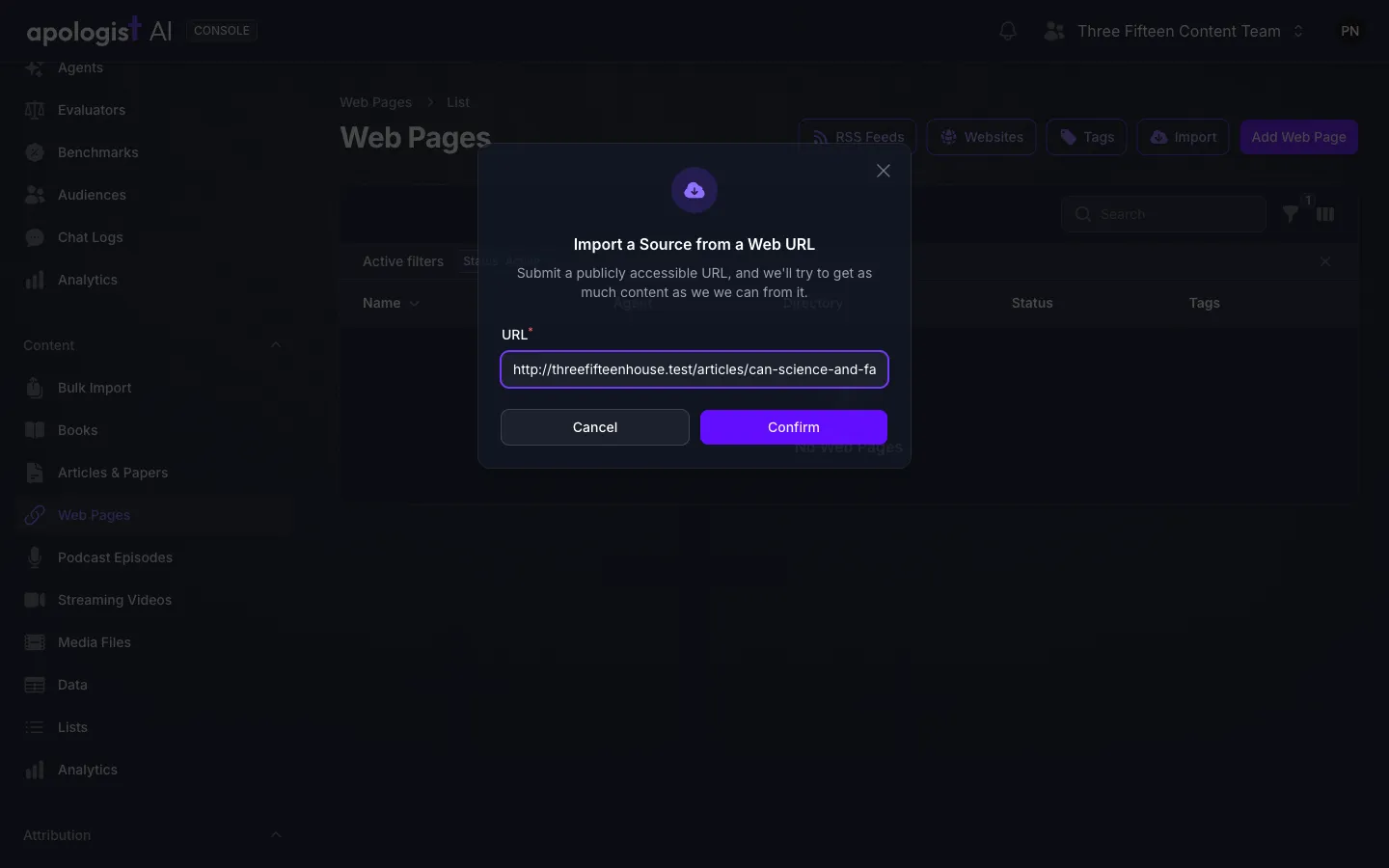
The new row appears straight away, named placeholder_ followed by the address, and takes its real name once the import finishes. Whichever of the two lists you start from, a YouTube video address becomes a Streaming Video and any other address becomes a Web Page. A video still needs transcribing afterwards; see Get the Text Ready.
Known issue: A new Web Page, Podcast Episode or Streaming Video is not imported. Source Text stays empty, and a Source added with Import keeps the placeholder_ prefix in its name. Open it and select Re-Import at the top, which fetches it straight away.
Import Books From Amazon
On Books, select Import. This searches Amazon and brings in each book’s title, description, cover, publication date and authors. It does not bring in the book’s text, so to make an imported book available to your Agent, add a document of it on the Agent tab afterwards.
Enter Keywords. Type Keywords to search on. If your team has approved Contributors, the authors and speakers credited on your content, you can pick one instead to search for their books; until it does, Console says so in place of the picker. Results are remembered for 24 hours, so turn on Get Fresh Results only if you need newer ones. Select Next Step, and allow a few minutes for the search.
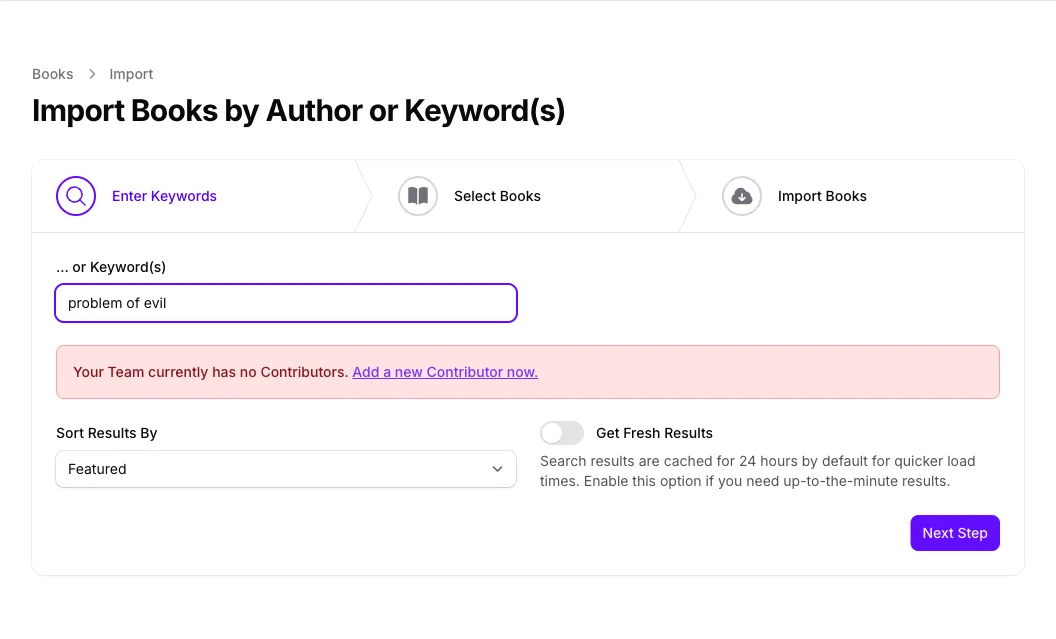
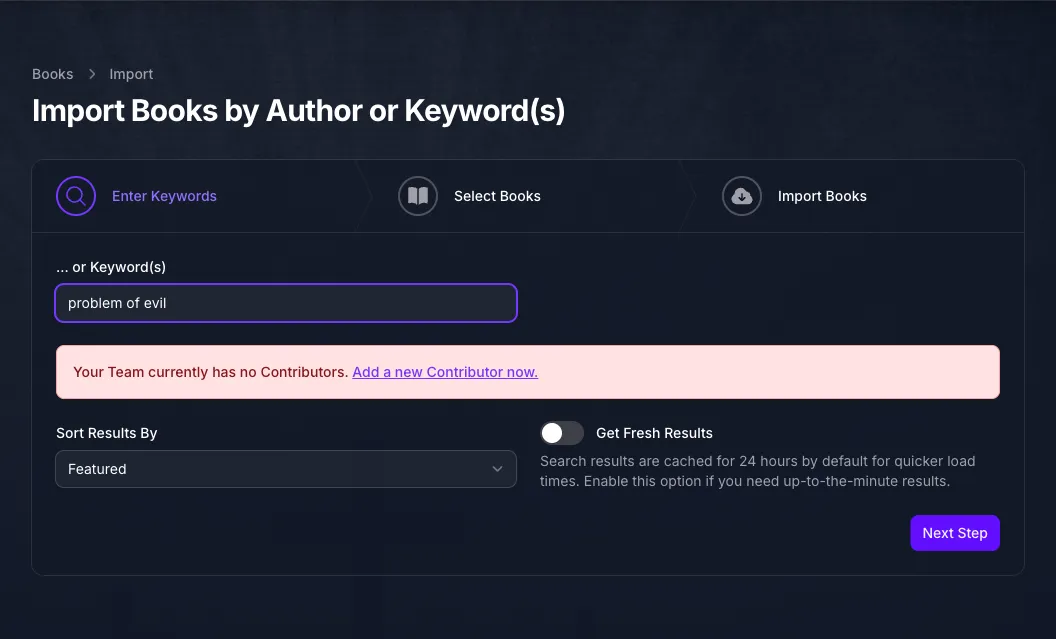
Select Books. Tick the books you want. A book that has already been added, by your team or by any other, reads Book Already Added and cannot be ticked.
Import Books. Each book is listed collapsed, so expand one to change its Title, Subtitle, Learn More URL or description. Rewrite All Descriptions Using AI and Auto-Categorize Using AI are both on; turn either off to keep Amazon’s wording or to choose categories yourself. Select Import Books.
Each author who is not already a Contributor is added as one.
Add Many at Once With Bulk Import
Select Bulk Import in the left-hand navigation.
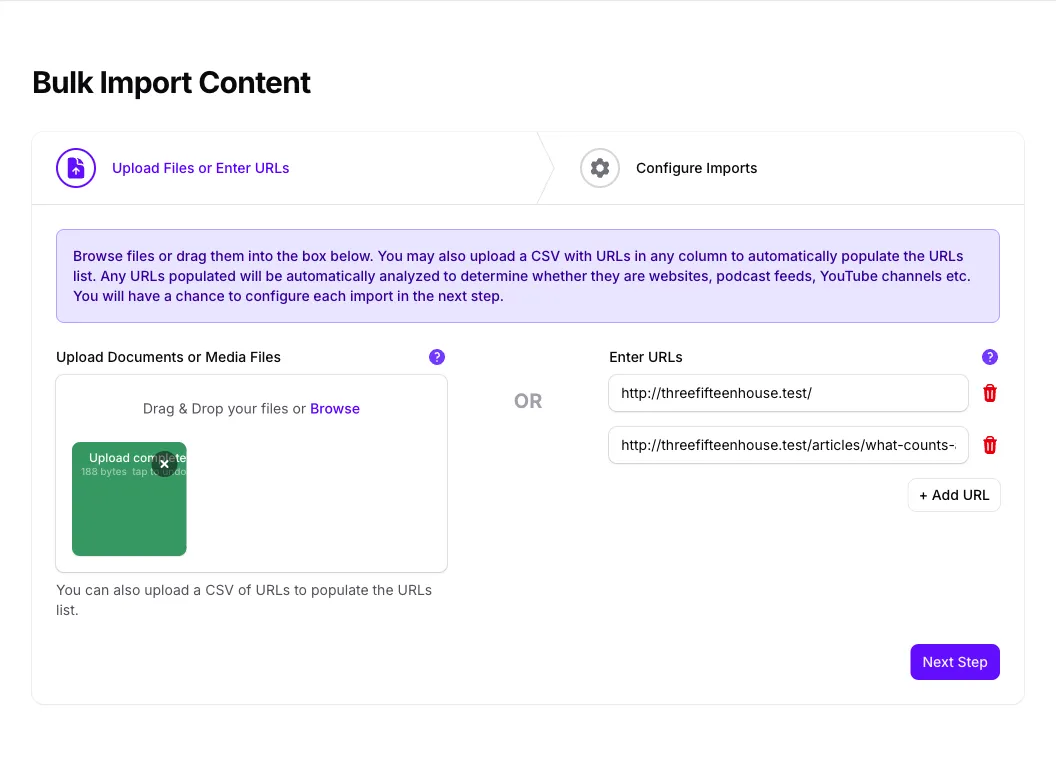
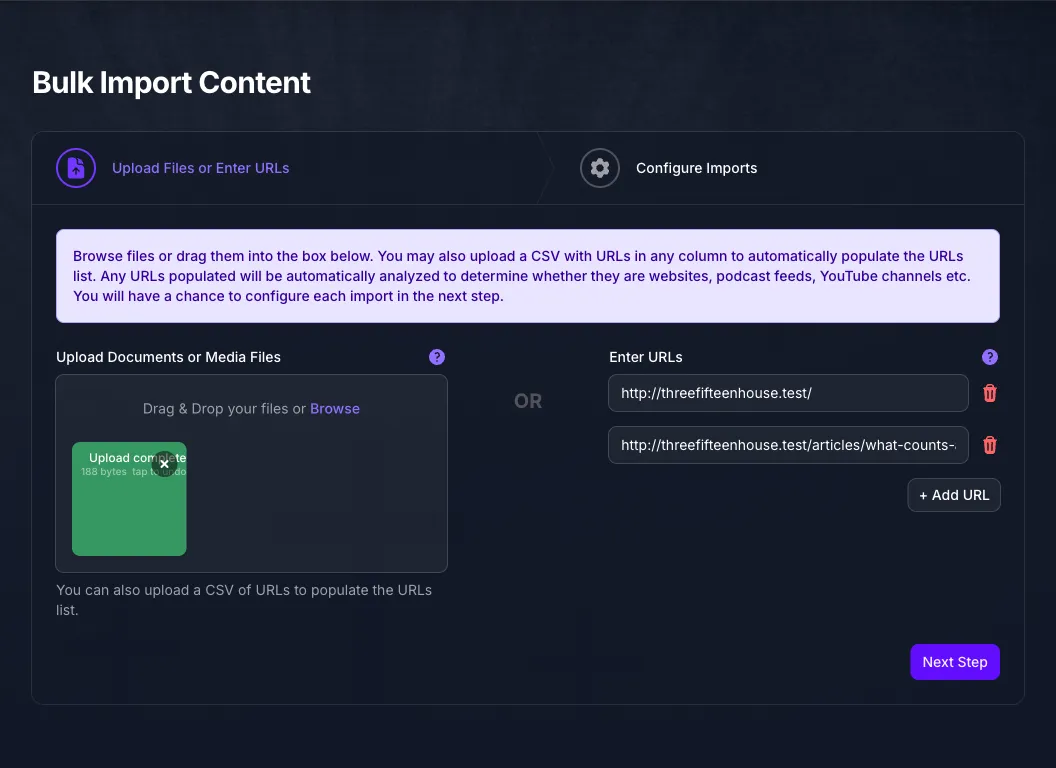
Upload Files or Enter URLs. Drop documents, recordings, data files and plain text files into Upload Documents or Media Files, add addresses under Enter URLs with + Add URL, or both. A CSV file of addresses fills in the URL list for you rather than being imported itself. Select Next Step.
Configure Imports. Console sorts what you gave it into two tables. Collections are a website’s home page or sitemap, an RSS or podcast feed, or a YouTube channel. Sources are everything else, including single web pages, YouTube videos and links to books on Amazon. Anything that cannot be imported is listed above both; select Back to fix it, or carry on without it.
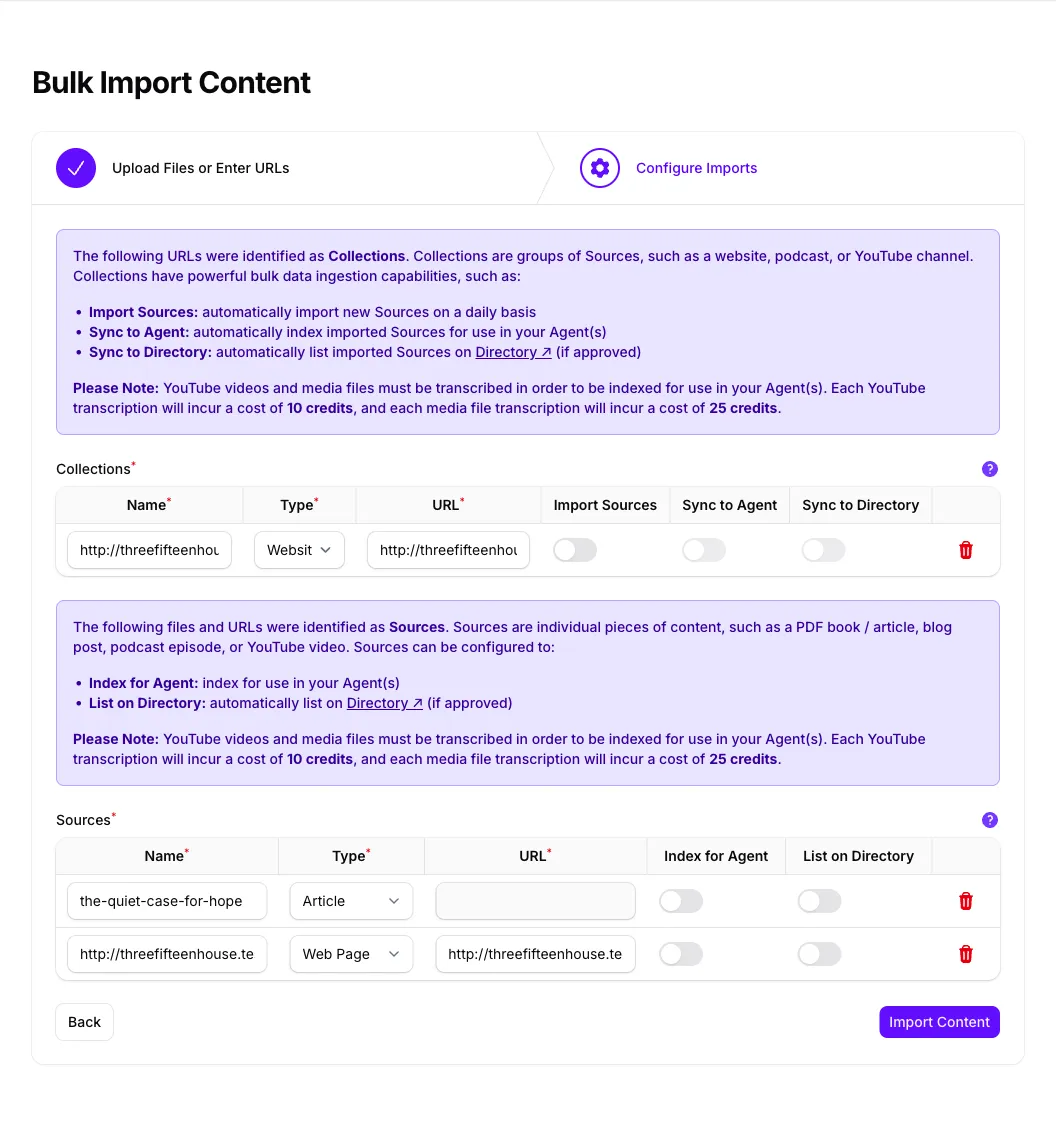
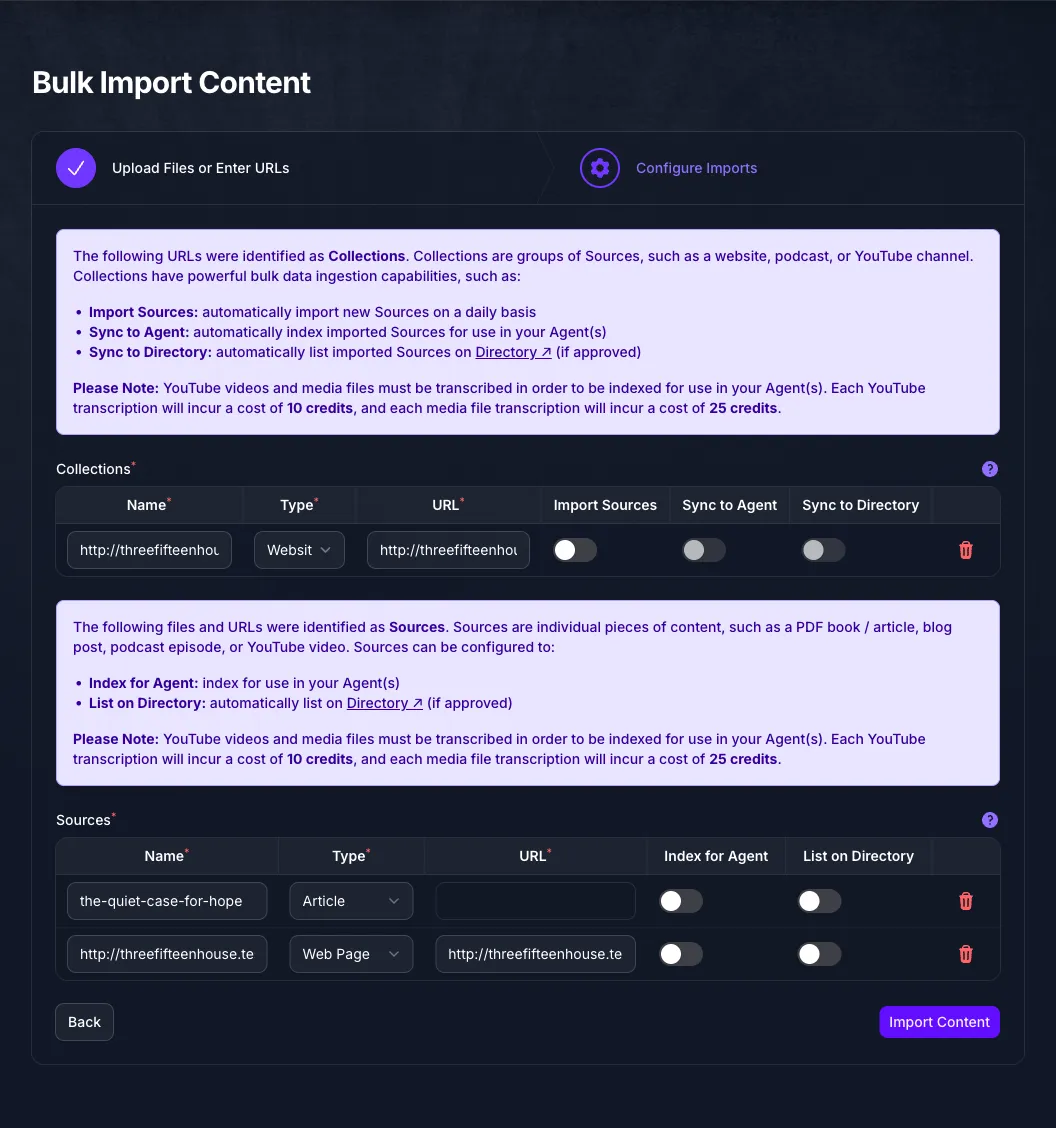
Every row arrives named after its file or address, so give each one a proper Name before you import. Remove a row you do not want with the bin beside it.
For each Source, choose whether to Index for Agent, the same setting as Index for Apologist Agent on a Source’s Agent tab, and whether to List on Directory. The Directory is Apologist’s public catalogue of resources at apologist.com, separate from your Agents, and a Source appears there only once Apologist has approved it; see Three Places a Source Can Go. A document’s Type can be switched between Article and Book here.
For each Collection, Import Sources checks the Collection daily and adds anything new. Sync to Agent and Sync to Directory stay unavailable until Import Sources is on. Sync to Agent then makes each new Source available to your Agent, transcribing it if it needs it, and Sync to Directory lists it on the Directory. Transcribing spends credits as each new Source arrives. To change these later, see Keep a Collection Up to Date Automatically.
Index for Agent does not transcribe a recording. A video or audio file imported as a single Source still needs Transcribe afterwards, one Source at a time. Only a Collection with Sync to Agent on does that for you.
Select Import Content. Console returns you to the Dashboard and finishes the import in the background. A single web page or video imported this way is subject to the same known issue as Import From a URL.
Keep a Collection Up to Date Automatically
Four kinds of Collection, a named group of Sources, can check an address every day and add new Sources as they appear: RSS Feeds, Websites, Podcast Feeds and Channels & Playlists. Bulk Import creates one when you give it a feed, a website’s home page or sitemap, or a YouTube channel.
To create one yourself, select its button above a list: RSS Feeds or Websites on Web Pages, Podcast Feeds on Podcast Episodes, or Channels & Playlists on Streaming Videos. Its Summary tab asks for the address to check, labelled after the kind of Collection, such as Website URL, or for a channel or playlist its YouTube Channel or Playlist ID. A channel URL, @handle, or playlist URL pasted into that field is saved as the channel or playlist ID.
Set up the rest on the Collection’s Sources tab. A Collection made with Bulk Import arrives with some of it set: Import Sources there is Auto-Import New Sources here, Sync to Agent turns on indexing and transcribing, and Sync to Directory turns on listing.
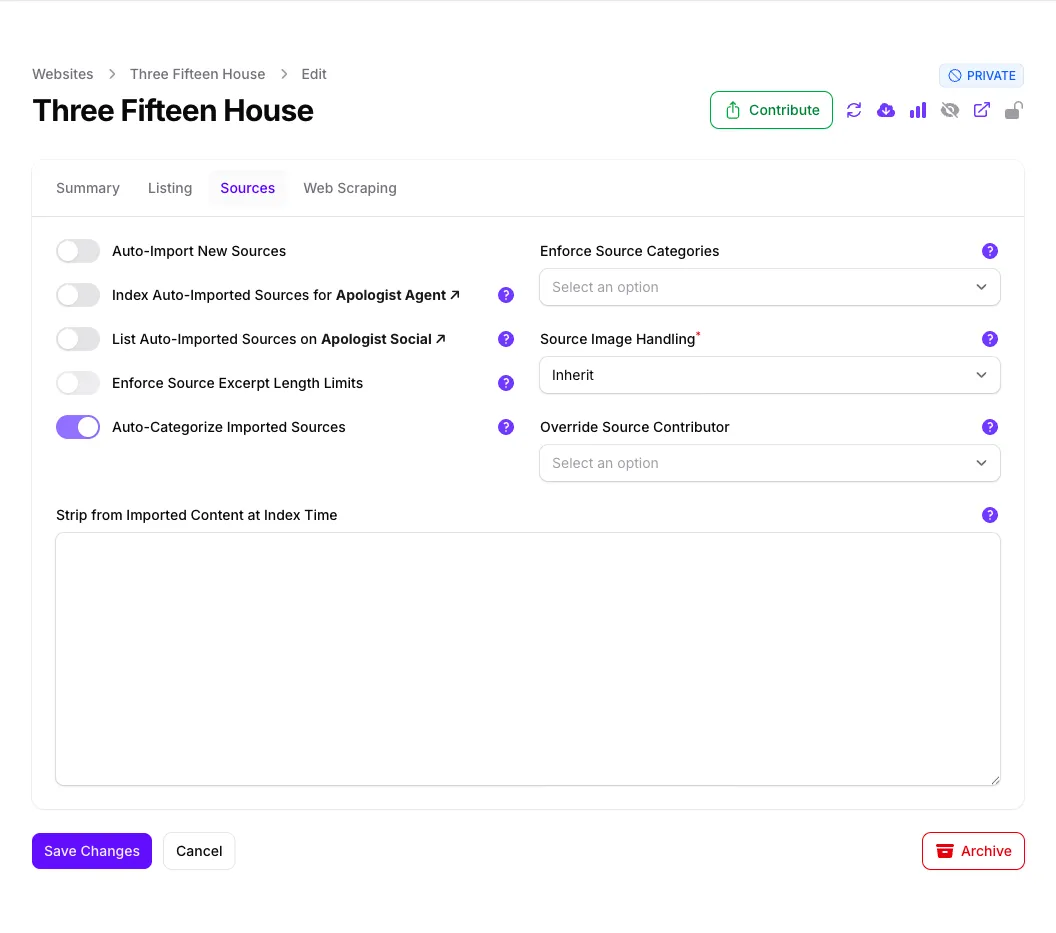
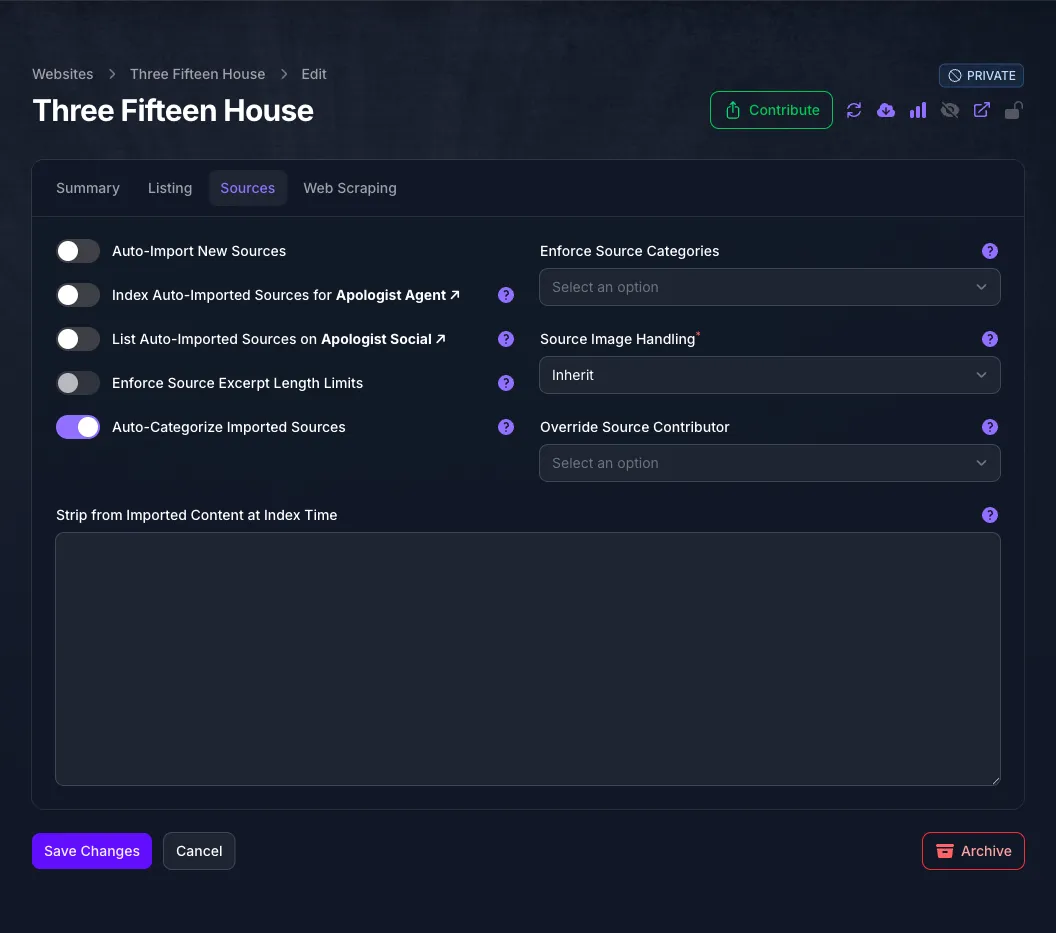
Turning Auto-Import New Sources off also turns off indexing, transcribing, listing and categorizing, so turn them back on if you start importing again.
To import straight away rather than waiting, select Import New Sources at the top of the Collection. It brings in only the latest Sources unless you turn on Force Full Source Import. Re-Import Existing Sources fetches the Sources already in the Collection again; on a Podcast Feed it updates existing episodes only and leaves their transcripts alone. Unless your window is very wide, both show as icons, and hovering one shows its name.
Websites and RSS Feeds also have a Web Scraping tab. It works like a Web Page’s, telling Console where to find the content, author, date and image on each page it imports. Imported URL Prefix Restriction, and Source URL Exclude Patterns under Advanced, keep unwanted pages out.
Datasets do not import from an address. A Dataset groups Data Sources. It has a Sources tab for indexing and categorizing, and a Data tab that maps the fields in your data files to a name, description, date, author, image and URL.
Edit a Source
Open the Source from its type’s list, make your changes, and select Save Changes. All of its tabs save together.
A few actions keep a Source current:
- Re-Import, at the top of a Web Page, Podcast Episode, Streaming Video or imported Book, fetches it again. It overwrites the fields an import fills in, including the name, description, image, publication date and text, so any edits you made to those are lost. It adds authors as Contributors but leaves Tags, Collections, Categories and Denominational Alignment alone.
- Re-Convert and Re-Transcribe, on the Agent tab, are needed after you upload a replacement document or recording. A new Document URL is converted on its own.
- Reindex, on the Agent tab, sends the Source to your Agent again if the Agent seems to be answering from an old version.
If a Web Page picks up the wrong part of the page, open its Web Scraping tab. Each selector tells Console where to find the content, author, publication date or image, and each can be left blank for Console to work out. Change the one that is wrong, save, then select Re-Import.
To change many Sources at once, tick them in the list and open the Agent menu above the table. Index for Agent and Remove from Agent turn Index for Apologist Agent on and off, and Reindex on Agent is the tab’s Reindex, each applied to every row you ticked.
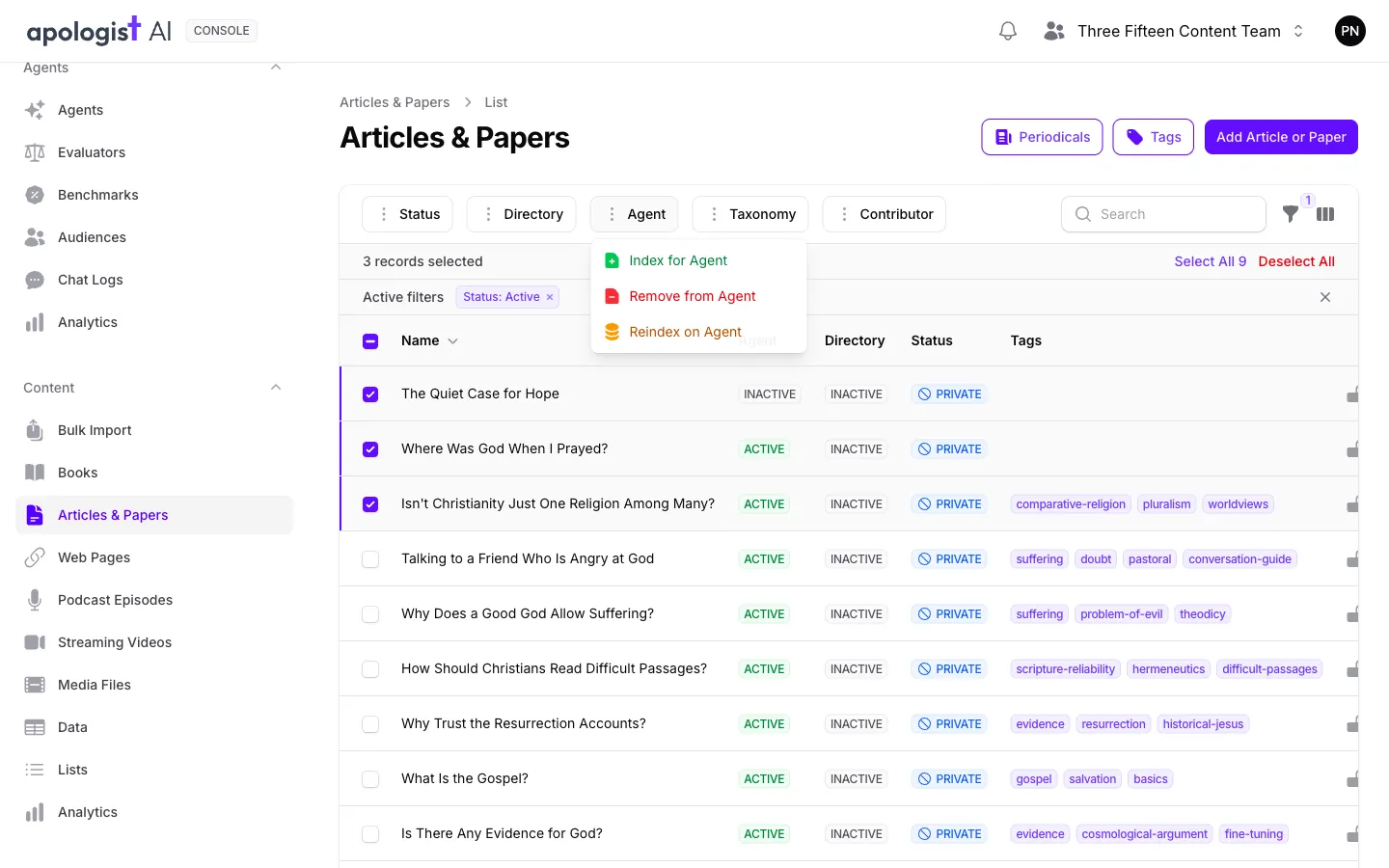
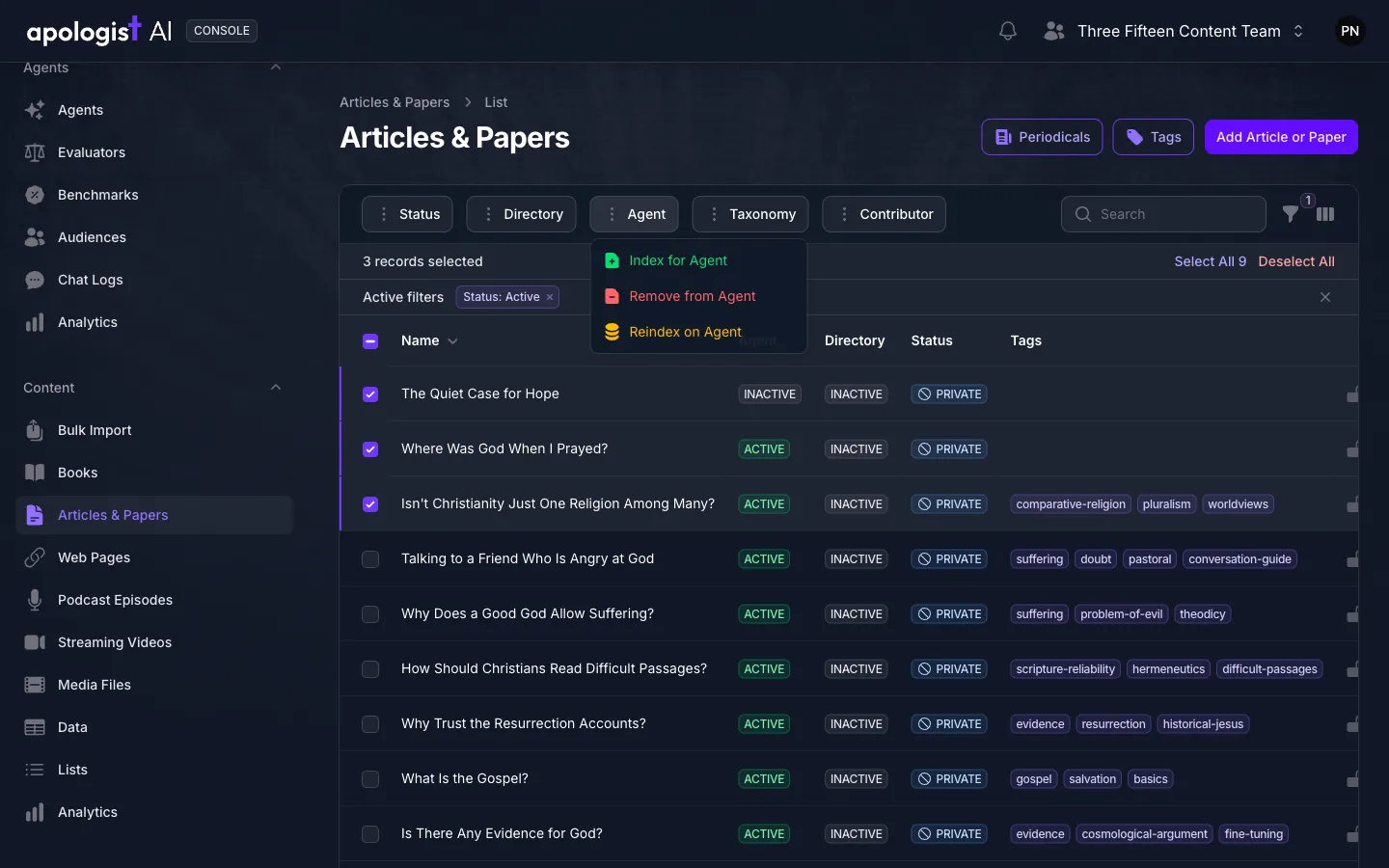
To stop using a Source, select Archive at the foot of its form. It is removed from every Agent your team owns. Restore brings it back, indexed again if Index for Apologist Agent was on.
Troubleshooting
- The new Source is not in the list. Imports finish in the background, so give it a few minutes. An address imported from Web Pages that turned out to be a YouTube video is on Streaming Videos, and the reverse.
- The name still starts with
placeholder_. The import did not run. Open the Source and select Re-Import. - There is no Transcribe or Convert button. The Source has no recording or document yet, the document is not a type Console can convert, or your team is out of credits. A Transcribe button that is there but unavailable means the same, and hovering it says so.
- Index for Apologist Agent will not turn on. Tick the Terms of Use above it, and check that Source Text holds a file. A transcription still in progress shows its status at the top of the tab.
- A red box reads Import Error, Text Import Error or Agent Index Error. The message says what failed. Correct the address or the file, then select Re-Import or Reindex.
- Every field is locked and the button reads Back. The Source has been submitted for review, has been archived, or has been locked by Apologist. A submitted Source says so at the top of Summary.
- The name is already taken. Names are unique within a type for your team, so another Source of the same type already has it, possibly archived.
- Bulk Import is not in the navigation. It needs a Basic plan or above, and permission to add both Sources and Collections.
- Auto-Import New Sources cannot be turned on. Fill in the Collection’s address or YouTube ID first. If it is still unavailable, automated ingestion is not included in your team’s plan.
Next Step
Continue to Organizing Content to put your Sources into Collections, tag them and categorize them.