

Calls To Action
An Agent answers questions. A Call to Action is how it does something else: offer a donation link, invite someone to a course, hand a distressed visitor to a real person, point at the one page on your site that answers what they just asked.
The content is yours and it is fixed. Nothing about a Call to Action is generated, so the wording, the links and the images are exactly what you wrote, every time it appears. What you decide is when it appears, who sees it, and what happens when it does.
Purpose
Turn on Calls to Action and add one, then shape it: when it fires, who sees it, where it appears, and what it changes.
Prerequisites
- An Agent visitors can reach. See Standalone Web UI.
- Calls to Action on your team’s plan. It is included from Basic upward, and the capability is otherwise disabled with an Upgrade to Unlock link beside it.
- Permission to edit Agents for your team.
Set Up a Basic Call to Action
Select Agents in the left-hand navigation, open your Agent, then choose General and select the Capabilities tab.
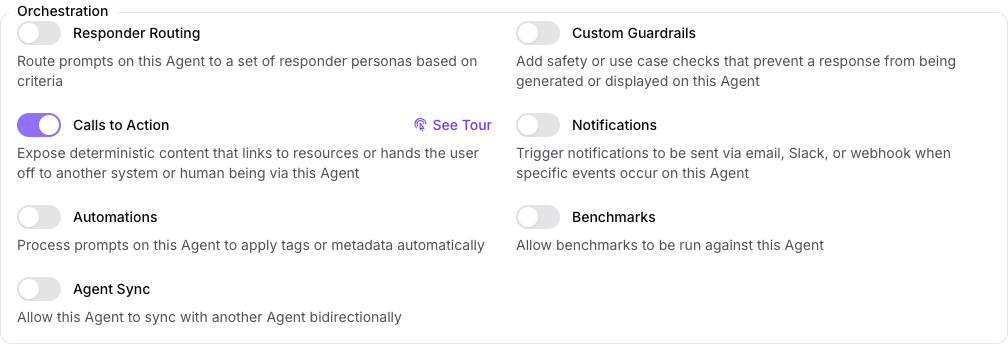
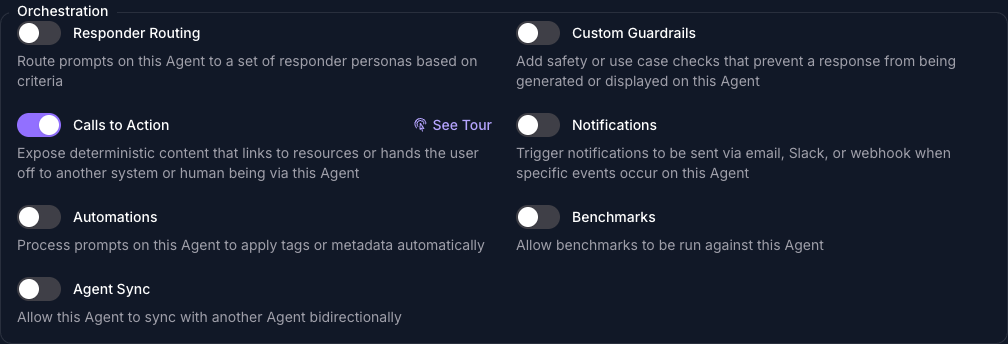
Under Orchestration, turn on Calls to Action and select Save Changes. The page reloads, and a Calls to Action panel joins the row of panels at the foot of General.
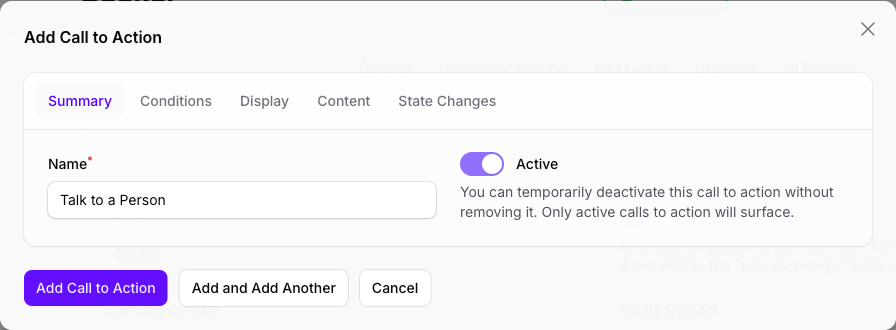
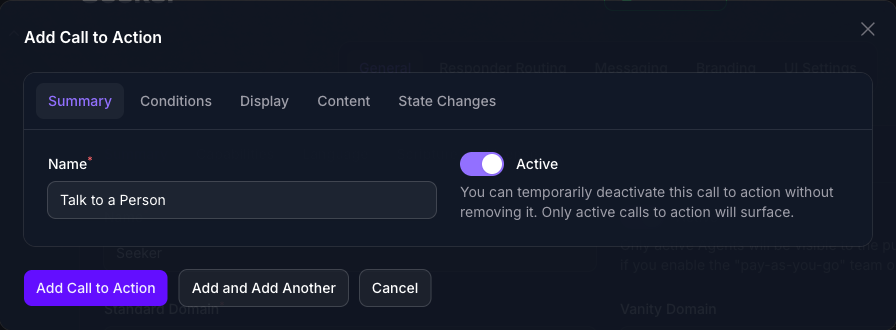
Scroll to the foot of General, select the Calls to Action panel, then select Add Call to Action. The form opens in a dialog with five tabs, and nothing is saved until you submit it, so you can move between them freely and come back later.
On Summary, give it a Name. The name is for you and never appears in front of a visitor, so name it for the moment it fires rather than for its wording. Active arrives off, and a call that is not active is never considered.
Select Content and write what the visitor reads. Select Merge tags in the toolbar to drop in a value the Agent fills at the time, such as the conversation’s id or a signed link that sets a flag when the visitor selects it. See Message Merge Tags for what each one resolves to.
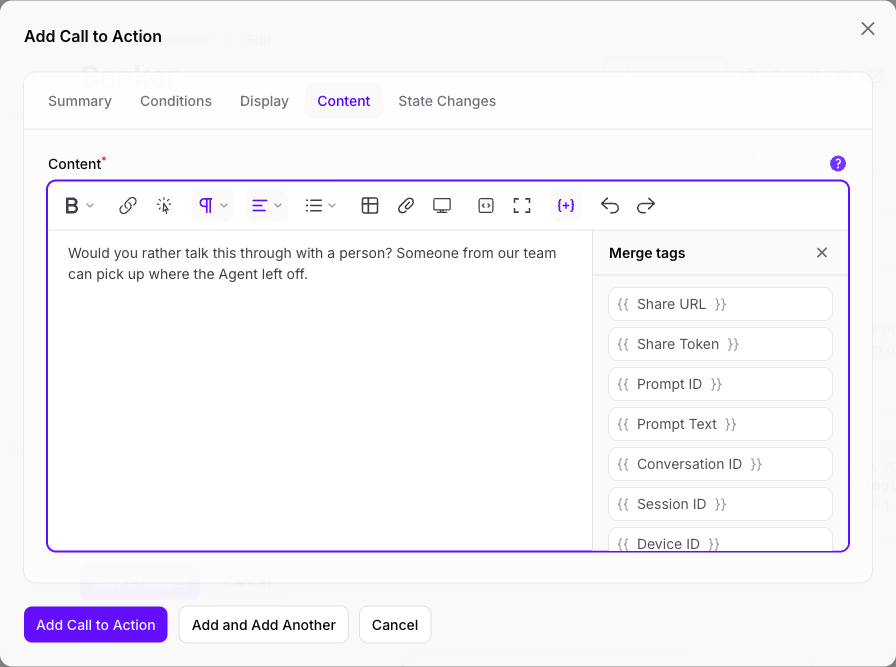
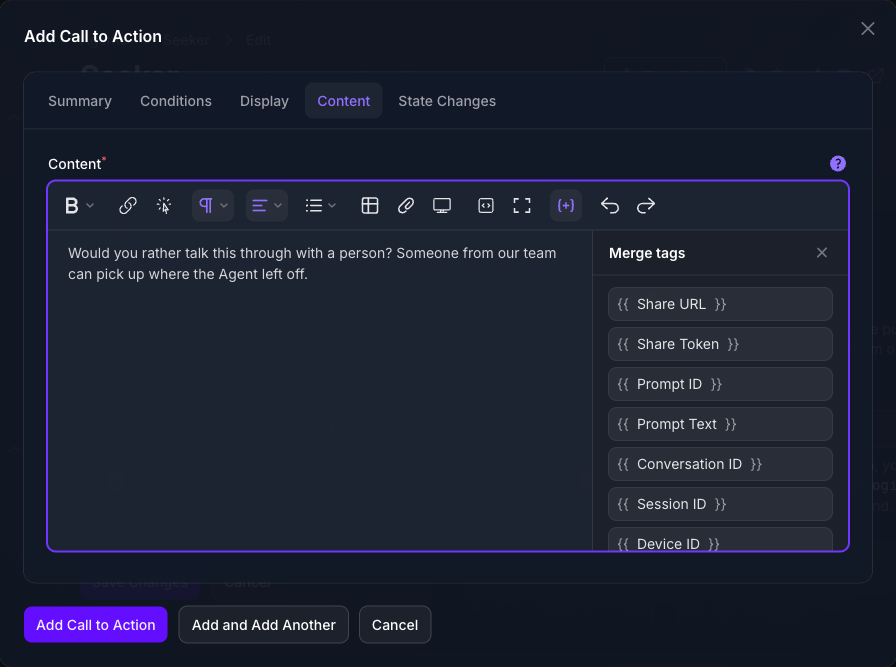
Select Add Call to Action. That is a working Call to Action, and it already appears under every answer the Agent gives, to everyone.
Content is translated per language, and a call with no translation for the language a visitor is using is skipped rather than shown in English. Use Translate Calls to Action above the panel once the wording is settled.
Customize the Call
A basic call shows the same thing to everyone, every time. The sections below narrow when it appears, who sees it, and what it does when it fires. Each is independent, so set one, set several, or set none.
One worked example runs through them, named Talk to a Person: a call that offers a distressed visitor a real person, records that they were offered one, and stops the Agent replying so a colleague can take over. Two sections show something else, and say so where they do, because a handoff is a poor way to illustrate a timer or a country filter.
Three of these sections need something set up first, and each says so at its start: an Evaluator, an Audience, or a User Flag.
Narrowing stacks. Who sees a call, how far into the conversation it appears, and what the visitor said are three separate checks, and a call that uses more than one of them appears only when all of them are true at once. Talk to a Person could be limited to visitors in Brazil, from the third answer onwards, who sound distressed. A distressed visitor in Brazil would then see nothing on their first answer, because one of the three was not met.
Fire It on What the Visitor Said
Needs an Evaluator. Use this when the call should depend on the kind of thing someone wrote, rather than on who they are or how far into the conversation they have got.
On the Conditions tab, under AI Evaluation, choose an Evaluator. Choosing a classifier, the kind that picks the option that fits best, adds two controls.
Matching Options are the verdicts that count as a match, and Numeric Value Threshold matches on an option’s numeric value rather than on the option itself. Set one or the other: a classifier with neither can never fire.
Talk to a Person uses Sentiment, the classifier built in Evaluators, whose options are Negative, Neutral and Positive. Matching only Negative is what keeps the offer to the conversations where someone has written something bleak.
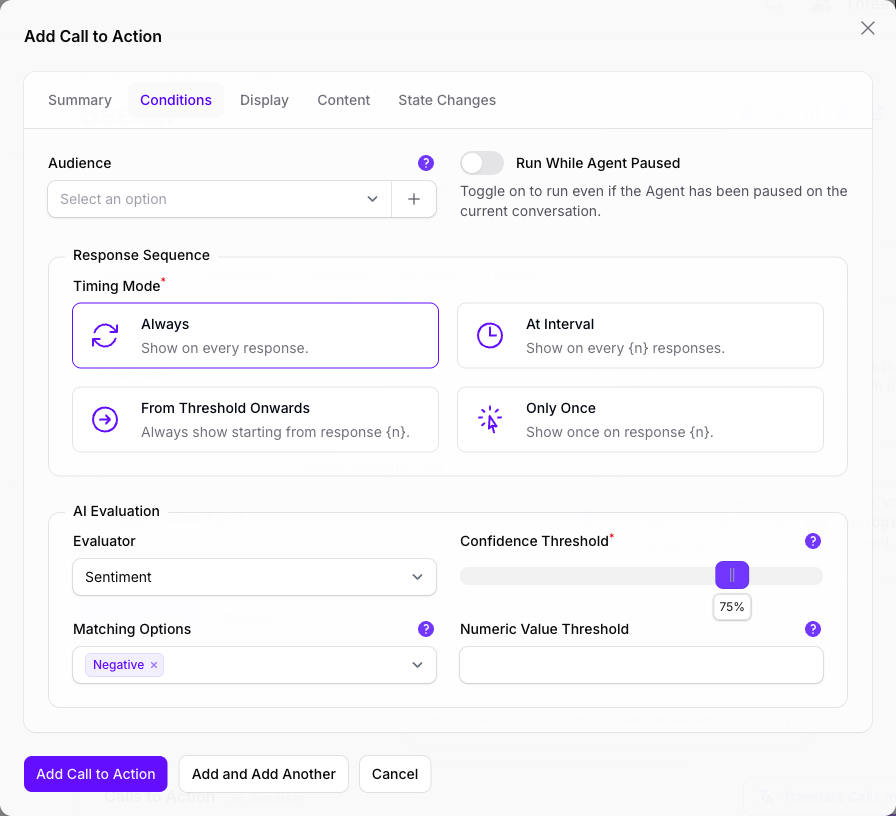
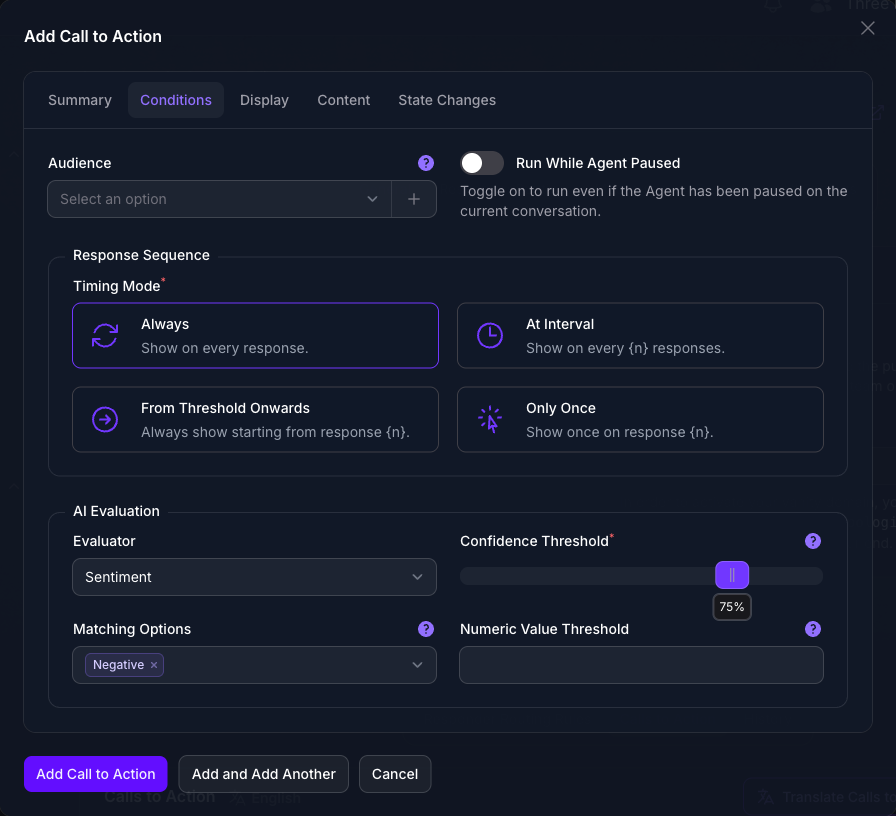
Confidence Threshold is not applied once Matching Options are set. The call fires whenever the classifier picks one of your options, at any confidence. Narrow the options rather than raising the threshold. On a grader, which has no options, the threshold is read as a Score Threshold and does decide it.
The Evaluator reads what the visitor wrote, never the Agent’s reply. To act on an answer after it is generated, use a Custom Guardrail instead.
Show It to One Group Only
Needs an Audience, which is included from Pro upward. Use this when the call is right for some visitors and wrong for others, whoever they are and whatever they asked. Shown here on a call of its own rather than on Talk to a Person, so the one setting is clear.
On the Conditions tab, pick an Audience. It filters on the interface the prompt arrived on, the channel, the language, the country, the responder answering, and any user flags set on the visitor. Leave it empty and the call applies to everyone. Create beside the picker builds a new Audience without leaving the form.
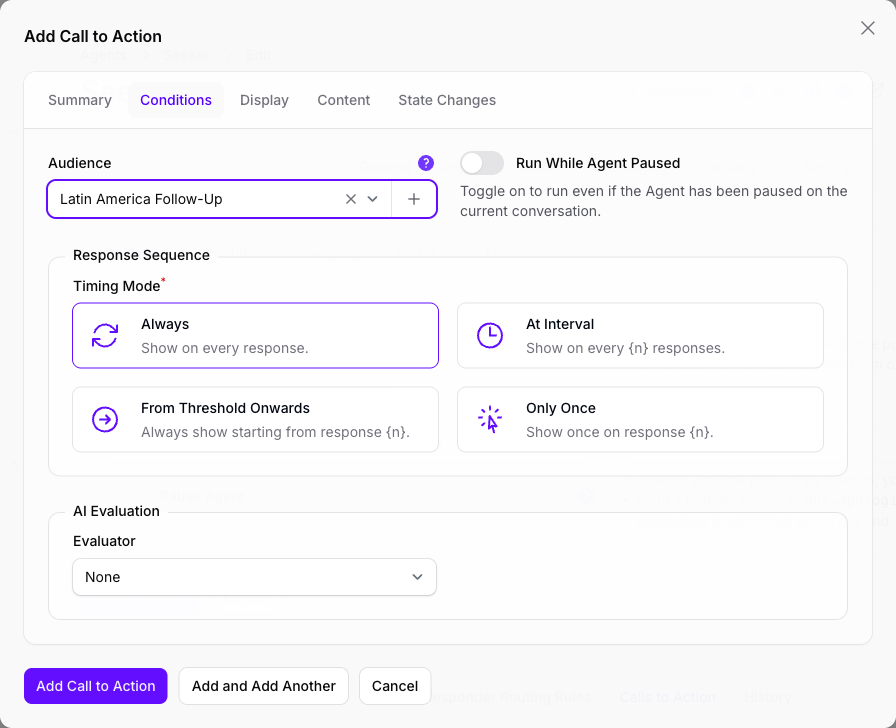
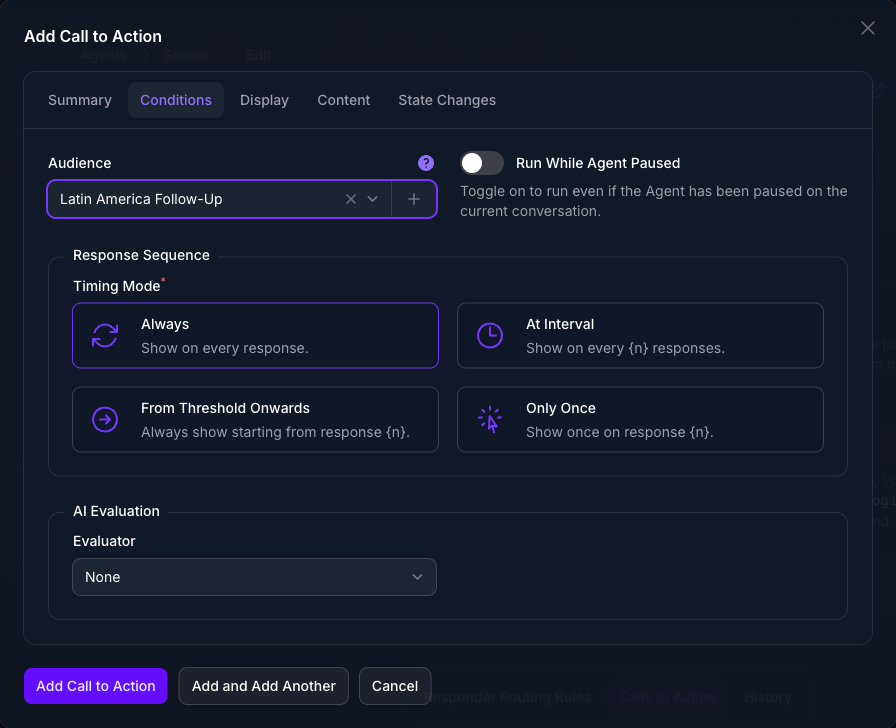
Only active Audiences are offered. The picker is where a call meets targeting you have already defined, so the work of deciding what the group is belongs on Audiences.
Show It on Some Answers, Not All
Use this for a call that would wear out if it appeared every time, such as a giving appeal or a newsletter invitation. Shown here on a second call, an occasional invitation to keep reading, because an offer of help should appear when someone needs it rather than on a schedule.
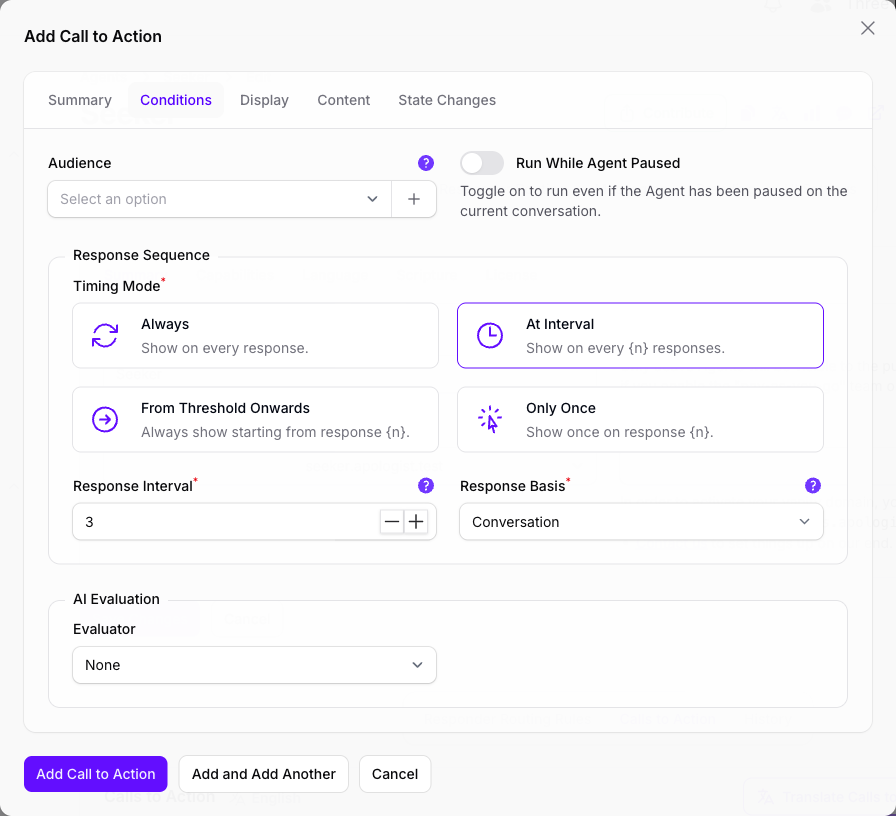
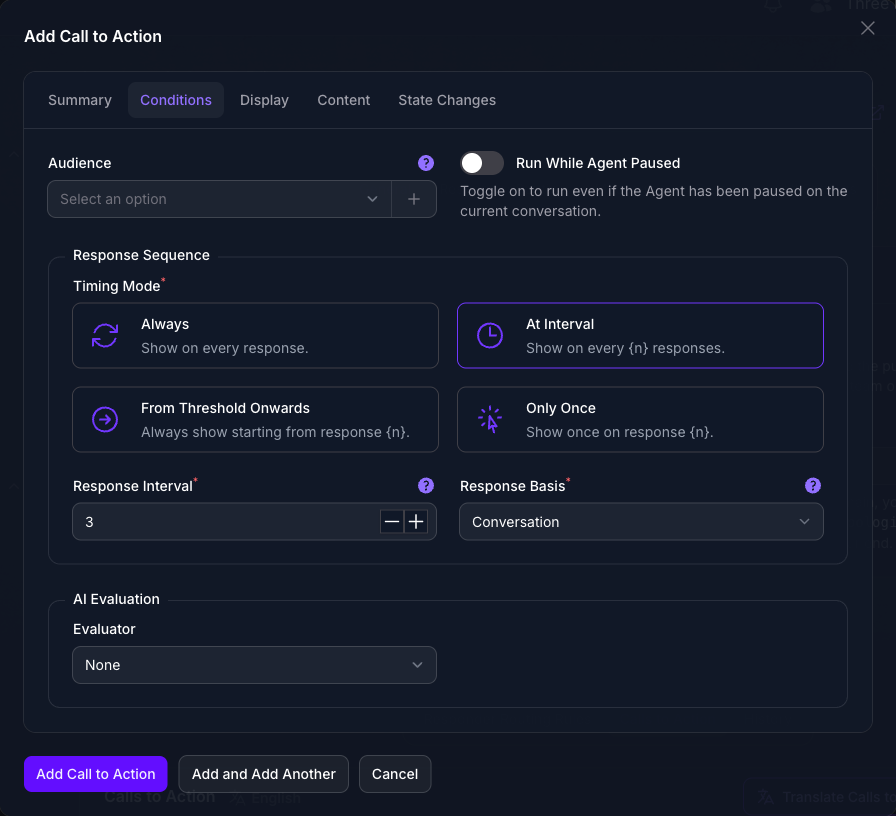
On the Conditions tab, under Response Sequence, choose a Timing Mode: Always on every answer, At Interval on every nth, From Threshold Onwards on the nth and every one after it, or Only Once on the nth alone. Anything but Always reveals a number and a Response Basis.
Response Basis is the part worth pausing on. It decides what is being counted, and the four options are the difference between the third answer of this conversation and the third answer this person has ever received.
Choose Where It Appears
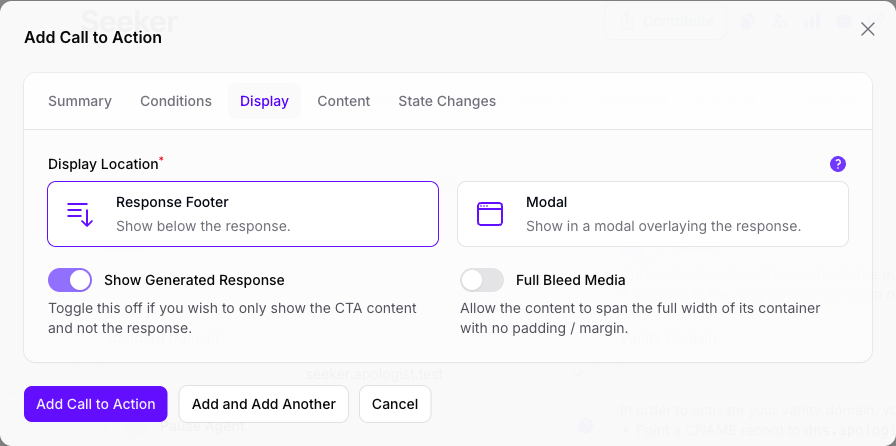
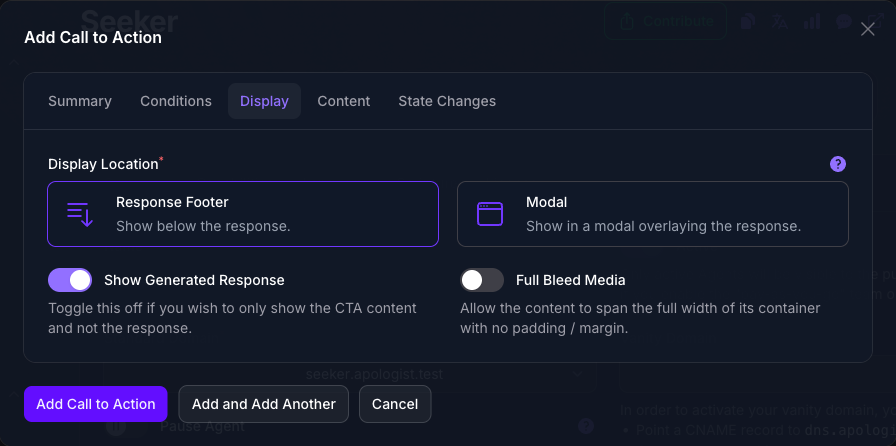
On the Display tab, Display Location puts the content below the answer as a Response Footer, or behind a button that opens it as a Modal. Talk to a Person keeps the footer, so the offer sits under the answer rather than interrupting it. Both apply to the web only, so a call reaching a messaging channel arrives as part of the reply either way.
Show Generated Response arrives on. Turning it off is a larger decision than it looks: the call then replaces the answer instead of accompanying it, and the Agent never calls its model at all, so there is no answer, no sources and no cost for that prompt. That is the setting to use when a question is better met with your own words than with a generated reply.
Record Something, or Hand the Visitor to a Person
This is where Talk to a Person becomes a handoff rather than a suggestion.
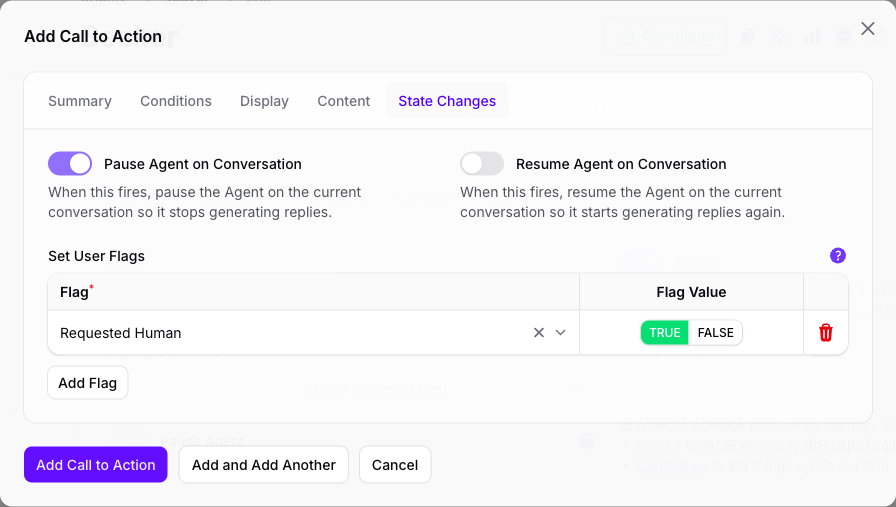
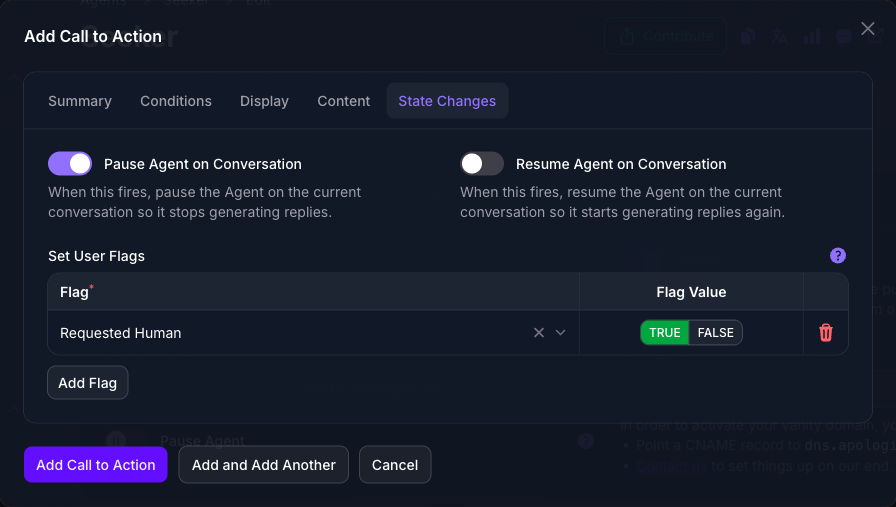
On the State Changes tab, Set User Flags writes flags onto the visitor when the call is shown, which is how a later Audience can ask whether someone has already been offered this. A flag set here lands the moment they see the call; a Set User Flag Link in the content lands only if they select it. Flags are created on Audiences.
Pause Agent on Conversation stops the Agent replying from that point, and is what makes a handoff a handoff rather than a suggestion. Nothing in Console resumes a paused conversation: your team’s own system does it through the Agent API, or a later trigger with Resume Agent on Conversation does.
Run While Agent Paused, on the Conditions tab, is the other half of a handoff. A paused Agent generates no replies at all, and a call with this on still fires, which is how you keep talking to the visitor while the Agent stays quiet.
Order Several Calls
At most one Call to Action is shown per answer, and the first one that matches wins. As soon as you have two, their order is the thing deciding which a visitor sees.
Select the reorder icon above the panel, drag the calls into the order you want them considered, then select it again to finish. Do this even if the order already looks right: new calls are all created with the same priority, so until you have reordered once, which one wins is not something you have set.
Put the specific calls above the general ones. A call with no conditions at all matches every answer, so one sitting at the top makes everything below it unreachable.
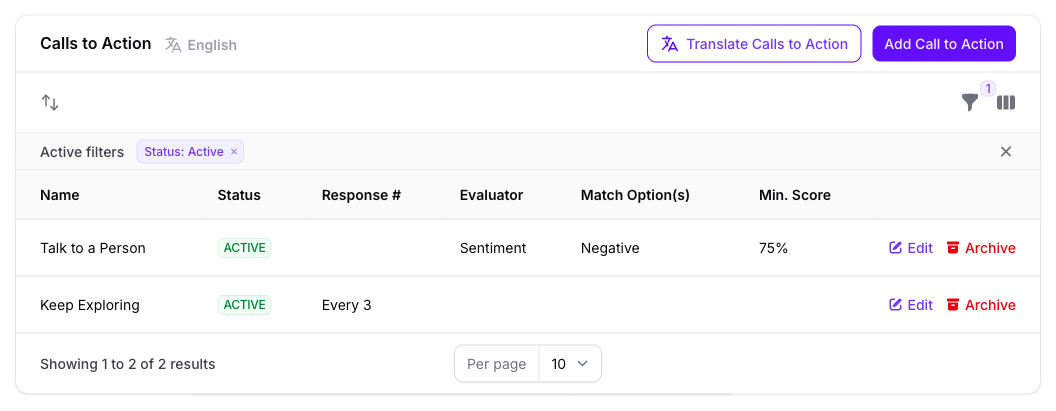
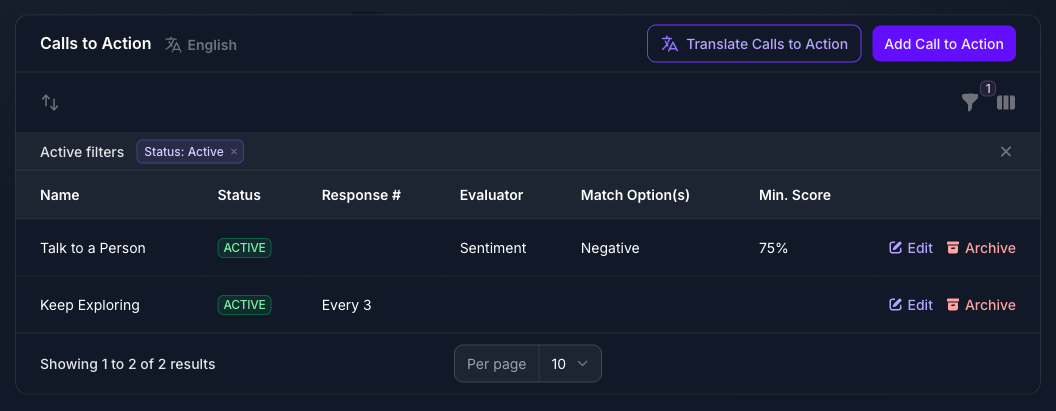
The panel filters to Status: Active by default, so a call you left inactive is not missing, it is filtered out. Clear the filter chip to see it.
Expected Result
Answers that meet a call’s conditions carry your content, and every other answer is unchanged. Below is a call set to hand off to a person, fired by an Evaluator on a visitor writing about grief and doubt.
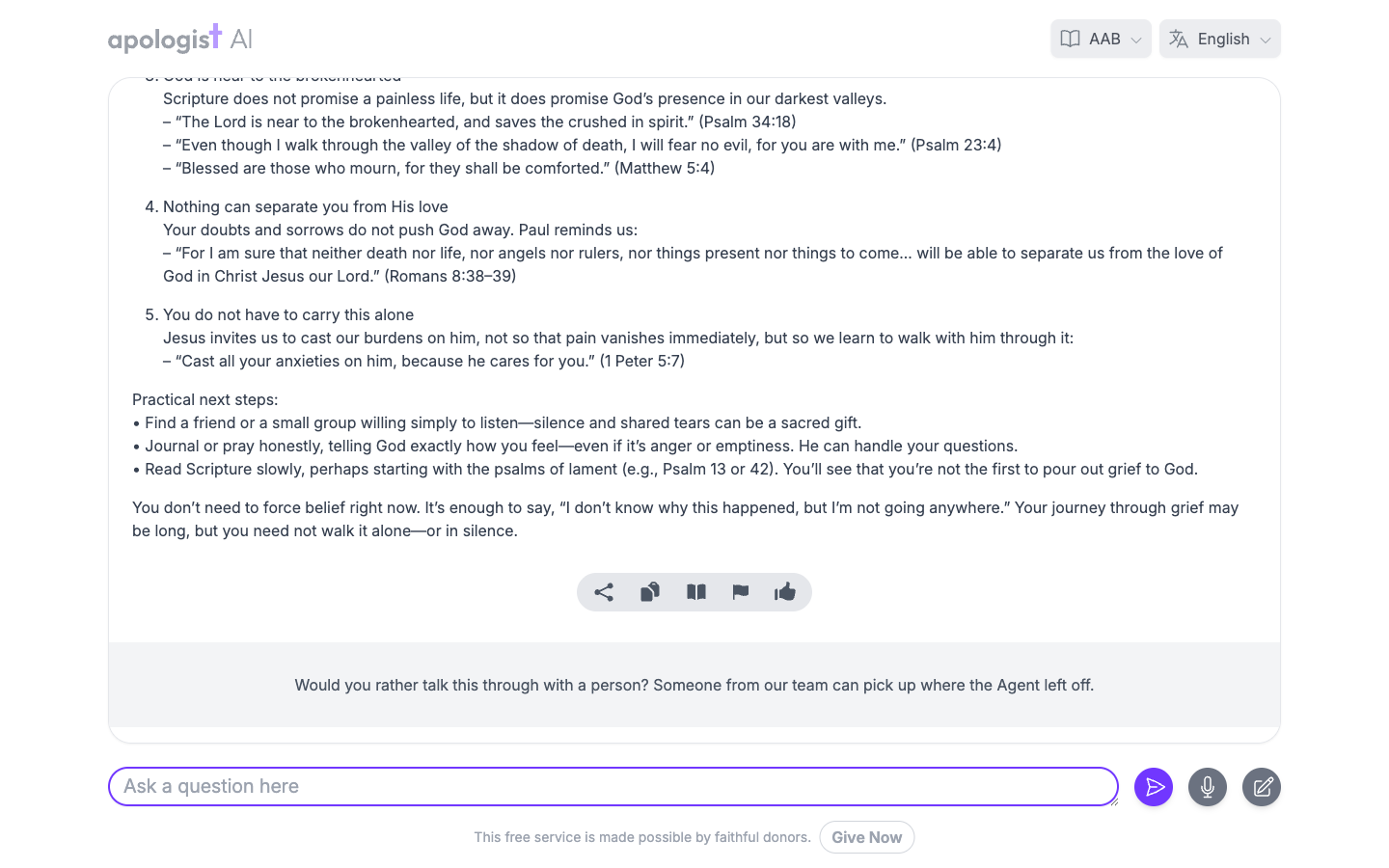
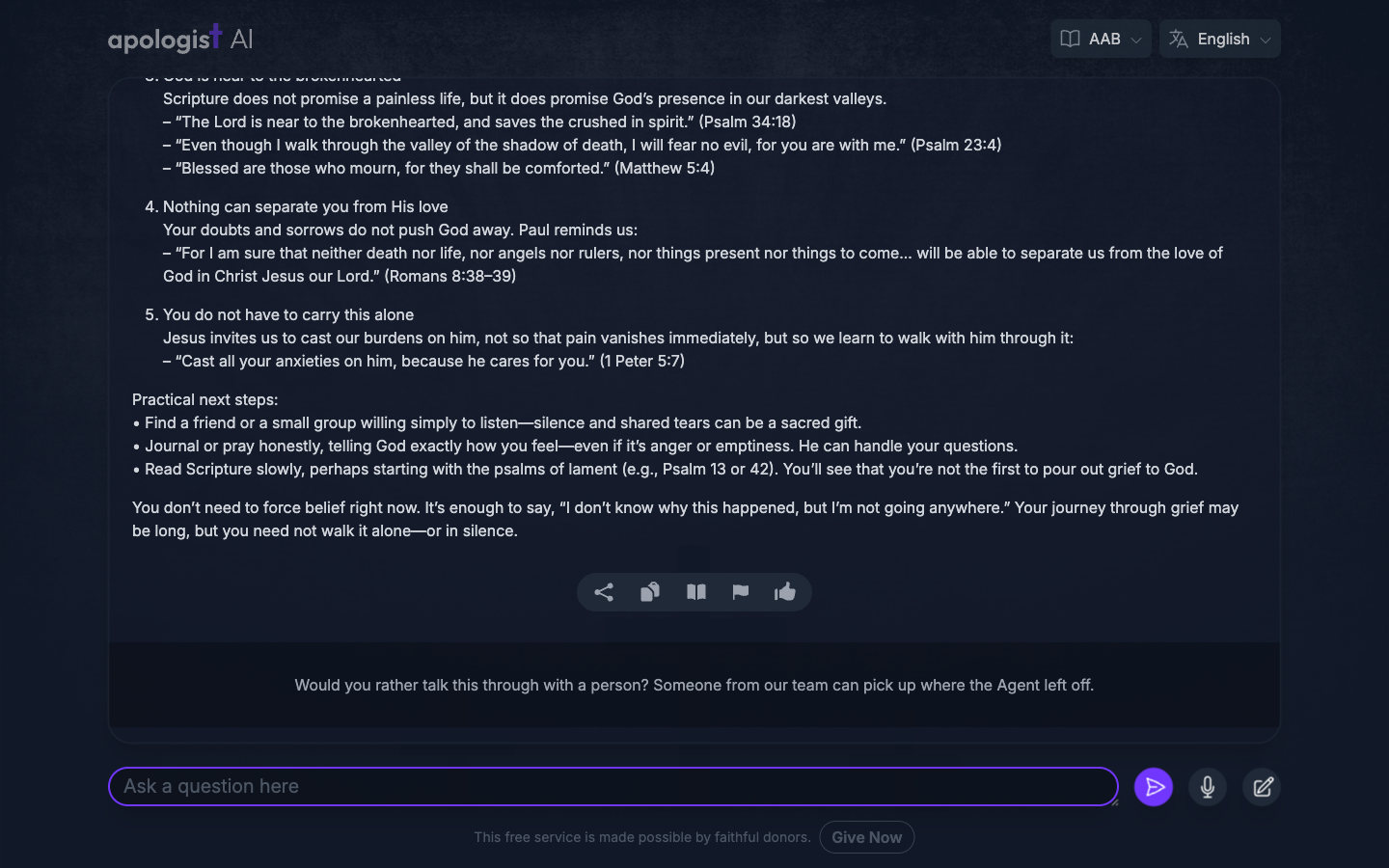
Chat Logs records which call fired on which prompt, and Analytics counts calls triggered and clicked, which is how you tell a call nobody sees from a call nobody wants.
How the Agent Picks a Call to Action
The Agent works through this on every prompt, and stops at the first call that passes everything:
- It collects the Agent’s active calls, in the order you put them in. An inactive call is not considered. If the Agent is paused on the conversation, only calls with Run While Agent Paused on are collected.
- It drops the calls whose Audience does not match, on interface, channel, language, country, responder and user flags. A call with no Audience is never dropped here.
- It drops the calls whose Response Sequence has not come round. A call on Always is never dropped here.
- It runs the Evaluator on any call that has one, and drops the call if the verdict does not match. Each Evaluator runs once per prompt however many calls share it.
- The first call that survives all of that is the one shown. Nothing below it is considered, whatever it would have matched.
- Its content is resolved into the visitor’s language. A call with no translation for that language is skipped and the next call is tried.
All of this happens before the Agent generates its answer, which is why an Evaluator here can only read what the visitor wrote, and why a call with Show Generated Response off costs nothing: the prompt stops there and no answer is ever generated.
What Each Setting Does
Every setting below belongs to one form: the dialog that opens from Add Call to Action, or from Edit on a call already in the list, on the Calls to Action panel at the foot of the Agent’s General page. The Tab column names which of its five tabs holds each one.
Unlike the Agent’s own pages, which each save separately, this is a single form. Nothing is written until you submit it, and submitting saves every tab at once.
Where These Settings Turn Up Again
Deciding who something applies to, and flagging a visitor when it happens, are not particular to Calls to Action. Three other features on this Agent work the same way, so setting them up here is most of the work of setting them up there.
Troubleshooting
- There is no Calls to Action toggle, or it will not turn on. Your plan does not include it, and the toggle carries an Upgrade to Unlock link. It is included from Basic upward.
- The capability is on and there is no panel. The panel also needs white labelling on your plan. Every plan that includes Calls to Action includes it, so this is worth raising with your team owner rather than working around.
- The call you just added is not in the list. The panel filters to Status: Active and a new call arrives inactive unless you turned Active on. Clear the filter chip, then open the call and switch it on.
- Nothing ever appears. Check Active first. After that, look for a broader call above this one in the panel, because only the first match is shown.
- The wrong call appears. Priority order decides it whenever two calls match the same answer, and calls you have never reordered all share a priority. Reorder them, putting the specific one above the general one.
- A call fires on messages it should not. Its Matching Options are too wide. Raising Confidence Threshold will not help, because it is not applied once Matching Options are set.
- A call with an Evaluator never fires. A classifier needs either Matching Options or a Numeric Value Threshold, and one with neither fails closed. Check that before anything else.
- A call never fires even though the Evaluator agrees. Its Audience excludes the prompt, or its Response Sequence has not come round. Every check you have set has to be true at once, so a call can be right about the message and still stay hidden. Clear the Audience first, since that filter is silent.
- A call appears in the wrong language. It has no translation for the language the visitor is using, in which case it would have been skipped, so what appeared is a different call. Use Translate Calls to Action.
- The Agent stopped answering. A call with Pause Agent on Conversation fired. Resume the conversation through the Agent API, or add a later trigger that resumes it.
- The answer disappeared. Show Generated Response is off on the call that fired, which is what that setting does.
- A merge tag appears in the content as written. Only the tags in the picker are resolved. Anything else in braces is left alone.
Next Step
Continue to Custom Guardrails to stop a response rather than add to one, or to Automations to act on a conversation without showing anything.