

Custom Guardrails
A Call to Action adds something to an answer. A Guardrail stops one.
It checks a conversation against an Evaluator and, when the verdict matches, shows your message instead of carrying on. It can warn first, end the conversation, send the visitor somewhere else, or lock the device for a while.
A Guardrail checks one of two things, and you choose which. A Prompt guardrail reads what the visitor wrote, before the Agent answers. A Response guardrail reads what the Agent wrote, before the visitor sees it. That choice runs through everything else on this page.
Purpose
Turn on Custom Guardrails and add one, then decide what it checks, what happens when it matches, and how many chances the conversation gets first.
Prerequisites
- An Agent visitors can reach. See Standalone Web UI.
- Custom Guardrails on your team’s plan. It is included from Basic upward, and the capability is otherwise disabled with an Upgrade to Unlock link beside it.
- Permission to edit Agents for your team.
- An active Evaluator, which is not optional here. Every Guardrail needs one, and it has to judge the right kind of text. See Two Types, Two Evaluators.
Two Types, Two Evaluators
The type you choose decides what the Evaluator is given to read.
This is why one Evaluator rarely serves both. A classifier decides whether its categories apply to the text before it classifies anything, and a set of categories written for visitors’ messages does not apply to an Agent’s answer. It reports the text as not relevant, returns no verdict, and quietly never fires. Nothing errors.
So write a classifier’s options for the kind of text you mean it to judge. An option is a name and a description, and the descriptions carry this: they are the only place that says what the scheme is for, which is why a classifier’s instructions can stay as they come. The two used through this page are ordinary classifiers, each built the way Evaluators describes and neither needing anything beyond it:
Conduct and Answer Tone are example evaluators. They do not ship with Console.
Each evaluator option carries a description as well as a name, and the description is where a scheme says what it is for. The shape for two of the options are shown below:
Neither evaluator can describe the other’s text, which is exactly what keeps each one in its lane. If you hand Answer Tone a visitor’s question, none of its options apply, so the Guardrail stays silent instead of guessing.
Set Up a Basic Guardrail
Select Agents in the left-hand navigation, open your Agent, then choose General and select the Capabilities tab.
Under Orchestration, turn on Custom Guardrails and select Save Changes. The page reloads, and a Guardrails panel joins the row of panels at the foot of General.
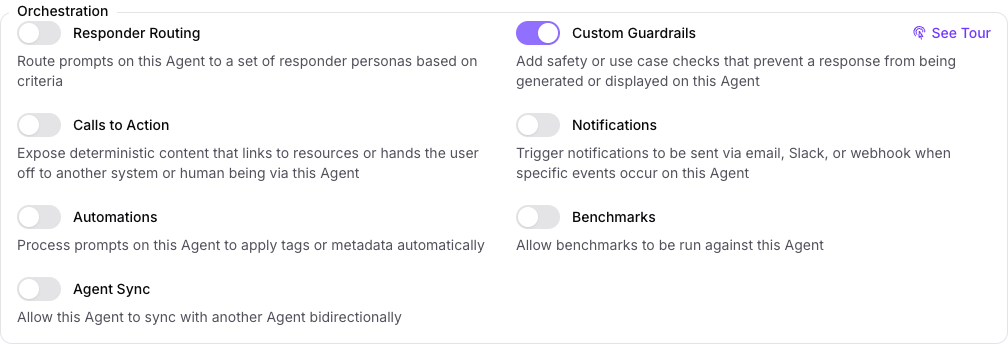
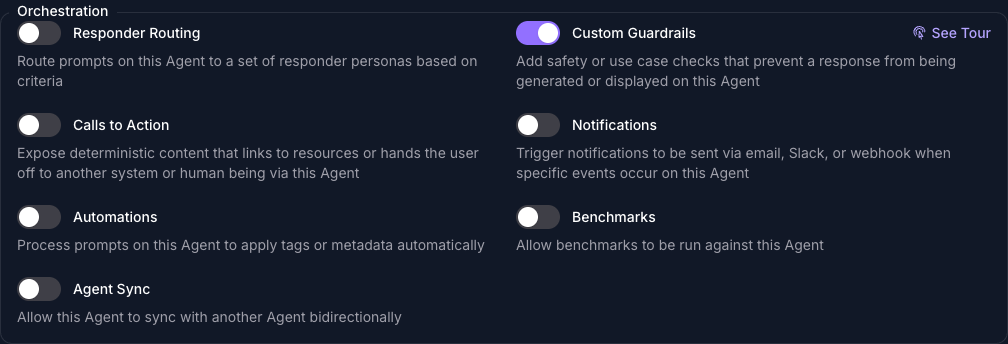
Scroll to the foot of General, select the Guardrails panel, then select Add Guardrail. Then follow whichever kind you need below.
A Prompt Guardrail
Choose Prompt (the default) as the Type and the Guardrail checks what the visitor wrote. Enter a name for your guardrail in the Summary tab.
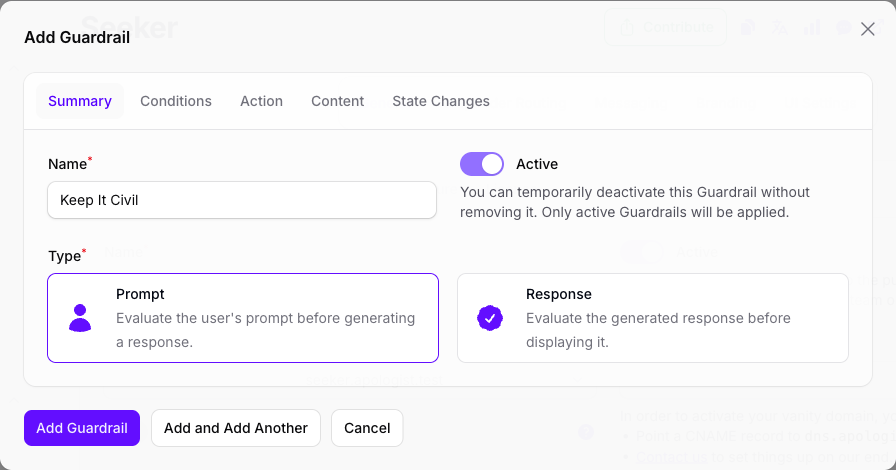
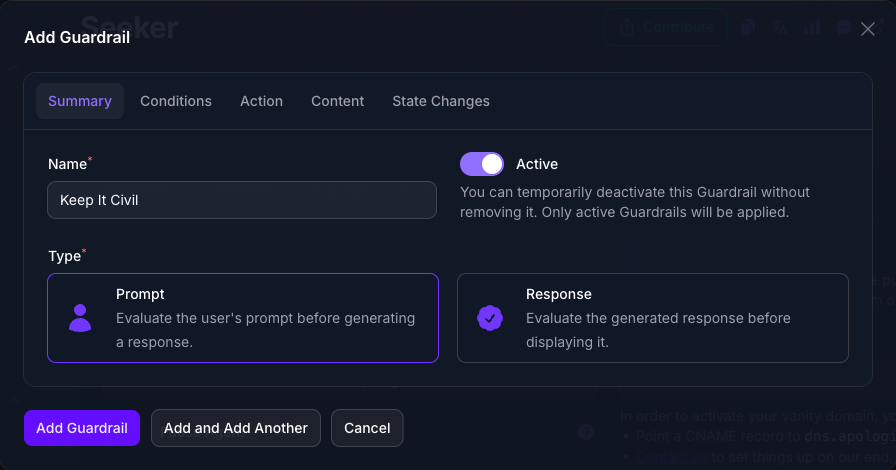
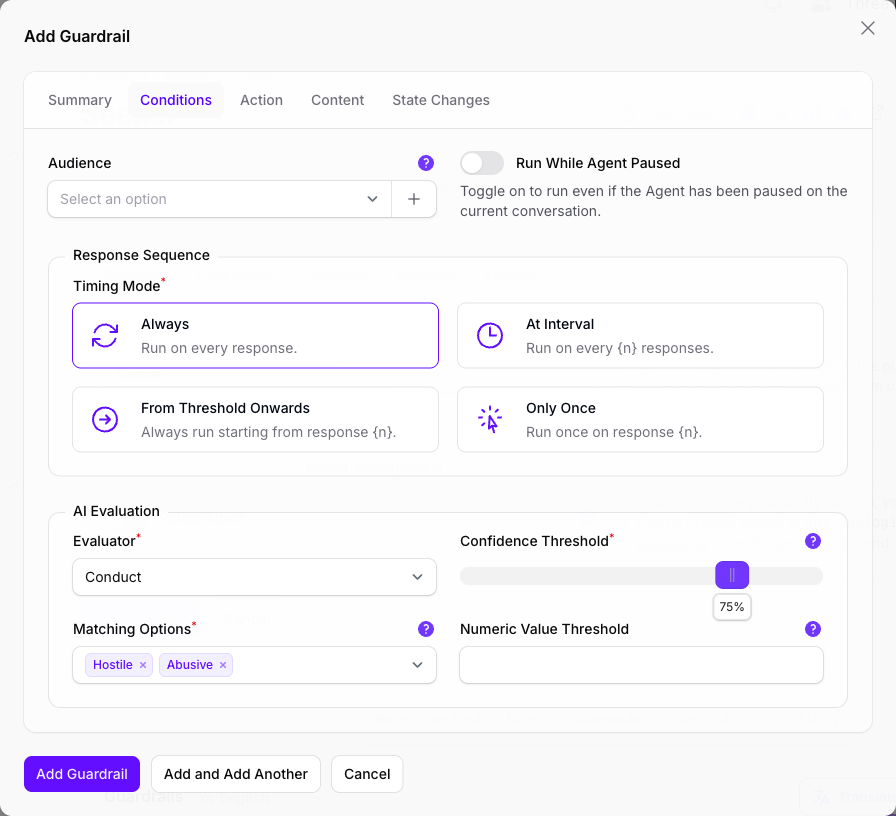
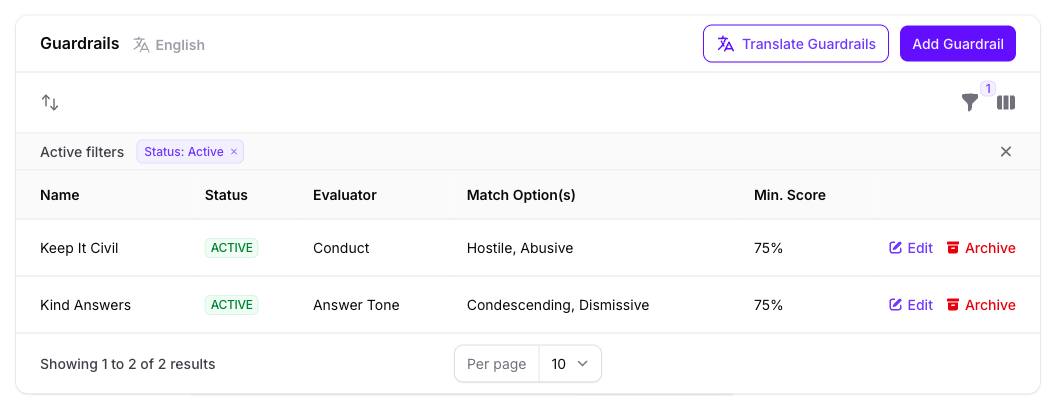
On Conditions, pick an Evaluator whose options describe a visitor’s message, then the Matching Options that count as a match. Both are required, unlike on a Call to Action: a Guardrail with no verdict to act on has nothing to do. Keep It Civil uses Conduct and matches Hostile and Abusive, leaving Civil alone.
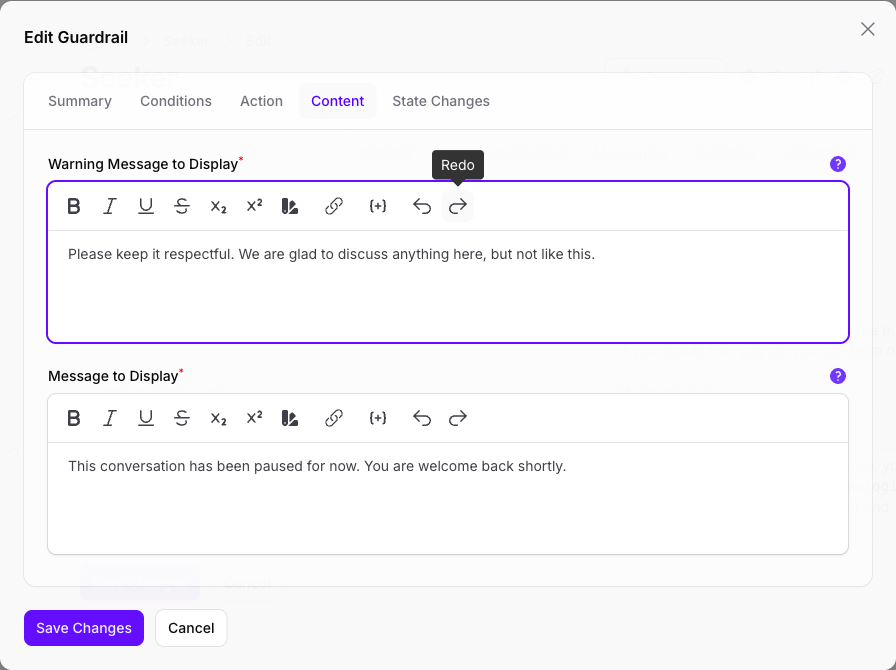
On Content, write the Message to Display. This replaces the answer when the Guardrail matches, so write it as something the visitor reads rather than as a log line.
Select Add Guardrail. It is live, and a matching message now gets your wording in place of an answer.
A Response Guardrail
Choose Response as the Type and the Guardrail reads what the Agent wrote rather than what the visitor asked. Use it for answers that are wrong in manner rather than in fact: condescending, dismissive, off-brand, or straying somewhere you would rather they did not.
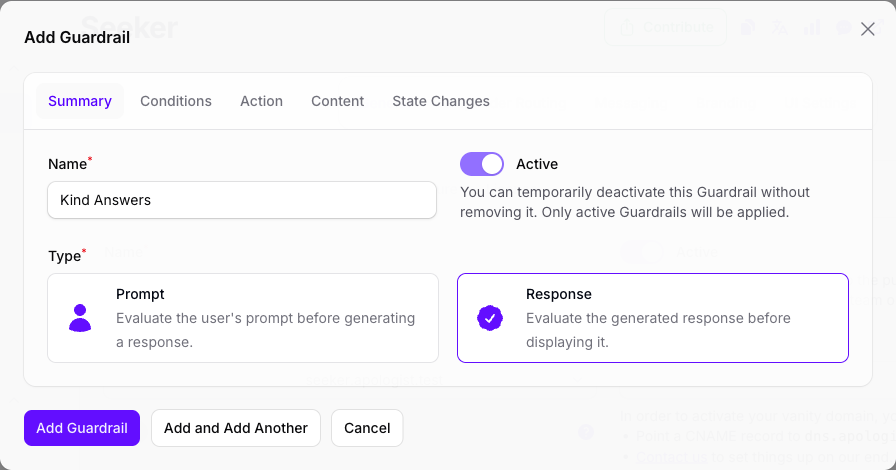
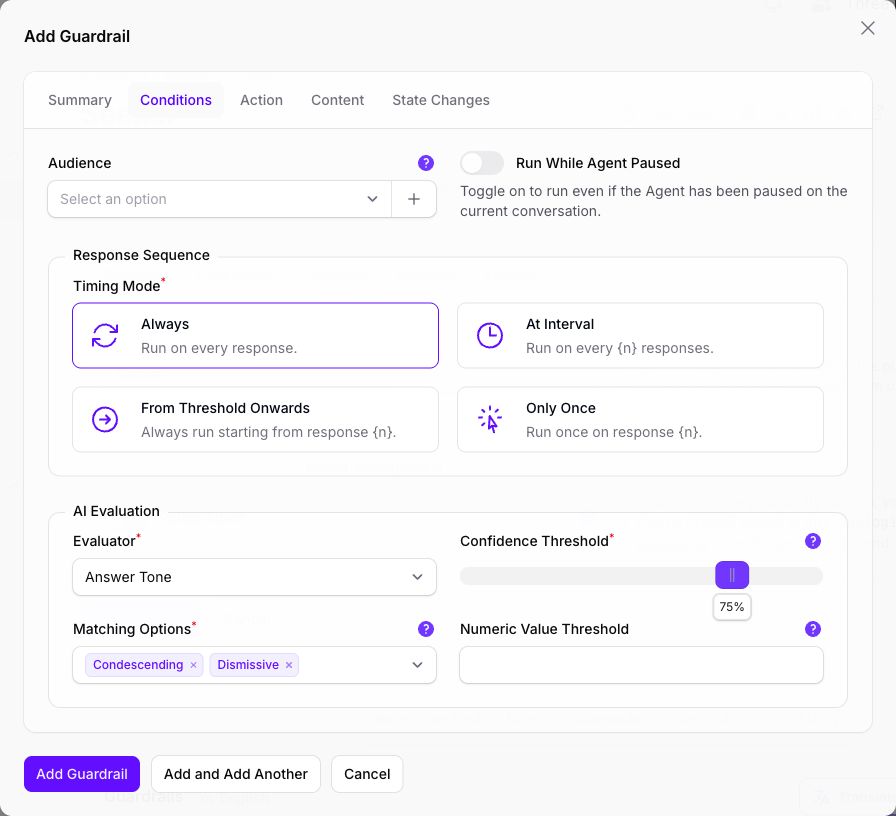
On Conditions, pick an Evaluator whose options describe an answer. Kind Answers uses Answer Tone, matching Condescending and Dismissive.
On Content, write the Message to Display. It replaces the answer when the Guardrail matches, so the visitor never sees the one that failed. Write it as an apology for a missing answer: they asked a fair question and are getting nothing back.
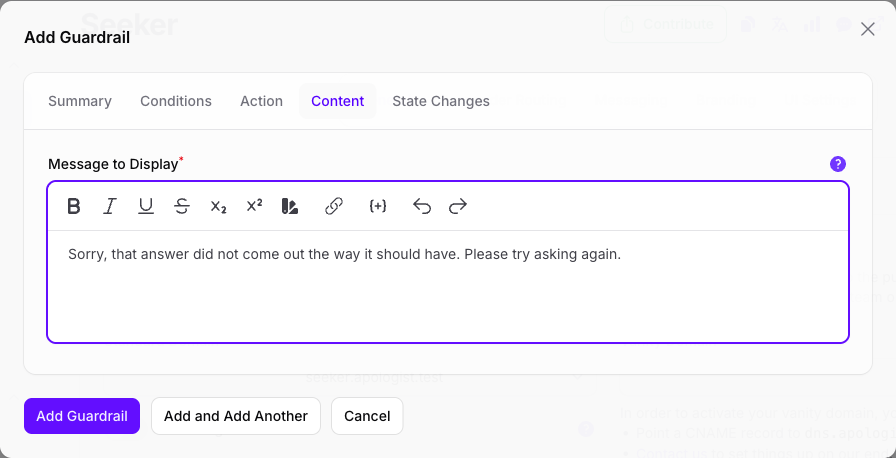
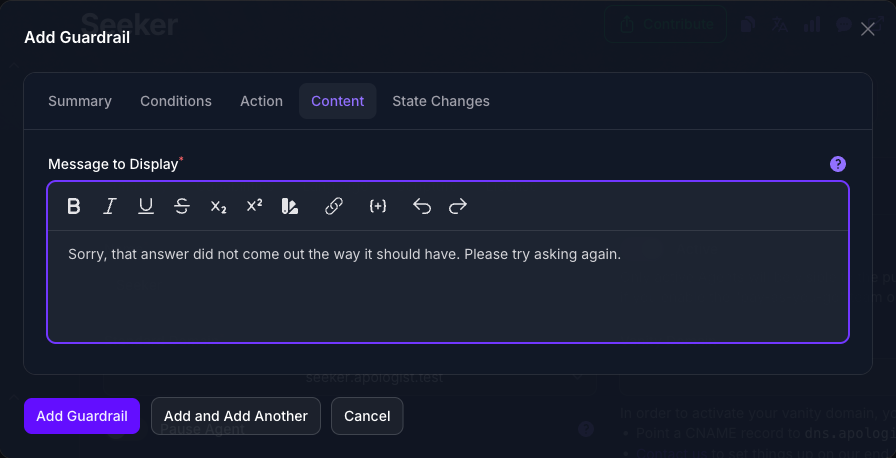
Select Add Guardrail. It is live, and the Agent’s answers are now checked before the visitor sees them.
Customize the Guardrail
A basic Guardrail shows a message and lets the conversation continue. The sections below change what happens instead, and how much rope the visitor or Agent gets. Each is independent, so read the one you want.
Two worked examples run through them, the pair built above: Keep It Civil, a Prompt guardrail that warns an abusive visitor twice and then locks the device, and Kind Answers, a Response guardrail that asks for a condescending answer to be rewritten. Two sections apply to one type only, and say so at their start.
Warn Before Acting
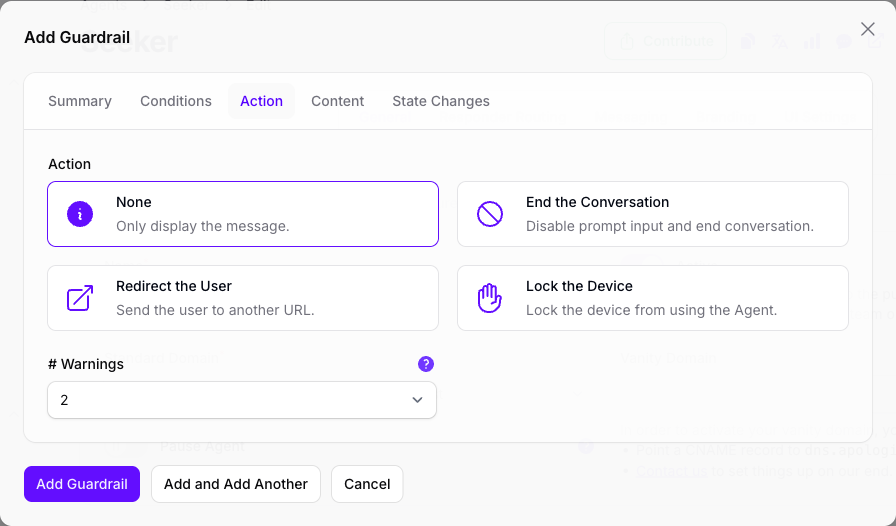
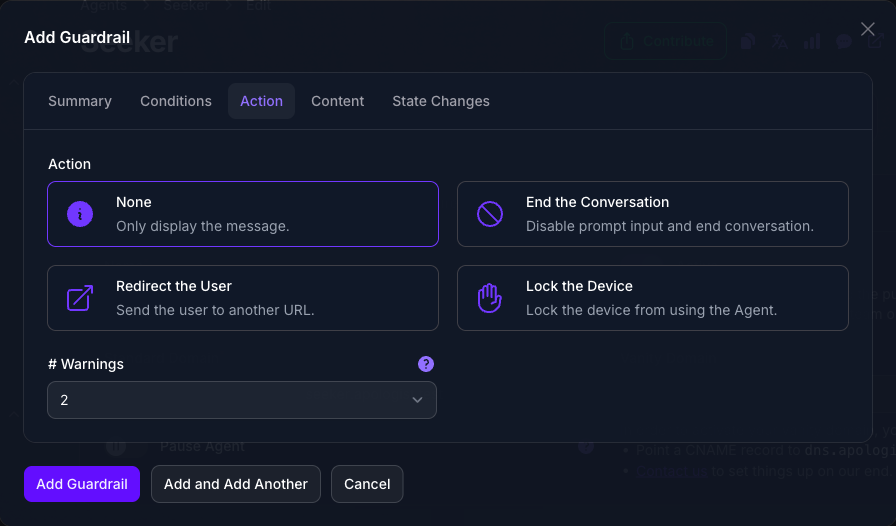
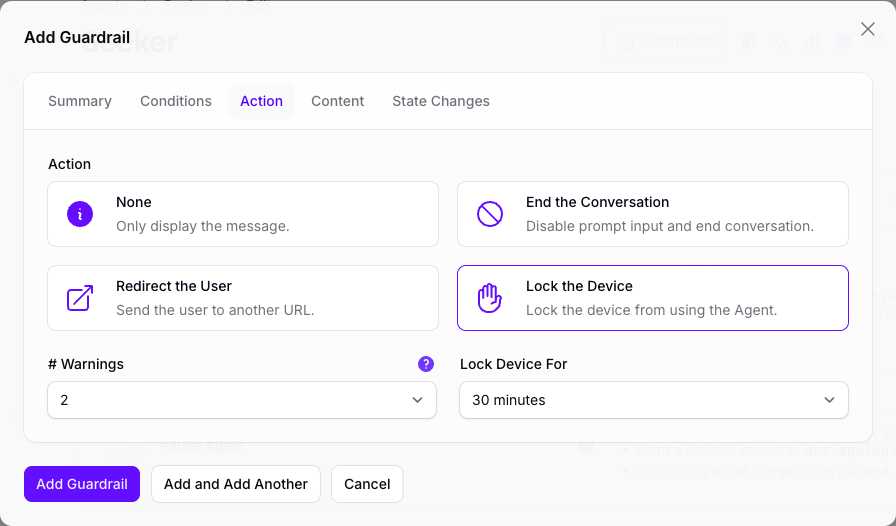
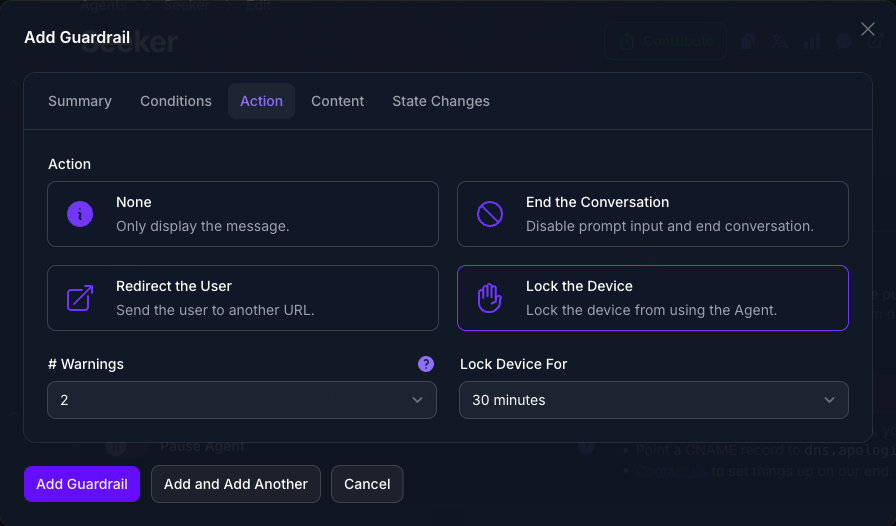
Prompt guardrails only. Use this when the first offence should not be the last word. Set # Warnings on the Action tab and a Warning Message to Display appears on Content.
The visitor sees the warning message that many times. On the next match, the Guardrail does whatever Choose What Happens says instead. The count is kept per device, so it survives a new conversation.
Retry Before Acting
Response guardrails only, and the counterpart to warnings. A Prompt guardrail gives the visitor another chance; a Response guardrail gives the Agent one.
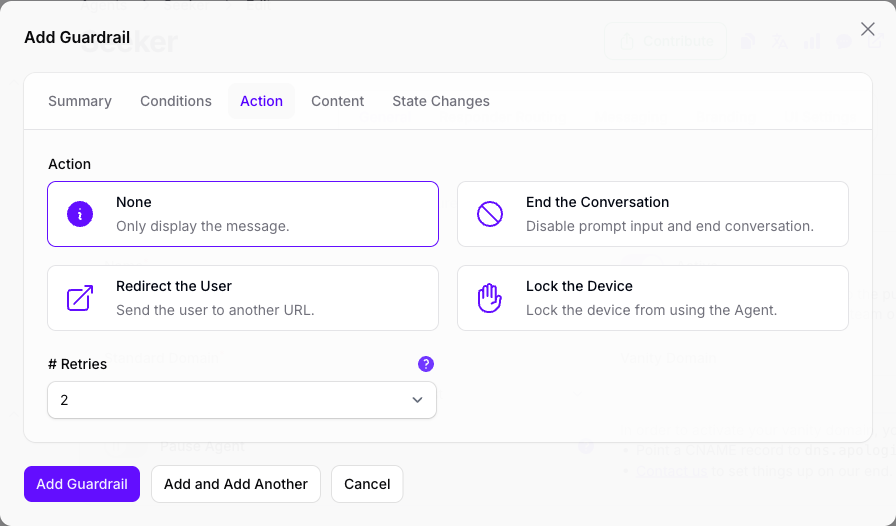
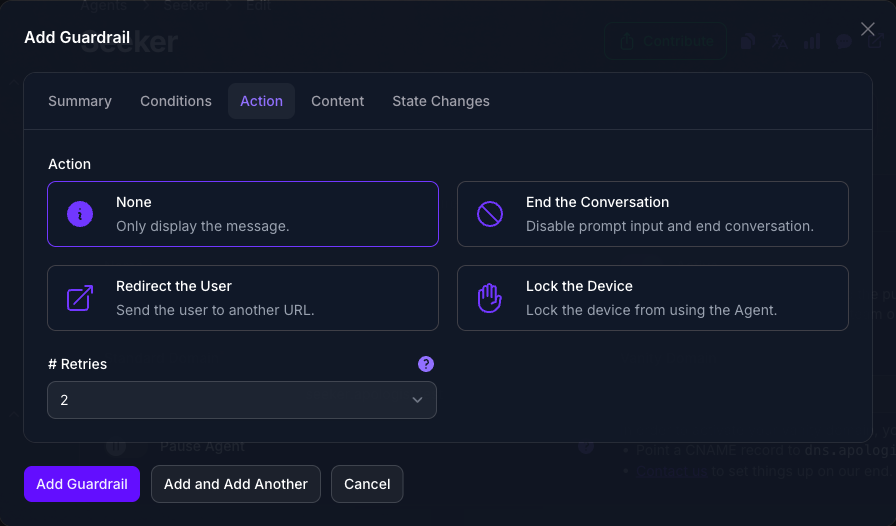
Set # Retries on the Action tab and a failing answer is regenerated rather than replaced. The Agent is told why it failed, because the Evaluator’s reasoning is passed back into the retry, so the second attempt is a corrected one rather than another roll of the dice. Only if it is still failing after the last attempt does your message reach the visitor.
Retries cost what they sound like they cost: each one is a full generation plus another evaluation, on a prompt the visitor is already waiting on. Two is usually enough to catch a bad run without making a slow answer worse.
Choose What Happens
On the Action tab, Action decides what the Guardrail does once it has run out of chances: warnings on a Prompt guardrail, retries on a Response one. With neither set, it acts the first time it matches.
Choosing Redirect the User or Lock the Device reveals the extra field each one needs. Lock durations run from five minutes to Forever, and a lock applies to the device rather than the conversation, so starting a new chat does not clear it. A locked visitor can be told how long is left: Lock Expiry is a merge tag offered on the Message to Display, and it exists on no other field in the product.
Narrow When It Applies
Audience and Response Sequence, on the Conditions tab, work exactly as they do on a Call to Action: an Audience limits the Guardrail to a group, and a Response Sequence limits it to some answers rather than every one. See Calls to Action for what each one filters on.
Both are optional, and a Guardrail with neither applies to everyone from the first message.
Record Something, or Pause the Agent
State Changes works as it does on a Call to Action: Set User Flags writes flags onto the visitor when the Guardrail fires, and Pause Agent on Conversation stops the Agent replying so a person can take over.
Flagging is worth more here than on a Call to Action, because it is how a repeat offender stays recognisable to an Audience after the Guardrail has stopped firing.
Order Several Guardrails
At most one Guardrail acts on a message, and the first match wins, so their order decides which. Select the reorder icon above the panel, drag them into the order you want them considered, then select it again to finish.
Do this even if the order already looks right: new Guardrails are all created with the same priority, so until you have reordered once, which one wins is not something you have set. Prompt and Response guardrails do not compete with each other, since they run at different moments.
The list does not show which type each Guardrail is, so name them in a way that says it. Keep It Civil and Kind Answers are worth a moment’s thought for that reason alone.
Expected Result
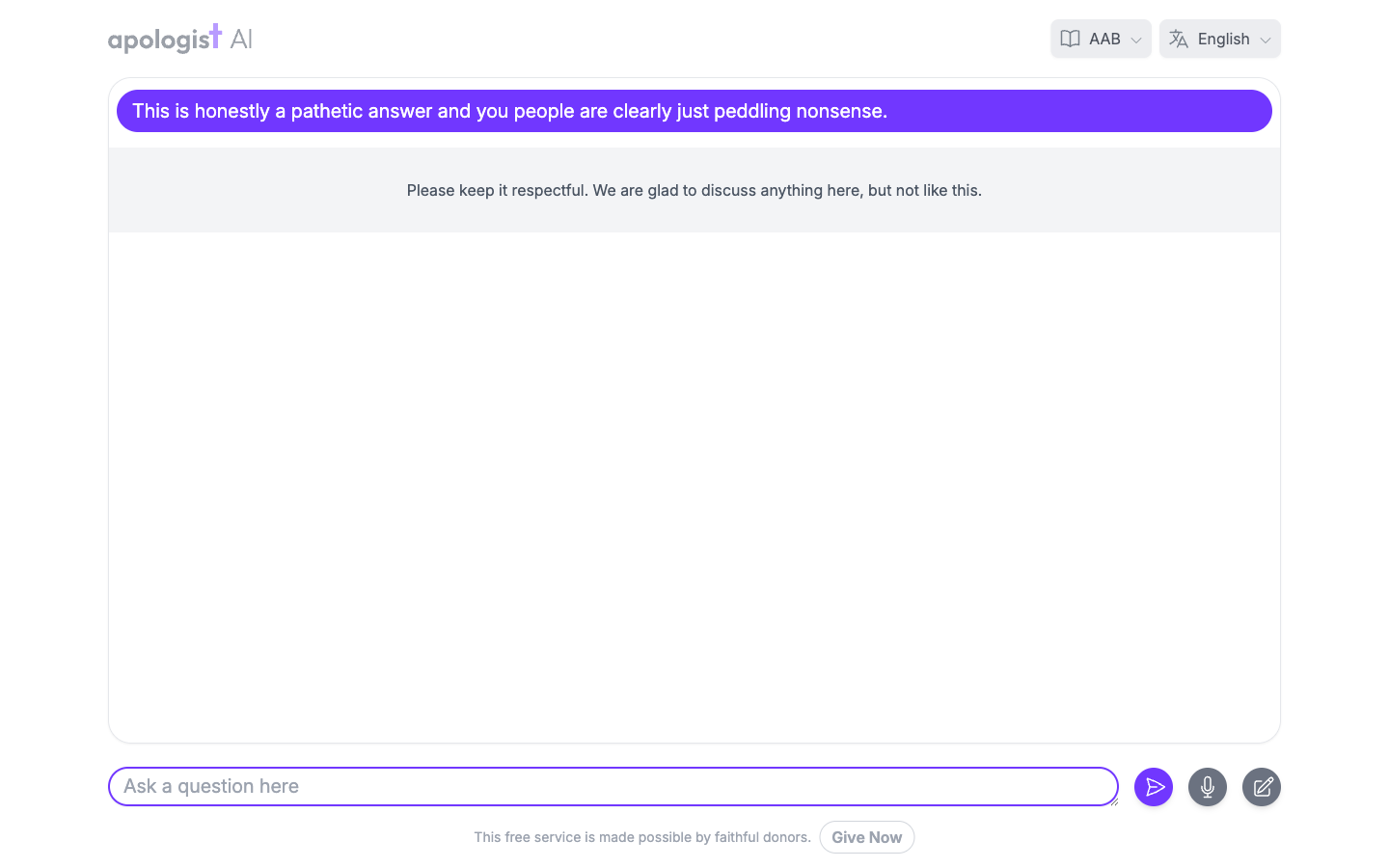
A conversation that trips a Guardrail gets your message instead of the answer it would have had, and everything else is untouched. Below is the first of two warnings on Keep It Civil, shown in place of the answer the visitor would otherwise have received.
A warning is shown once, in the reply it belongs to, and is not kept in the conversation. Reload and the visitor sees their own message with nothing after it, so do not rely on a warning still being on screen later.
Chat Logs records which Guardrail acted on which message, and whether it warned or acted.
How the Agent Applies a Guardrail
Prompt guardrails run first, before anything is generated:
- It collects the Agent’s active Prompt guardrails, in priority order, dropping any whose Audience or Response Sequence excludes the message.
- It runs each Evaluator until one matches. Nothing further is considered once one does.
- If the Guardrail has warnings left, the visitor gets the warning message and the warning count for that device goes up by one.
- Otherwise the action runs and the message replaces the answer. Nothing is generated, so the prompt costs nothing beyond the evaluation.
Response guardrails run last, after the answer exists and before it is shown:
- The answer is evaluated. If nothing matches, the visitor gets it unchanged.
- If it matches and retries remain, the Agent regenerates with the Evaluator’s reasoning as guidance, and the new answer is evaluated again.
- If it still matches after the last retry, the action runs and your message replaces the answer.
What Each Setting Does
Every setting below belongs to one form: the dialog that opens from Add Guardrail, or from Edit on a Guardrail already in the list, on the Guardrails panel at the foot of the Agent’s General page. It is a single form, so nothing is written until you submit it, and submitting saves every tab at once.
Troubleshooting
- There is no Custom Guardrails toggle. Your plan does not include it. It is included from Basic upward.
- The Guardrail never fires. Check the Evaluator first, and read its options: if none of them could describe the kind of text this type hands it, a visitor’s message for a Prompt guardrail or the Agent’s answer for a Response one, it reports the text as not relevant and returns no verdict at all.
- The Guardrail you just added is not in the list. The panel filters to Status: Active and a new Guardrail arrives inactive unless you turned Active on.
- The wrong Guardrail acts. Priority order decides it whenever two match, and Guardrails you have never reordered all share a priority.
- Warnings never appear. # Warnings is a Prompt-only setting and is not on the form for a Response guardrail.
- A warned visitor comes back with a clean slate. Warnings are counted per device, so a different device starts again.
- The answer is slow. A Response guardrail with retries generates the answer more than once, and each attempt is a full generation plus an evaluation.
- The visitor is locked out longer than expected. Locking is per device and lasts for Lock Device For from the moment it fires, and a later match starts it again.
Next Step
Continue to Automations to act on a conversation without showing the visitor anything, or to Benchmarks to test an Agent’s answers against a question bank.