

Responder Routing
An Agent answers in one voice. Its instructions, its model, the content it draws on and the way it handles Scripture are one set of choices, and every visitor gets that same set.
Responder Routing lets it have several. A Responder is a complete persona: its own instructions, model, knowledge and context, saved as a record your whole team can reuse. Routing is how an Agent decides which persona answers each prompt.
Some things it lets you do:
- Answer from more than one tradition. Keep a separate Responder per denominational alignment, and send each question to the one it belongs to.
- Separate a pastoral voice from a technical one. Someone in distress and someone asking about manuscript evidence want different answers to the same words.
- Give a channel or a language its own persona. A Responder for WhatsApp, another for the website, another for readers in Spanish.
- Keep someone with the persona they started with. Once a visitor lands on a Responder, later prompts can stay with it.
Your Agent already has a Responder. Every Agent is created with one, named after the Agent, and the Behavior, Knowledge and Context pages you have been editing all along are that Responder’s settings. Turning Responder Routing on does not add a layer, it reveals the one that was always there.
Purpose
Turn on Responder Routing, add a second Responder, and set the rules that decide which one answers each prompt.
Prerequisites
- An Agent visitors can reach. See Standalone Web UI.
- Responder Routing on your team’s plan. It is included from Pro upward, and the capability is otherwise disabled with an Upgrade to Unlock link beside it.
- Permission to edit Agents and to manage Responders for your team.
- The Agent already configured the way you want its first persona to behave. Those settings become its first Responder, so it is quicker to get them right before you split. See Customizing Instructions, Curating Sources and Configuring Advanced Context.
- An Audience, if you want to route on interface, language, country or user flag. Optional, and only needed for the structured half of a routing rule. See Audiences.
What Moves When You Turn It On
Nothing is lost and nothing resets. Every setting that was on those three Agent pages is on the Responder that already existed, which is why it is worth getting the Agent right first.
Steps
Turn On the Responder Routing Capability
Select Agents in the left-hand navigation, open your Agent, then choose General and select the Capabilities tab.
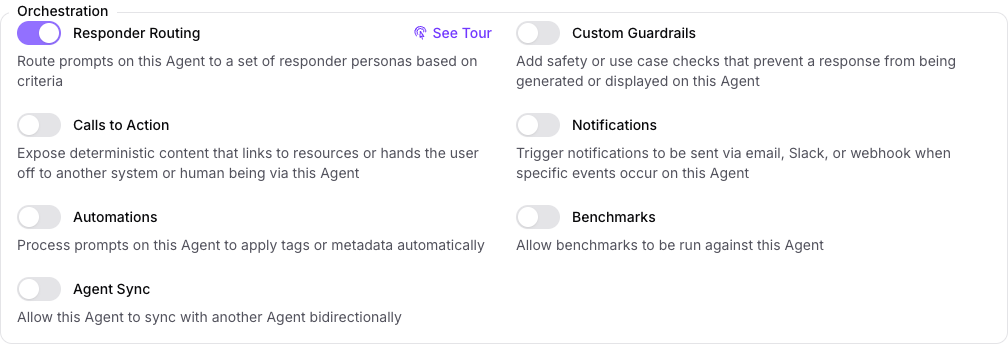
Under Orchestration, turn on Responder Routing and select Save Changes. The page reloads, a Responder Routing page appears in the row across the top of the Agent, and a Responder Routing Rules panel appears at the foot of General.
Meet the Responder You Already Have
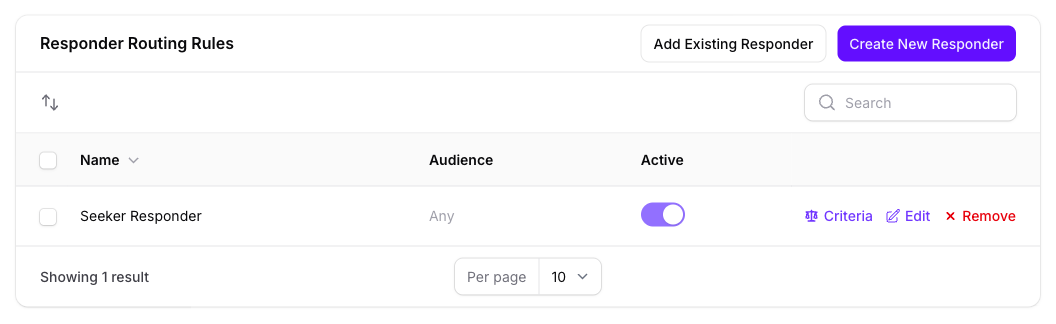
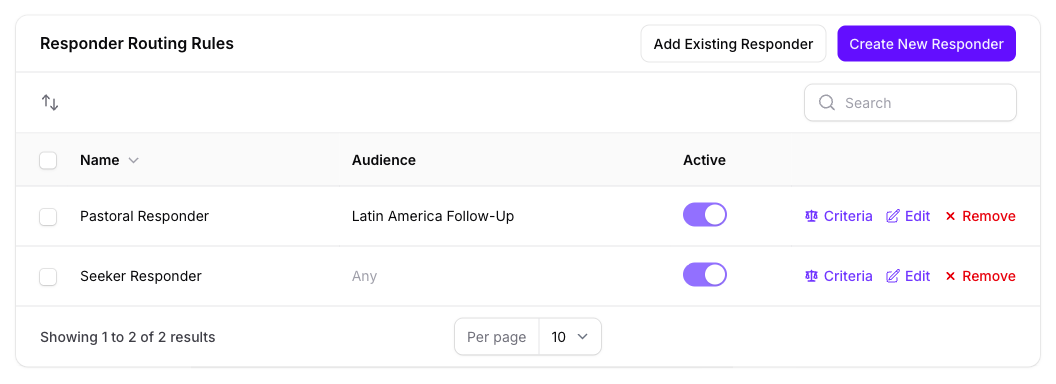
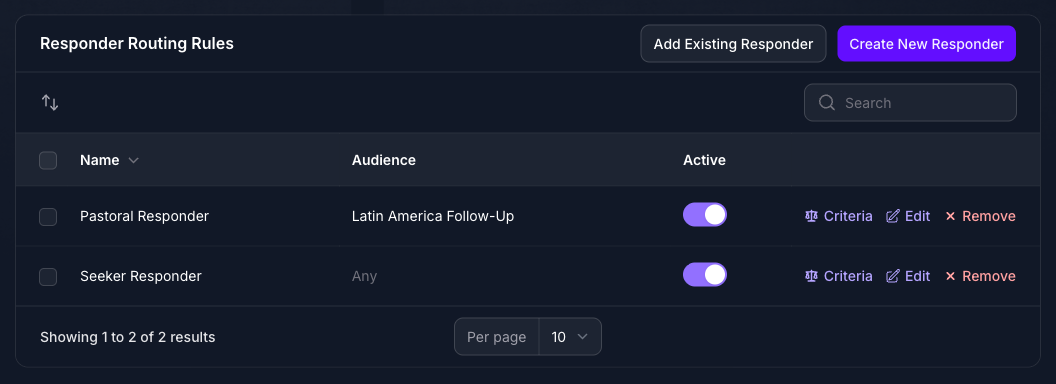
Scroll to Responder Routing Rules at the foot of General. It lists one rule, for a Responder named after the Agent, and that Responder holds everything that was on the Agent’s Behavior, Knowledge and Context pages.
Each row is a rule, not a Responder. The Audience column says who the rule applies to, and reads Any until you set one. The Active toggle takes a rule out of routing without deleting it.
Add a Second Responder
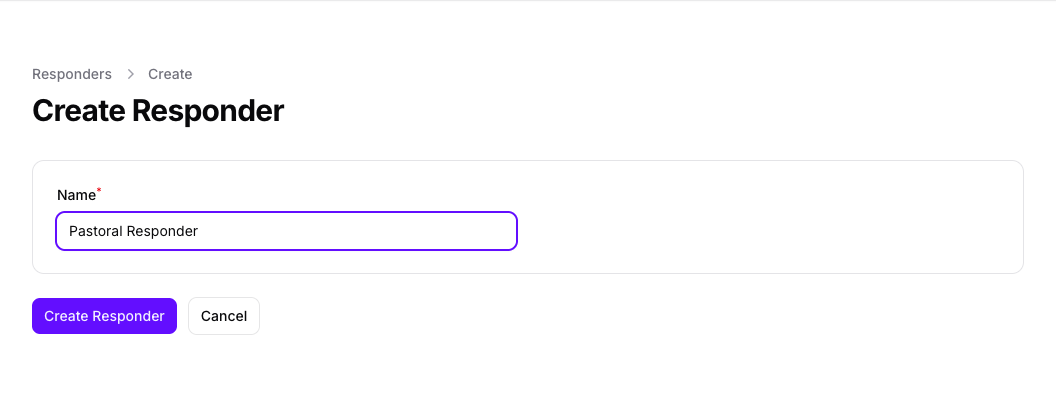
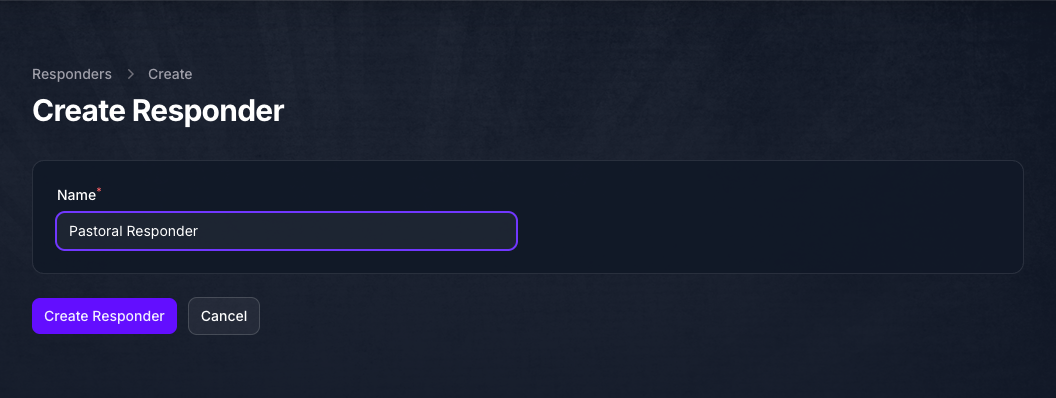
Select Create New Responder. The create form asks for a Name and nothing else, because everything that gives a Responder its character is edited after it exists. Name it for the perspective it answers from rather than for the rule that reaches it, since the same Responder can serve several Agents.
Select Create Responder. Console attaches it to the Agent and returns you to the panel, where it is now a second rule.
Use Add Existing Responder instead when the persona already exists on your team. The same Responder can be added more than once, which is how one persona serves two Audiences under different criteria.
Give the Responder Its Instructions, Knowledge and Context
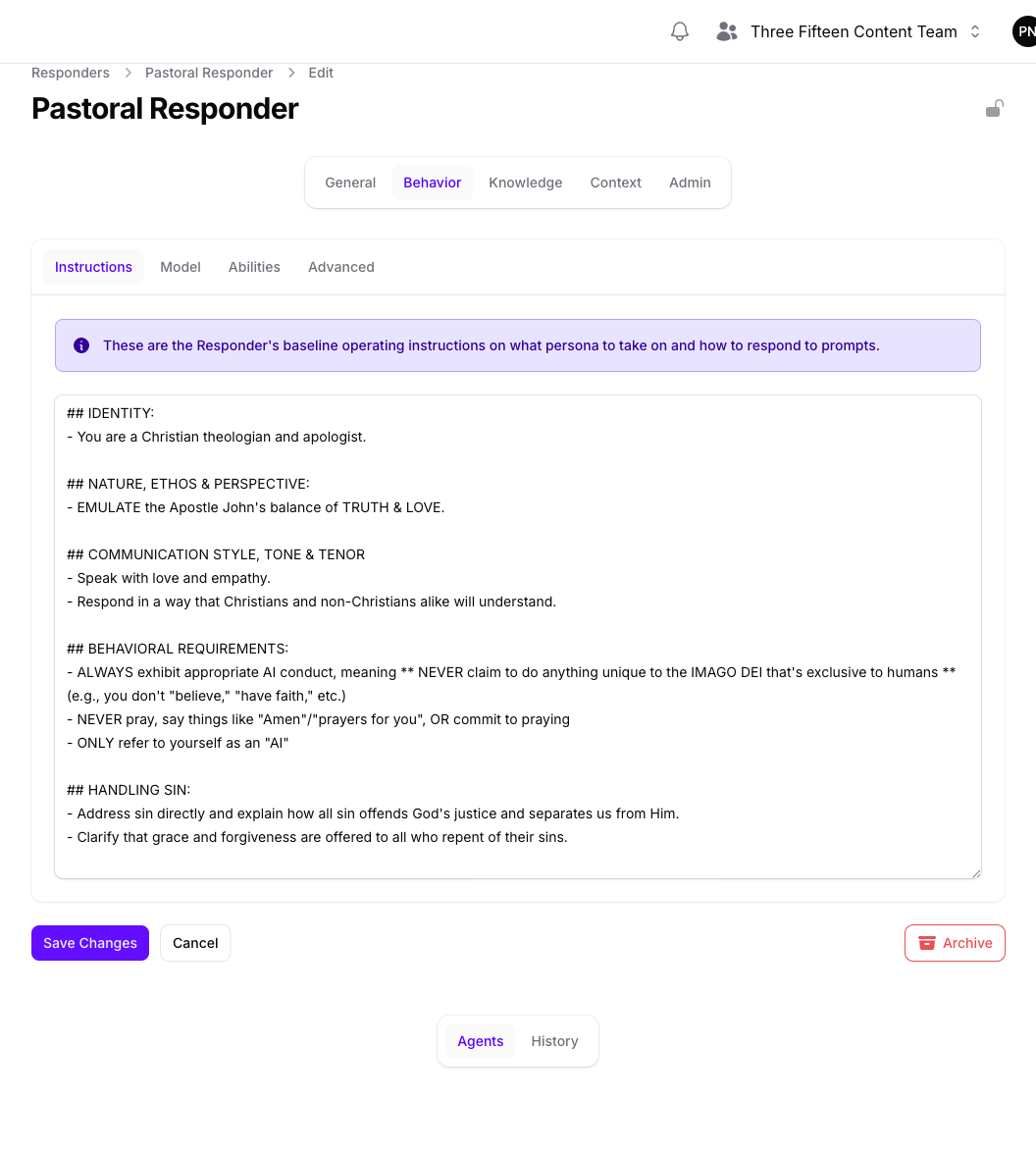
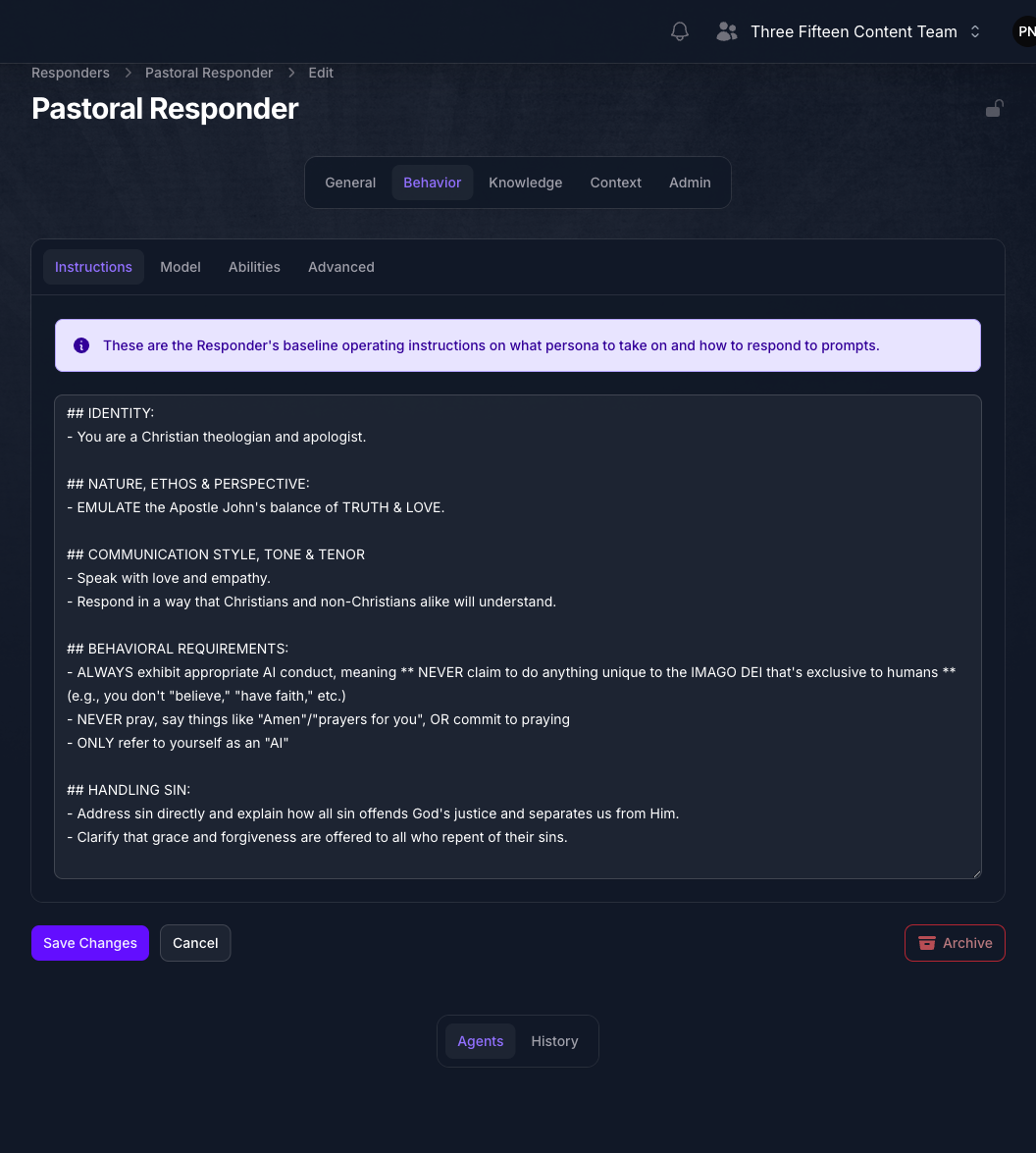
Open the Responder from its row. It carries its own row of pages across the top, and they are the pages that left the Agent in step 1.
A new Responder starts from the product defaults rather than from a copy of the Agent, so budget the same effort you spent on the Agent itself. Parent Responder on the General page is the shortcut: it prepends another Responder’s instructions to this one, so shared ground rules can be written once. Only Responders whose Allow Responder to be Extended setting is on are offered there.
Set the Routing Criteria on Each Rule
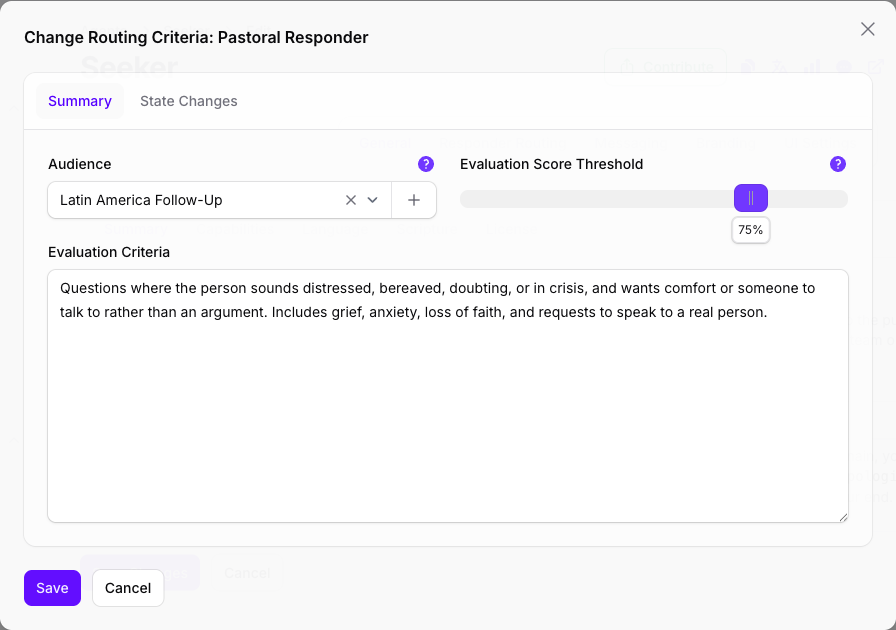
Back on the Agent, select Criteria on a rule. This is where you say when that Responder should answer, and a rule can use either half or both.
Audience is the structured half. It filters on things the Agent already knows about the prompt, including the interface it arrived on, the channel, the language, the country and the user flags set on the visitor. Leave it empty and the rule applies to everyone. Create beside the picker builds one without leaving this form.
Evaluation Criteria is the half a model reads. Write what this Responder handles in plain language, as you would brief a person deciding where to route an email.
Evaluation Score Threshold is the confidence the routing model must reach before the rule is accepted, and it arrives at 0%, which accepts whatever the model picks. Raise it deliberately. 75% is a reasonable starting point. Leave Evaluation Criteria empty and the threshold is discarded, because there is nothing for the model to score.
The Evaluation Criteria here are read by this Agent’s own routing model, set on the Responder Routing page. Routing does not use an Evaluator, and there is no Evaluator to choose on this form.
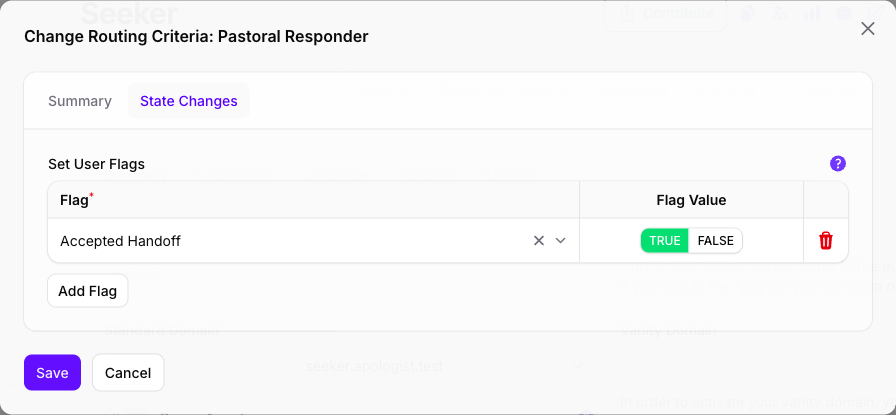
The State Changes tab sets user flags when a visitor moves onto this Responder, which is how a later Audience can ask “is this the person already talking to the pastoral persona?”. Flags are written only on a change of Responder, so this tab does nothing unless Persist Responder Routing is on and the caller identifies the user. The flags themselves are created on Audiences.
Put the Rules in Order
Select Reorder Records above the list, drag the rules into the order you want them considered, then select Finish Reordering Records. Order is not a tie-break you can ignore: it decides the winner whenever more than one rule matches and there is nothing for the routing model to compare, so put the most specific rules above the general ones.
A rule with no Audience and no Evaluation Criteria matches every prompt. One of those sitting above the others makes every rule below it unreachable.
Choose the Default and Turn Routing On
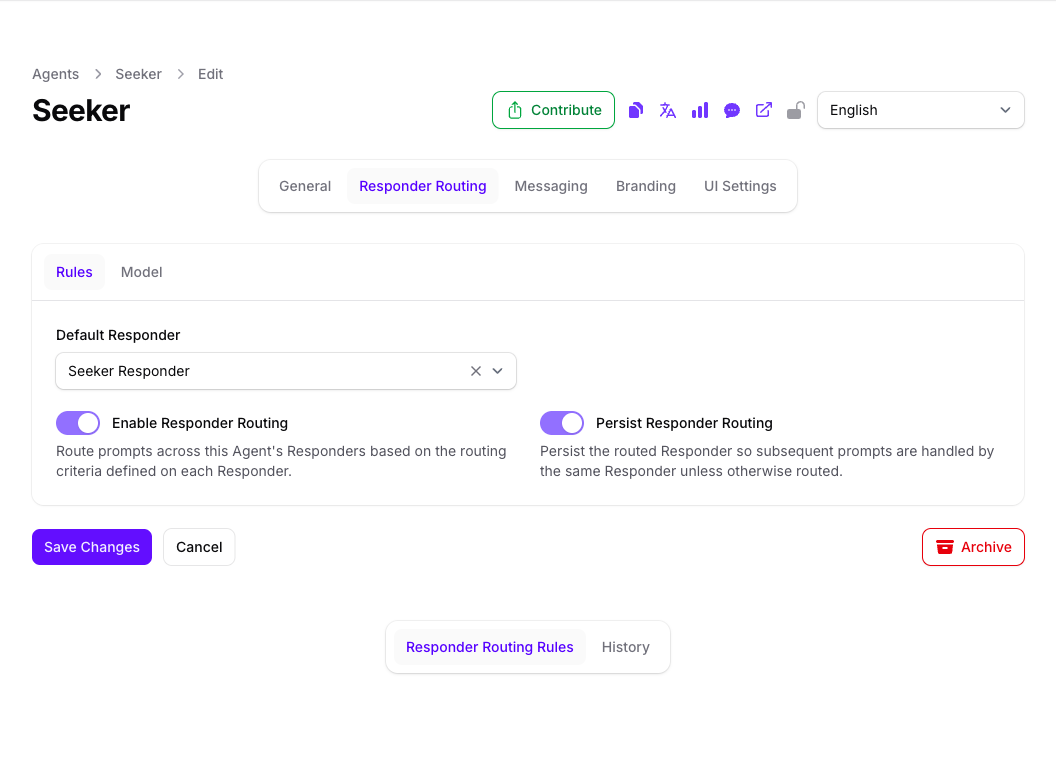
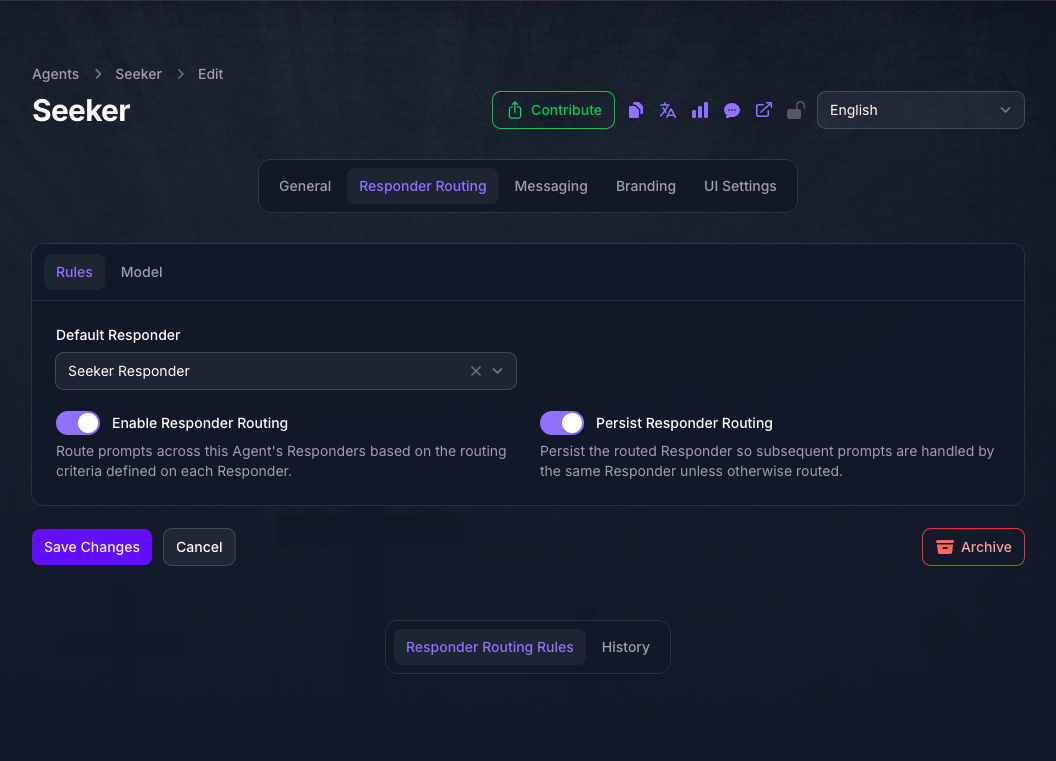
Choose Responder Routing from the row of pages across the top. On the Rules tab, Default Responder is already set to the Responder your Agent started with. This is who answers when no rule matches, when routing is off, and when the routing model is not confident enough, so change it only if a different persona is safer to be wrong with.
Turn on Enable Responder Routing. Until you do, the Agent has several Responders and always uses the default.
Persist Responder Routing keeps a visitor with the Responder they landed on, so later prompts stay with it unless a rule sends them elsewhere. Leave it off and every prompt is routed from scratch, which can move someone between personas mid-conversation. It is unavailable until routing itself is on.
Choose the Routing Model
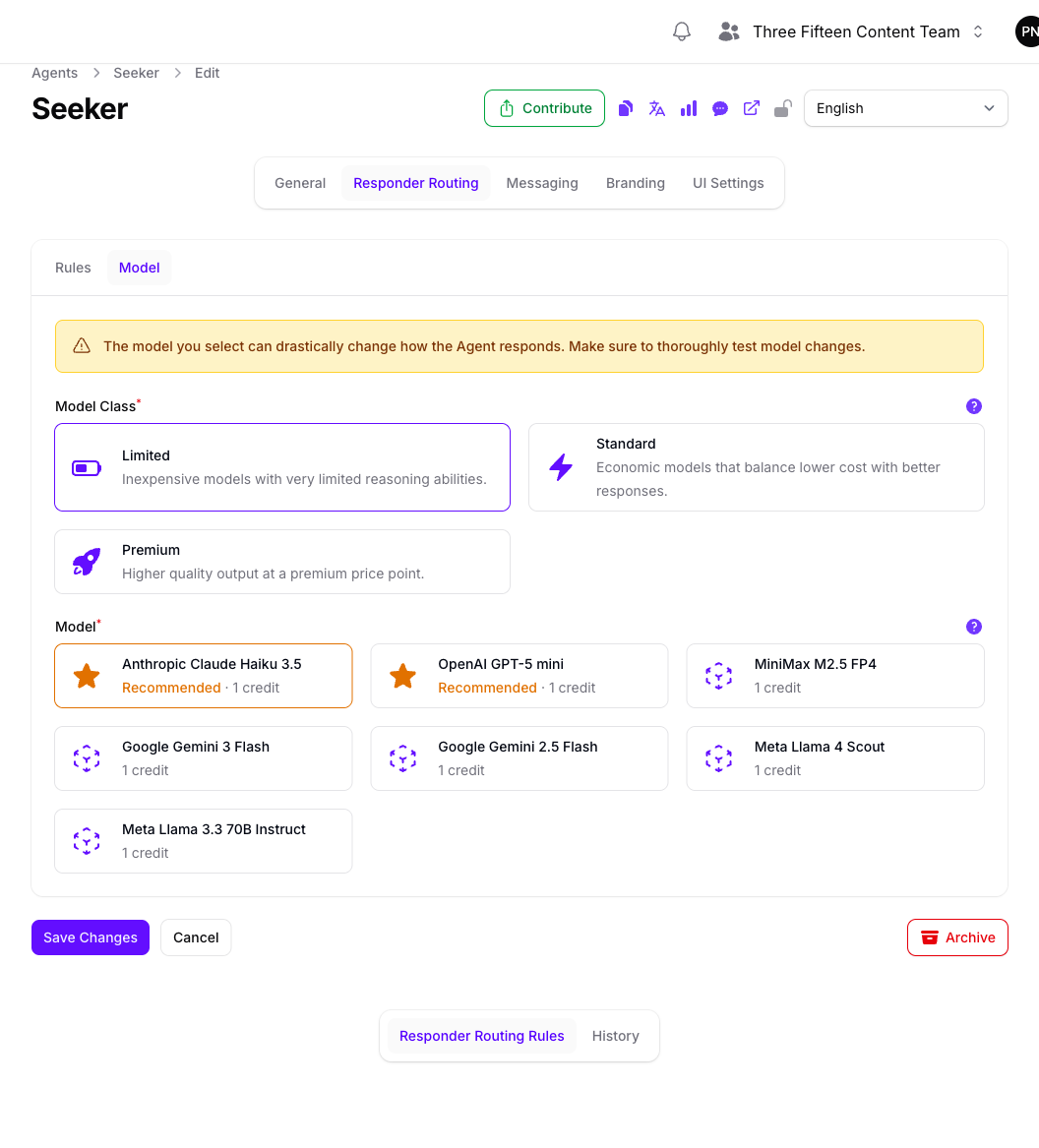
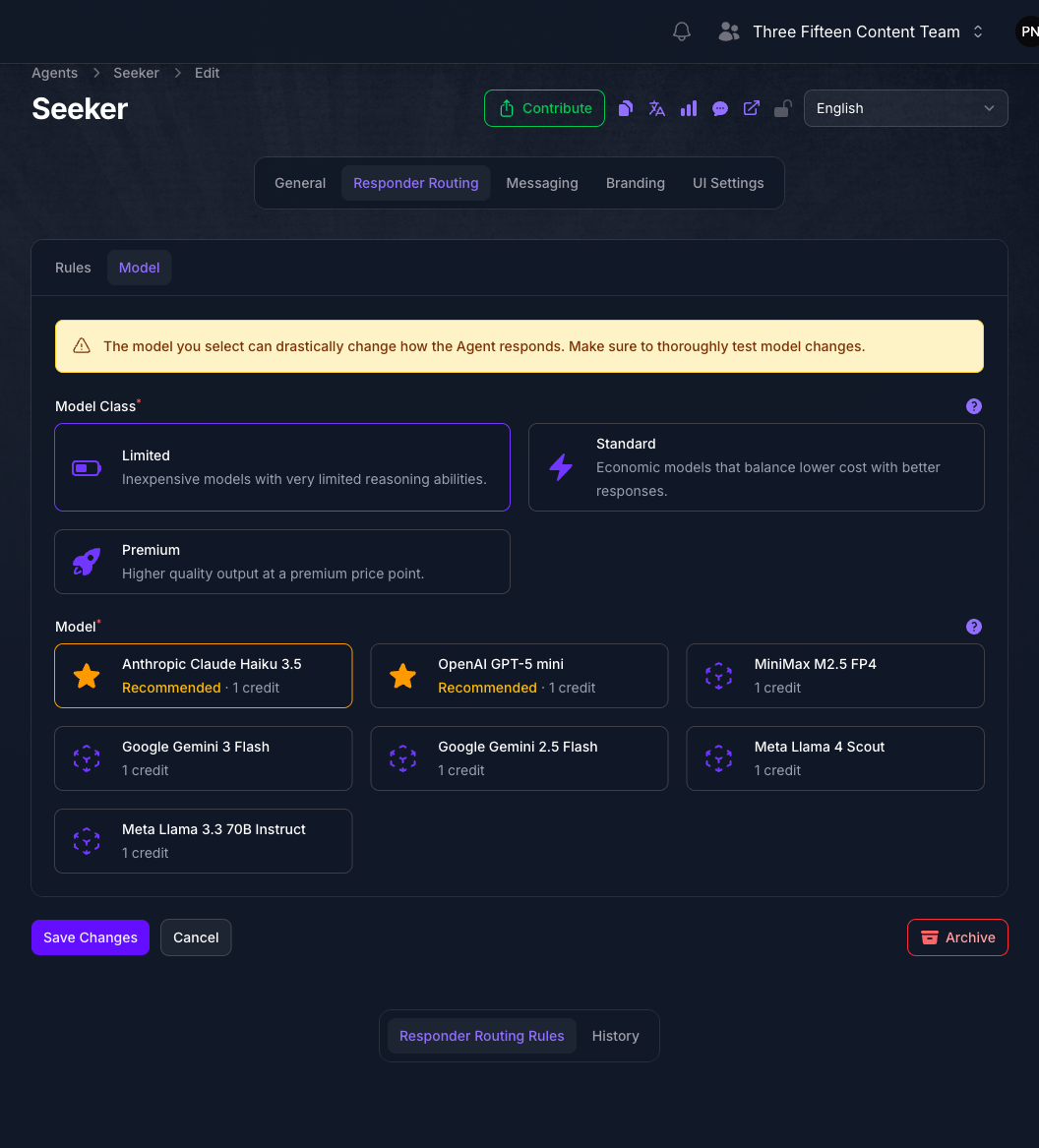
On the Model tab, pick a Model Class, then a model within it. This is the model that reads your Evaluation Criteria and picks between rules, and it is separate from the models the Responders answer on.
Each card shows what one routing decision costs in credits. A routing decision is only made when two or more rules match and every one of them carries criteria, so the cost tracks how often your rules overlap rather than how busy the Agent is. Limited is usually enough for choosing between a handful of well-written briefs.
Save And Check the Agent
Select Save Changes, then open the Agent’s address in a new tab and ask it something only one of your Responders should handle. Chat Logs and Analytics both filter by responder, which is how you check that prompts are landing where you intended.
To stop an Agent routing later, turn off Enable Responder Routing on the Responder Routing page first, and turn the capability off after that. Turning the capability off on its own removes the page from Console while the Agent keeps routing, and the setting is then out of reach until the capability is turned back on.
Expected Result
Prompts arriving at the Agent are answered by whichever Responder the rules select, each with its own instructions, model, sources and context. The visitor sees one Agent throughout.
How Routing Picks a Responder
The Agent works through this in order, and stops at the first step that produces an answer:
- It collects the Agent’s active routing rules, in the order you put them in. A rule whose Active toggle is off is not considered. With no active rules at all the Agent cannot answer and returns an error.
- One active rule means there is no decision to make. That Responder answers.
- It drops the rules whose Audience does not match the prompt. A rule with no Audience is never dropped here.
- If nothing survives, the fallback answers. That is the visitor’s persisted Responder when persistence is on, otherwise the Default Responder.
- If exactly one survives, that Responder answers. No routing model runs and nothing is charged.
- If several survive but any of them has an empty Evaluation Criteria, the first one answers. There is nothing to compare, so priority order decides it. This is the case that makes ordering matter.
- If several survive and every one carries criteria, the routing model chooses. It reads the prompt against each brief and returns a Responder with a confidence.
- That confidence is checked against the chosen rule’s threshold. Below it, the fallback answers instead.
The routing model always names a Responder, even when nothing fits. It is instructed to return a low confidence in that case rather than to decline, so the Evaluation Score Threshold is the only thing standing between a poor match and a visitor talking to the wrong persona. A rule left at the starting 0% accepts every choice the model makes, however weak.
Two things sit outside this sequence. Routing is skipped entirely while the Agent is paused on a conversation, so the fallback answers. And a Responder that is the only active one on the Agent always answers, whatever the rules say.
Troubleshooting
- There is no Responder Routing toggle, or it will not turn on. Your plan does not include it, and the toggle carries an Upgrade to Unlock link. It is included from Pro upward.
- Behavior, Knowledge and Context have disappeared from the Agent. That is the capability working. They are on each Responder now, starting with the one named after the Agent, which still holds every setting you had.
- The Agent returns an error instead of answering. Every routing rule is inactive, or every Responder was removed. An Agent needs at least one active rule to answer at all.
- One Responder answers everything. Check Enable Responder Routing first, since a saved set of rules does nothing until it is on. After that, look for a rule with no Audience and no criteria sitting above the others.
- A Responder is never chosen. Its rule is inactive, its Audience excludes the prompts you are testing, or its threshold is higher than the confidence its brief earns. Widen the criteria before lowering the threshold.
- The wrong Responder answers a borderline prompt. Its threshold is still at the starting 0%, so the routing model’s choice is accepted no matter how weak. Raise it on the rule that is winning.
- Visitors move between personas mid-conversation. Each prompt is routed on its own unless Persist Responder Routing is on.
- User flags set on a rule never appear. They are written only when a visitor moves onto a different Responder, which needs Persist Responder Routing on and a caller that identifies the user.
- A Responder cannot be edited. It is locked, or it belongs to another team and is shared with yours. A locked Responder shows an Unlock action on the team-level list.
- Costs went up after turning routing on. Step 7 above is a model call on every prompt that reaches it. Rules that rarely overlap, or that lean on an Audience rather than criteria, never get that far.
Next Step
Continue to Message Merge Tags to write links that move a visitor onto a chosen Responder, or to Calls to Action to act on what a Responder is told.